How to Register, start a Free Trial, and Download Bold BI
Start your Bold BI free Cloud trial in just a few minutes and explore interactive dashboards, embedded analytics capabilities, and powerful data visualization tools without installing anything locally. This guide walks you through the complete process, from registration to accessing your Cloud workspace and optional downloads.
Step 1: Start Your Free Trial
Visit the Bold BI homepage and click the Try it Free button to begin your Cloud trial registration.

This will redirect you to the signup page where you can create your trial account.
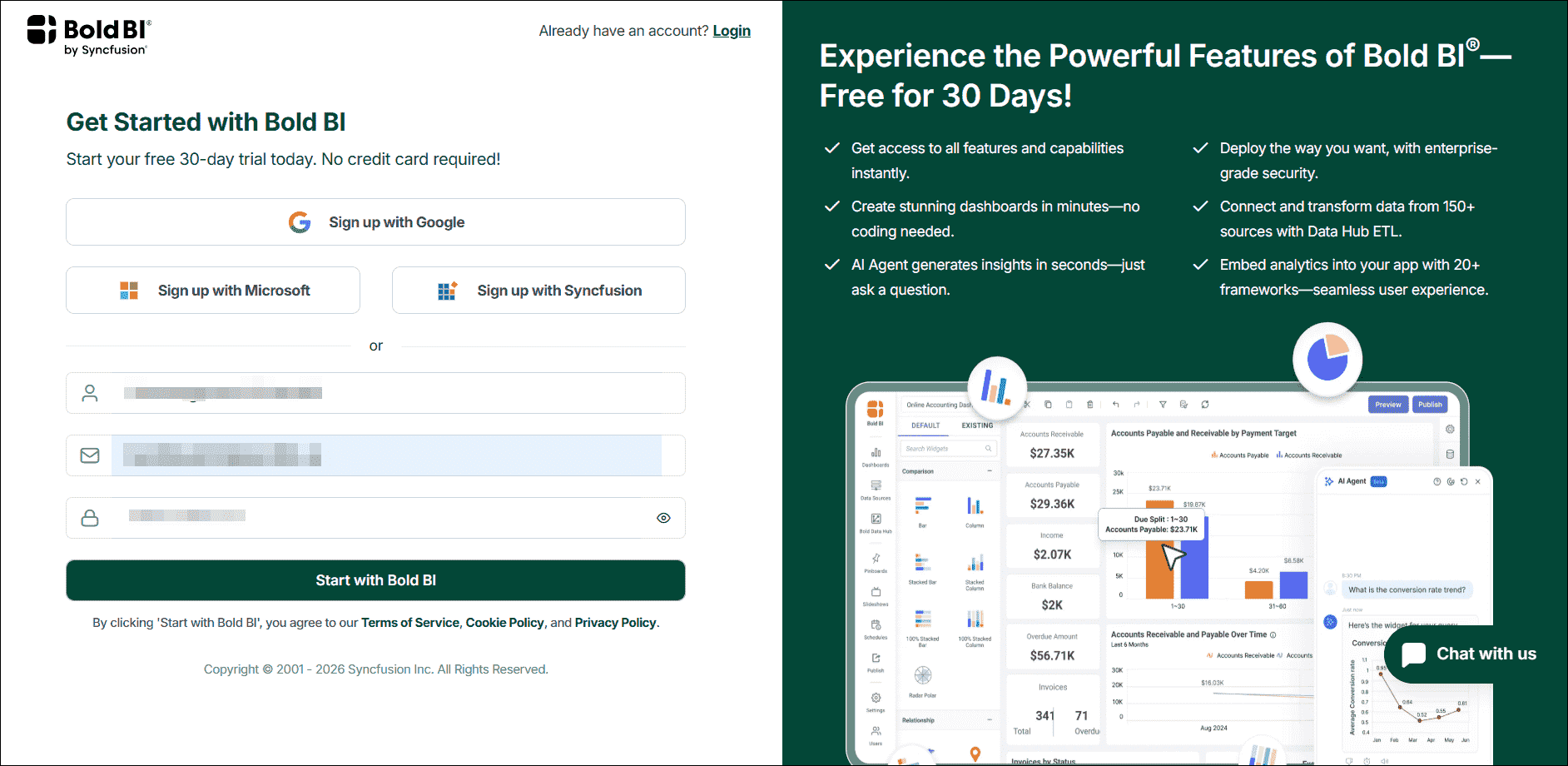
Step 2: Sign Up for Bold BI
On the registration page, click Start with Bold BI and choose one of the following signup options:
- Google account
- Microsoft account
- Syncfusion account
- Email-based registration
Enter the required details and accept the terms to activate your 30-day free Cloud trial.
Step 3: Verify Your Email Address
After completing the signup process, you will receive a verification email.
- Open the email sent to your registered inbox.
- Click
Verify Email.
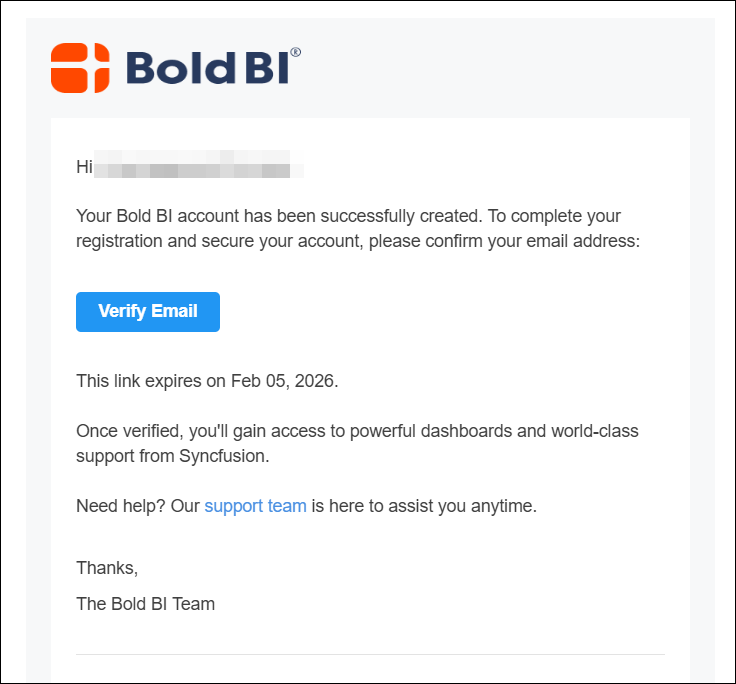
This step is required to activate your trial environment.
Step 4: Trial Environment Setup
Once your email is verified, Bold BI automatically provisions your Cloud trial environment. This process usually takes a few moments.
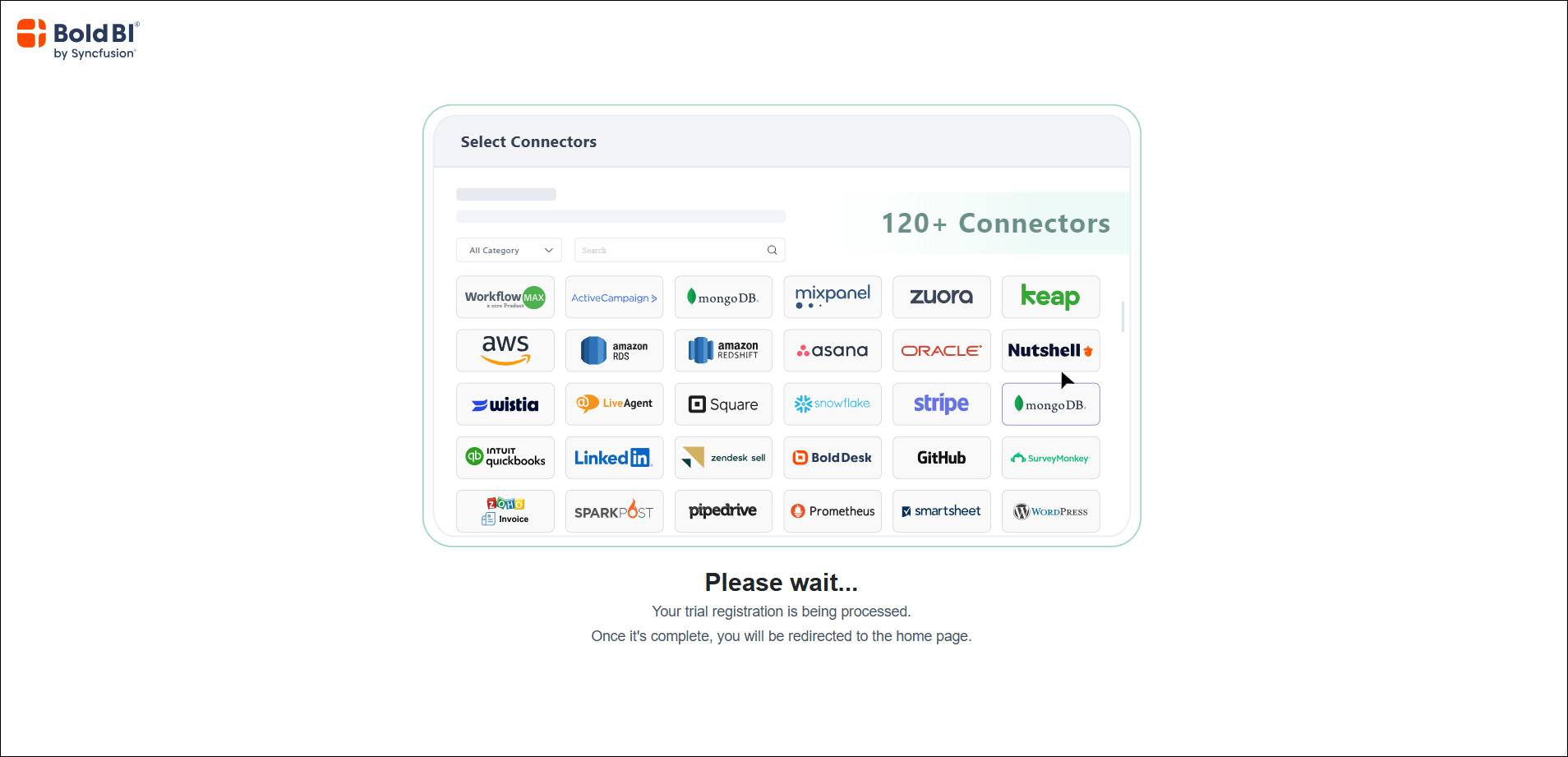
When setup is complete, you’ll be redirected to the Bold BI Cloud Dashboard where you can start working immediately without any installation.
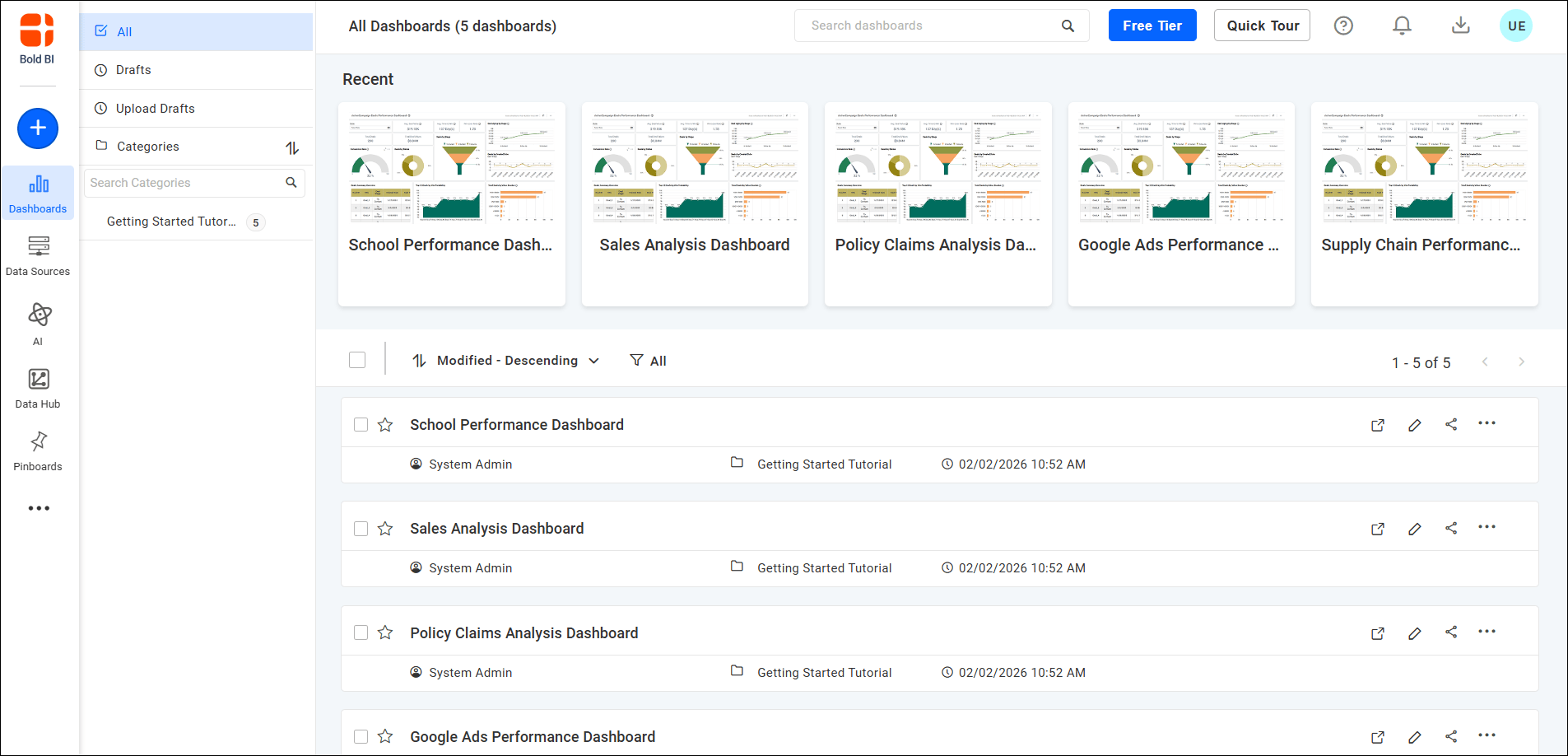
Step 5: Explore the Cloud BI Dashboard
From the Cloud workspace, you can:
- Create interactive dashboards
- Connect to 150+ data sources
- Use sample data to test features quickly
- Explore prebuilt templates
- Manage users and permissions
- Configure embedded analytics settings
- Share dashboards securely
This environment allows you to fully evaluate Bold BI’s reporting and analytics capabilities in real-world scenarios.
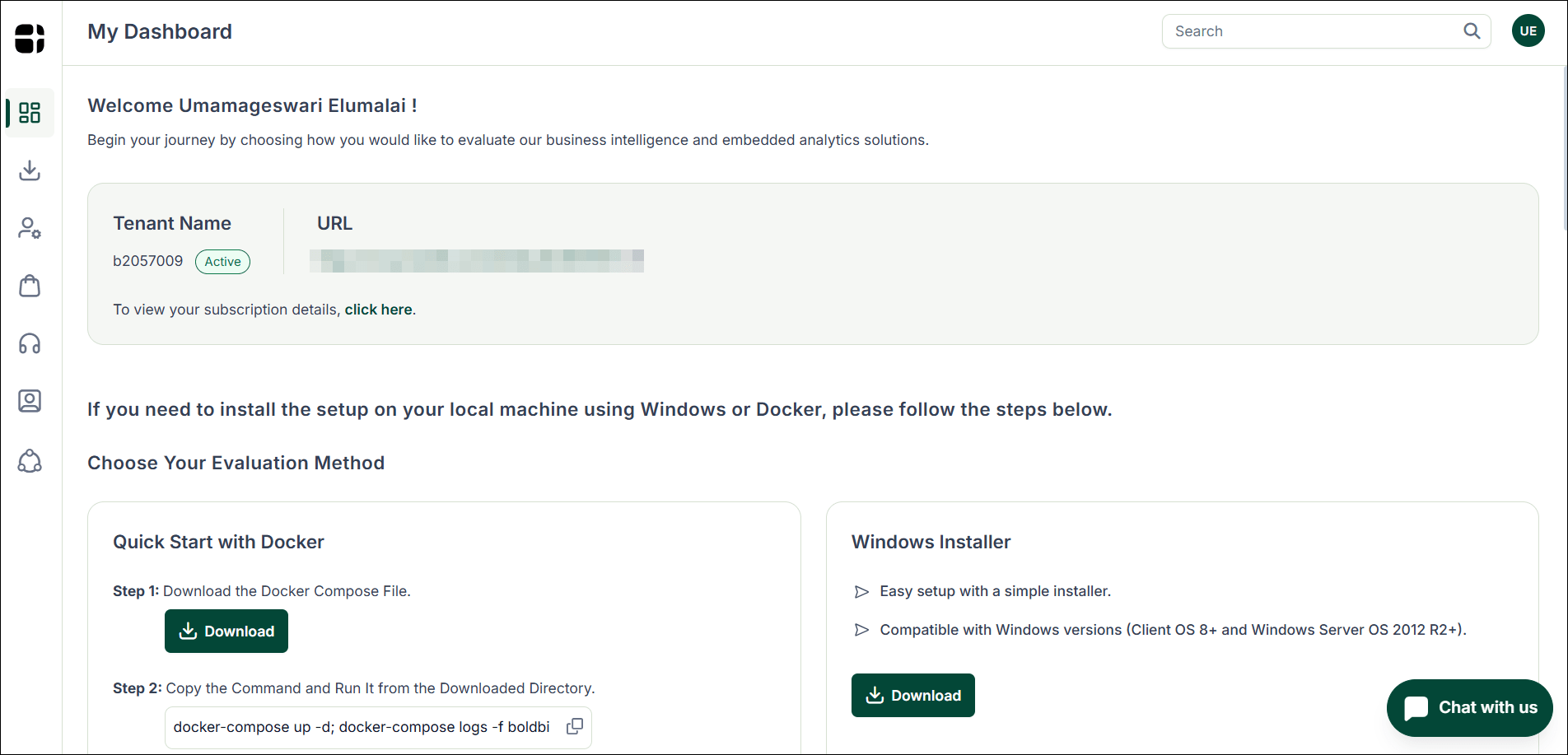
Step 6: Access Account Management and Downloads
Note: Downloads are required only if you plan to deploy Bold BI on-premise or using Docker. Cloud trial users can continue working directly from the browser without installing anything.
To download the Bold BI installer:
- Click your
profile iconin the top-right corner. - Select
View Accountfrom the dropdown menu. - Navigate to the
Downloadssection.
From the Downloads page:
- Choose your preferred installer format (Docker, Linux, Windows, etc.)
- Click the
Downloadicon. - Follow the provided installation instructions to complete setup
This allows you to deploy Bold BI in your own infrastructure if required