Proxy Settings
You can configure proxy settings in the Bold BI application to route traffic through a specified proxy server.
What is a Reverse Proxy?
A reverse proxy is a server that sits between client devices and your backend application servers. It receives incoming requests from clients and forwards them to the appropriate internal server. Once the response is received from the internal server, it is sent back to the client by the reverse proxy.
Configure Proxy URL
- You can choose either
httporhttpsfor the protocol based on your certificate configuration. - In the Site or Proxy URL field, enter your desired domain (e.g.,
example.comorlocalhost:55981).
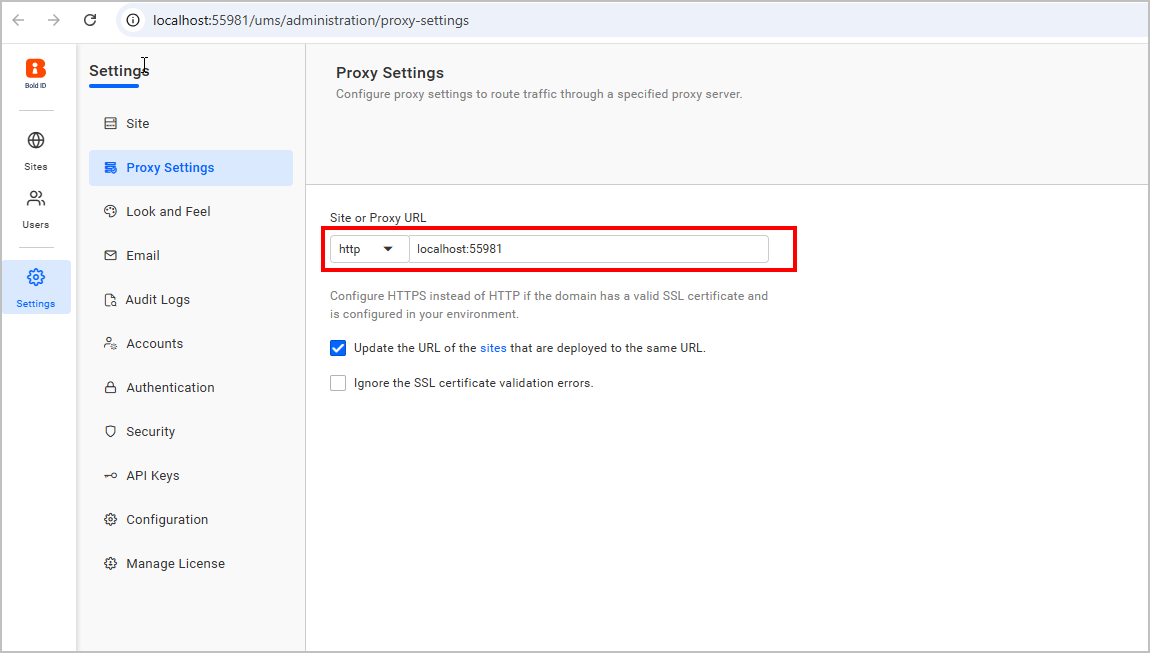
Available Options
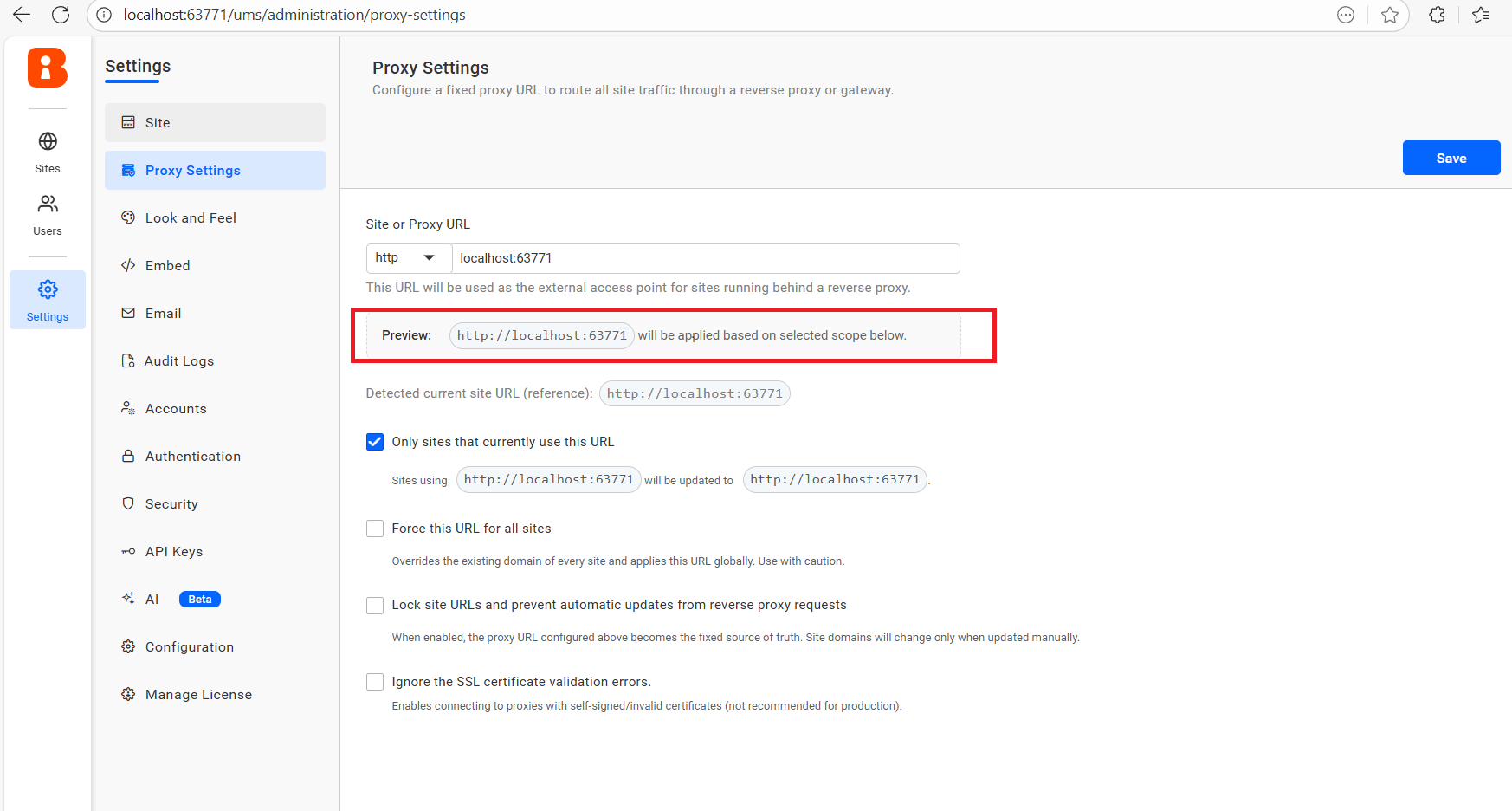
Preview
- You can use this preview to see how the final Site/Proxy URL will appear once applied.
- This helps verify the correctness of the configured URL before saving.
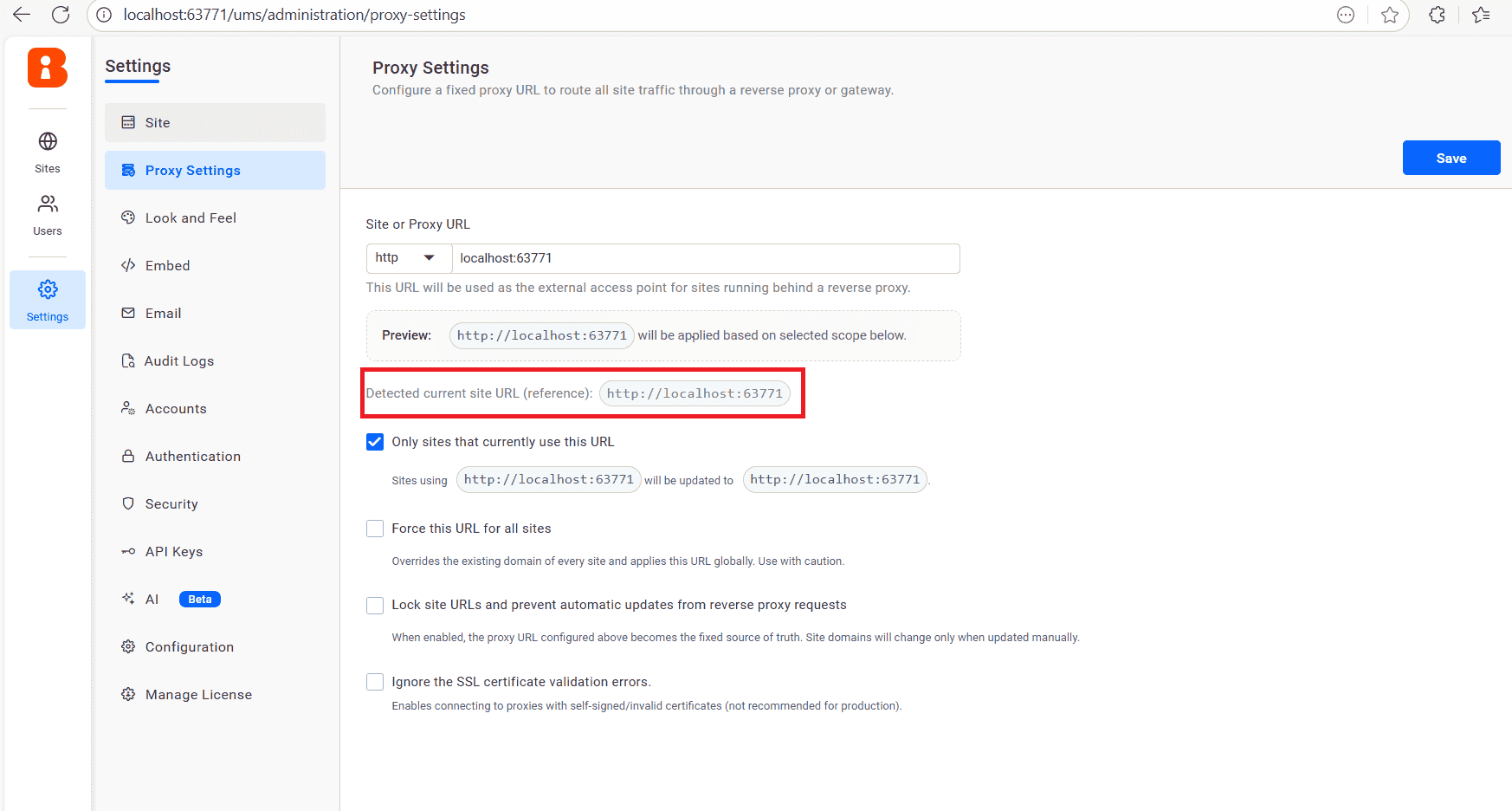
Detected current site URL (effective)
- This shows the URL automatically detected from incoming requests.
- It helps confirm what the system currently identifies as the active site address.
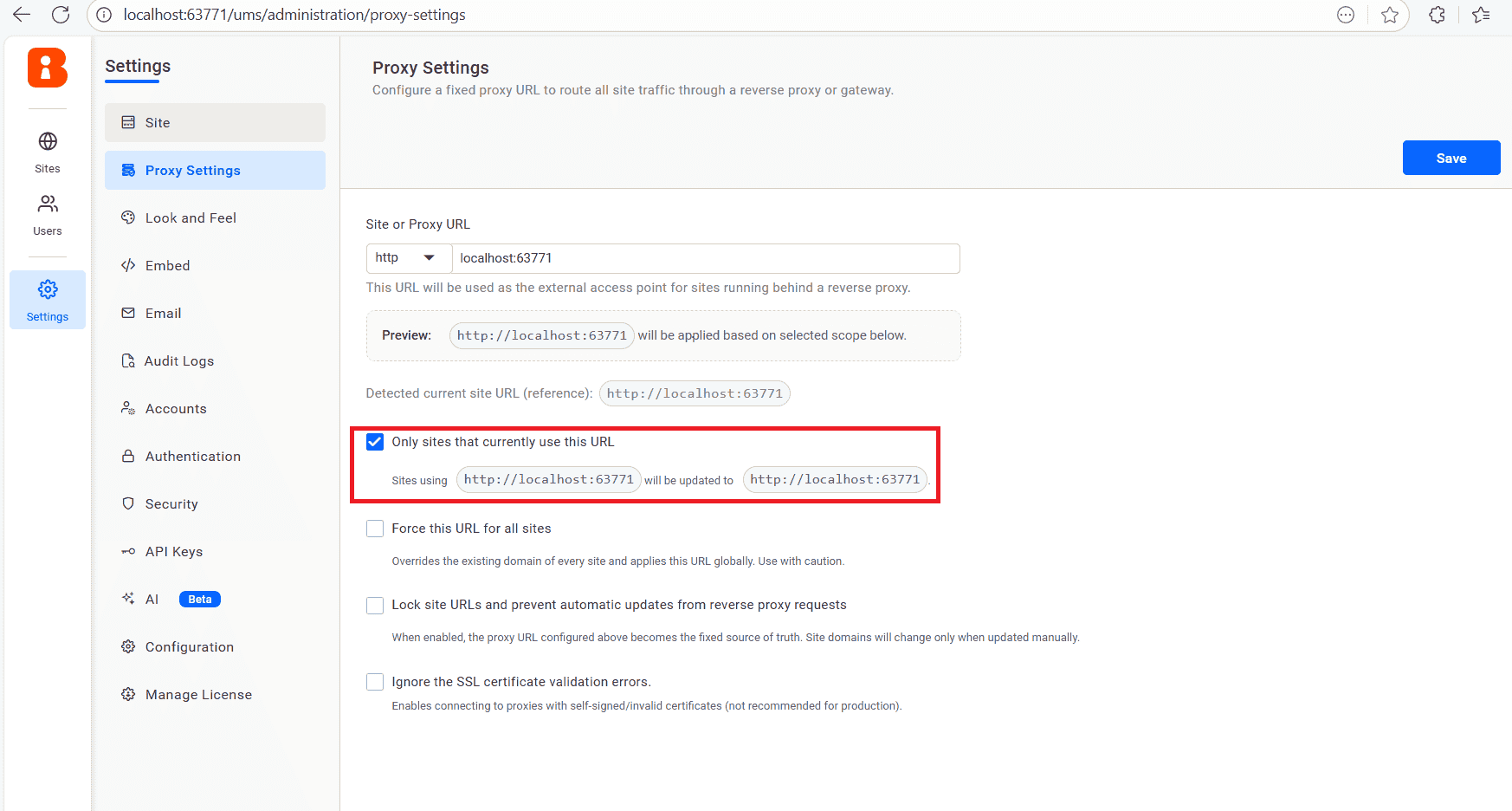
Only sites that currently use this URL
- Enable this option if you want updates to apply only to sites already using the entered URL.
- This prevents accidental URL changes for other sites in your environment.
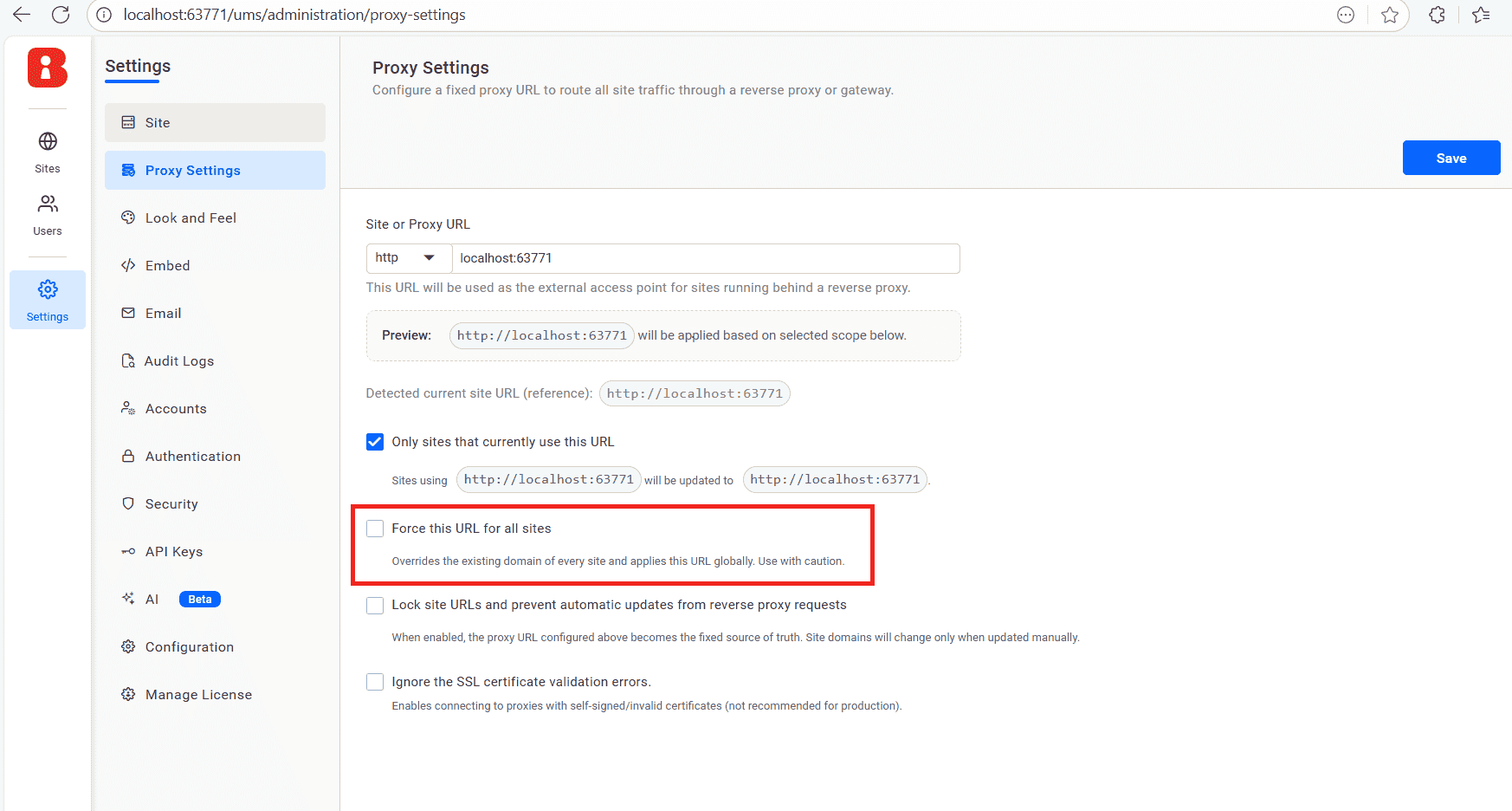
Force this URL for all sites
- If you want a single domain to be enforced across all sites, you can enable this option.
- This forces all sites to use the same URL, so use it with caution as it overrides individual site configurations.
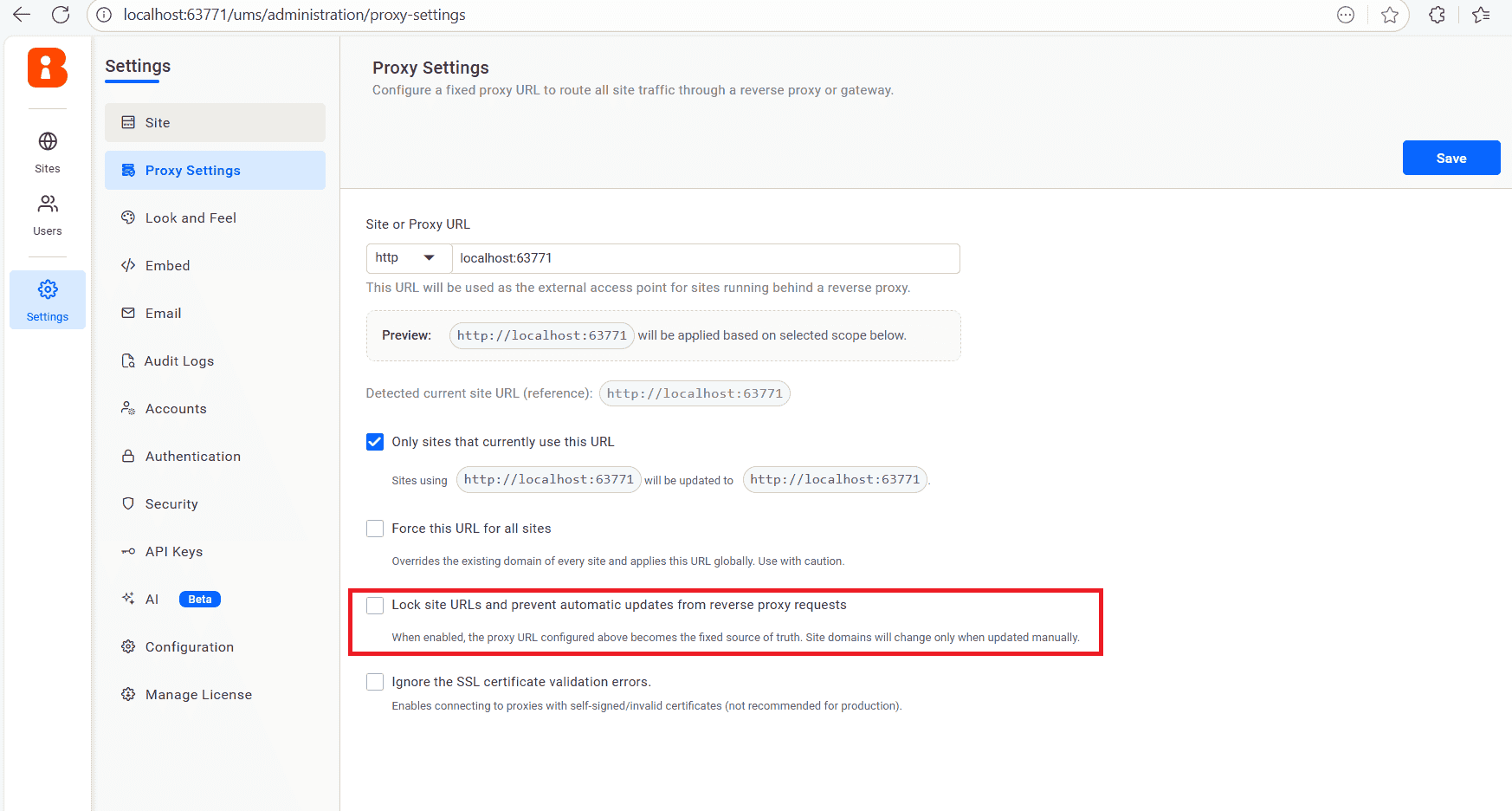
Lock site URLs and prevent automatic updates from reverse proxy requests
-
Enable this option when your deployment uses a fixed domain configuration. When turned on, the system stops automatically updating the Site/Proxy URL based on incoming reverse‑proxy requests.
-
This ensures that the configured Site/Proxy URL remains stable and can only be changed manually through the administration settings. Even with this option enabled, the application can still be accessed using any valid proxy URL that has been configured in your reverse proxy server.
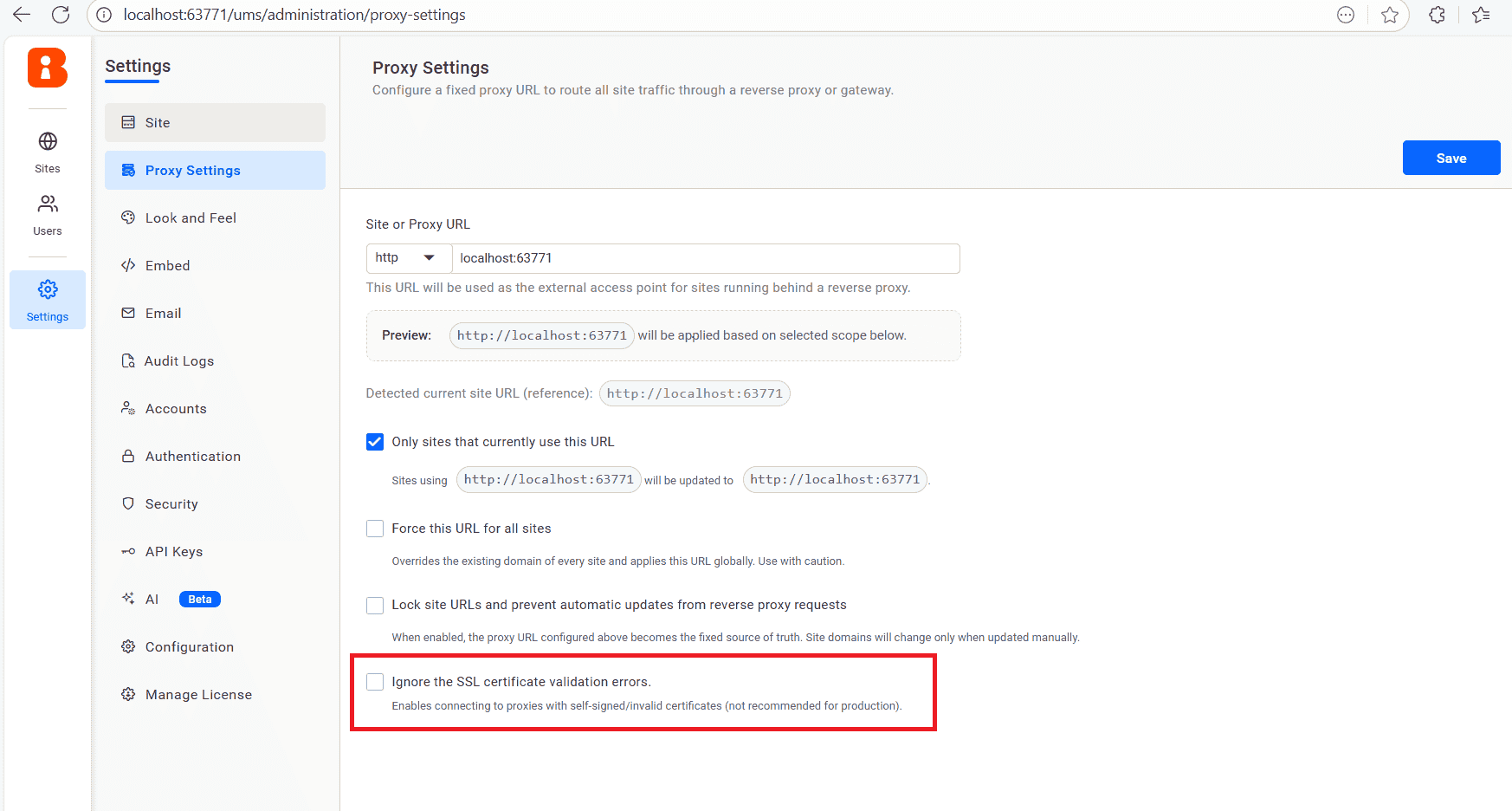
Ignore SSL Certificate Validation
- If your environment does not have a valid SSL certificate, you can check Ignore the SSL certificate validation errors.
- This is helpful for development or internal environments without a trusted certificate authority.
Notes
- Use
httpsonly if a valid SSL certificate is configured. - Once the proxy settings are updated, you need to restart the application for the changes to take effect when using combined deployment (Bold BI and Bold Reports).
Having trouble getting help?
Contact SupportHaving trouble getting help?
Contact Support