Basic Settings
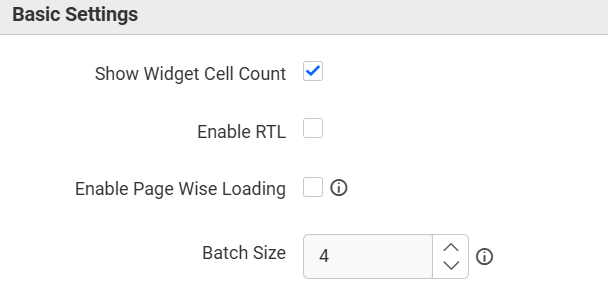
Show Widget Cell Count
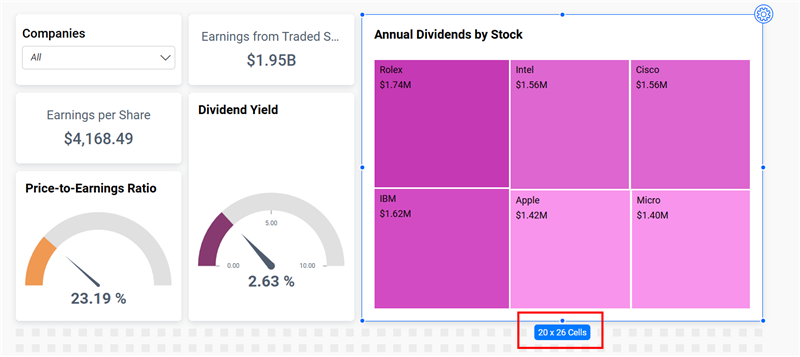
This option allows you to display or hide the tooltip that shows the number of cells occupied by a widget in the design layout. The count represents the widgets size in terms of rows and columns (for example, 6 x 6 Cells).
Below is an example of how the cell count tooltip appears in the Annual Dividends By Stock widget:
Enable Page Wise Loading
The Enable Page Wise Loading option renders dashboard widgets sequentially, page by page. Each page loads only after the previous page has finished rendering.
By default, a designer page contains 24 rows. When the row count exceeds this limit, the designer automatically splits the layout into multiple pages.
Example:
By default, the designer page contains 24 rows. If you add 20 more rows, the layout is split into two pages:
Page 1: Contains all widgets placed within the first 24 rows.Page 2: Contains all widgets placed within the additional 20 rows.
When the dashboard loads, it first waits for all widgets on Page 1 to finish rendering. Once completed, it proceeds to load the widgets on Page 2.
Batch Size
The Batch Size option specifies the number of widgets bundled into a single API request.
Load widgets are not clubbed together. Any widget with row‑series configurations or multiple data fetch operations is treated as a load widget.
The following widgets are classified as load widgets. They are excluded from clubbed API requests and are processed individually through separate API calls.
- Grid Widget
- Pivot Grid
- Chart widgets with row‑series configurations
- KPI and Number Card widgets with series configurations
- Bubble Scatter charts with row‑series configurations
Having trouble getting help?
Contact SupportHaving trouble getting help?
Contact Support