
DynamoDB
Amazon DynamoDB is a fully managed NoSQL database service that offers fast and predictable performance at any scale. It stores data as key‑value and document items and automatically handles scaling, availability, and infrastructure.
Connection Properties
In a YAML file, the config section contains the following properties:
 access_key_id: <your access key>
 secret_access_key: <your secret key>
 region: <region>
 column_name: <column-name>
 date: <date>
 limit: <limit>
Example Configuration
version: 1.0.1
encrypt_credentials: false
plugins:
  extractors:
    - name: DynamoDB
      connectorname: DynamoDB
      schemaname:
      config:
        access_key_id: YOUR_ACCESS_KEY
        secret_access_key: YOUR_SECRET_KEY
        region: <aws-Region>
        column_name: ''
        date: ''
        limit: 10
      properties:
      metadata:
      select:
      - tablename
Configure the Bold Data Hub to connect DynamoDB
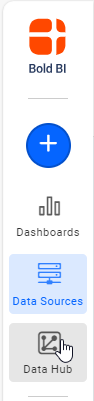
- Click the
Data Hubicon on the Navigation Pane.
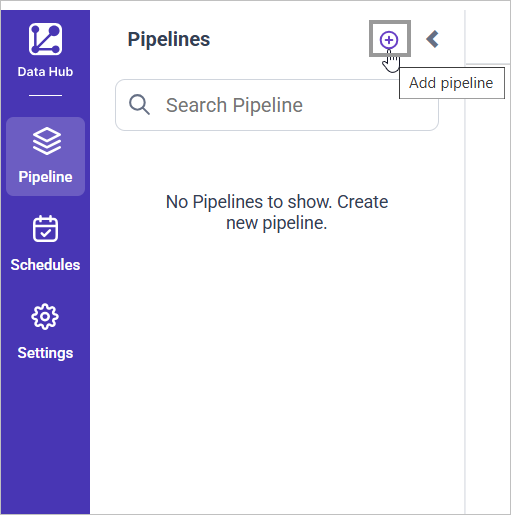
- Click
Add Pipelineand provide the new Pipeline’s name.
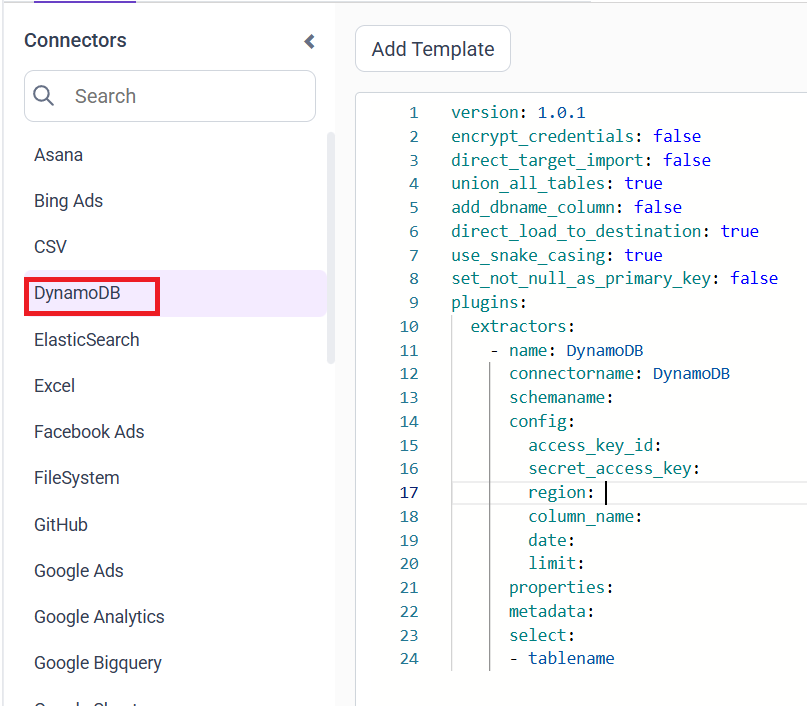
- Select the newly created pipeline and add the
DynamoDBtemplate.
Configuration Parameters
| Parameters | Description |
|---|---|
| Access Key ID: | Provide your AWS Access Key ID used to authenticate the DynamoDB connection. |
| Secret Access Key: | Provide your AWS Secret Access Key associated with the above access key. |
| Region: | Enter the AWS region where your DynamoDB table is hosted. Example: ap-south-1. |
| Column Name: | Attribute name used for date-based filtering. Activated only when both column_name and date are provided. Example: column_name: created_at |
| Date: | The date value used for filtering. Date-based filtering occurs only when paired with a non-empty column_name. Example: date: 2025-06-10 |
| Limit: | Maximum number of items returned per DynamoDB scan request. Used when no date or column filters are provided. Enables limited scans with pagination. |
| Select: | Tablename(s): Specify the table name to load data. |
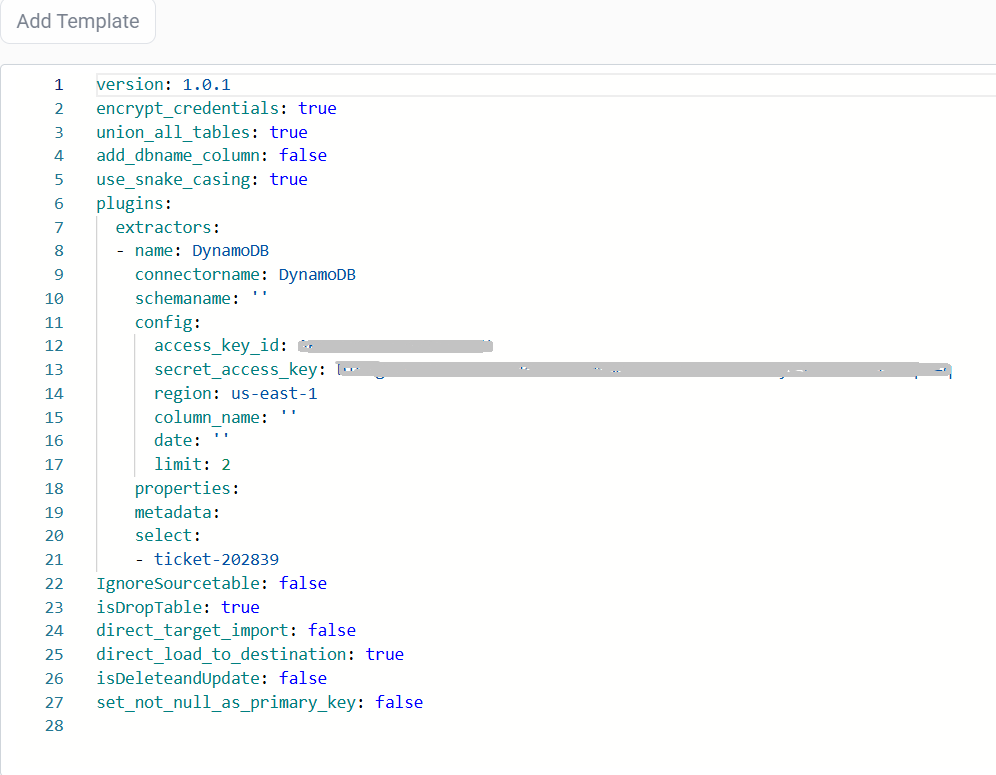
- Update the details required in the template and Click Save, choose the desired destination to save the pipeline.
- Creating a Pipeline in Bold Data Hub automatically creates a Data Source in Bold BI. The Bold BI Data Source is a live data source to the destination database used in Bold Data Hub. For more information on the relationship between Bold Data Hub Pipeline and the associated Data Sources in Bold BI , please refer to Relationship between Bold Data Hub Pipeline and Associated Data Sources in Bold BI

Schedule Data Hub Job
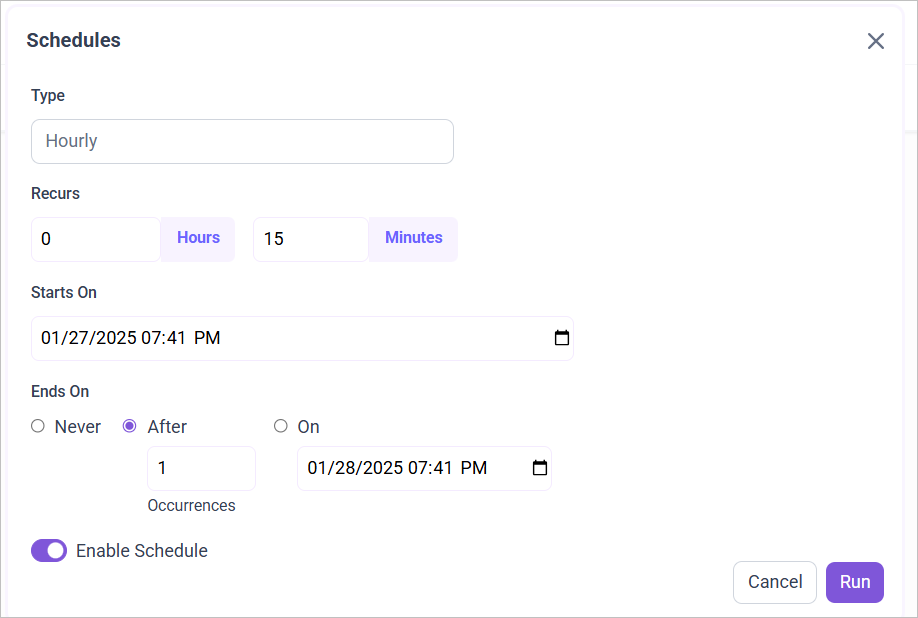
- To configure interval-based scheduling, click on the schedules tab and select the created pipeline and click on the schedule icon and configure it.

- For on-demand refresh, click
Run Nowbutton.

- The Schedule history can be checked using the history option as well as logs.
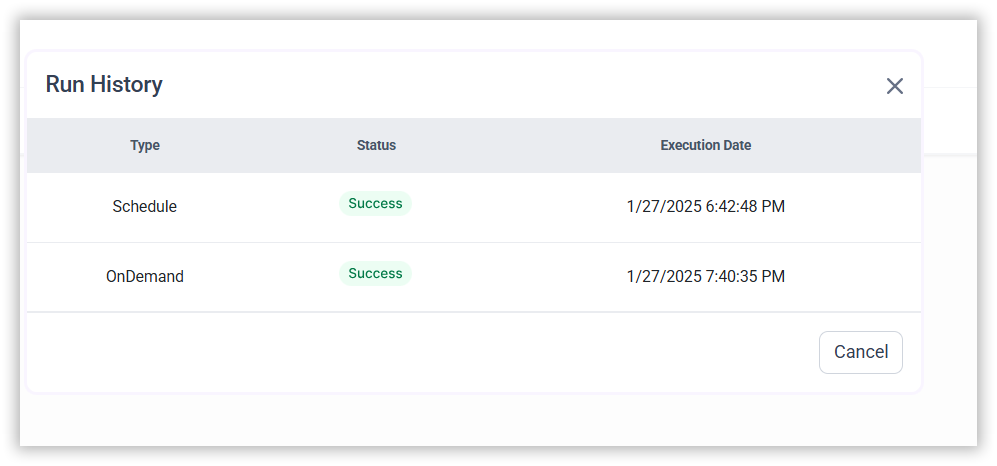
- Click on Logs to see if the run is completed and data source is created in Bold BI.
- Click
Edit DataSourceOption to view the created tables.