PythonScript
PythonScript is a file with a .py extension that contains a sequence of instructions written in the Python programming language to perform tasks such as automation, data processing or analysis.
Example Configuration
version: 1.0.1
encrypt_credentials: false
union_all_tables: true
add_dbname_column: false
use_snake_casing: true
plugins:
  extractors:
  - name: pyscript1
    connectorname: PythonScript
    schemaname:
    config:
      filePath: C:\BoldServices\app_data\elt\connectors\csvreaders.py
    properties:
    metadata:
    select:
Configure the Bold Data Hub to connect PythonScript
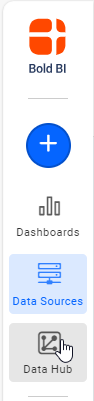
- Click the
Data Hubicon on the Navigation Pane.
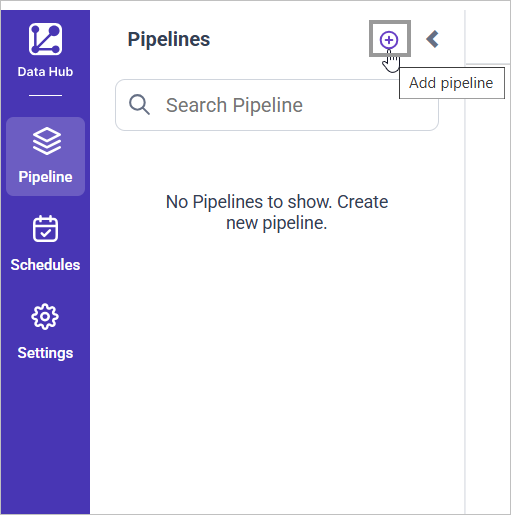
- Click
Add Pipelineand provide the new pipeline’s name.
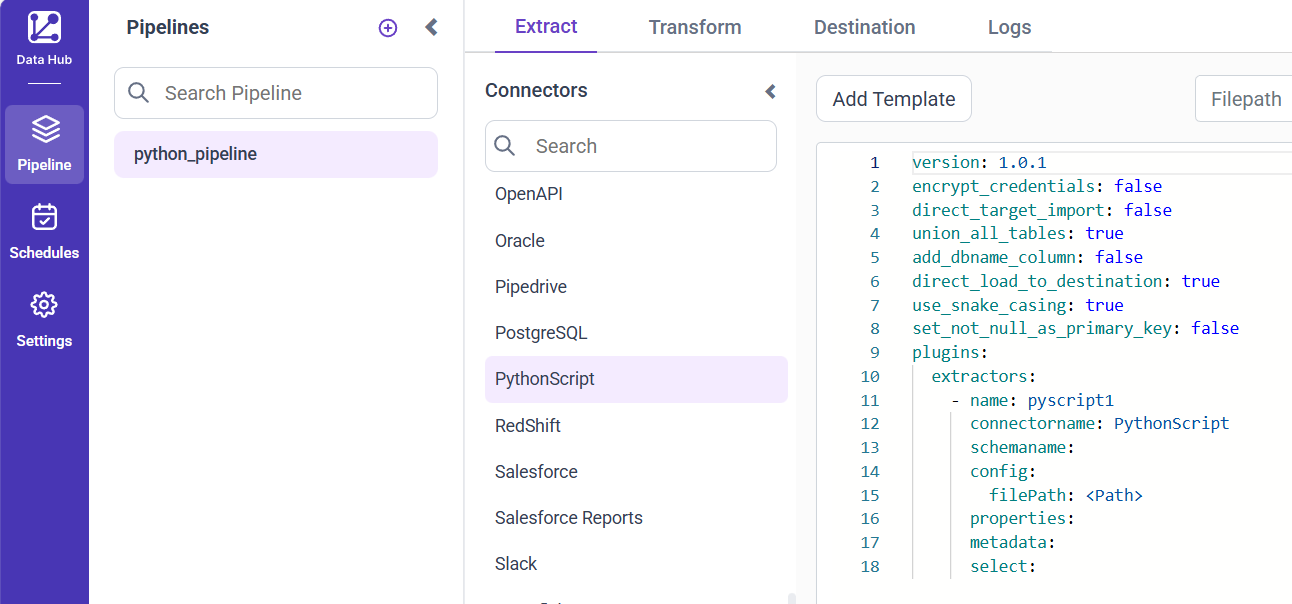
- Select the newly created pipeline and add the
PythonScripttemplate.
- In your Python Script, ensure you have a
data frameobject. Add the following line after the dataframe object that is moved to tables usingBold ETL.
pipeline.run(yourdataframename, table_name="yourtablename")Replace yourdataframename with dataframe name & yourtablename with desired table name in your destination database.
- Click the “Upload File” button to upload your Python file.

- Copy the filepath and replace in filePath property.
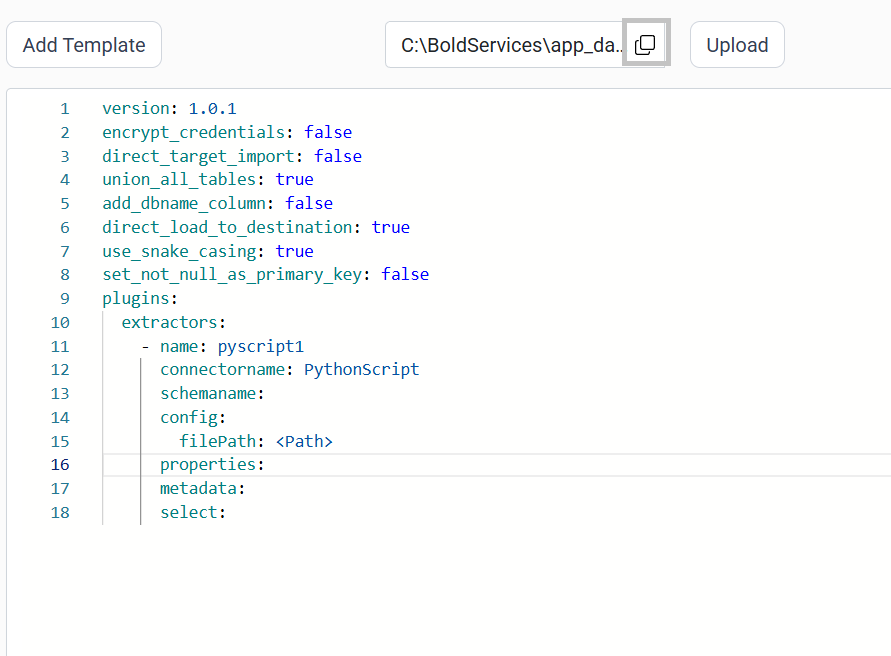
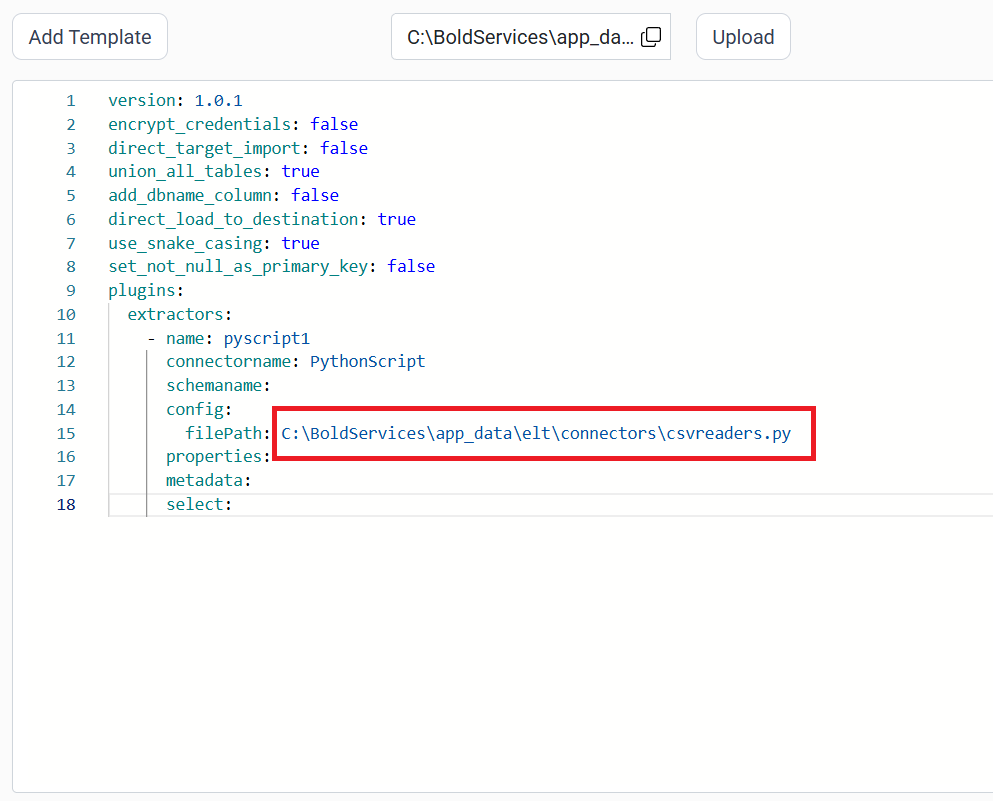
- Click Save and choose the desired destination to save the pipeline.
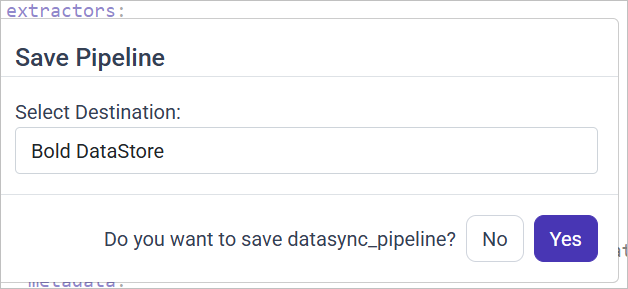
- Creating a Pipeline in Bold Data Hub automatically creates a Data Source in Bold BI. The Bold BI Data Source is a live data source to the destination database used in Bold Data Hub. For more information on the relationship between Bold Data Hub Pipeline and the associated Data Sources in Bold BI , please refer to Relationship between Bold Data Hub Pipeline and Associated Data Sources in Bold BI

Schedule Bold Data Hub Job
- To configure interval-based scheduling, click on the schedules tab and select the created pipeline and click on the schedule icon and configure it.

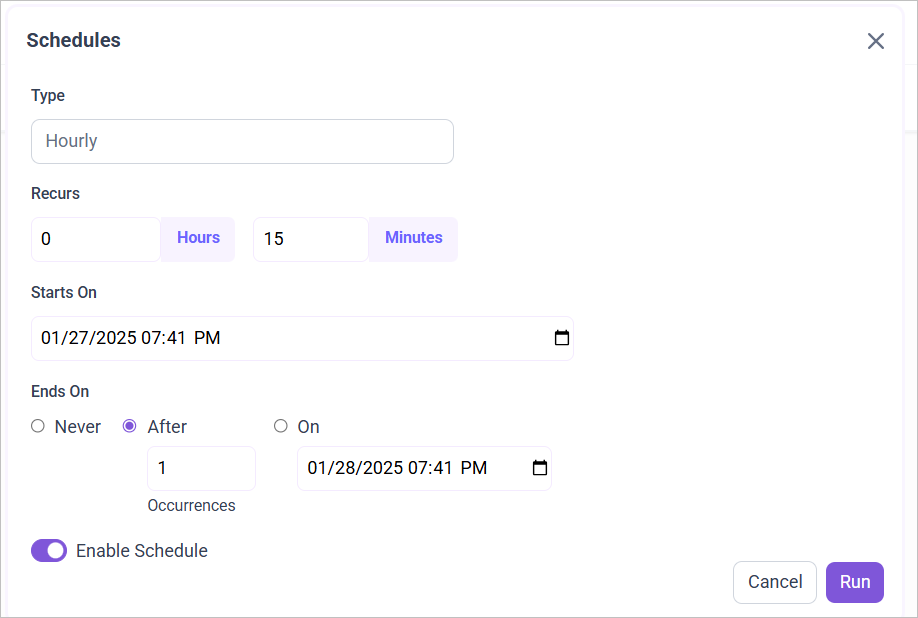
- For on-demand refresh, click
Run Nowbutton.

- The Schedule history can be checked using the history option as well as logs.
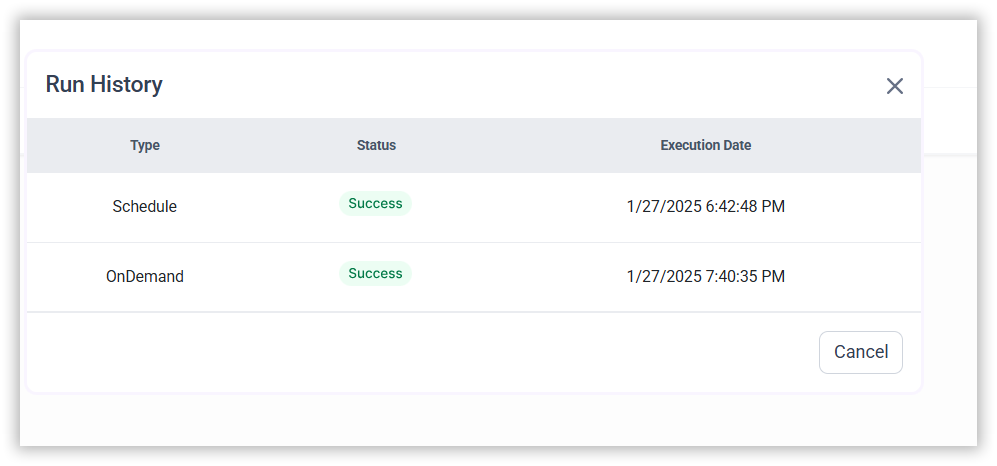
- Click on Logs to see if the run is completed and data source is created in Bold BI.
- Click
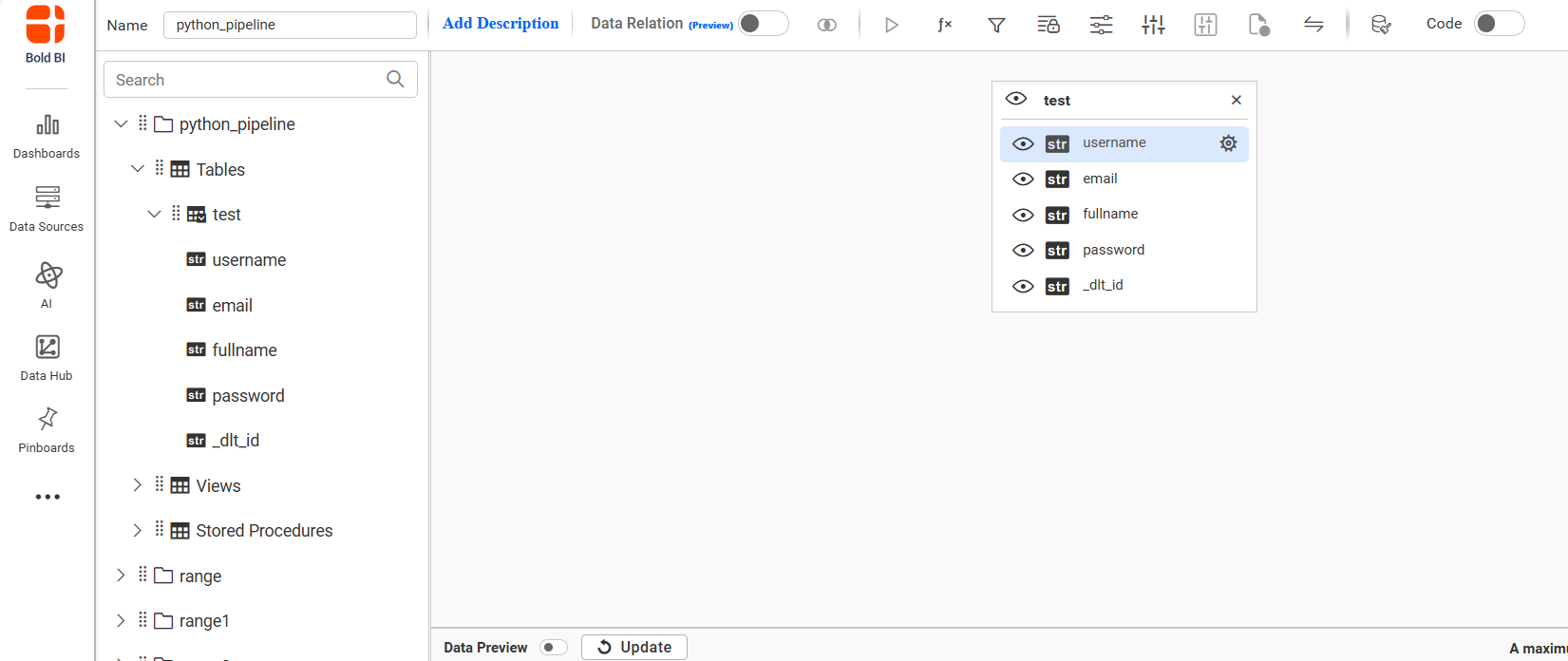
Edit DataSourceOption to view the created tables.