
AI Credits
AI Credits are used to access AI-powered features in Bold BI, such as the AI Assistant, dashboard summarization, and the Q&A widget. This page explains how AI Credits work, how to purchase credits, and how to monitor credit usage.
Overview
Every AI action in Bold BI, such as generating a dashboard summary, asking a natural language question, or using the AI Assistant, consumes credits from the license wallet.
Credits are managed at the license level. The license owner or authorized admin can view the credit balance, purchase credits, and monitor usage.
Key concepts
- Credits: The unit used to measure AI feature consumption. Each AI action deducts a specific number of credits from the license wallet.
- License balance: Credits are allocated and tracked per Bold BI license. Credit balances are non-transferable and cannot be shared across licenses.
- Admin access: Only the license owner or authorized admin can view the credit balance, purchase credits, and access purchase history.
- Consumption varies: Credit usage depends on the AI feature, prompt complexity, and input size. For example, a simple Q&A query may consume fewer credits than a large dashboard summarization.
- Credit management: Admins can manage credits and subscriptions from Site Settings → AI and the external credit purchase portal.
Free monthly credits
Every active Bold BI license receives 500 free AI Credits per month. These credits are added to the license wallet at the start of each billing period and are available for immediate use.
NOTE: When a paid AI Credits subscription is activated, the free monthly 500 credits are replaced by the selected paid subscription plan for that billing period.
Purchasing credits
Admins can purchase additional AI Credits through the Bold BI site settings. The following purchase options are available:
- Subscription plans: Monthly recurring plans that provide a fixed number of credits.
- Add-on credits: One-time credit purchases available for licenses with an active paid subscription.
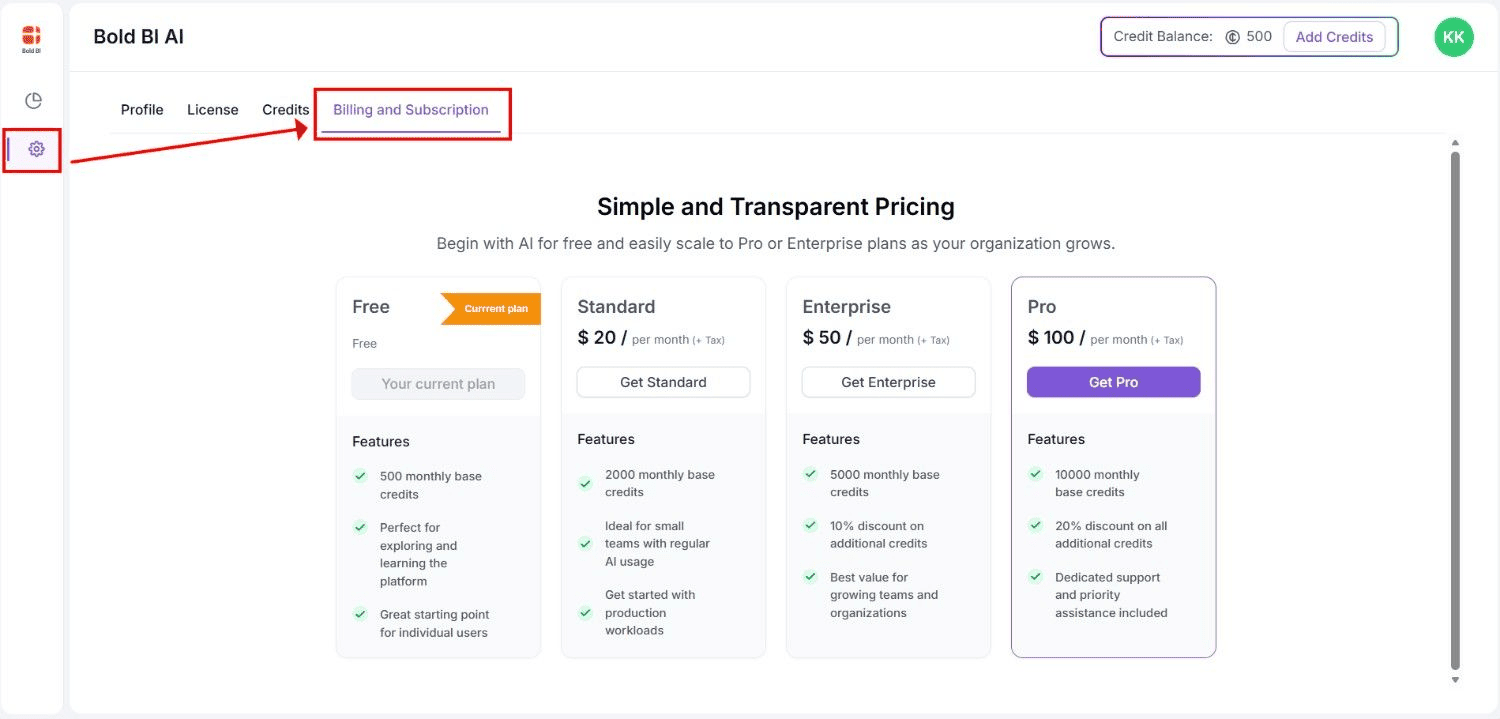
Subscription plans
Subscription plans provide a fixed number of credits every month at a recurring cost.
| Plan | Monthly Price | Base Credits | Bonus Credits | Total Credits |
|---|---|---|---|---|
| Standard | $20 | 2,000 | — | 2,000 |
| Enterprise | $50 | 5,000 | 500 | 5,500 |
| Pro | $100 | 10,000 | 2,000 | 12,000 |
The Enterprise and Pro plans include bonus credits in addition to the base monthly credits.
Subscriptions are billed automatically for each billing period using the credit card associated with the Bold BI account.
To cancel a subscription or stop future charges, contact Bold BI Support. The license will be moved back to the free plan at the end of the current billing cycle.
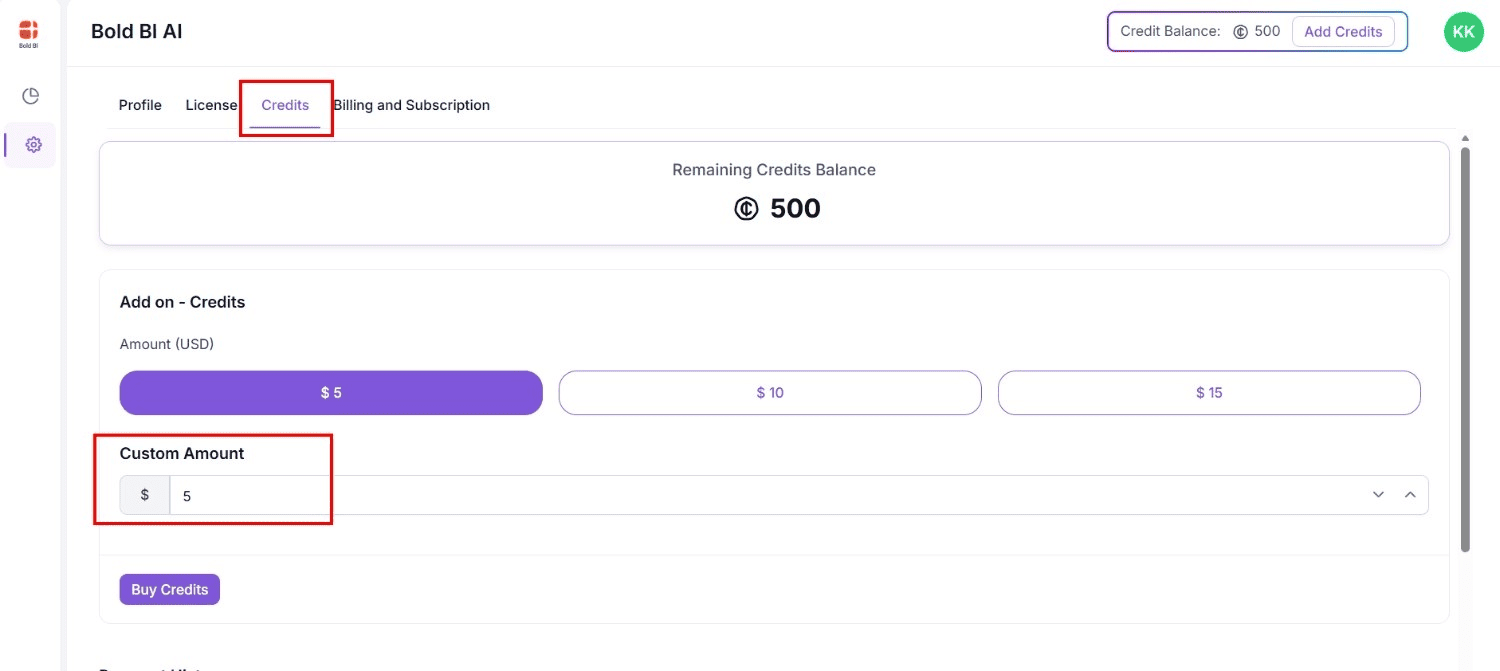
Add-on credits
If a license exhausts its monthly credits before the billing period ends, admins can purchase add-on credits without changing the active subscription plan.
Key details for add-on credits:
- Pricing: 100 credits are provided for $1. For example, a $5 purchase adds 500 credits, and a $10 purchase adds 1,000 credits.
- No expiry: Add-on credits do not expire. Unused add-on credits carry over until they are consumed.
- Availability: Add-on credits are available only for customers with an active paid AI Credits subscription.
Active DT customer purchase flow
For Active DT customers, subscription plan and add-on credit purchases follow a request-based process.
After a purchase request is submitted through the credit portal, the request status is displayed as Pending. The Bold BI Sales team will contact the customer to complete the purchase process. Credits are added to the license wallet after the request is approved and processed.
How to purchase credits
To purchase a subscription plan or add-on credits:
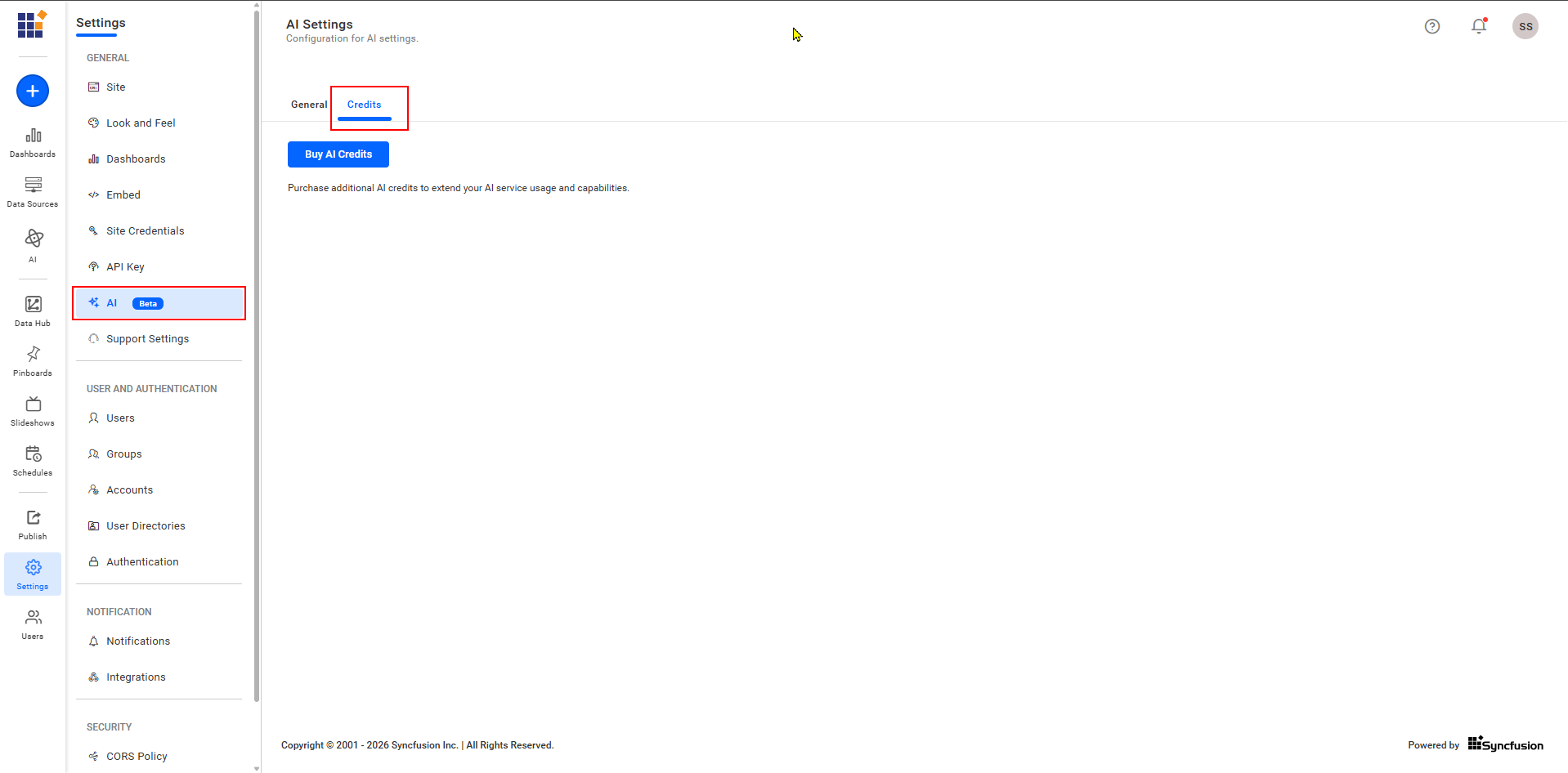
- Sign in to Bold BI as a license owner or authorized admin.
- Open Site Settings.
- Navigate to the AI section.
- Click Buy Now to open the AI Credits purchase portal.
Purchase Portal: AI Credit purchase portal
- Sign in to the purchase portal using the same account associated with the Bold BI license.
- After signing in, the AI Usage Dashboard and purchase options are displayed.
- Open Settings → Billing & Subscription.
- Select the required subscription plan or add-on credits and complete the purchase.
IMPORTANT: The AI Credits purchase portal is an external service. Sign in using the same account associated with your Bold BI license to ensure that credits are applied to the correct license.
Payment processing and status
After initiating a purchase, the transaction moves through the following statuses:
| Status | Description |
|---|---|
| Initiated | The admin clicks Pay Now and is redirected to the payment page. |
| Pending | The payment has been submitted and is being processed by the payment gateway. |
| Success | The payment was completed successfully. Credits are added to the license wallet after processing. |
| Failure | The payment was not completed. The portal displays instructions to retry the payment, if available. |
Allow a few minutes for successful payments to reflect in the AI Usage Dashboard. If the balance does not update, refresh the dashboard.
Payment screens
The following screens may be displayed during the payment process.
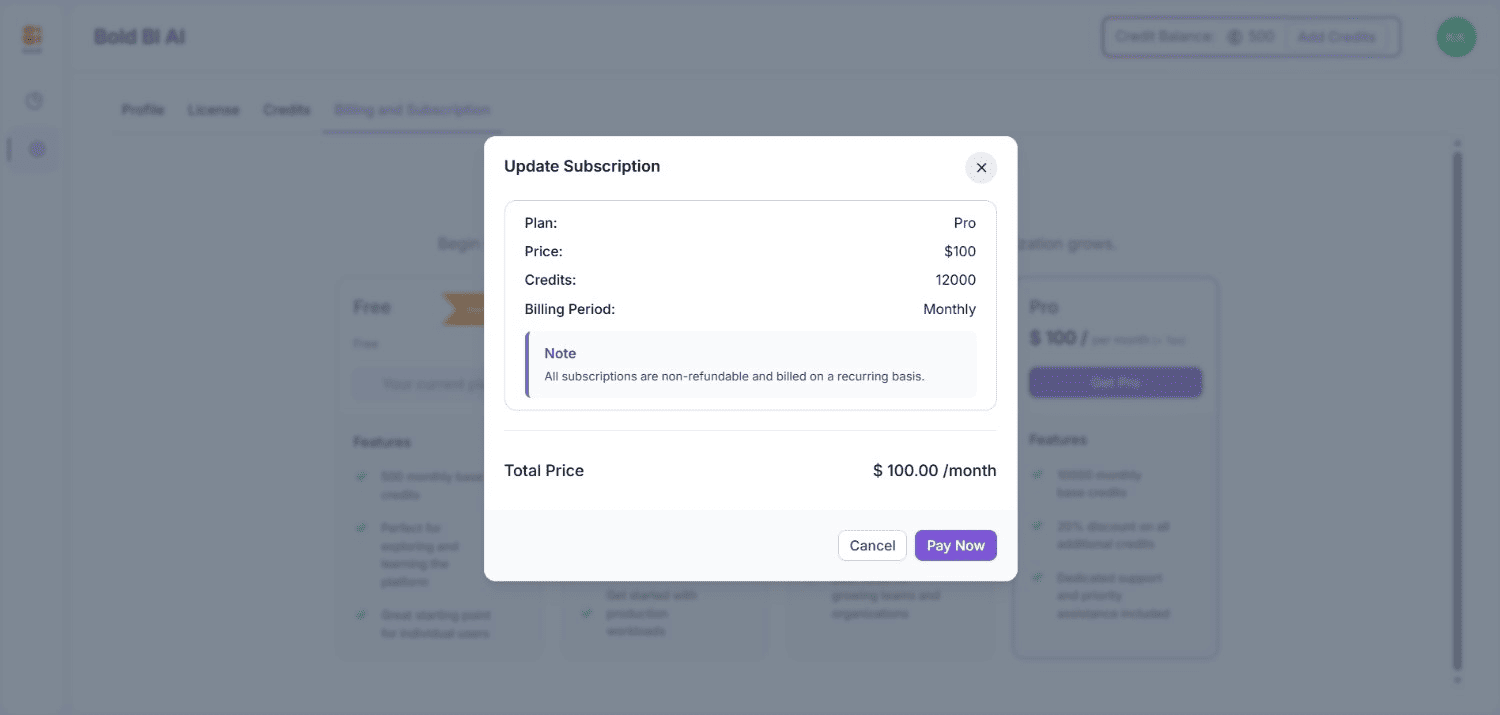
Click Pay Now to purchase the selected plan.
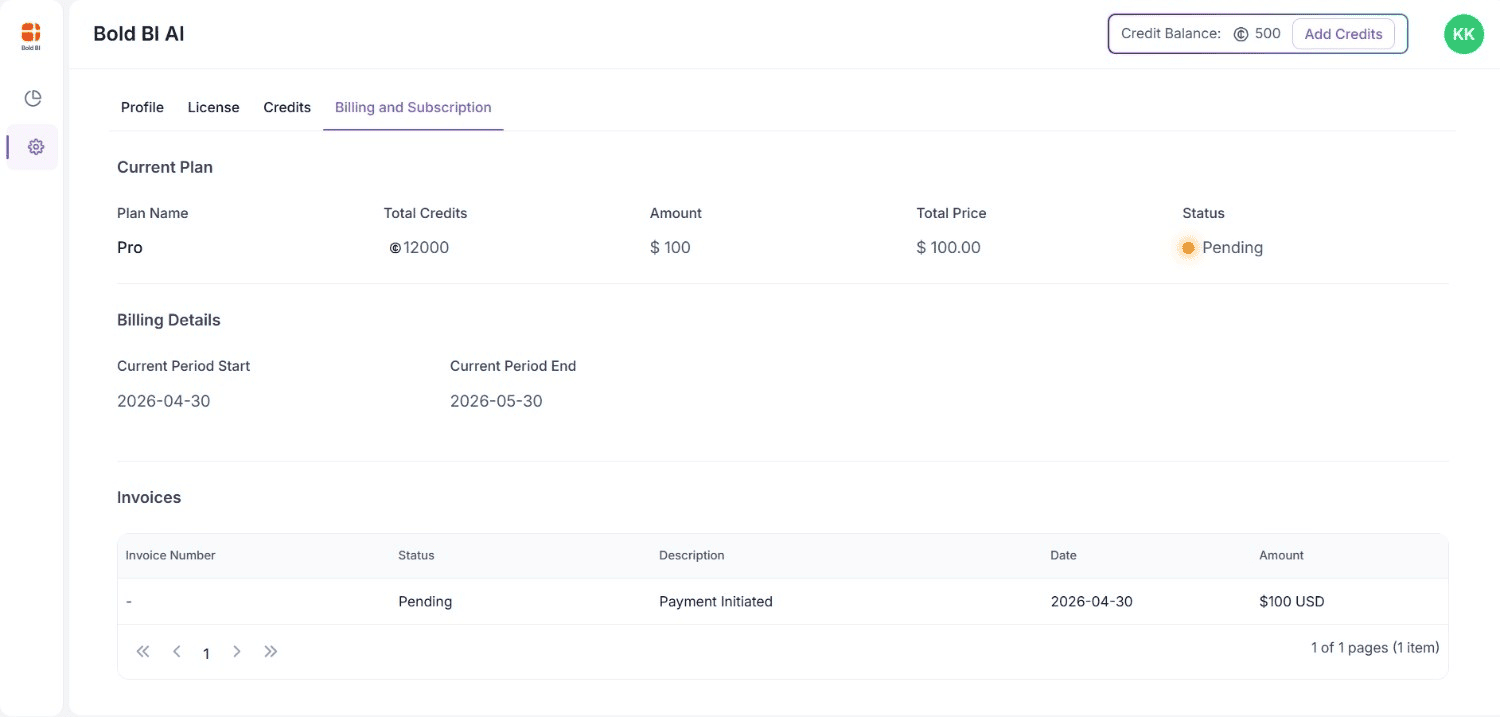
The payment remains in pending status while the payment gateway processes the transaction.
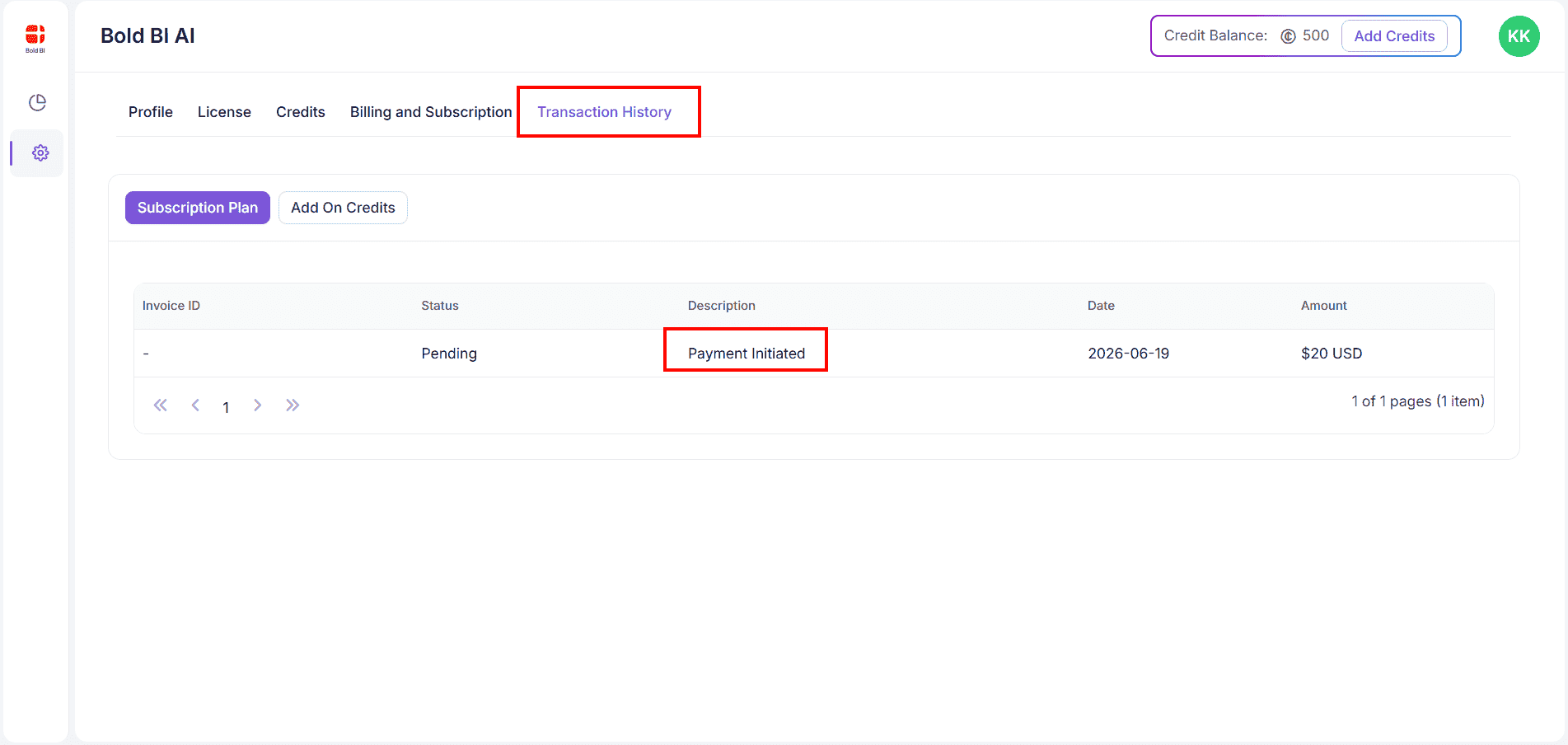
After initiating a purchase, the transaction can be tracked from the Transaction History section.
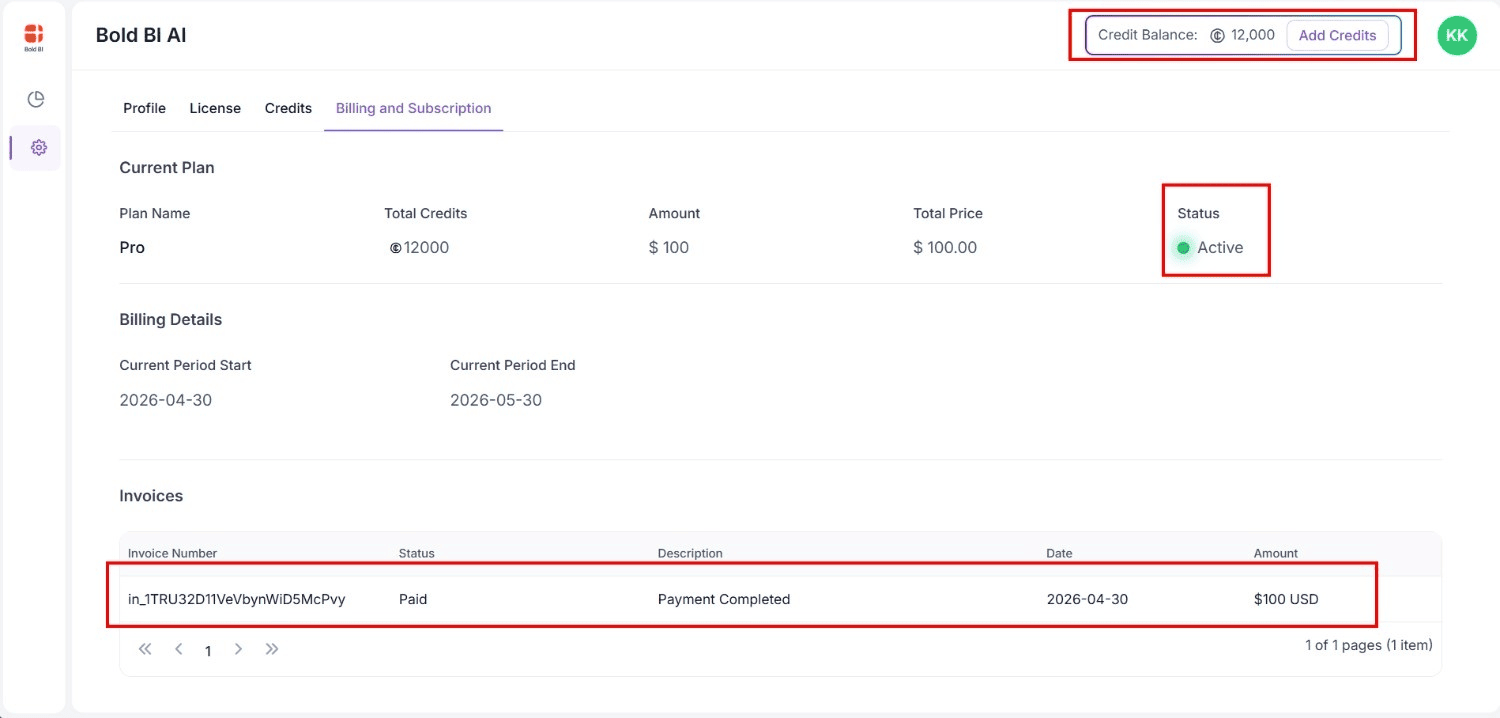
After the payment is successful, credits are added to the license wallet.
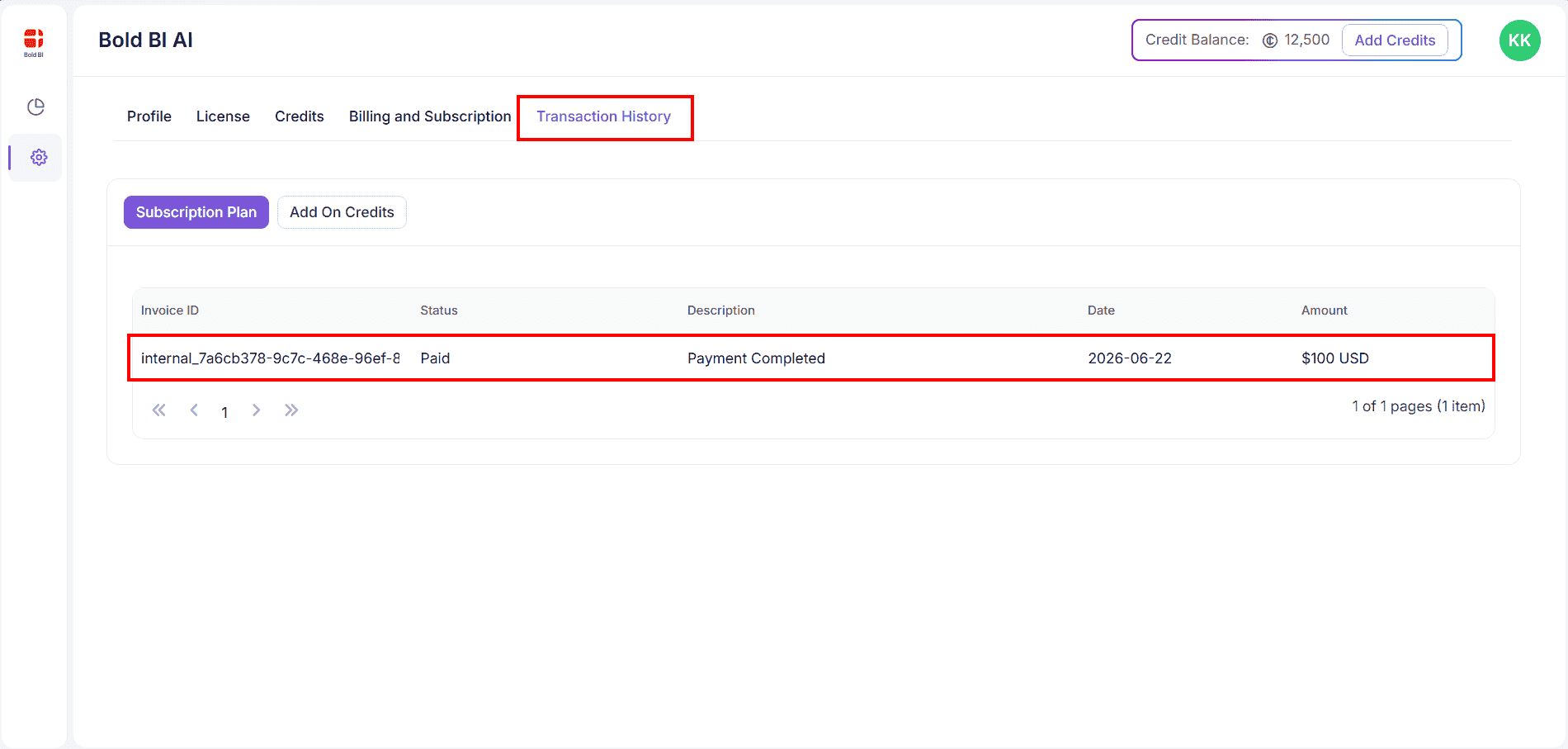
Completed transactions are displayed in the Transaction History section.
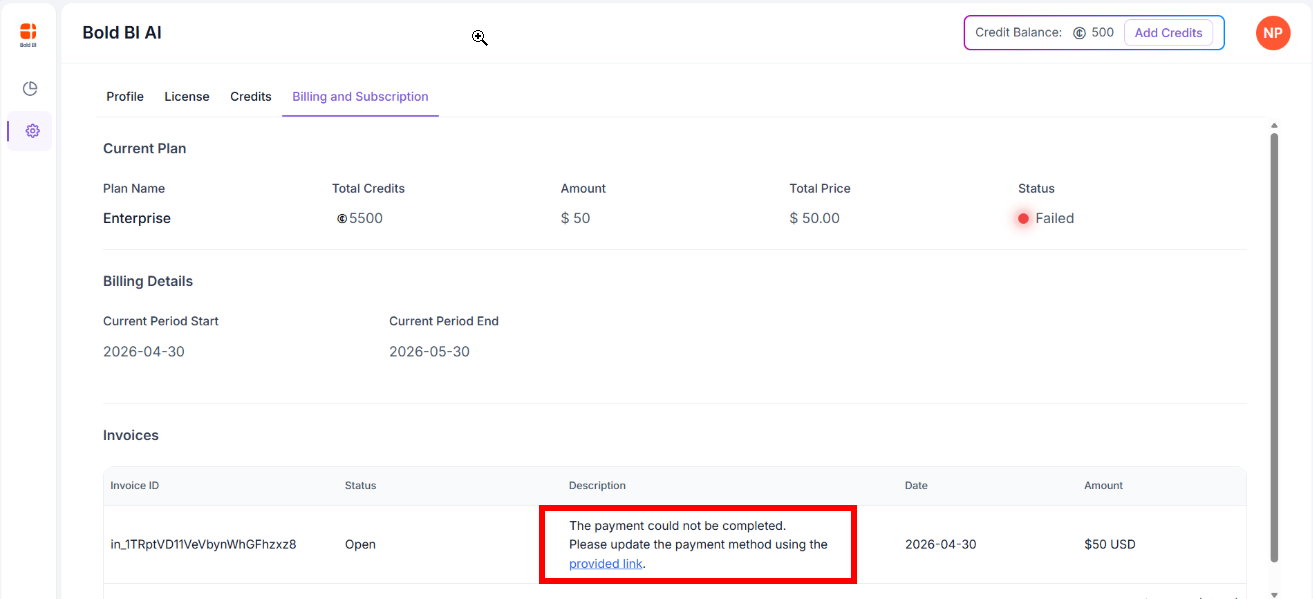
If the payment fails, follow the instructions displayed in the portal to retry the payment.
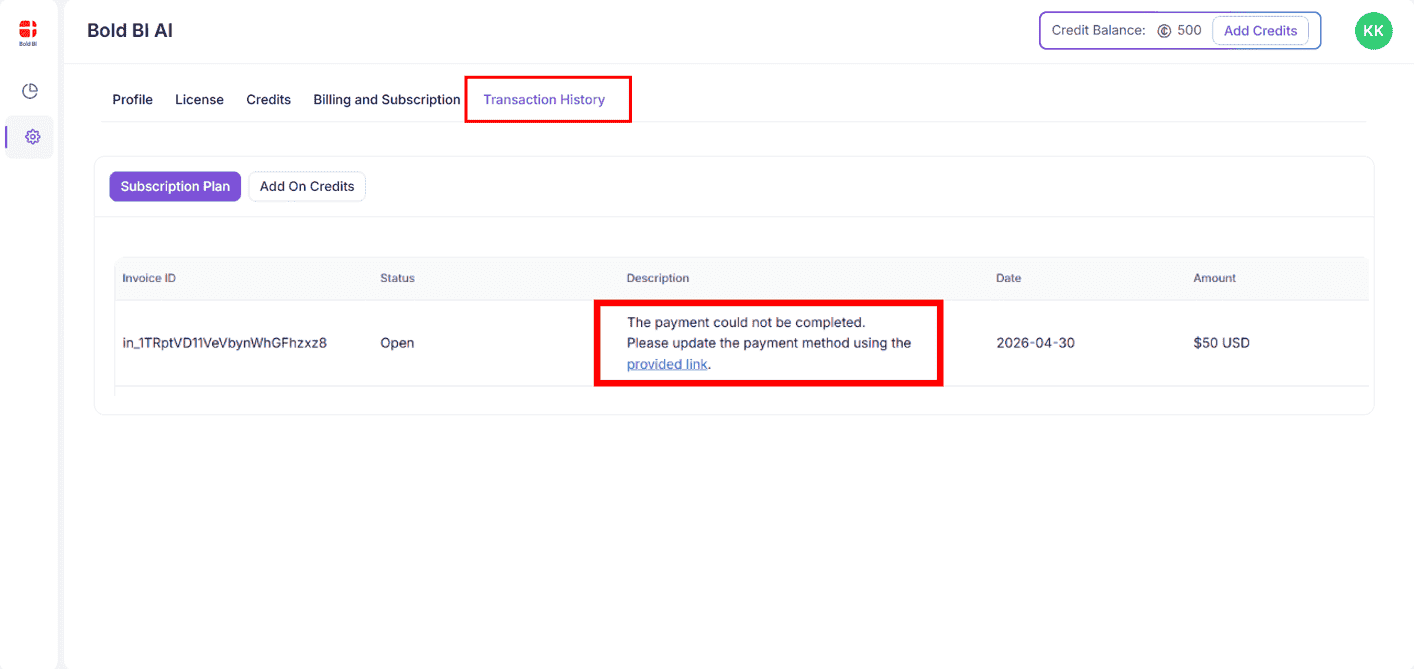
Failed payment transactions and their details are available in the Transaction History section.
NOTE: If a payment fails and no retry option is available, contact Bold BI Support with your purchase details, transaction reference, and license ID.
Viewing credit usage
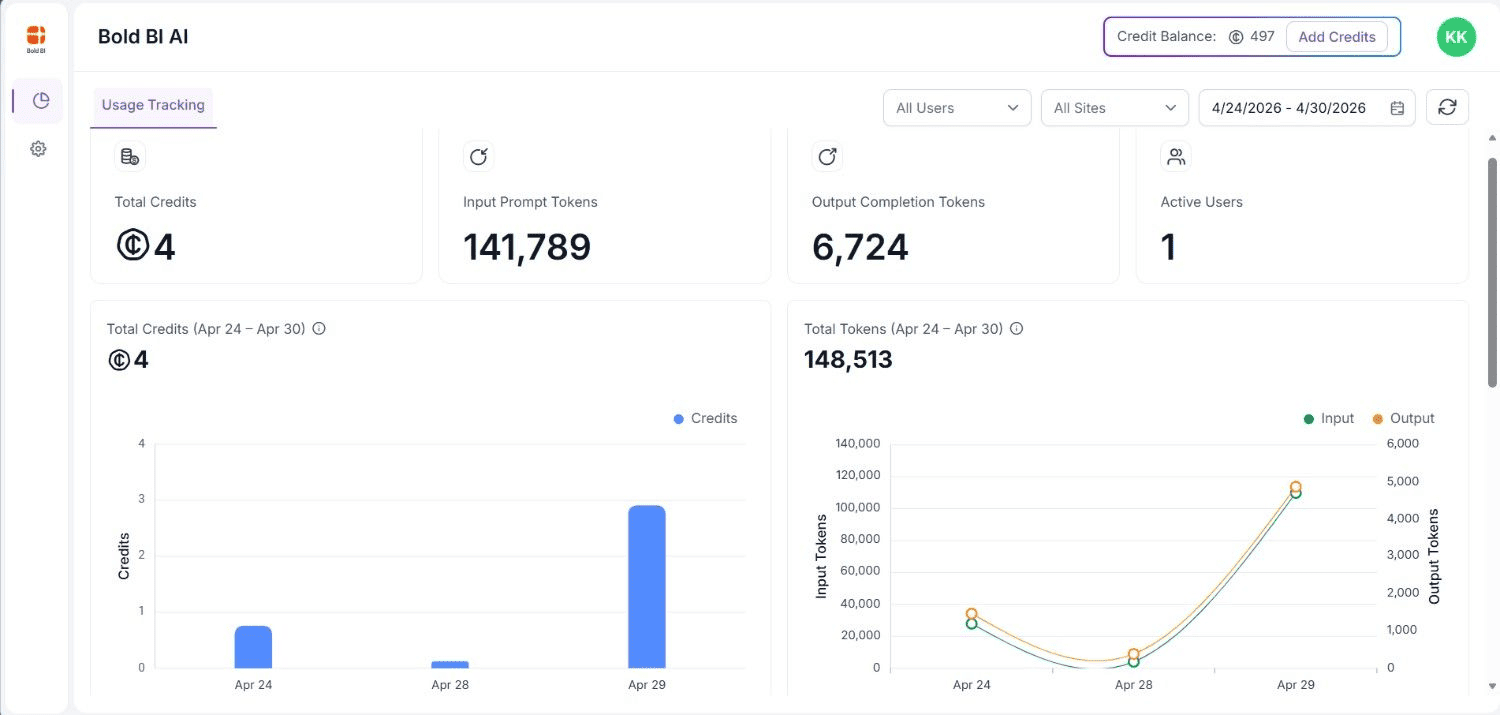
The AI Usage Dashboard in the purchase portal provides a detailed breakdown of credit consumption for the selected license.
The dashboard is displayed automatically after signing in to the purchase portal.
The dashboard includes:
- Filters by user, site, and date range
- Total credits consumed for the selected period
- Top 5 users by credit consumption
- Per-user usage details
Switching licenses
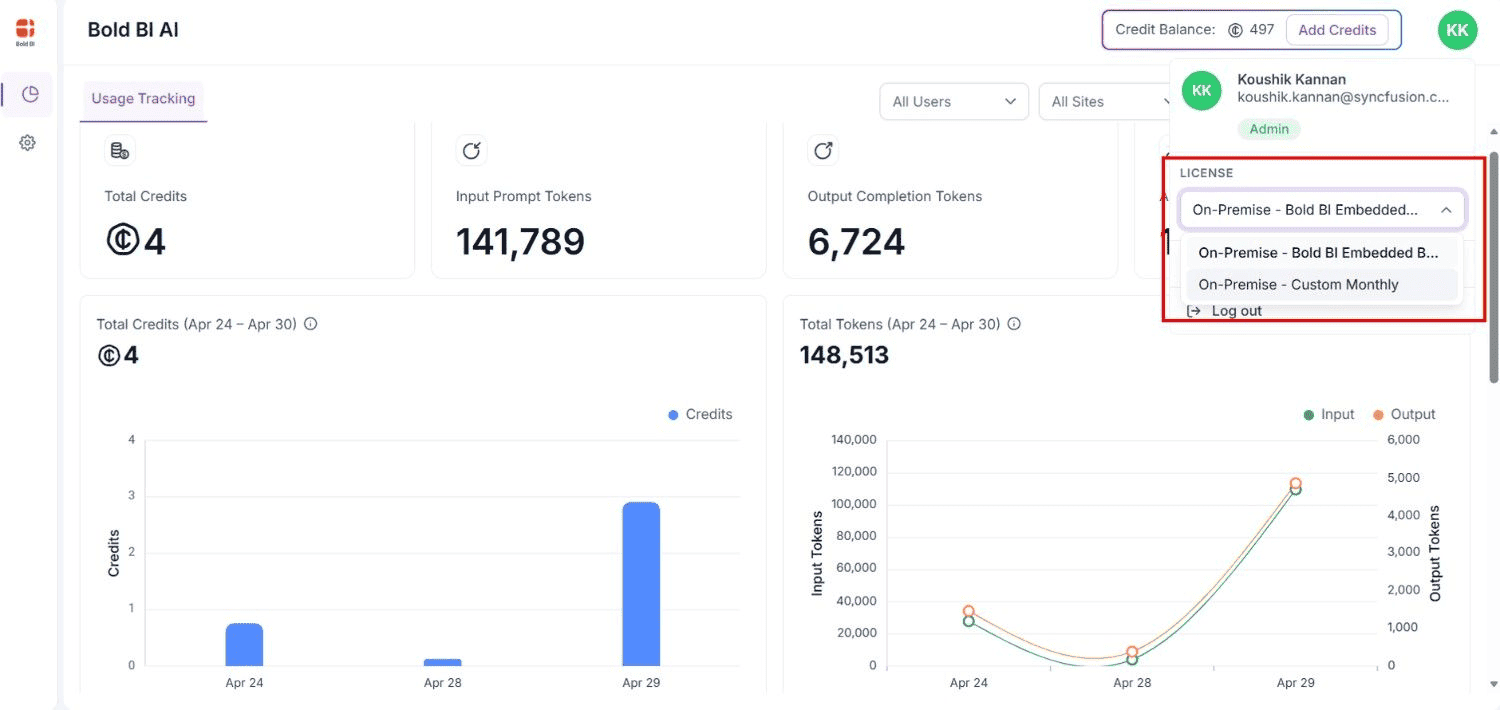
If multiple licenses are associated with the signed-in account, you can switch between licenses from the purchase portal.
To switch licenses:
- Click the profile icon in the top-right corner of the portal.
- Open the profile box.
- Select the required license from the dropdown.
The AI Usage Dashboard updates automatically based on the selected license.
Limitations
- AI Credits are tied to a specific Bold BI license and cannot be transferred to another license.
- Only the license owner or authorized admin can view the credit balance, purchase credits, and access purchase history.
- Add-on credits require an active paid AI Credits subscription.
- Subscription and add-on purchases require a valid credit card associated with the Bold BI account.
- Credit consumption may vary based on the AI feature, prompt size, and data processed.
Troubleshooting
Credits are not reflected after a successful purchase
Allow a few minutes for the payment and credit allocation process to complete. Then refresh the AI Usage Dashboard.
If the credit balance is still incorrect, contact Bold BI Support with your purchase receipt, transaction reference, and license ID.
AI features are unavailable because credits are exhausted
If AI features are unavailable due to exhausted credits, the admin can purchase add-on credits or upgrade to a higher subscription plan from Site Settings → AI → Buy Now.
Regular users who do not have purchase permissions should contact their administrator.
Payment failed and no retry option is available
Contact Bold BI Support directly. Provide the license ID, transaction reference, and any payment details shown in the portal.
Support
For billing or credit-related issues, contact Bold BI Support or refer to the Billing & Subscription section in the AI Credits purchase portal.
NOTE: For more information about AI features in Bold BI, refer to the Artificial Intelligence and Machine Learning documentation.