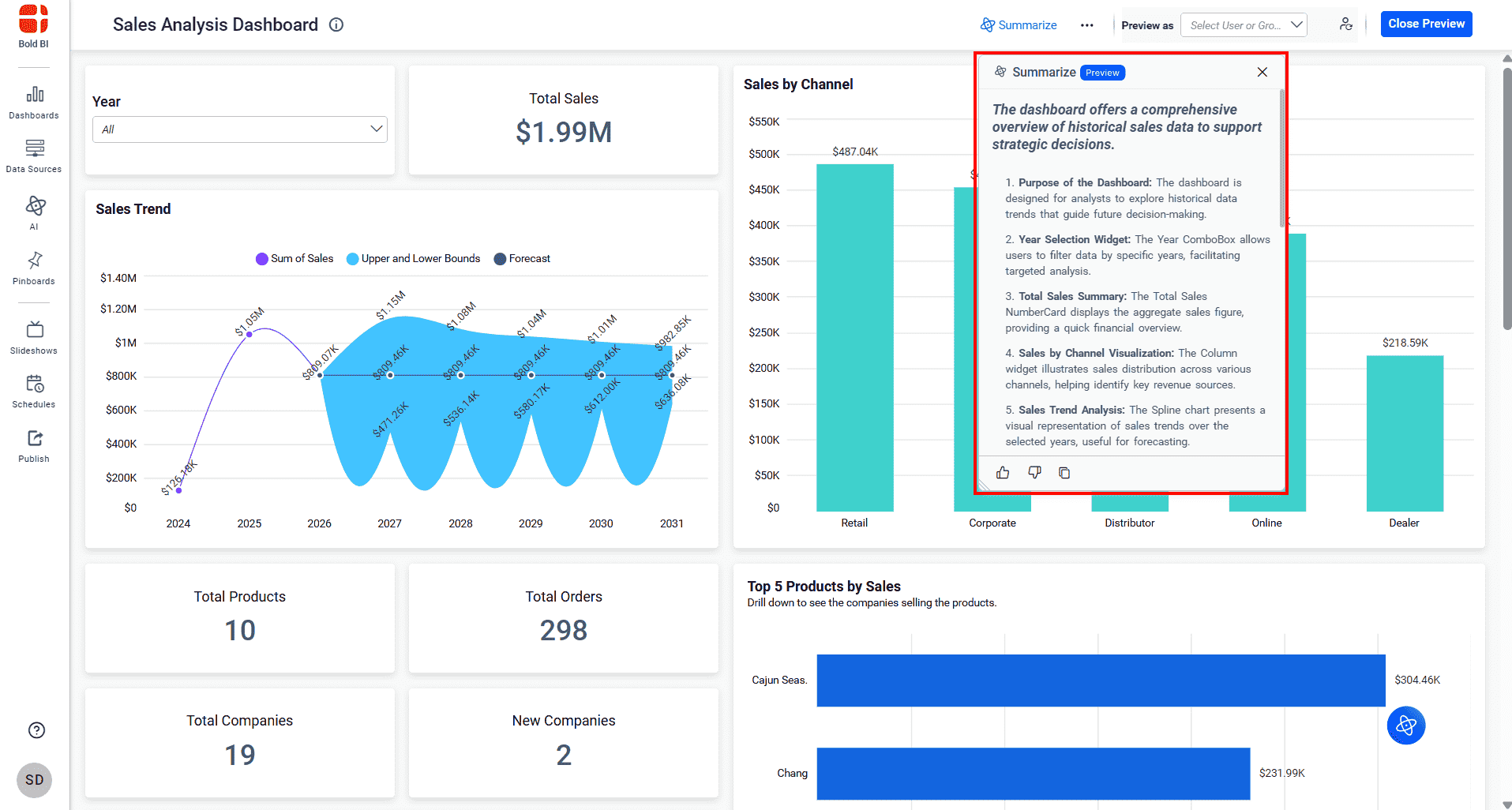
Custom Prompt Support
The Dashboard Summary feature supports custom prompts, allowing you to customize AI-generated summaries based on your business requirements. By providing additional instructions and context, you can guide the AI to generate summaries that focus on specific insights, metrics, trends, or reporting needs.
Steps to Configure a Custom Prompt
- In the Properties Panel, under the AI-Powered Summarization section, enable the Enable Custom Prompt checkbox.
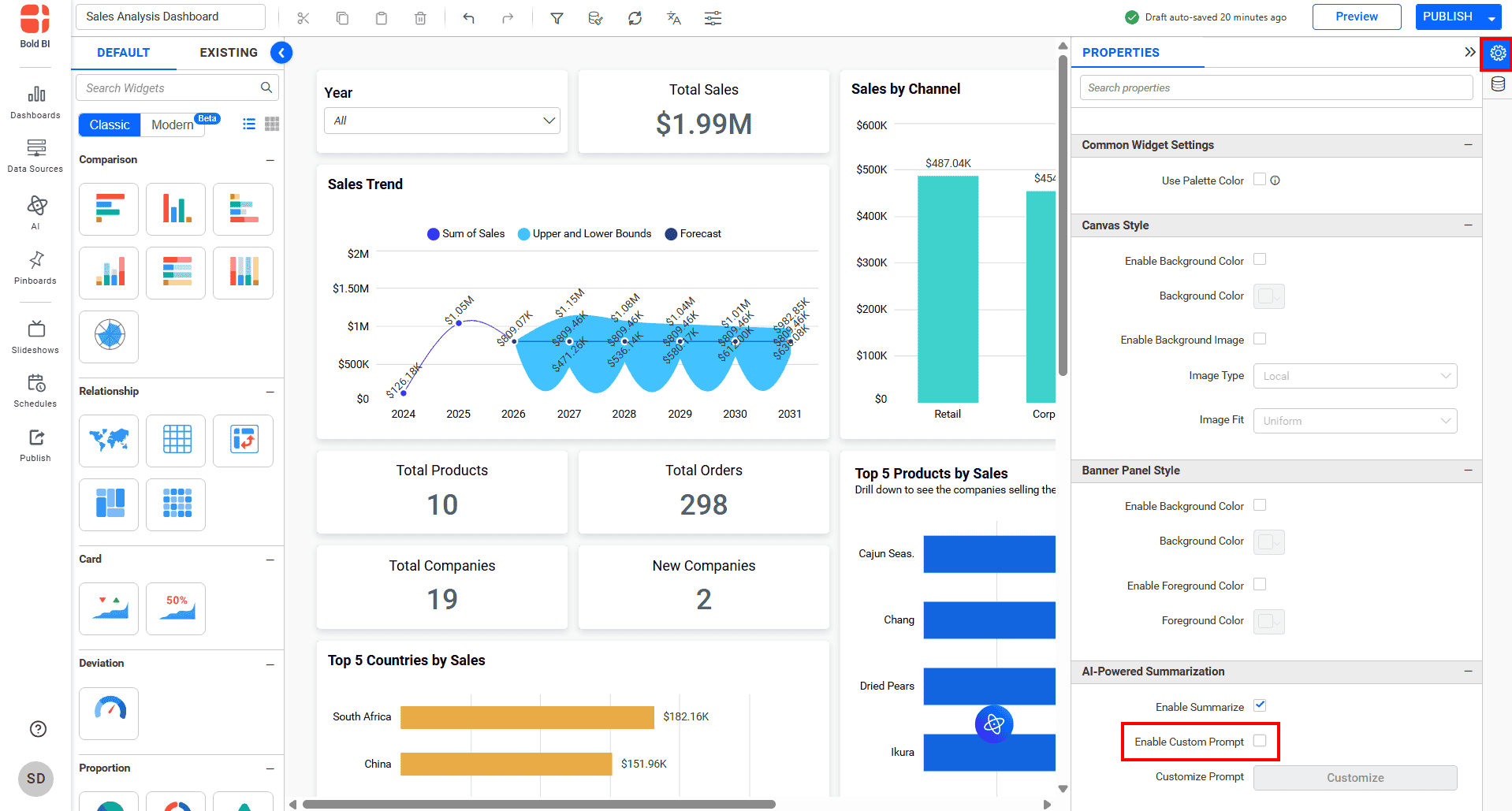
- Click Customize to open the Customize Prompt dialog.
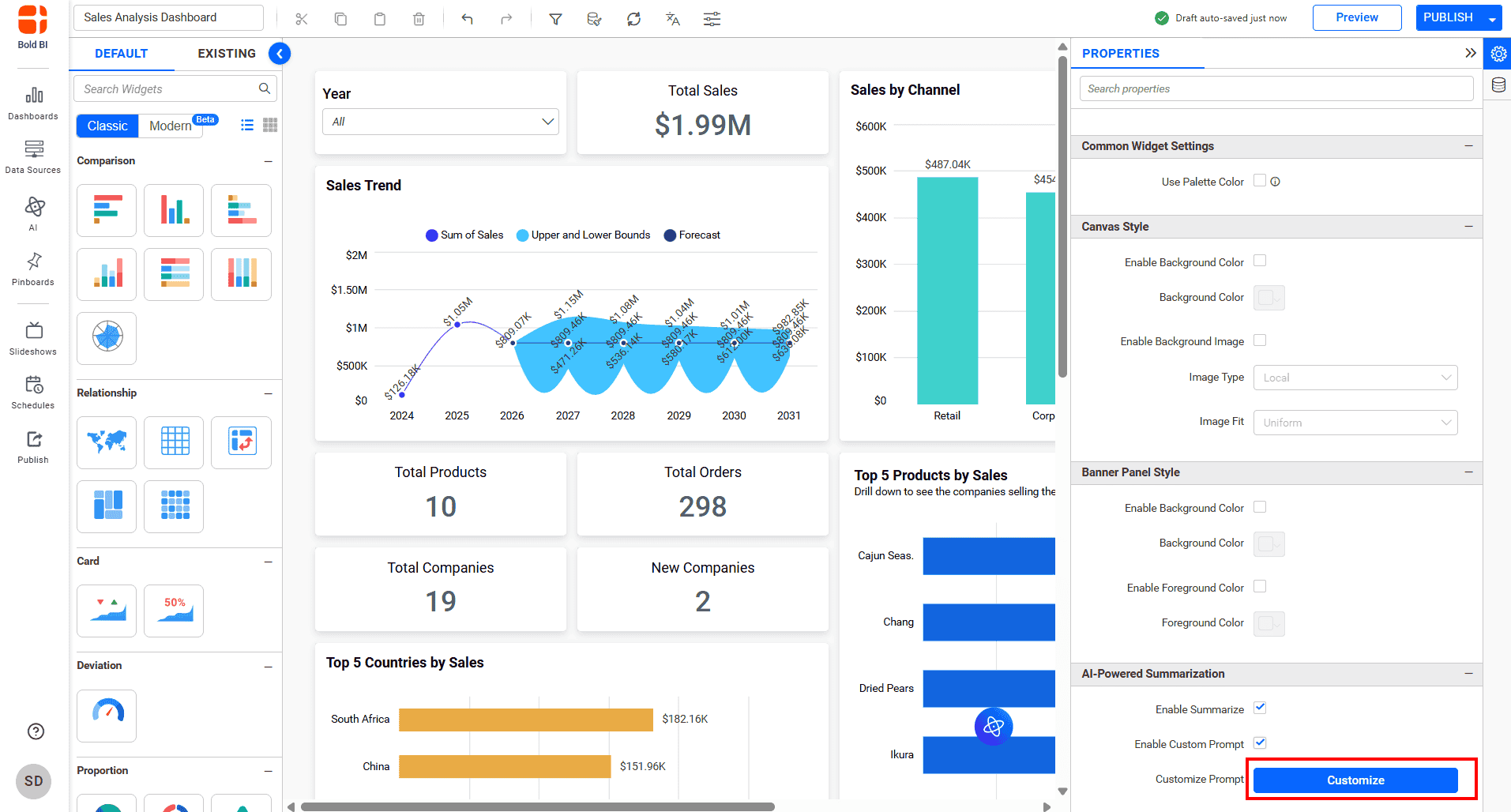
- Enter your dashboard summary requirements in the Description field and click Restructure to generate a custom prompt.
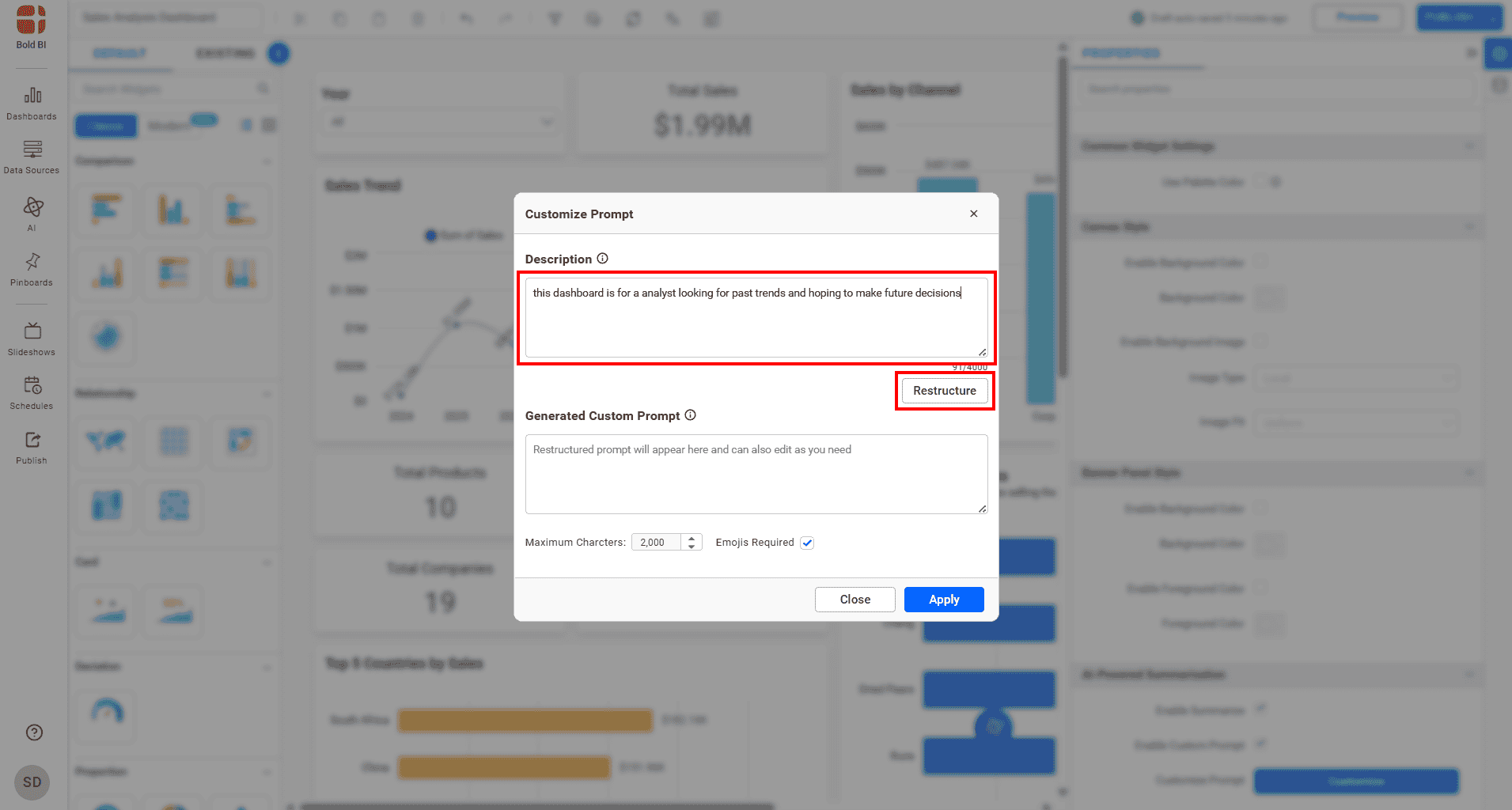
- Review and modify the generated prompt if required. Optionally, specify the maximum number of characters for the summary and enable or disable emojis based on your preference.
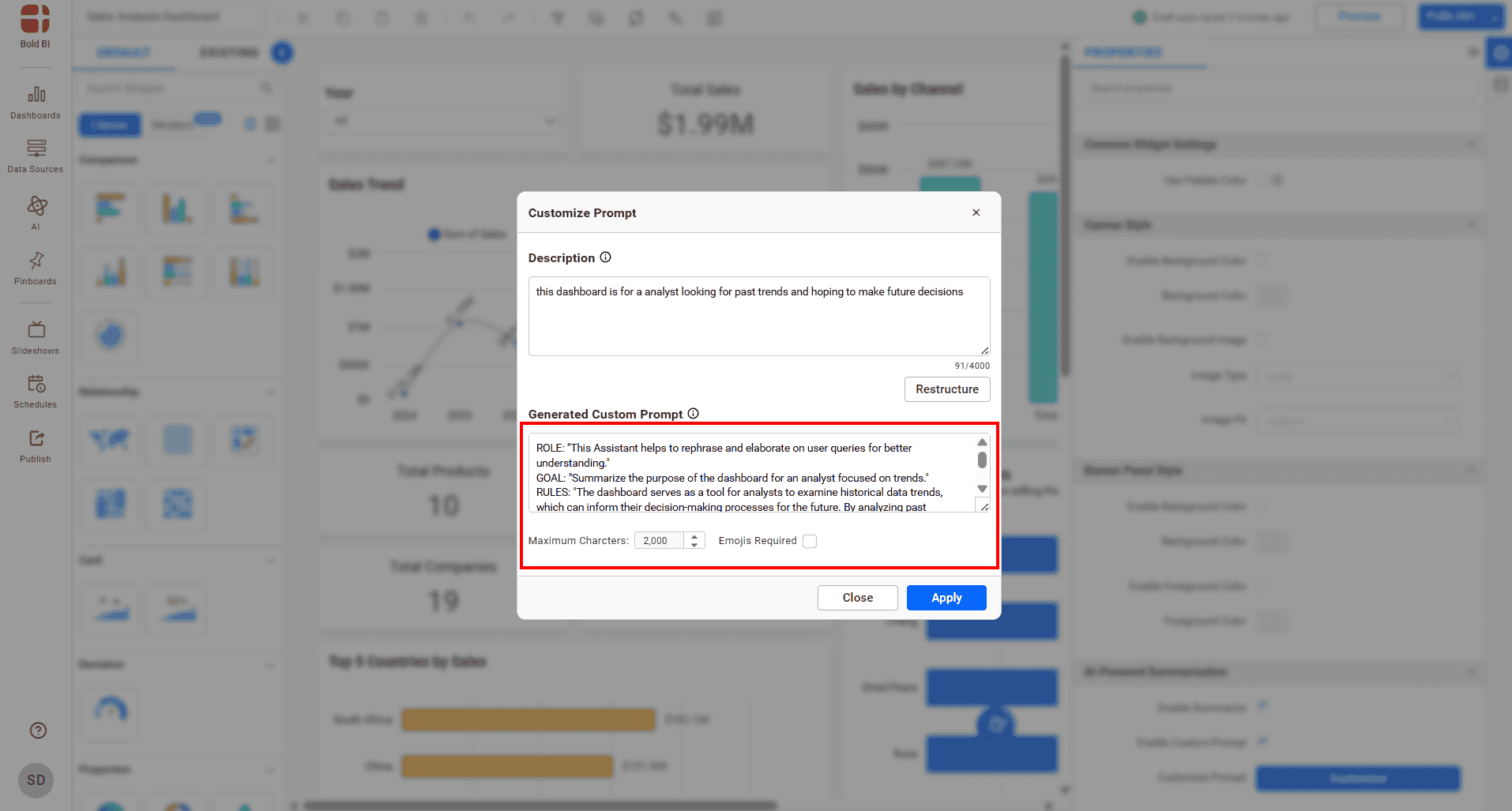
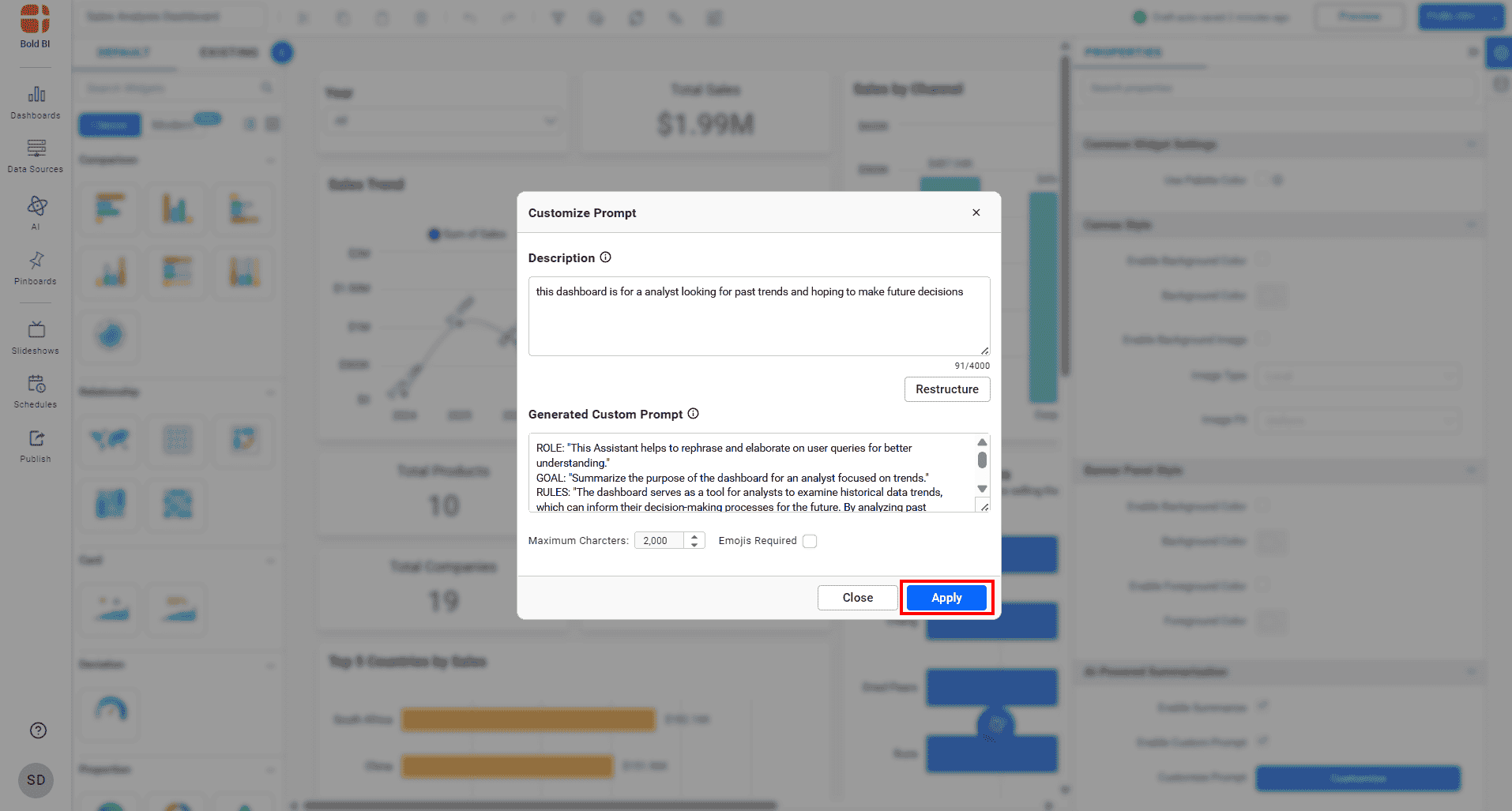
- Click Apply to save the custom prompt.
-
Click the Summarize icon to generate a summary using the configured custom prompt.
-
Review the generated summary to ensure it aligns with the instructions provided in your custom prompt.