Language Support
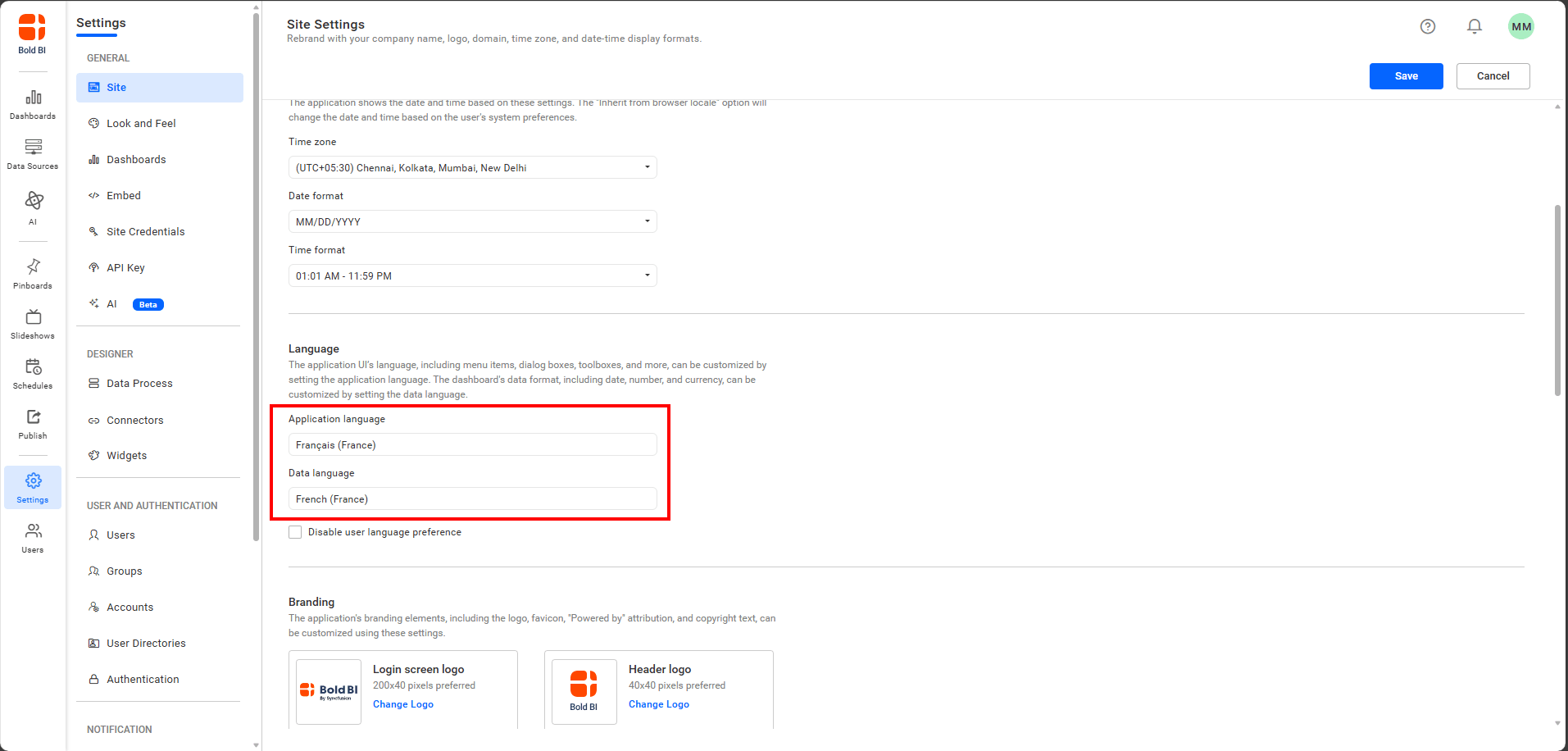
Bold BI AI features support multiple languages, allowing you to interact with AI Assistant, AI Agent, AI Copilot, Dashboard Summary, and Widget Summary in your preferred language. To enable multilingual capabilities, you must configure the language settings in your Bold BI application.
Getting Started with language support
-
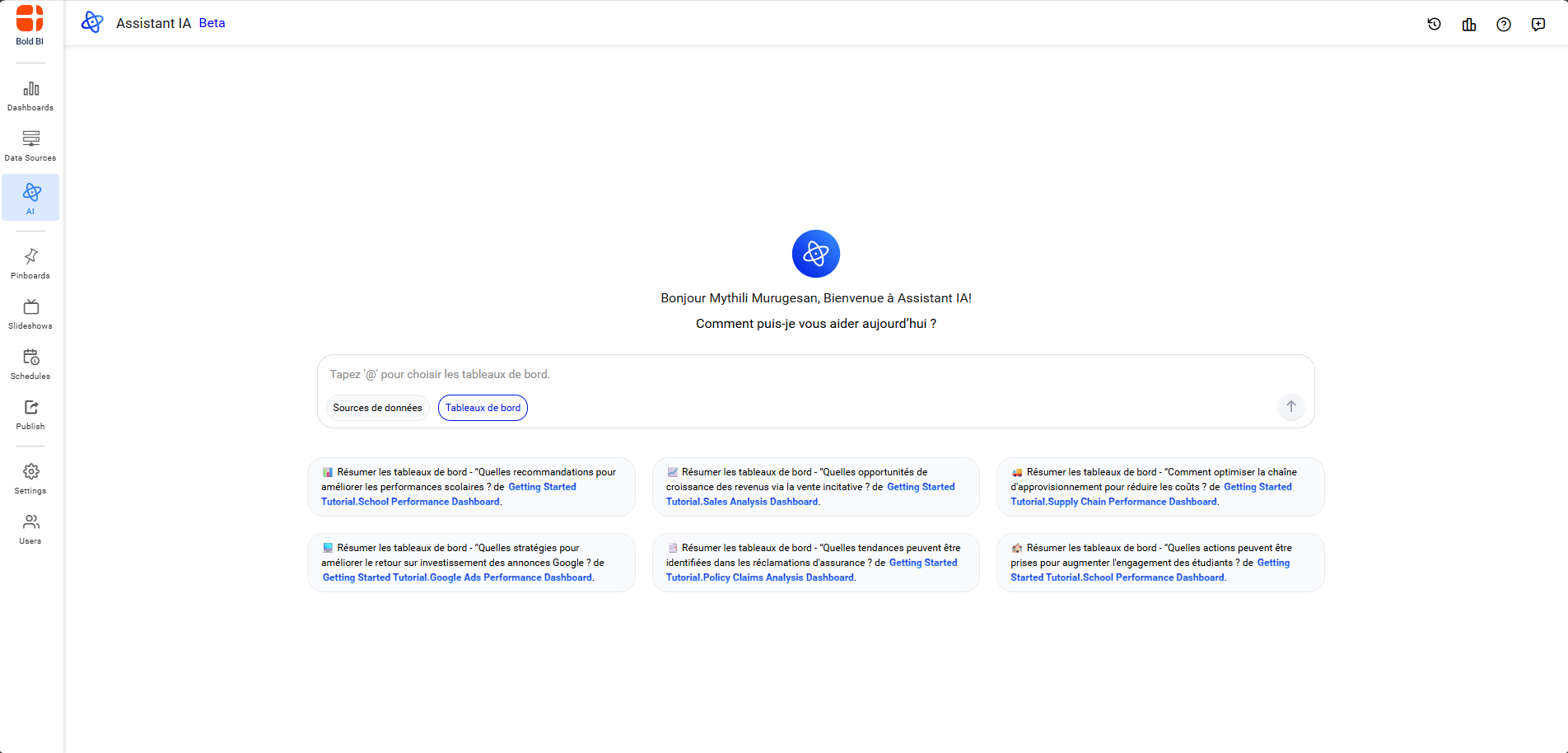
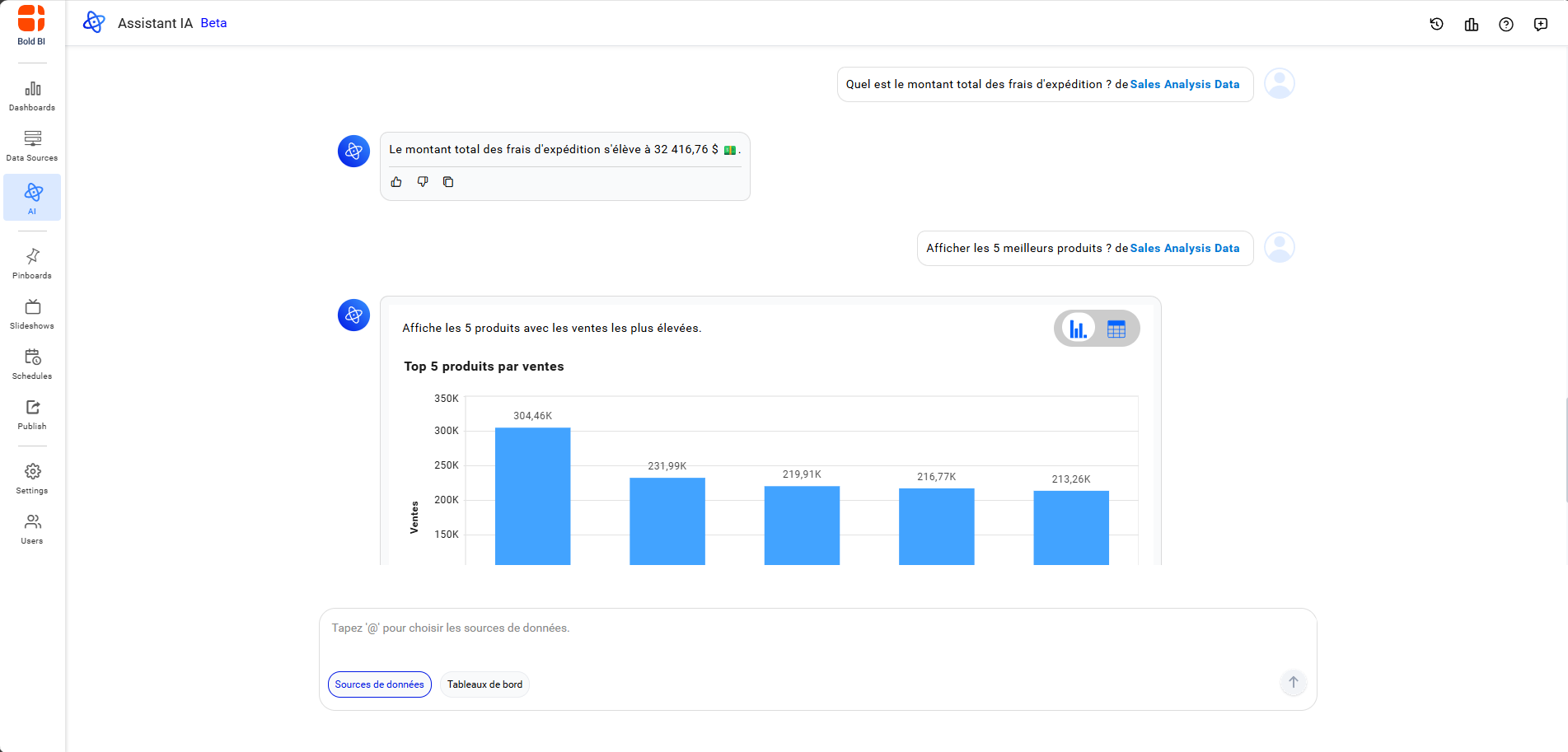
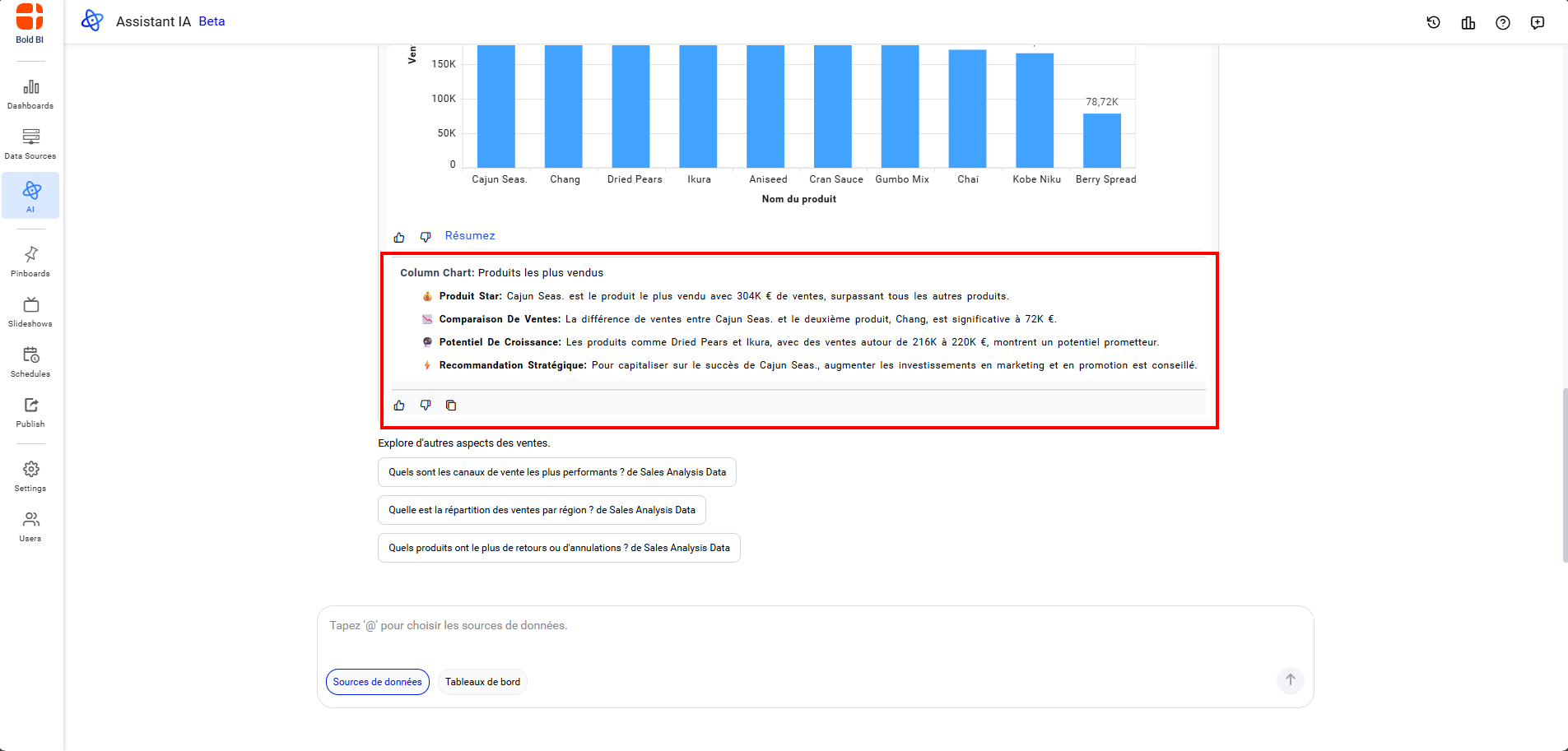
After configuring the language, open or refresh the AI Assistant page. You will see both the UI text and the AI responses presented in the selected language.
-
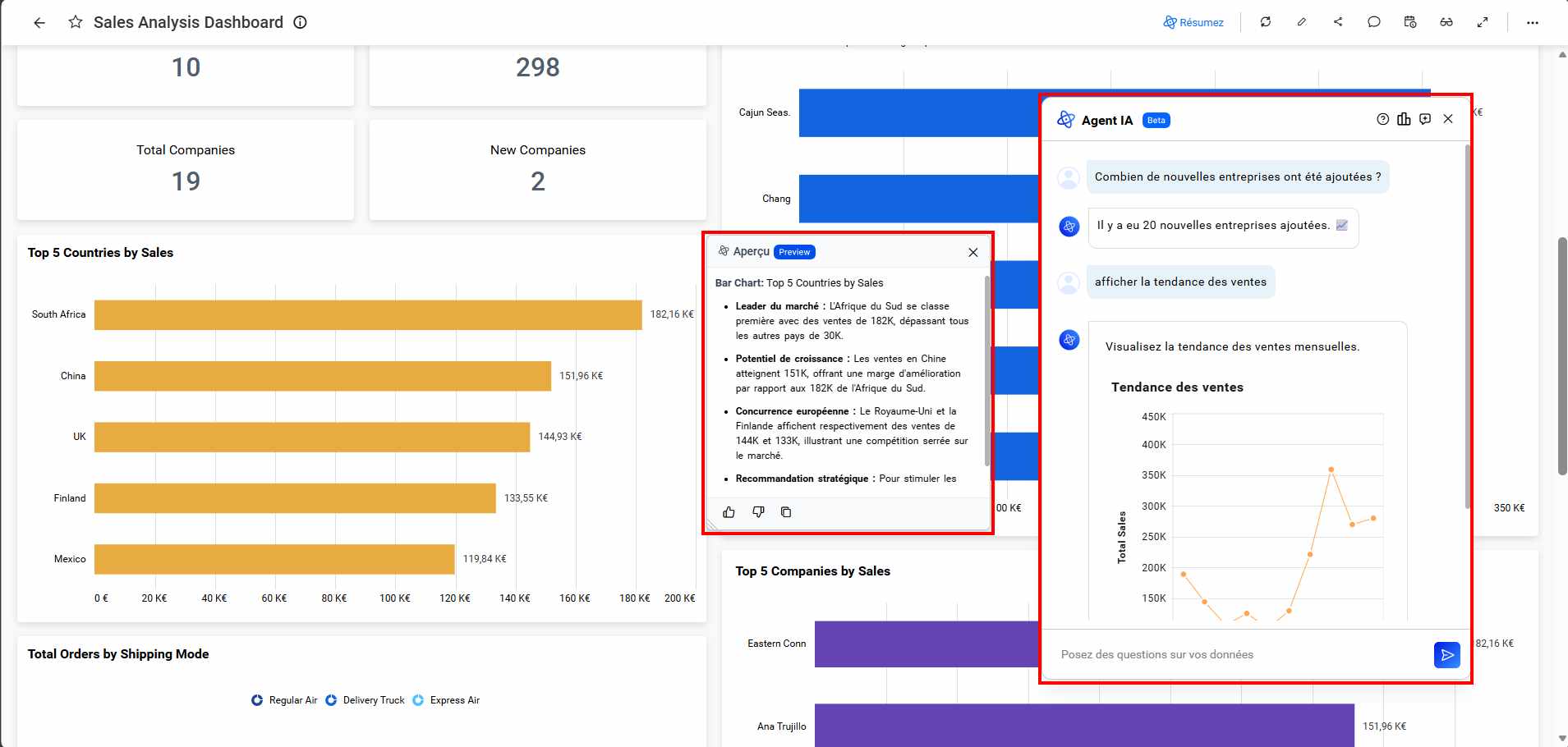
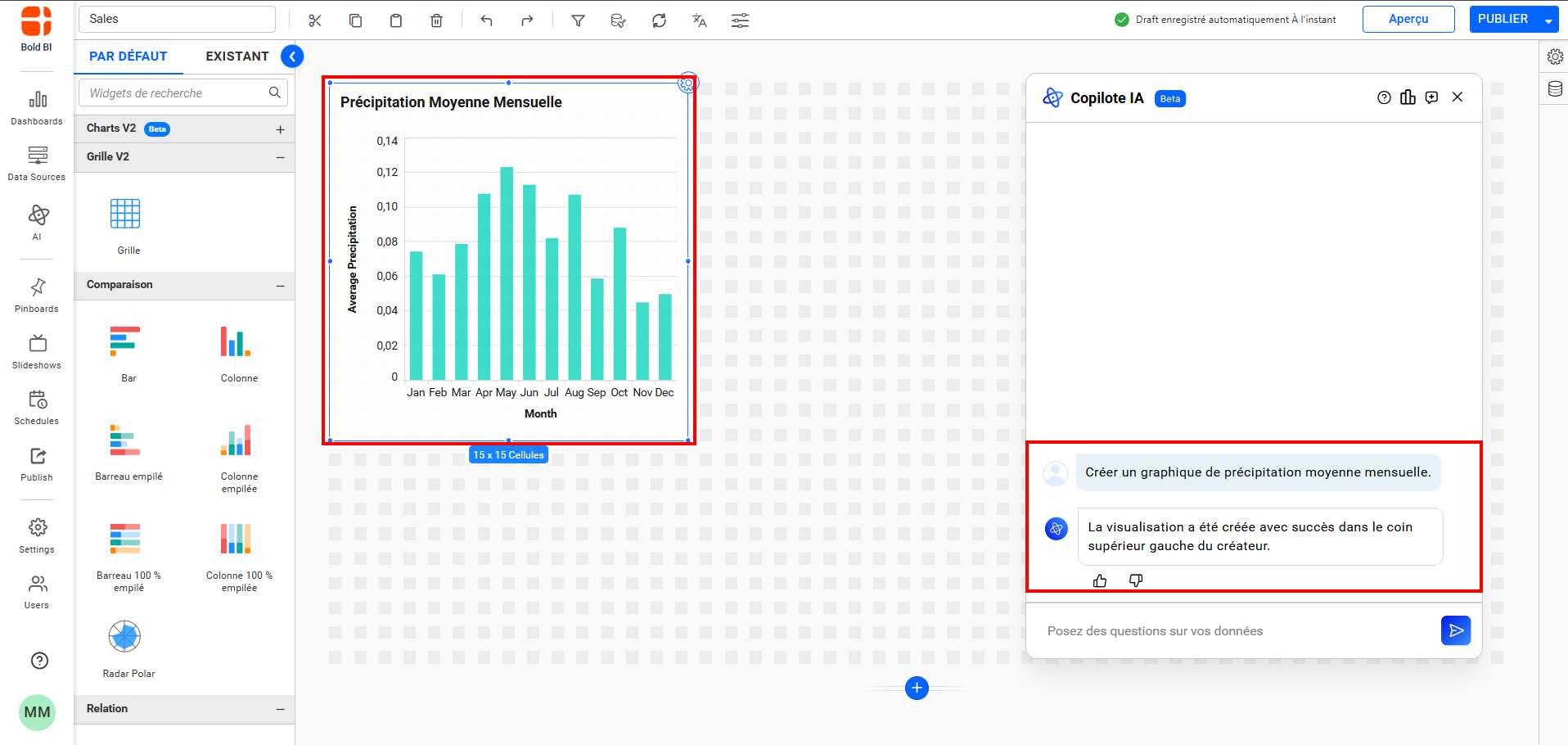
After refreshing your dashboard the AI Agent, AI Copilot, Dashboard Summary, and Widget Summary will reflect the selected language.
Troubleshooting
- If the AI features do not reflect the selected language, clear the browser cache and reload the application, or use an incognito/private browsing window.
NOTE: In Site Settings, Application Language controls the application’s locale UI text. To ensure AI responses in the selected language, set the Data Language option as well.
Having trouble getting help?
Contact SupportHaving trouble getting help?
Contact Support