
Upgrade Center for Managing Bold BI Versions
Overview
Bold BI Upgrade Center is a secure, in-place upgrade utility for Kubernetes deployments. It helps administrators upgrade Bold BI from within the application by automating database impact analysis, affected-table backup, pre-upgrade validation, controlled Kubernetes rollout, post-upgrade validation, cleanup, monitoring, and rollback. This reduces manual upgrade effort and provides a guided workflow to track progress, review validation results, and recover safely when rollback is required.
Supported Environments and Prerequisites
Supported Deployment Environments
Upgrade Center supports Kubernetes-based Bold BI deployments.
Upgrade Center has been validated with the following Kubernetes platforms:
- Google Kubernetes Engine
- Azure Kubernetes Service
- Amazon Elastic Kubernetes Service
- Oracle Container Engine for Kubernetes
To run Upgrade Center, the environment must provide the required deployment configuration, image registry access, database support, and namespace-scoped Kubernetes permissions.
Prerequisites
Before enabling or using Upgrade Center, ensure the following prerequisites are met:
- The startup database user must have permission to create and drop databases. For more information, see What Permissions Are Required to Create and Use a Database.
- The Kubernetes node where the Upgrade Center and validation jobs run must have at least 2 vCPU and 4 GB of free memory available for the upgrade operation.
- The Kubernetes user applying the Upgrade Center manifests must have permission to create the required Service Account, Role, and RoleBinding resources in the Bold BI namespace.
Enable Upgrade Center in Kubernetes
Follow the deployment steps available in the Upgrade Center deployment documentation:
- Using kubectl: Deploy Upgrade Center using Kubectl
- Using Helm: Deploy Upgrade Center using Helm
Accessing Upgrade Center
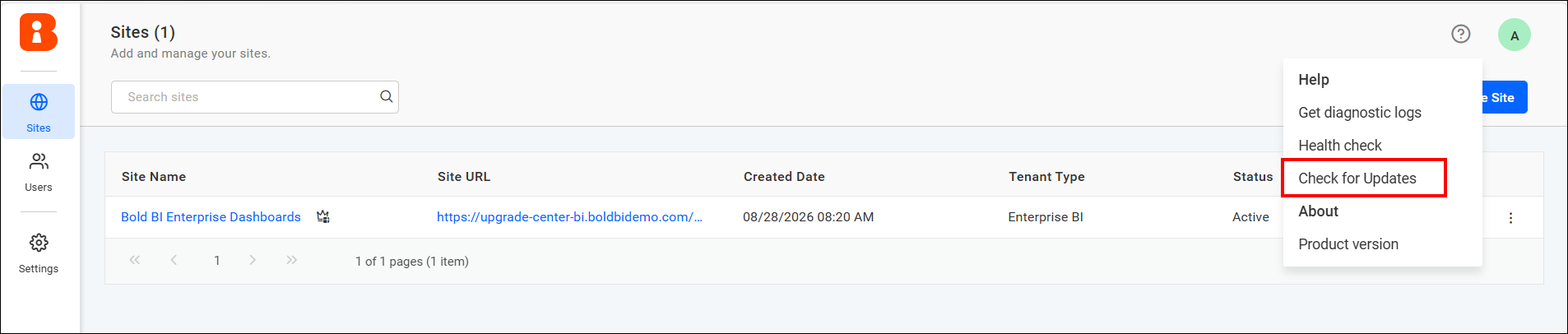
Administrators can access Upgrade Center from the product menu using the Check for Updates option.
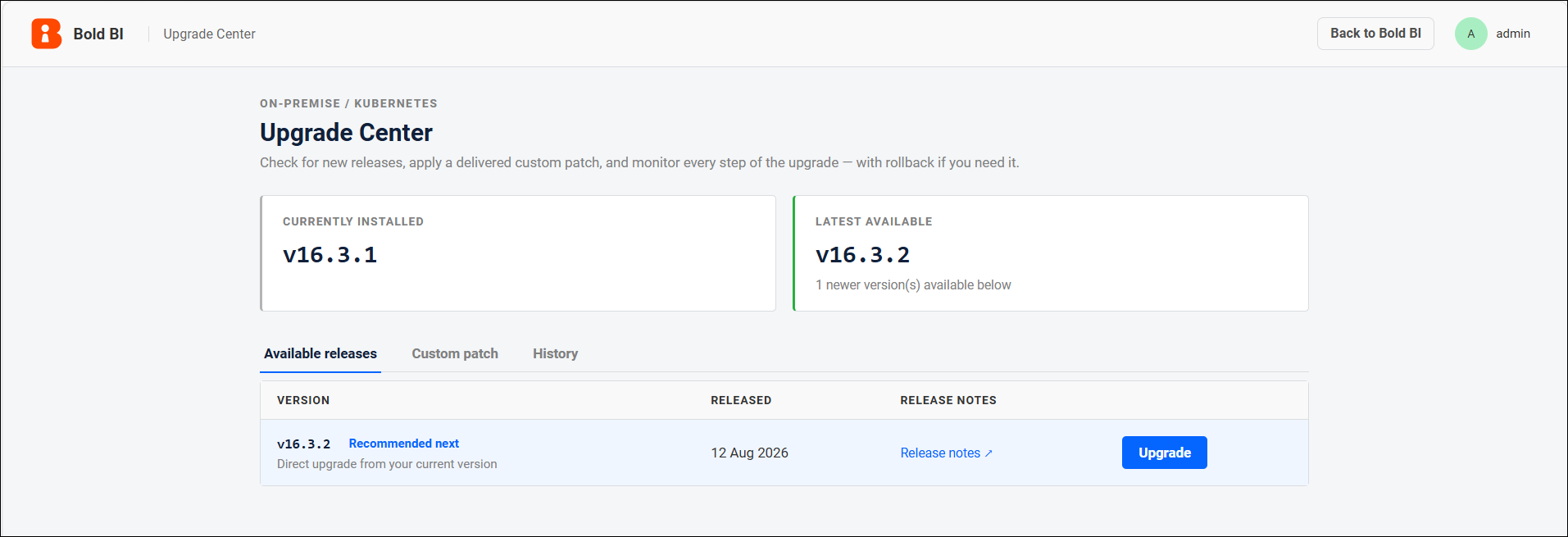
The Upgrade Center page displays:
- Currently installed version
- Latest available version
- Available releases
- Custom patch option
- Upgrade history
- Rollback availability
The currently installed version is retrieved from the product version source used by the application. If the installed version is already the latest available version, the available release list is hidden and the page shows a message that no newer versions are available.
Upgrade Options
Standard Release Upgrade
Use the Available releases tab to upgrade to an officially available product version.
Steps:
- Open Upgrade Center.
- Go to Available releases.
- Review the available versions.
- Select the required target version.
- Click Upgrade.
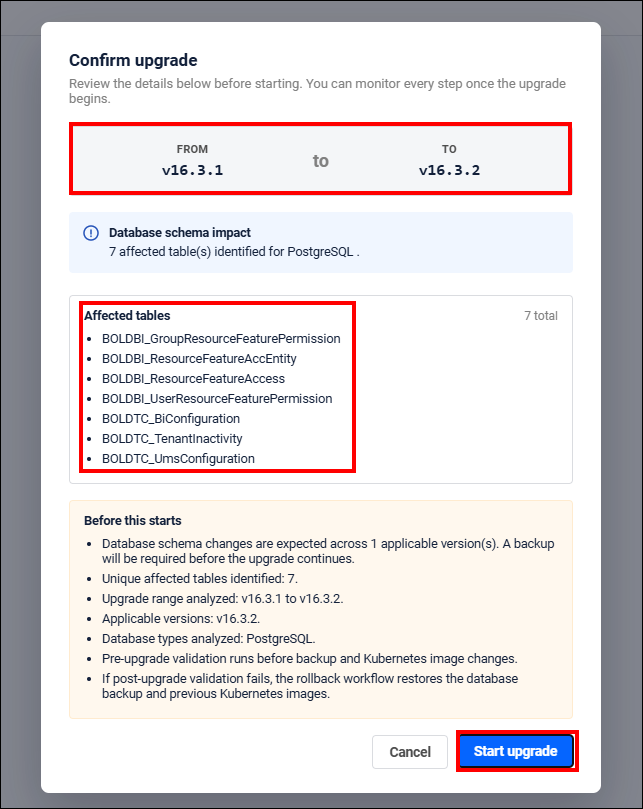
- Review the confirmation dialog.
- Check the affected database tables and warnings.
- Click Start Upgrade to begin.
Custom Patch Upgrade
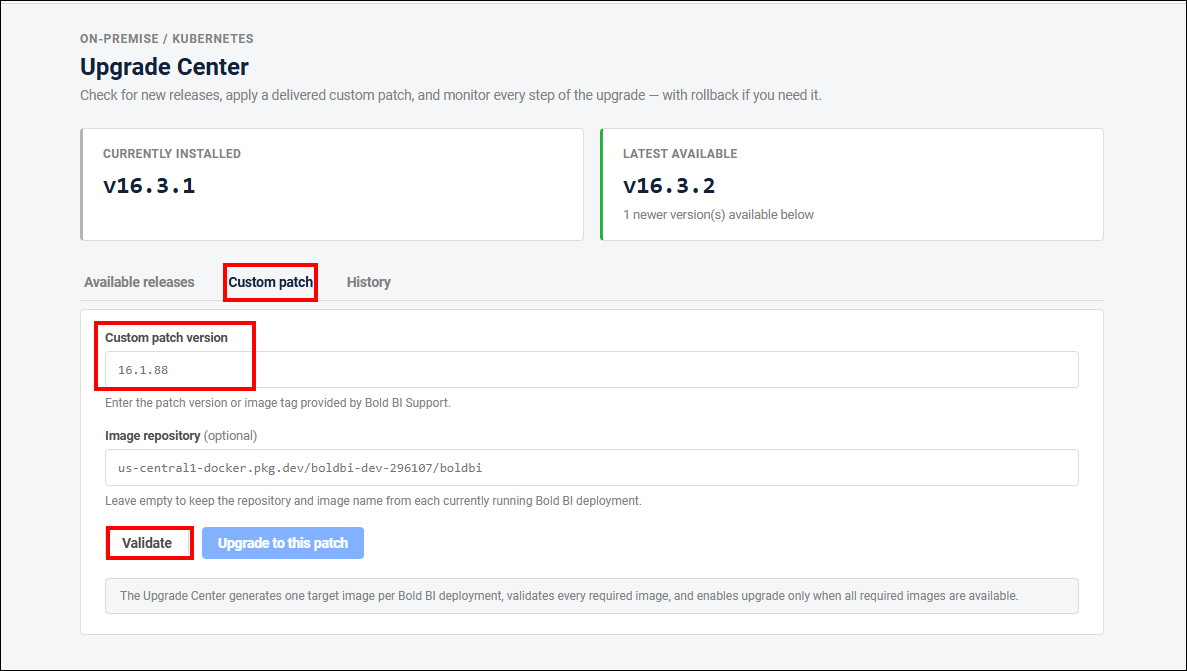
Use the Custom patch tab when Bold BI Support provides a custom image tag or patch version.
Steps:
- Open Upgrade Center.
- Go to Custom patch.
- Enter the custom patch version or image tag.
- Optionally enter a custom image repository.
- Click Validate.
- Review generated image references and validation results.
- Proceed only if all required images are valid.
- Confirm and start the upgrade.
Custom patch requirements:
-
The image tag must be valid and accessible.
-
The image repository must be allowed by the configured registry validation rules.
-
The patch version must be greater than the currently installed version.
-
The custom patch tag can include additional text after the product version, such as
17.1.11_patch; Upgrade Center uses the product version portion for version comparison. -
Custom patch upgrades update Kubernetes images and use the same monitoring, validation, cleanup, and rollback views as standard upgrades.
-
Database schema backup is skipped for custom patch upgrades.
Standard Upgrade Workflow
The standard upgrade process follows this sequence:
- Database Backup
- Pre-Upgrade Validation
- Kubernetes Upgrade
- Post-Upgrade Validation
- Cleanup Job
Database Backup
Before updating the application images, Upgrade Center identifies the database tables affected by the upgrade and creates backups of their existing data for all active tenant sites.
Important: Upgrade Center backs up only the tables identified as affected by the upgrade. This table-level backup supports the upgrade and rollback processes; it does not replace a complete, customer-managed database backup. Create and verify a full database backup before starting the upgrade.
Pre-Upgrade Validation
Pre-upgrade validation verifies that the current Bold BI environment is ready before the upgrade begins. If this validation fails, Upgrade Center stops the upgrade before changing the application images.
Kubernetes Upgrade
During the upgrade stage, Upgrade Center updates Kubernetes deployment images and monitors rollout status.
Deployments are upgraded in predefined groups. Deployments within a group are updated in parallel. The next group starts only after the current group is healthy.
If a required deployment fails, the upgrade stops and automatic rollback starts when rollback context exists.
After Kubernetes rollout succeeds, Upgrade Center performs product-level health checks for the configured Bold BI services. These checks confirm that the upgraded pods are ready in Kubernetes and responding through the product health endpoints.
Post-Upgrade Validation
Post-upgrade validation verifies that Bold BI is working correctly after the upgrade is completed. If this validation fails, Upgrade Center starts automatic rollback when a valid rollback point is available.
Cleanup Job
The Cleanup Job removes validation-created resources such as temporary test users, sites, and data created during automated validation.
Cleanup behavior:
- Cleanup runs through the Playwright Kubernetes runner.
- Cleanup success requires all required cleanup operations to pass.
- Cleanup failure is shown as a failed Cleanup Job stage with a manual-cleanup message.
Monitor an Upgrade
Monitoring Page
After the upgrade begins, the monitoring page displays these stages:
- Schema Backup
- Pre-Upgrade Validation
- Upgrade
- Post-Upgrade Validation
- Cleanup Job
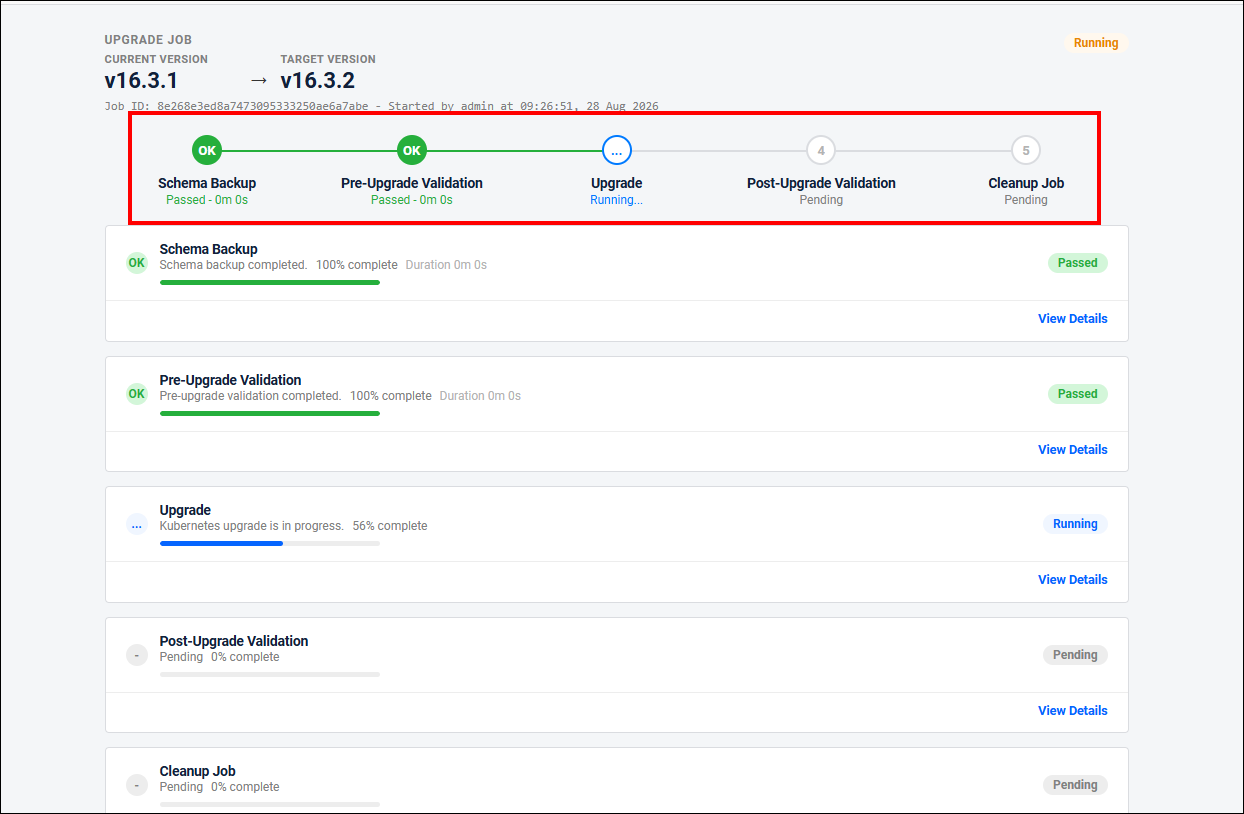
Each stage displays:
- Status
- Progress percentage
- Duration
- View Details
- Complete operation logs
- HTML validation report after the report is uploaded and stored
Upgrade status
Common status values:
- Pending: Stage has not started.
- Running: Stage is in progress.
- Passed: Stage completed successfully.
- Failed: Stage failed and requires attention.
- Skipped: Stage was not required.
- Rolled back: Upgrade was reverted to the previous version.
- Cancelled: Operation was cancelled by the administrator.
Stage Details
Stage details contain concise progress information relevant to each stage.
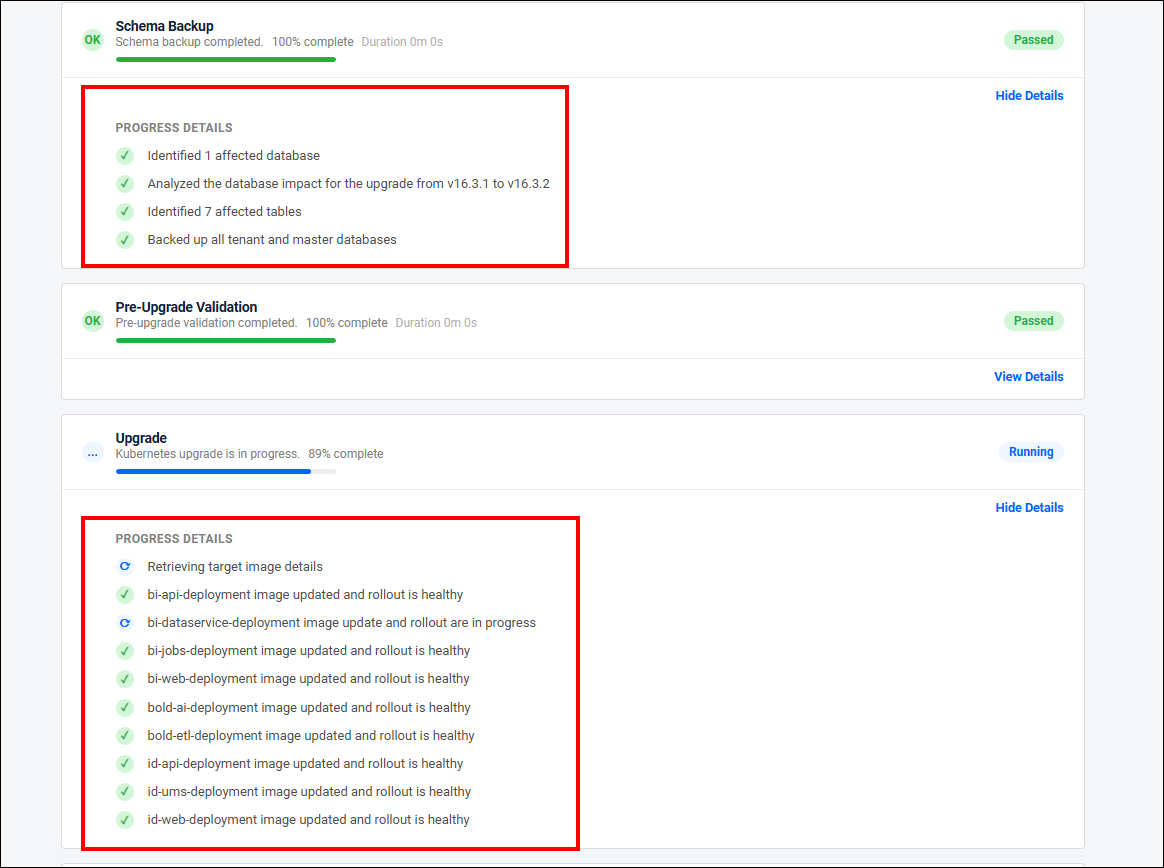
Complete Operation Logs
Complete operation logs provide detailed operation-level information, including:
- Database backup and restore messages
- Kubernetes rollout progress
- Validation execution details
- Warnings
- Errors
- Final operation status
The Download Complete Logs option provides the full operation log for troubleshooting.
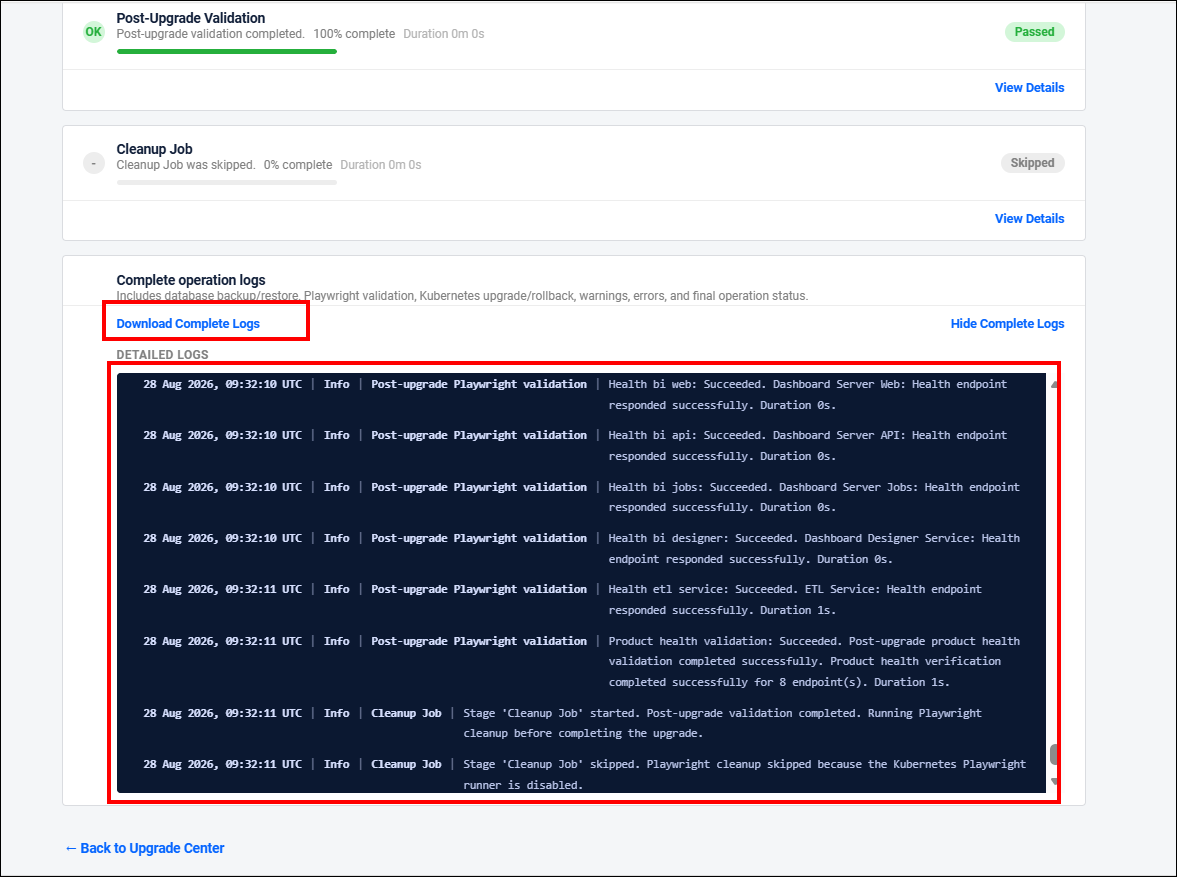
Playwright Reports and Results
Upgrade Center runs Playwright validation as a Kubernetes Job using the configured Playwright runner image.
The validation results include:
- Total test count
- Passed test count
- Failed test count
- Skipped test count
- Pass percentage
- Configured pass-rate threshold
- Final validation status
HTML validation reports are uploaded to Upgrade Center and are available through an authenticated Upgrade Center endpoint. Reports are stored separately for each upgrade job and validation stage and are retained for the latest seven upgrade jobs.
Note: Reports stored in non-persistent application data storage are lost if the Upgrade Center pod is recreated.
Rollback
Manual Rollback
Manual rollback is available from the Rollback or History section when a valid rollback point exists.
Rollback availability is limited to the configured rollback retention window. By default, rollback is available only for the most recent successful upgrade within 7 days. After this period, the rollback option is not displayed because the required backup and rollback context is outside the supported retention window.
Steps:
- Open Upgrade Center.
- Go to the History section.
- Select the available rollback point.
- Review the rollback confirmation dialog.
- Confirm rollback.
- Monitor rollback progress.
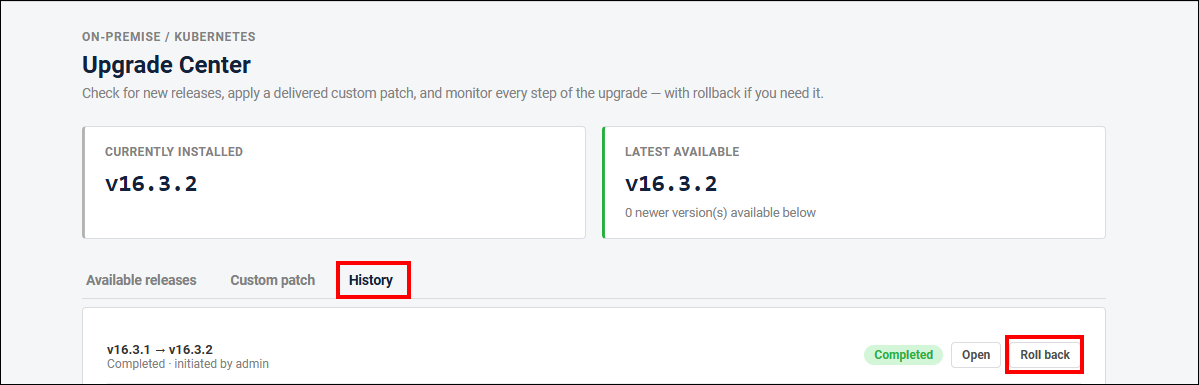
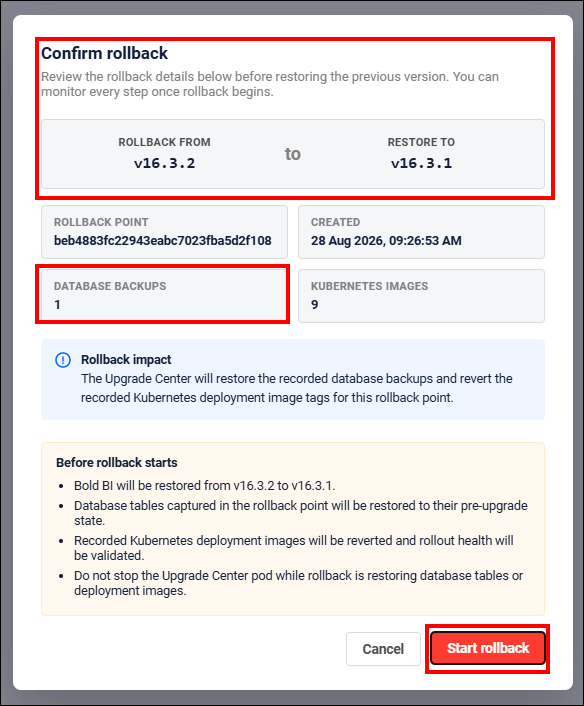
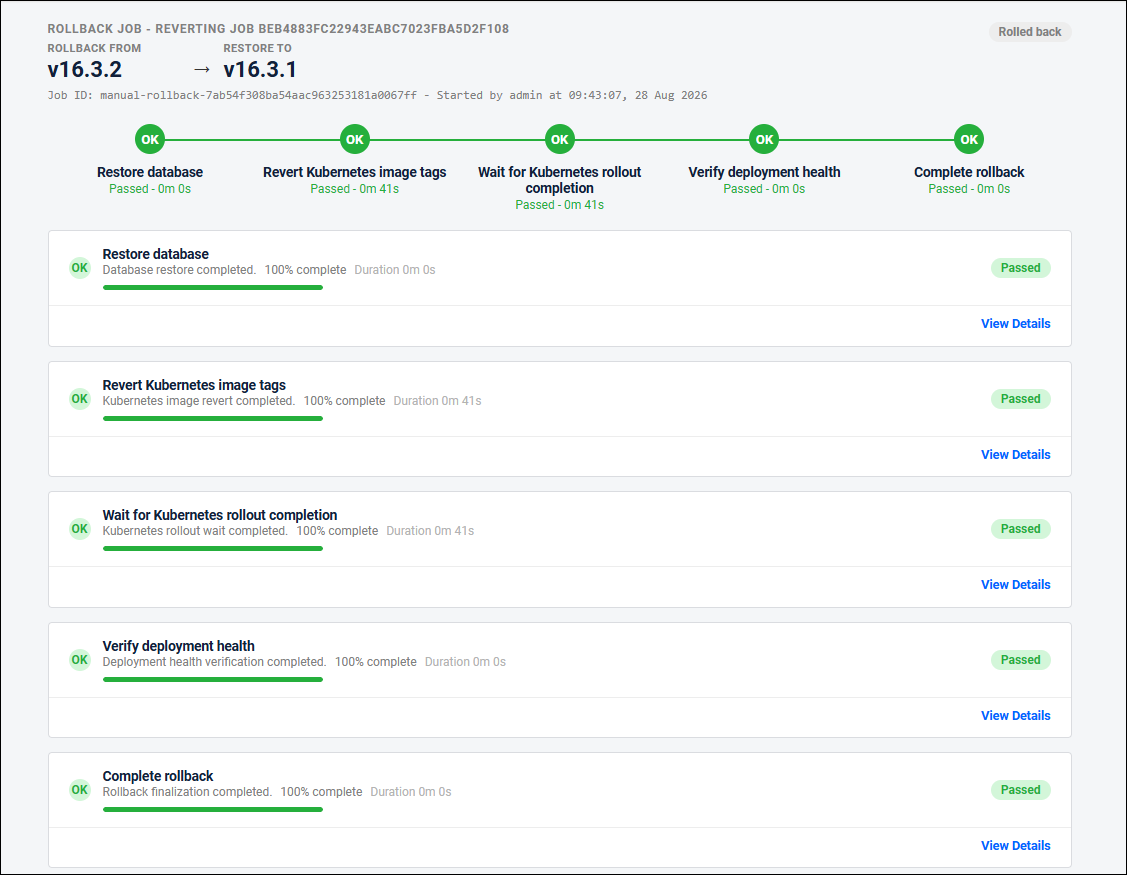
During rollback, Upgrade Center restores backed-up affected database tables where a backup exists and reverts Kubernetes deployment images to the previously recorded image references.
Automatic Rollback
Automatic rollback starts when a failure occurs after upgrade changes have been applied and rollback context exists.
Automatic rollback is triggered by:
- Kubernetes rollout failure
- Product health-check failure
- Post-upgrade validation failure
If failure occurs before application changes are applied, rollback is not required.
Automatic rollback uses the same restore and Kubernetes image-revert workflow as manual rollback.
Cancellation and Recovery
An administrator can cancel an active operation when cancellation is safe for the current stage.
Cancellation behavior depends on when the cancellation occurs:
- If cancellation happens before application images are changed, Upgrade Center stops the remaining upgrade stages.
- If cancellation happens after application images have been changed, Upgrade Center triggers rollback to restore the previous version.
- Running Playwright validation jobs and cleanup jobs are stopped or cleaned up.
- The monitoring page and History section show the final cancelled, failed, or rolled-back state.
- If the Upgrade Center pod is recreated during an operation, Upgrade Center reconciles persisted job state and Kubernetes state before allowing another operation to start.
Upgrade History
The History section shows previous upgrade and rollback operations.
History entries include:
- Source version
- Target version
- Operation type
- Status
- Initiated user
- Open/details option when job details are available
Use History to review completed, failed, cancelled, and rolled-back operations.
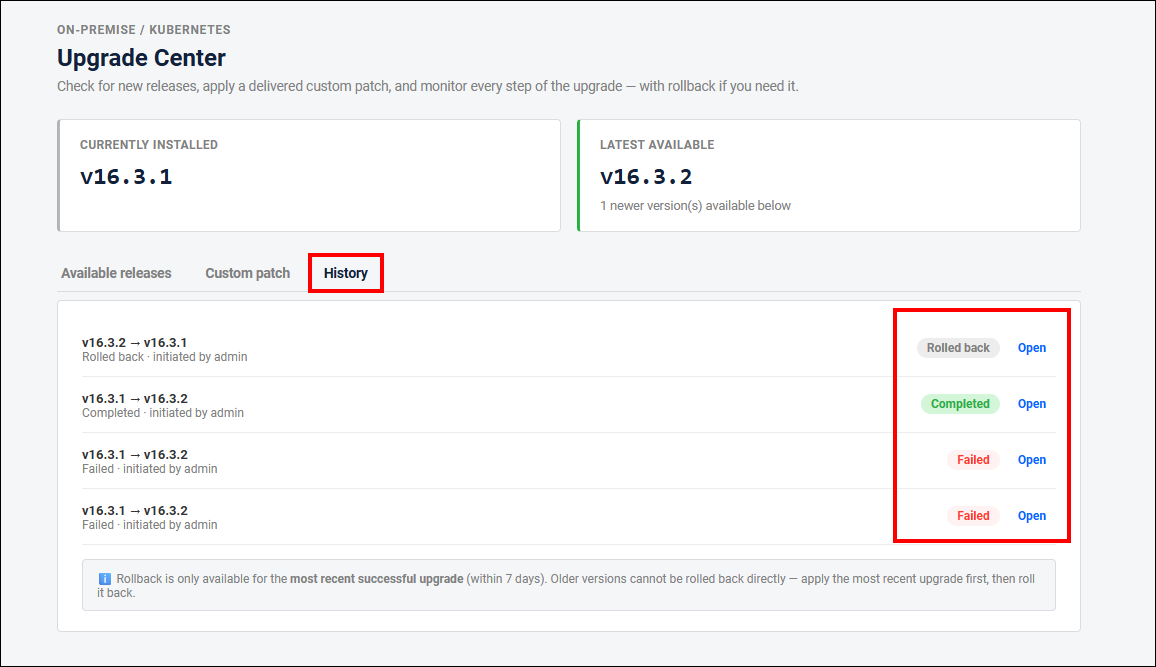
History entries include an Open option when job details are available, including failed and rolled-back jobs.
Limitations
The following scenarios are not supported:
- Non-Kubernetes deployments.
- Oracle database configurations, because the current Bold BI Playwright validation workflow does not support Oracle.
- Shared database startup configurations.
- Environments with insufficient Kubernetes permissions.