
Period Over Period
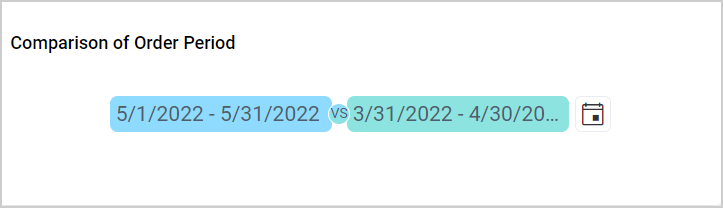
The Period Over Period widget allows users to select two time periods and compare data from a selected date range with data from a previous, subsequent, or custom comparison period.
Configuring Data
Configure the data for the Period Over Period widget in the ASSIGN DATA tab.
| Data section | Requirement | Description |
|---|---|---|
| Column | Required | Specifies the date or date-time dimension used to calculate the comparison periods and filter linked widgets. |
| Filters | Optional | Allows you to apply additional filtering conditions to the Period Over Period data. |
Assigning Data
- Drag and drop the Period Over Period widget from the toolbox onto the design canvas.
- Resize the widget as required.
- Select the Period Over Period widget and click the Settings icon to open the configuration panel.
- Switch to the
ASSIGN DATAtab. - Drag and drop a date or date-time dimension field into the
Columnsection. - Optionally, add fields to the
Filterssection to apply additional filtering conditions.
After a field is assigned, the widget calculates its default date range from the minimum and maximum dates in that field. At runtime, users can select relative or custom values for Date Range and Compare To. The assigned field is then used to apply both period filters to linked widgets.
Formatting the Period Over Period
You can format the Period Over Period widget using the property categories listed below.
General Settings
Refer to General Settings for information about configuring the widget type, unique name, title, subtitle, and description shown for the widget.
Filter
Refer to Filter Settings for information about configuring filter-related properties.
Container Appearance
Refer to Container Appearance for information about configuring the appearance of the widget container.
Container Actions
Refer to Container Actions for information about configuring the actions available for the widget container.
No Data Appearance
Refer to No Data Appearance for information about configuring how the widget is displayed when no data is available.