
Combined Widget
The Combined Widget groups multiple dashboard widgets into one container that can be moved and resized. Use it to preserve a related layout or build a layered composition.
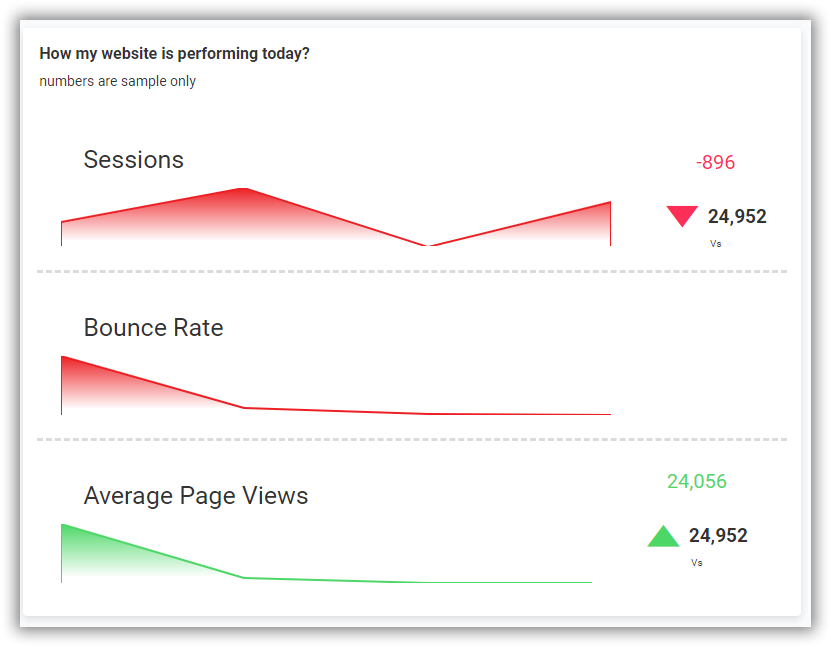
Configuring the Combined Widget
- Add the Combined Widget to the design canvas.
- Drag the required widgets into its container.
- Move or resize the container to update the grouped widgets together.
Formatting the Combined Widget
General Settings
Refer to General Settings for information about configuring the widget type, unique name, title, subtitle, and description shown for the widget.
Basic Settings
Widgets Order
Lists the child widgets and controls their front-to-back order.
Apply Stack Order
Applies the configured order when child widgets overlap.
Show Child Widget Menu Icons
Displays supported menu icons on widgets placed inside the Combined Widget. It is disabled when the parent widget menu is hidden.
Container Appearance
Refer to Container Appearance for background, border, radius, transparency, padding, and shadow settings.
Container Actions
Refer to Container Actions for maximize, commenting, and pinning options.
Export Settings
Refer to Export Options for exporting the visible grouped widgets as one output.