
Connecting Bold BI to Microsoft Fabric source
Bold BI Dashboard Designer supports connecting to Microsoft Fabric database through SQL Live query.
Choose Microsoft Fabric data source
To configure the Microsoft Fabric data source, follow these steps:
-
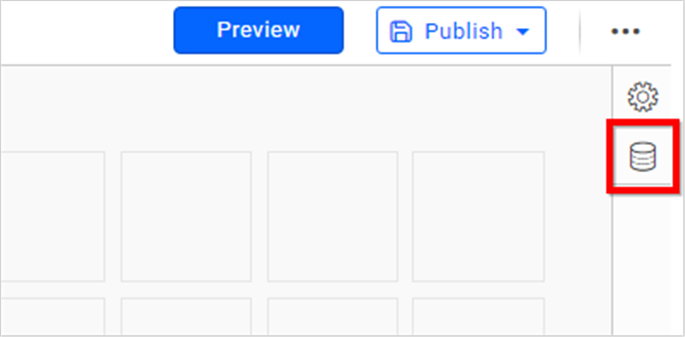
Click on Data Sources in the configuration panel to add a new data connection.
-
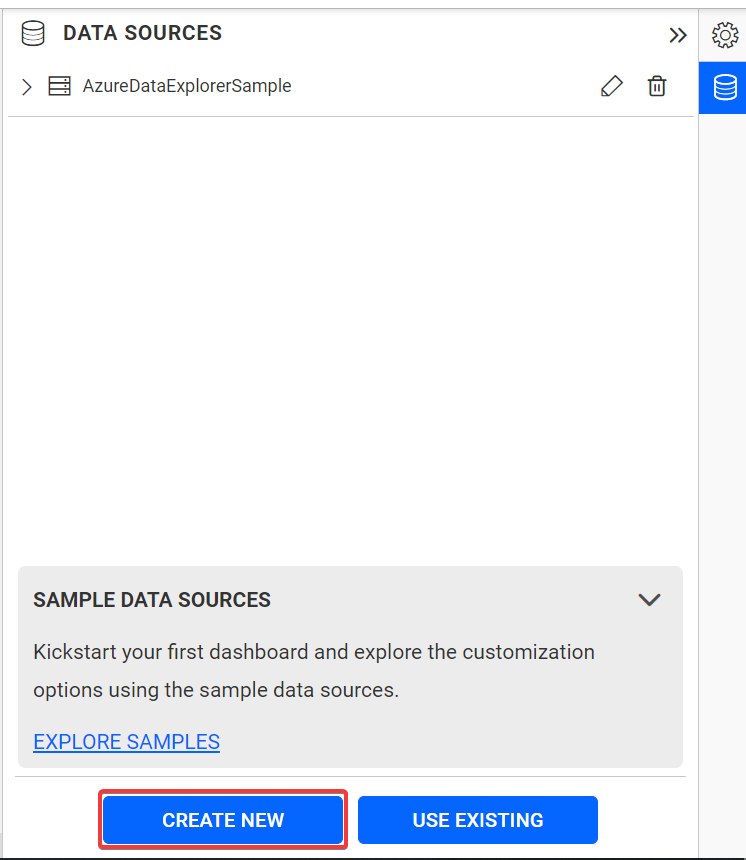
Click on CREATE NEW to launch a new connection from the connection panel.
-
Select the Microsoft Fabric Source connection in the connection panel.

NOTE: You can also create a data source from the home page by clicking on the Data Sources menu in the left menu panel and selecting Create Data Source from the data sources page.
Connect to Microsoft Fabric data Source
Microsoft Fabric data source can be accessed in Bold BI using the live connection mode.
Create Microsoft Fabric data source
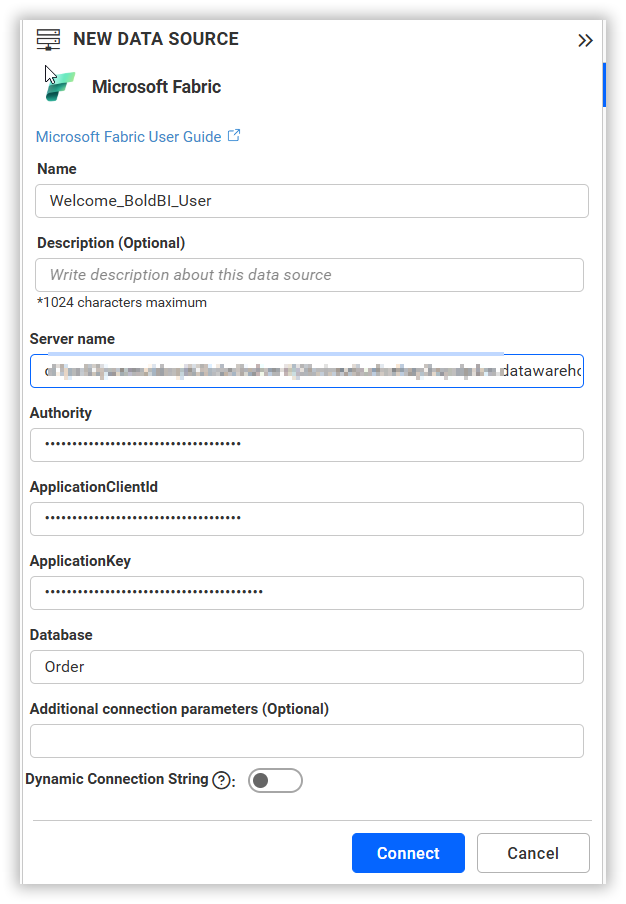
After clicking the data source, the NEW DATA SOURCE configuration panel opens. Follow the given steps to create an Microsoft fabric data source:
-
Enter a name and an optional description for the data source.
-
Select your Lake house or Warehouse from the Fabric workspace.
-
Enter the Tenant ID (also known as Authority) in the Authority text box.
-
Enter a valid Microsoft Fabric Application Client ID in the Application Client ID text box.
-
Enter a valid Microsoft Fabric Application Key in the Application Key text box.
-
Enter a valid output location for storing the output files in the Output Location text box, in the specified format.
-
Select the database you want to query from the listed databases associated with the Microsoft Fabric server, using the Database combo box.
Data Preview
- Click Connect to connect to the Microsoft Fabric Data Explorer server with the configured details.
The schema represents the collection list retrieved from the Microsoft Fabric Data Explorer server. This dialog displays a list of schemas in a treeview along with their corresponding values.
-
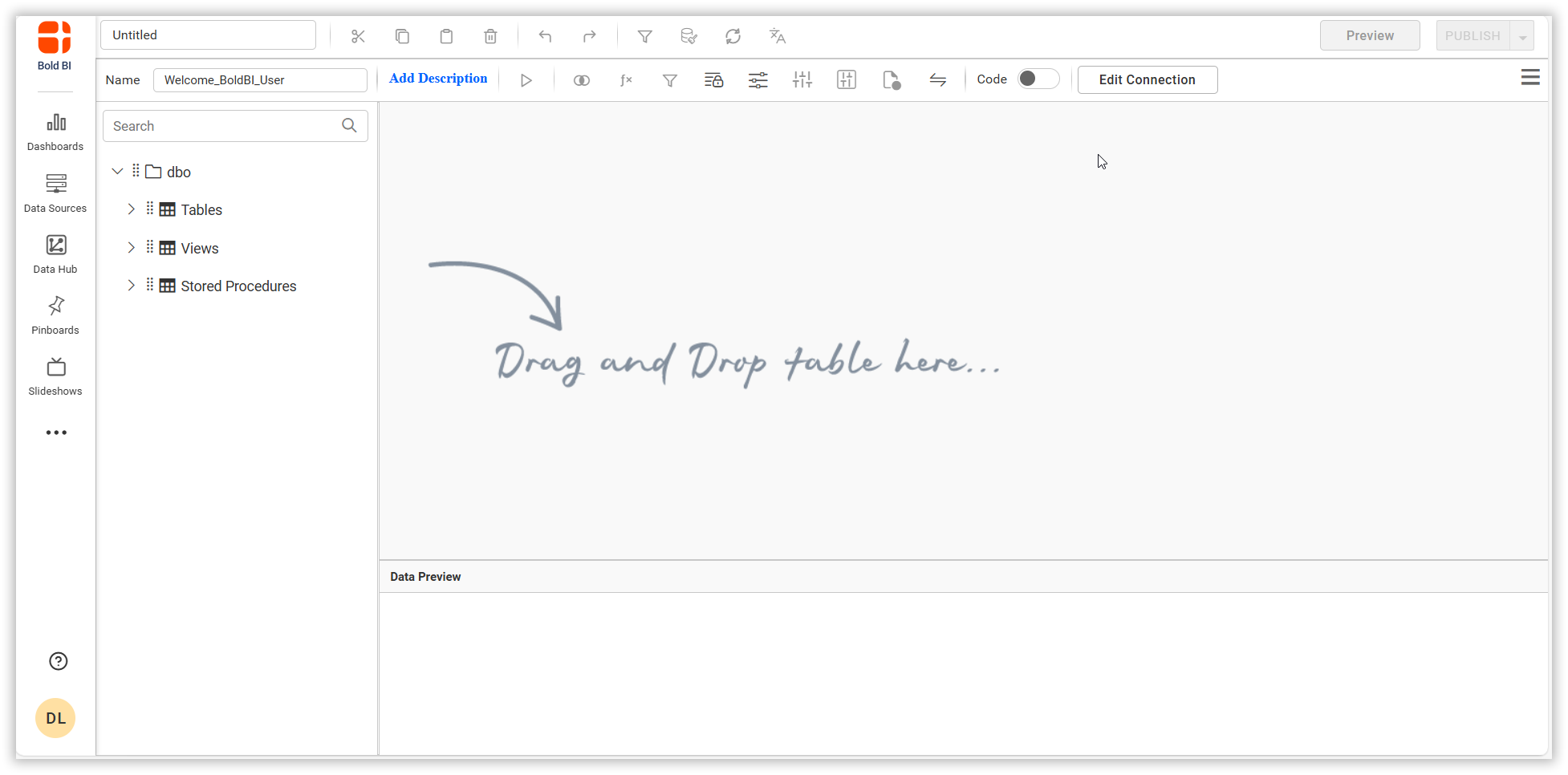
Now, the data design view page with the selected table schema opens. Drag and drop the table.
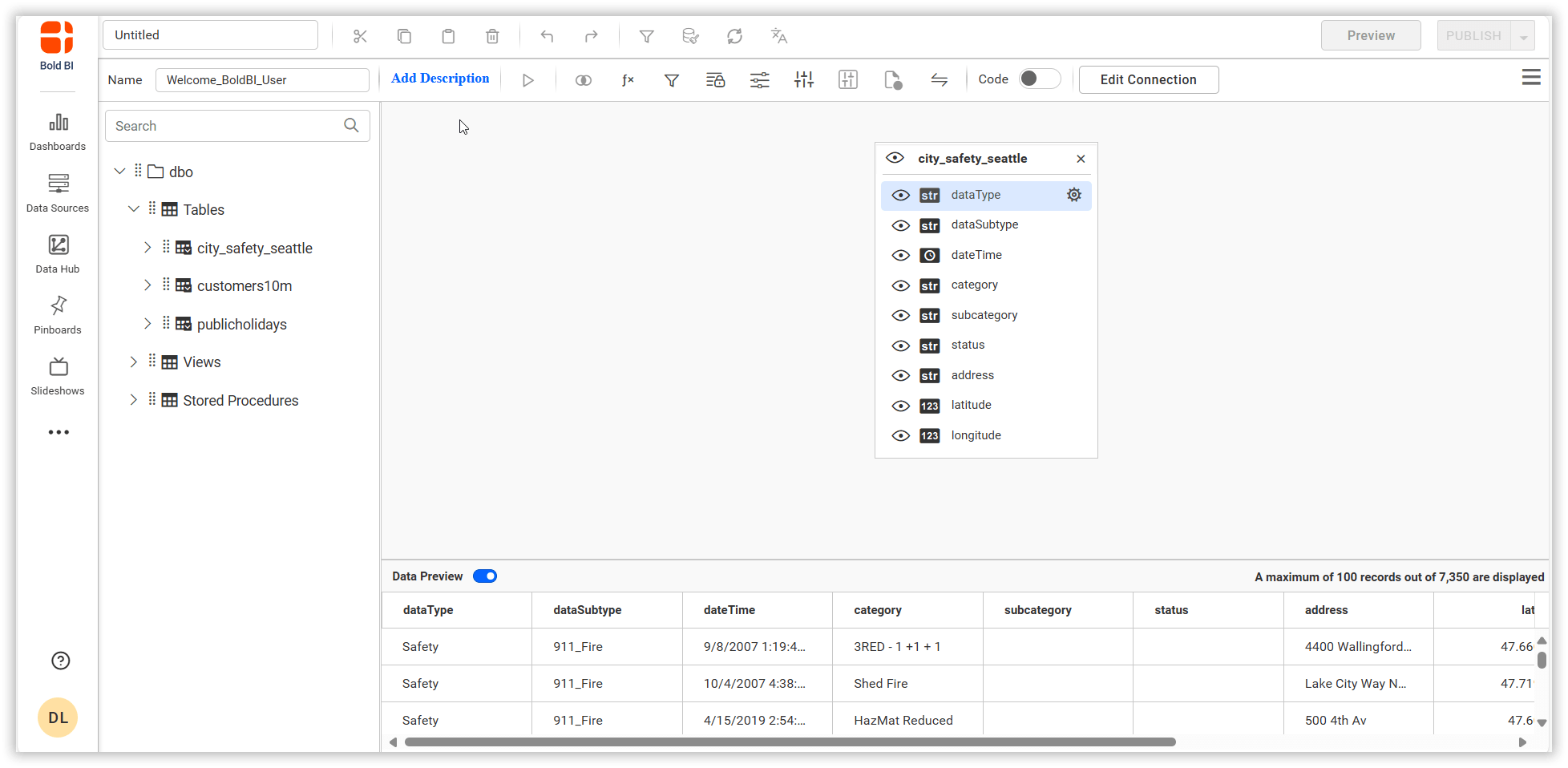
You can use the Code View options to pass queries and display data.

-
Click Save to save the data source with a relevant name.
Connect using custom attribute and dashboard parameter
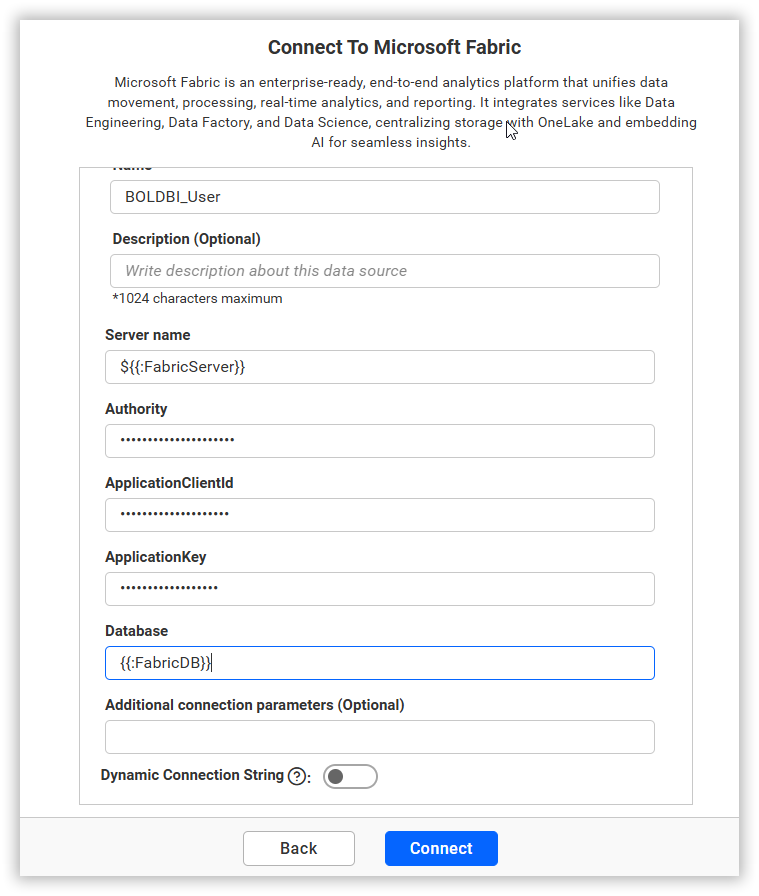
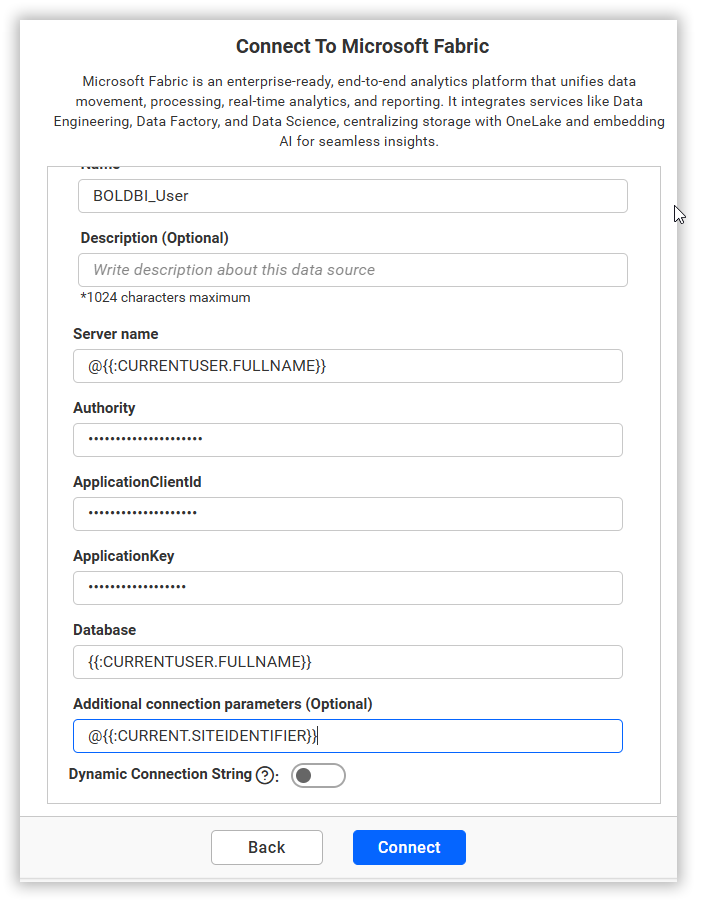
We have added support for custom attributes and dashboard parameters to the data source connection. You can connect to the data source using custom attributes or dashboard parameters.
Note: Refer to the Dashboard Parameter Documentation and Custom Attributes Documentation for more details.
Custom Attribute
A custom attribute is a piece of code that functions as a parameter and can be replaced by users in a query. The attribute name is replaced by the code, which is saved for each user and used to render the dashboard.
Dashboard Parameter
A dashboard parameter is a global placeholder value such as a number, string, or date that can replace a constant value in an expression, stored procedure, code view, and web URL. By default, the dashboard will be rendered with the default parameter value. You can change the parameter dynamically while viewing the dashboard.
How to get Microsoft Fabric Credentials
Authority
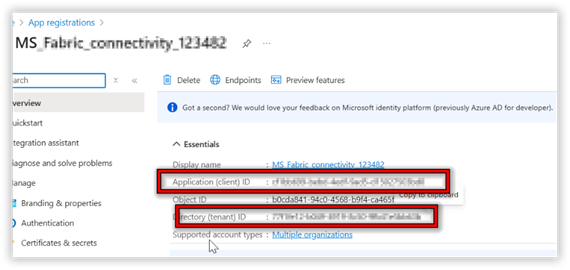
The authority in Microsoft Fabric is typically a GUID that contains the tenant ID of the Fabric directory.
Application Client ID
To get the client ID, go to the Microsoft Fabric portal, navigate to App Registrations, select your application, and find the Application (client) ID in the details.
Application Key
The application key is the (Client Secret) secret key generated for your app in the Microsoft Fabric portal when the app is registered, used for authentication and authorization.
How to get above credentials in Microsoft Fabric Portal
Follow the below steps to access Microsoft Fabric data using the service principle
-
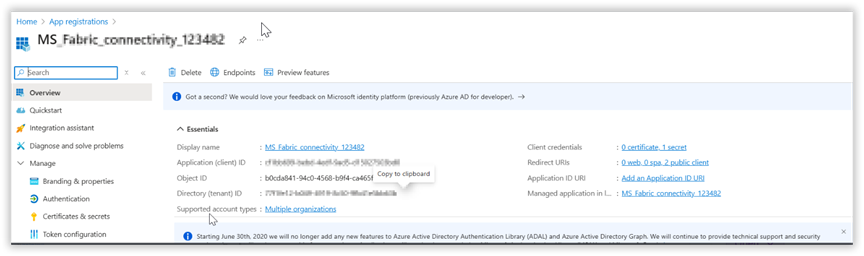
Register an Application in Microsoft Entra (Azure AD)
-
Once the application created you can note the Client ID and Tenant ID from here
-
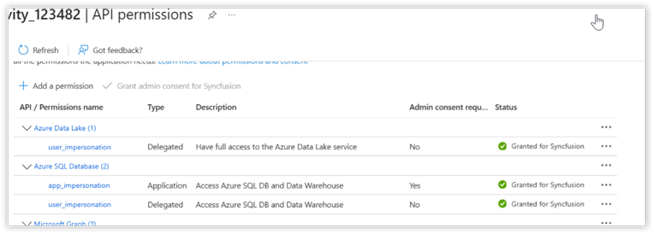
Configure API Permissions
-
Enable Service Principle Access in Fabric
• Go to Microsoft Fabric (https://app.fabric.microsoft.com)
• Click on the gear icon → Admin Portal.
• Under Tenant settings, find Service principles can use Fabric APIs.
• Ensure this option is Enabled.
-
Grant Workspace Access to the Service Principle
• Navigate to the Workspace in Fabric.

• Click Manage Access → + Add people or groups.
• Type the App name (Service Principle) and select it
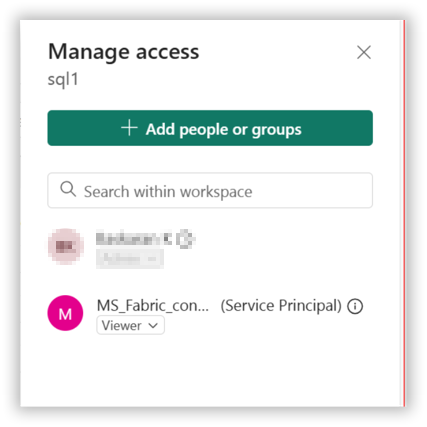
• Then Click Add.