
Hybrid Data Cache for Data Sources in Bold BI
The Hybrid Data Cache (Beta) option creates an encrypted reusable cache for supported data sources. Dashboards can use this cache during view mode instead of repeatedly querying the original data source.
Hybrid Data Cache workflow
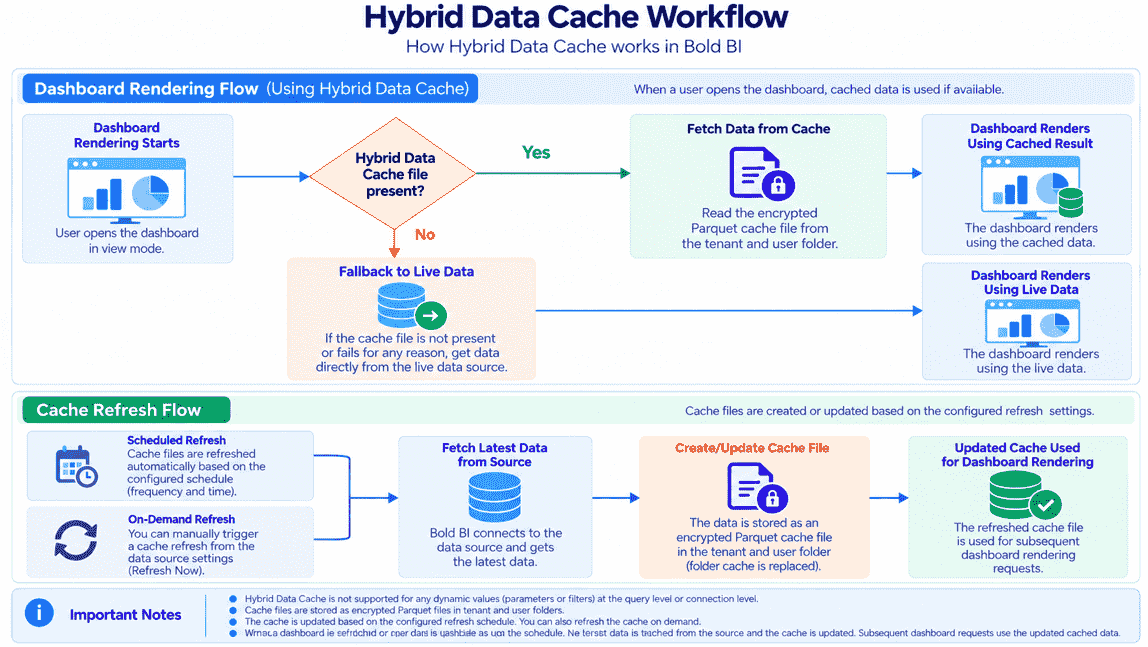
NOTE: Hybrid Data Cache is supported only for on-premises deployments. Cached data is used during dashboard view mode.
Prerequisites
Before configuring Hybrid Data Cache, make sure that:
- The data source is one of the supported Live or Extract data sources.
- The data source is saved after updating the cache settings.
Availability
| Data source mode | Hybrid Data Cache behavior |
|---|---|
| Live mode | The Hybrid Data Cache option is displayed in the Hybrid Data Cache Settings dialog. Refresh Settings are enabled when Hybrid Data Cache is turned on. |
| Extract mode | The Hybrid Data Cache option and independent Refresh Settings are hidden in the dialog. Cache generation follows the Extract refresh workflow. |
Hybrid Data Cache Configuration
The Hybrid Data Cache option controls whether Bold BI creates and uses an encrypted cache for the data source.
For Live data sources, Hybrid Data Cache can be refreshed based on the configured cache refresh schedule.
For Extract data sources, Hybrid Data Cache follows the Extract refresh workflow. After a scheduled or manual Extract refresh is completed successfully, Bold BI triggers Hybrid Data Cache processing based on the Extract refresh flow. The Hybrid Data Cache option and independent cache refresh schedule are not shown in the Extract mode settings dialog.
Live Mode Configuration
To configure Hybrid Data Cache for a Live mode data source:
-
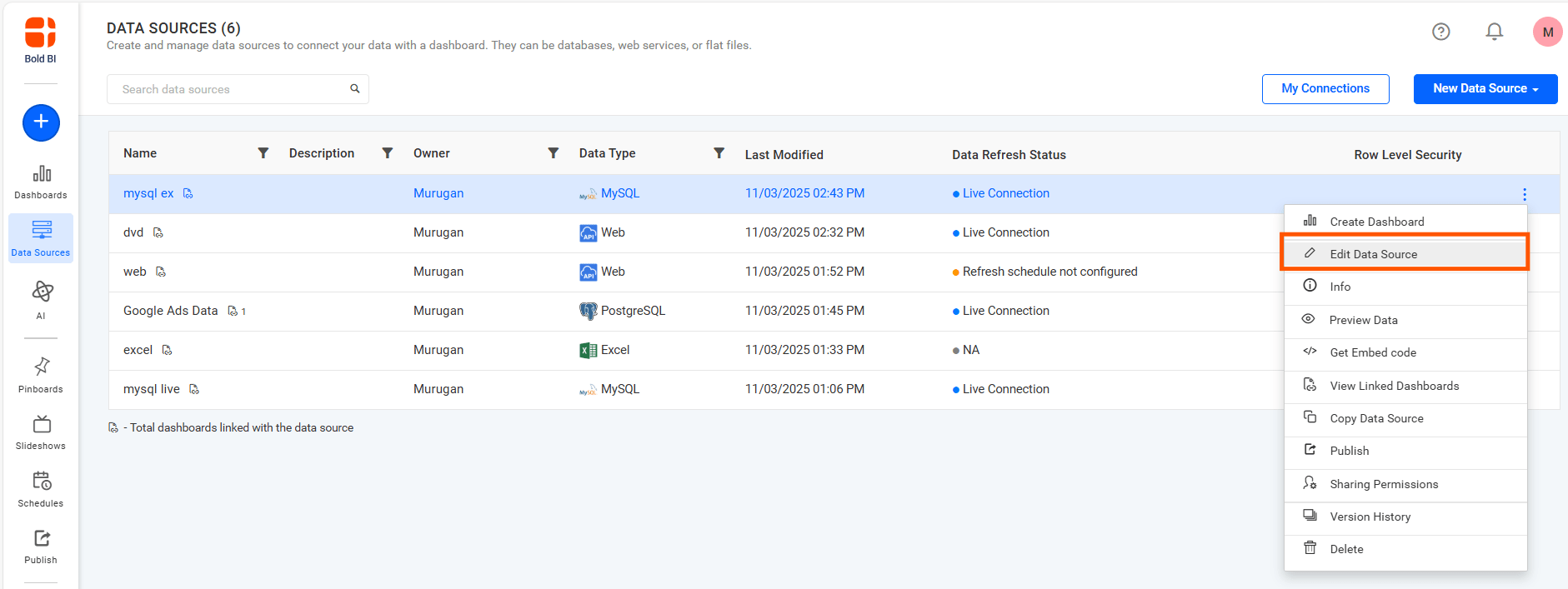
Navigate to the Data Sources list page.
-
Create a new data source or select an existing data source and click Edit Data Source.
-
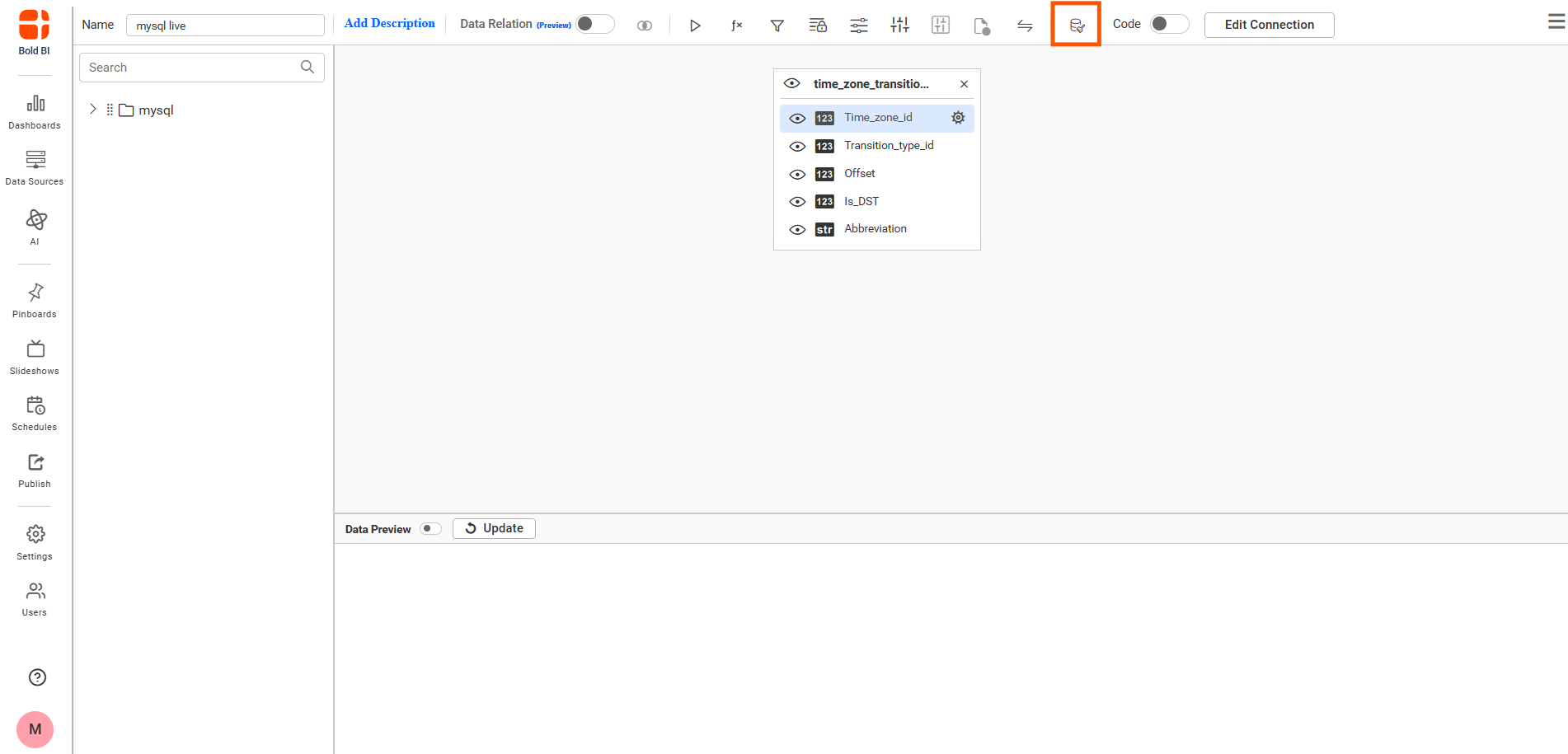
Click the Hybrid Data Cache icon in the data source designer toolbar.
-
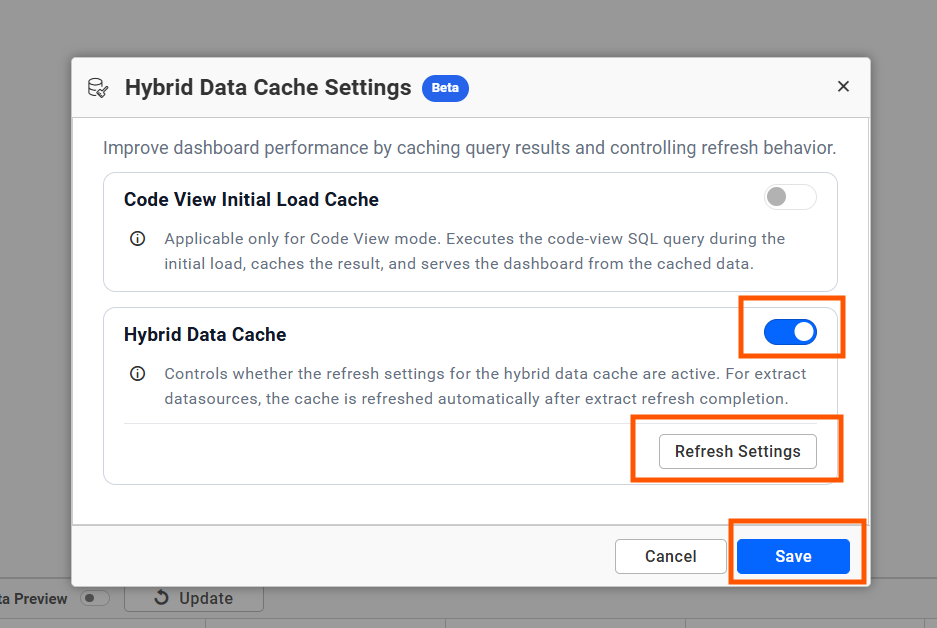
Enable Hybrid Data Cache.
-
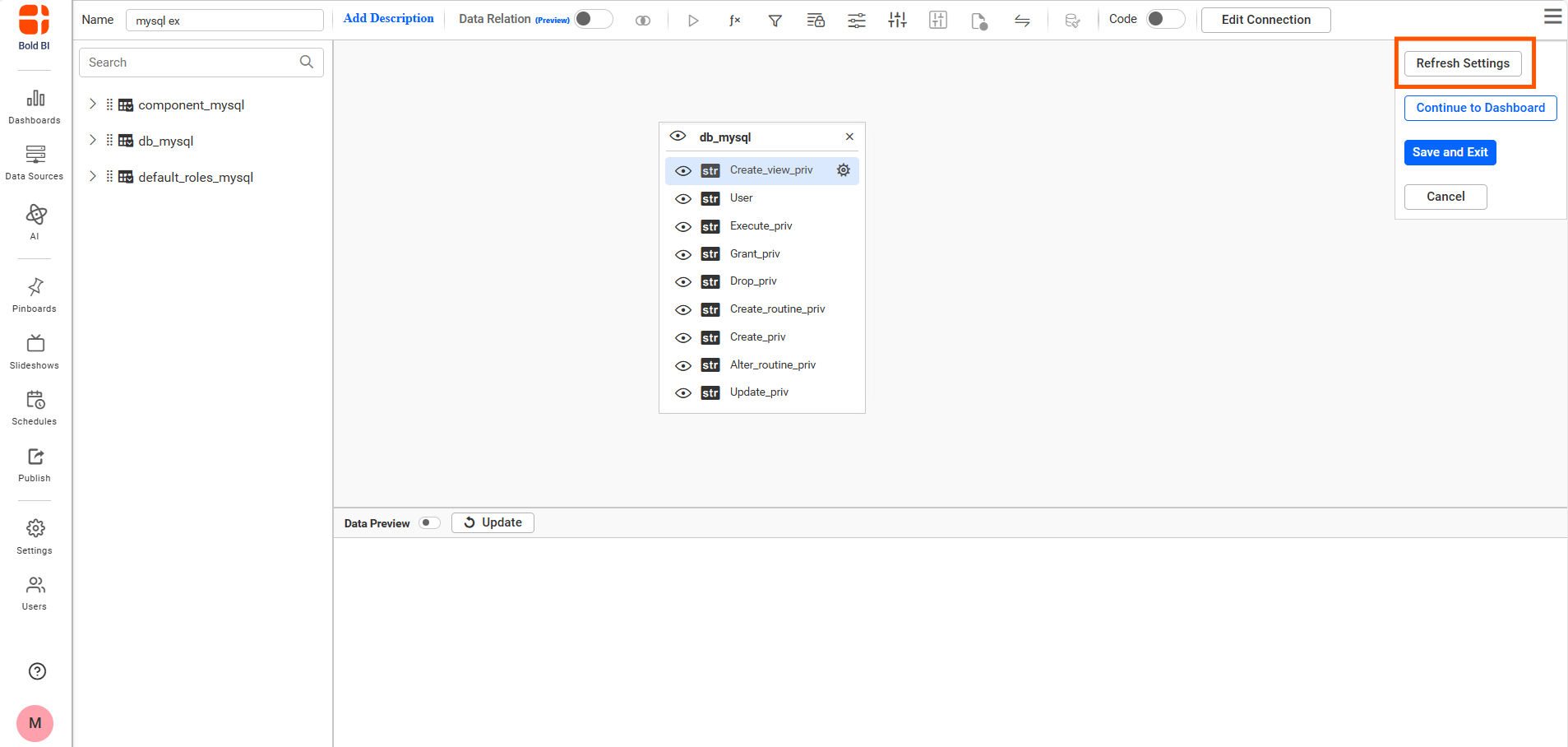
Click Refresh Settings.
-
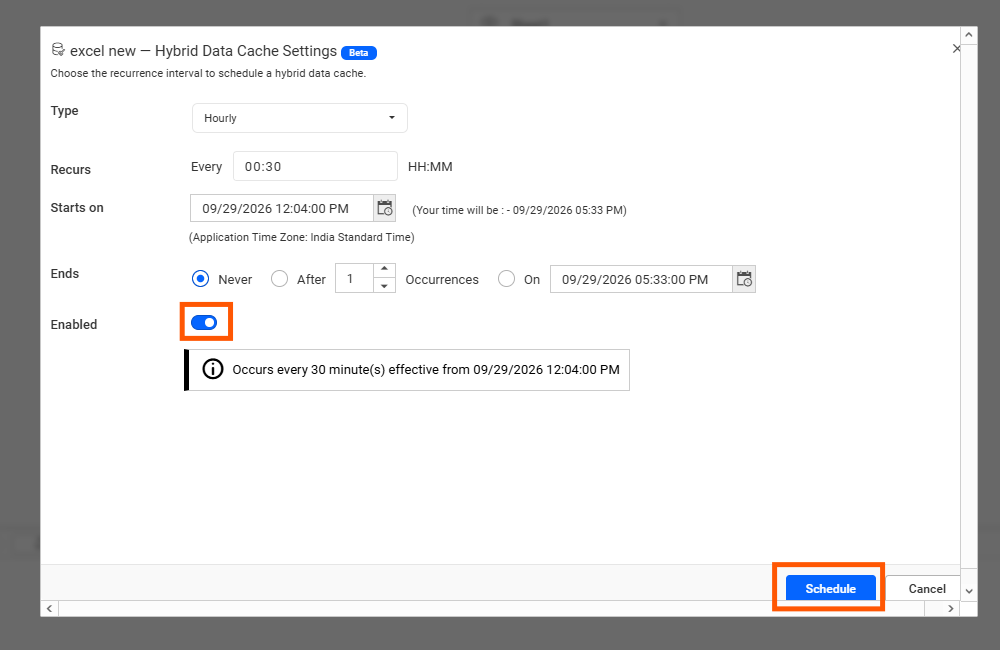
Configure the required cache refresh schedule.
-
Click Schedule to save the refresh configuration.
-
Click Save in the Hybrid Data Cache Settings dialog.
-
Save the data source.
Refresh Settings
The Refresh Settings button is enabled only when Hybrid Data Cache is enabled.
Use Refresh Settings to configure how frequently the Hybrid Data Cache should be refreshed. The supported recurrence options include:
- Hourly
- Daily
The schedule configuration also includes options for recurrence interval, start date and time, end conditions, and application time zone.
Extract Mode Configuration
For Extract mode data sources, the Hybrid Data Cache Settings dialog displays only the Code View Initial Load Cache option.
For Extract data sources:
- The Hybrid Data Cache option is hidden.
- A separate Hybrid Data Cache schedule is not required.
- Hybrid Data Cache refresh follows the Extract data refresh workflow.
- After a scheduled or manual Extract refresh is completed successfully, Hybrid Data Cache processing is triggered based on the Extract refresh flow.
The Extract mode cache workflow is:
-
Extract data source refresh starts.
-
Extract refresh completes successfully.
-
Hybrid Data Cache generation starts based on the completed Extract refresh flow.
-
The dashboard uses the generated cache during view mode.
-
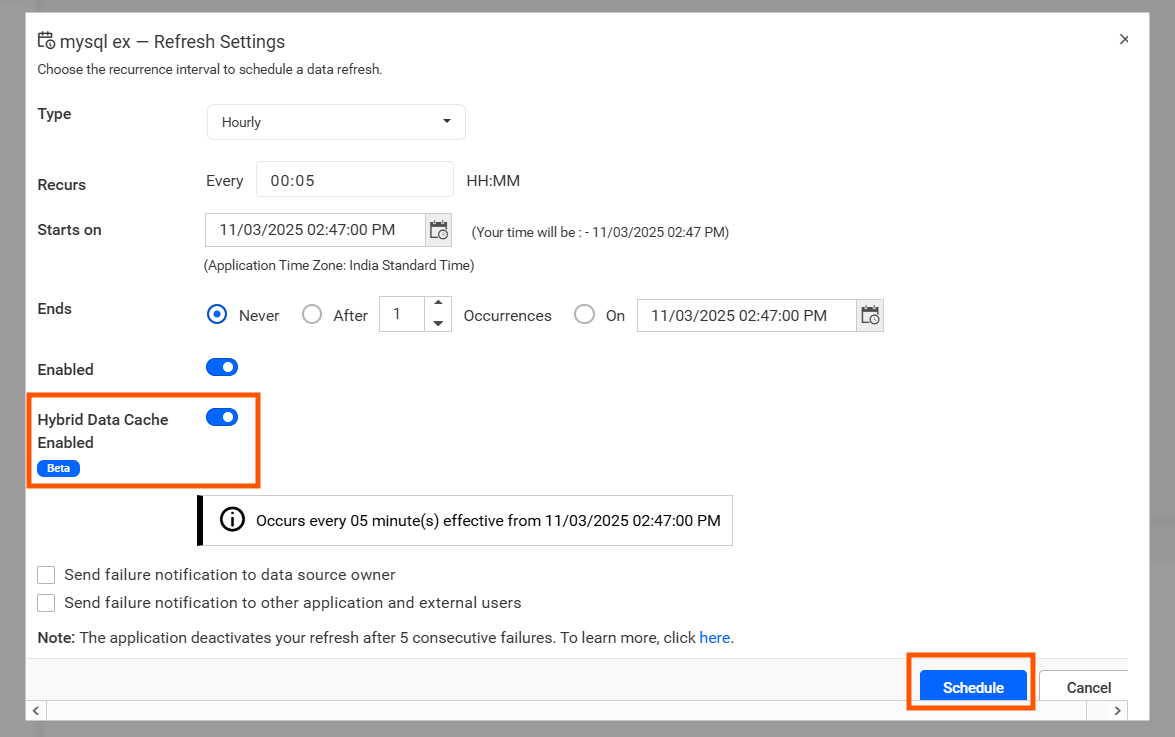
If your data source is in Extract Mode, click Refresh Settings and enable the Hybrid Data Cache option.
-
After making your selections, click Schedule and save data the source.
Save and Cancel Behavior
The Hybrid Data Cache Settings dialog keeps the latest saved values while editing the data source.
Save
When you modify the settings and click Save:
- The latest settings are kept in the current data source editing session.
- Reopening the dialog displays the latest saved dialog values.
- The settings are permanently stored only after the data source is saved.
Cancel
When you modify a setting and click Cancel:
- Changes made after the previous dialog save are discarded.
- Reopening the dialog restores the previously saved dialog values.
On-Demand Cache Refresh
After Hybrid Data Cache is configured and the data source is saved, the Refresh Hybrid Data Cache option is available from the Data Sources list page for supported configured data sources.
Use this option to manually trigger Hybrid Data Cache generation without waiting for the next scheduled refresh.
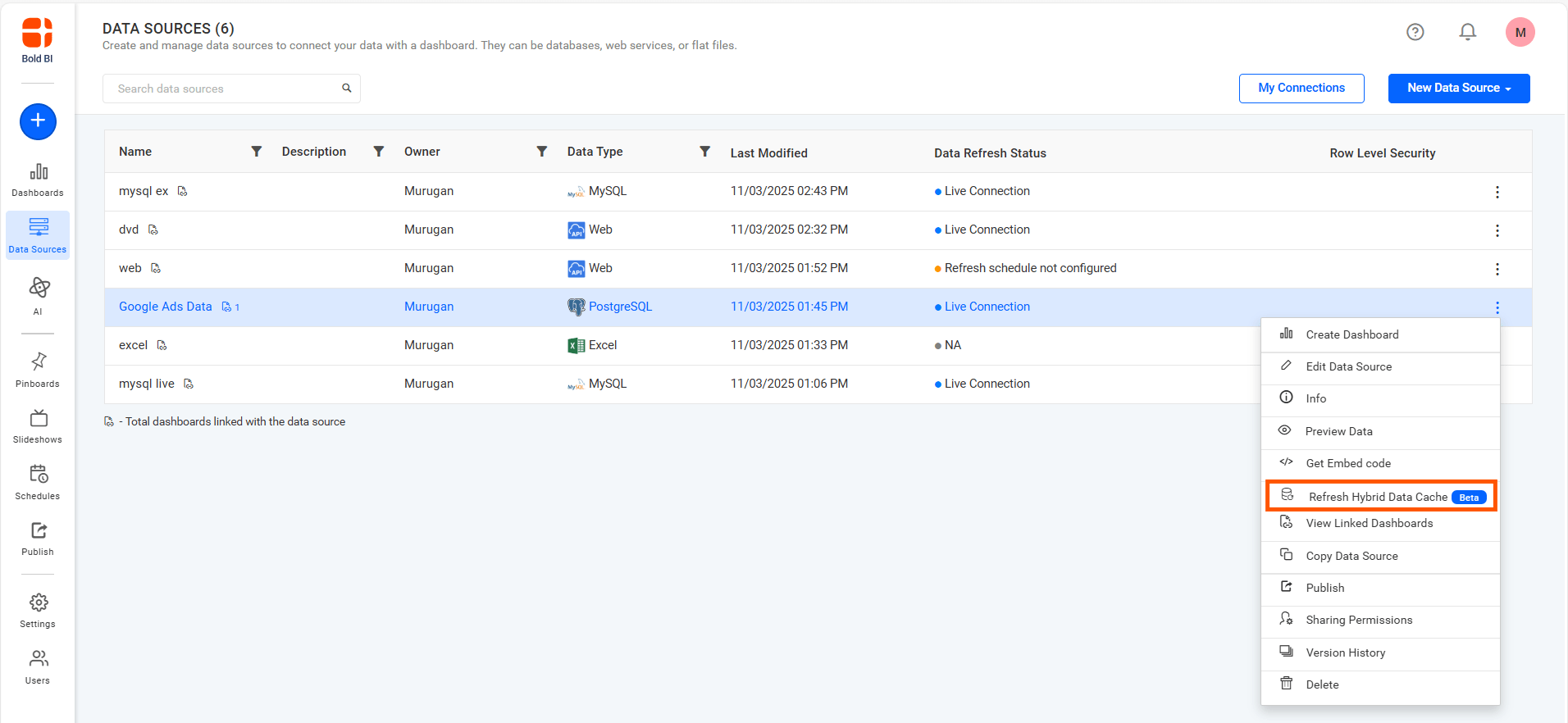
NOTE: For Extract data sources, Hybrid Data Cache can also be triggered automatically after a scheduled or manual Extract refresh is completed successfully.
Sample Dashboard Configuration
Hybrid Data Cache can also be configured for a sample dashboard.
To configure the feature for a sample dashboard:
- Save the sample data source.
- Edit the saved data source.
- Open Hybrid Data Cache Settings.
- Configure the required cache option.
- Save the Hybrid Data Cache settings.
- Save the data source again.
- Publish the dashboard.
The configured cache settings are then reflected during dashboard rendering.
Dashboard View
After the Hybrid Data Cache is generated, open the dashboard in view mode.
The dashboard can use the generated Hybrid Data Cache instead of repeatedly querying the original data source. You can verify Hybrid Data Cache usage from the Metrics Details section.
When a widget is rendered using Hybrid Data Cache, the metrics information displays:
Hybrid Data Cache: True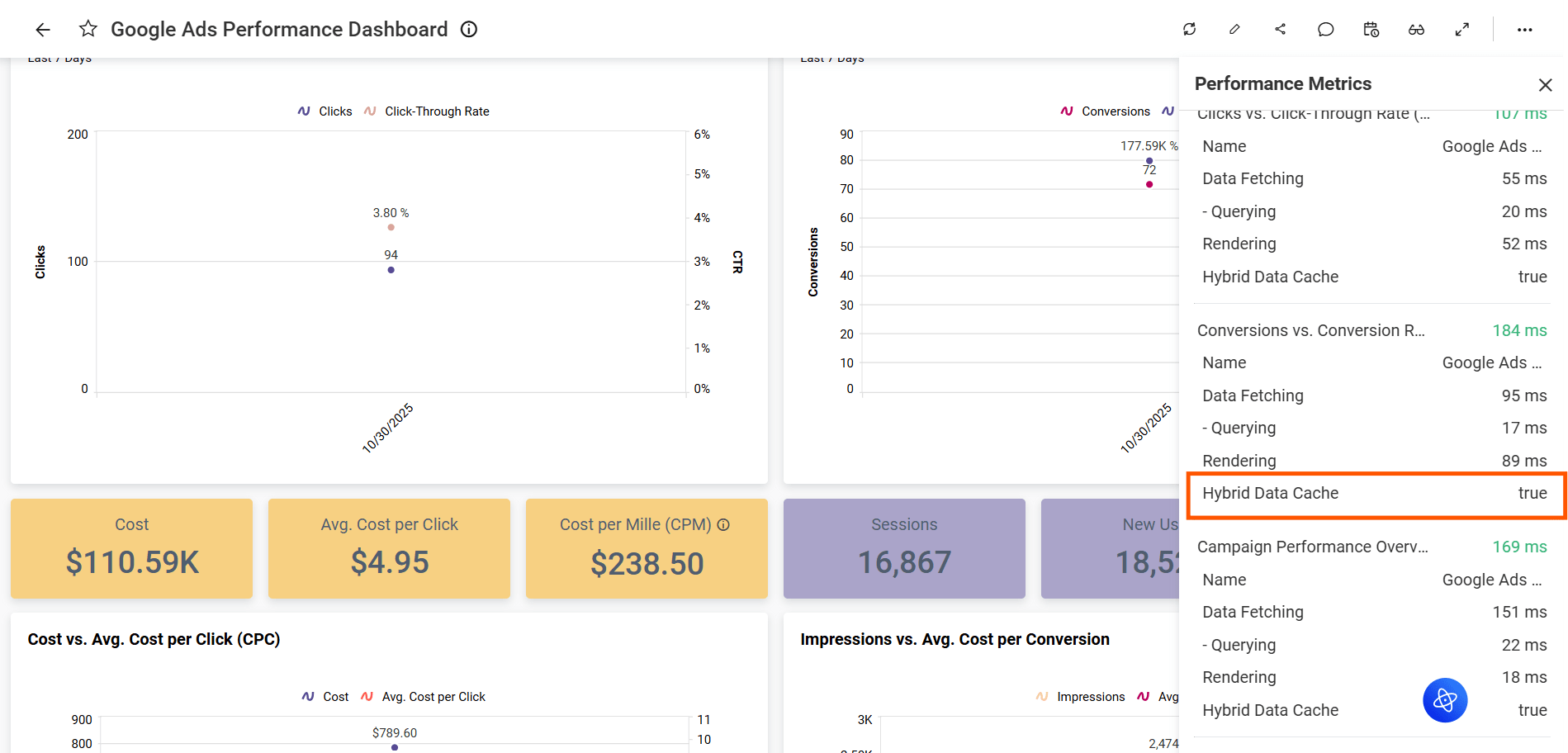
Cache Performance Metrics
Hybrid Data Cache is generated based on the configured refresh schedule. Because the data is already moved to the cache before the dashboard is viewed, dashboard rendering can use the cached data without waiting for the source database query to complete.
The following table uses illustrative timings to show example cache performance.
| Metric | Before Cache (Live Data) | After Cache (Cache Enabled) | Time Reduction (%) |
|---|---|---|---|
| Total Load Time | 4.840 sec | 1.210 sec | 75.00% |
| Query Execution Time | 4.093 sec | 0.900 sec | 78.01% |
| Query Preparation Time | 0.213 sec | 0.043 sec | 79.81% |
| Data Post-Processing Time | 0.034 sec | 0.31 sec | No changes |
Cache Creation and Storage
Hybrid Data Cache uses encrypted Parquet files to store cached data.
Cache generation time depends on the data set size and deployment environment. Large data sets can take additional time before the cached data becomes available to the dashboard.
Parquet-based storage can also reduce the storage size compared with the original uncompressed data size.
Supported Data Sources
Hybrid Data Cache is supported for applicable Live and Extract workflows, including:
- SQL Server Live and Extract
- PostgreSQL Live and Extract
- MySQL Live and Extract
- Supported Extract workflows that use intermediate data processing, such as:
- Snowflake Extract
- CSV
- Excel
- Google Sheets
- Web API Extract
- SharePoint
- Other supported Extract connectors
Limitations
- Support is limited to compatible data sources and intermediate processing workflows.
- Cache generation time depends on the data set size and deployment environment.
- Hybrid Data Cache is supported only for on-premises deployments. The cached data is used during dashboard view mode.
- To activate, enable the hybrid data cache option in the data source
Code view mode with dynamic parameters (dashboard parameters and custom attributes) is not supported