
Microsoft (Bing) Ads:
Microsoft Advertising (formerly Bing Ads) is a platform for creating and managing ads across the Microsoft Search Network, including Bing, Yahoo, and AOL properties, as well as Microsoft Audience Network placements.
Grab credentials
To connect, you’ll need a Microsoft Advertising account with API access and an Azure AD application for OAuth.
Get Developer Token
- Sign in to Microsoft Advertising: https://ads.microsoft.com
- Go to Tools > Developer Token.
- Request and copy your Developer Token.
Register an Azure AD Application (Client ID and Secret)
- Go to Azure Portal: https://portal.azure.com
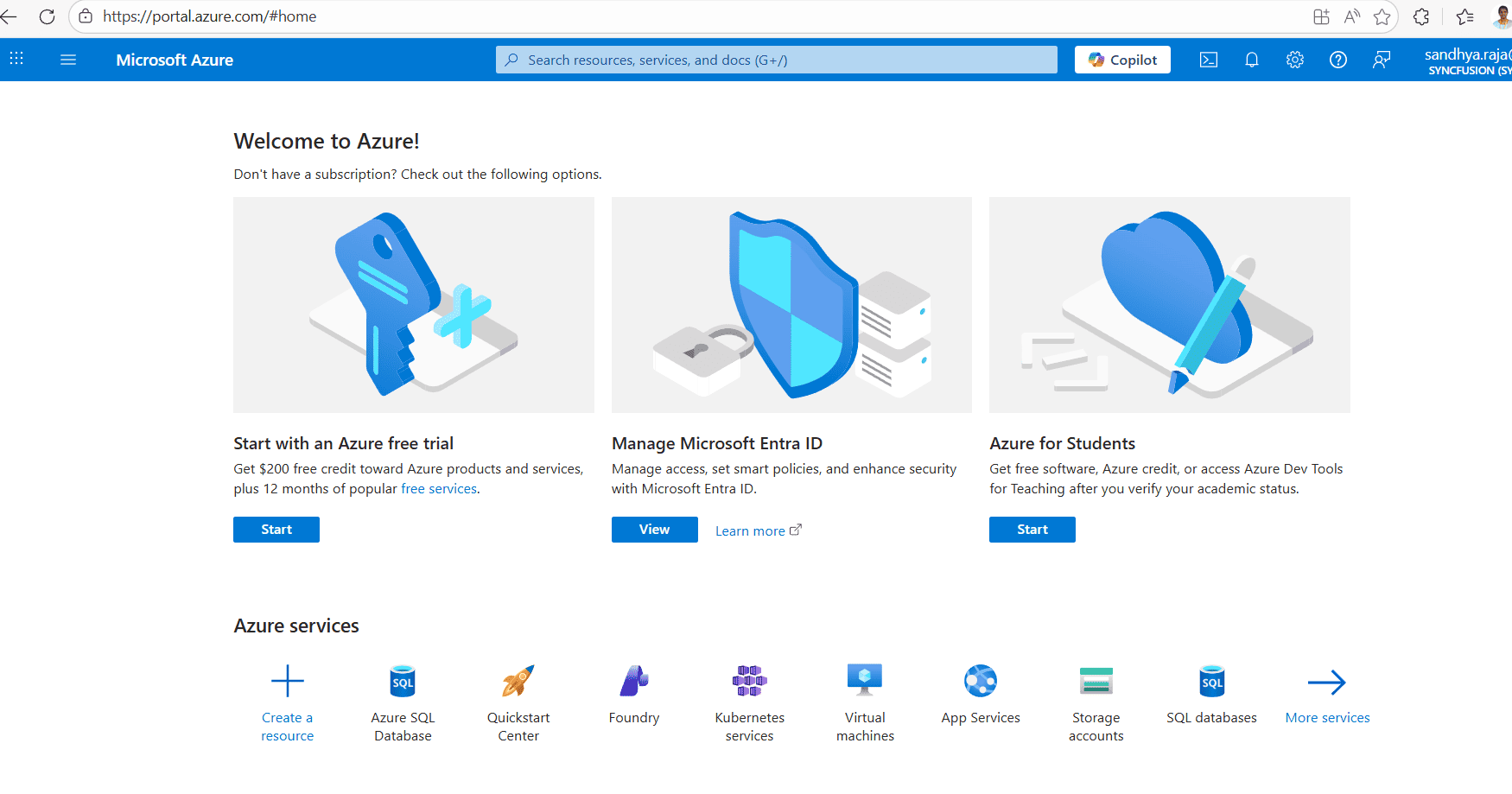
- Navigate to Azure Active Directory > App registrations > New registration.
- Name the app, choose supported account types, and set a redirect URI (e.g.,
https://localhostor your app’s redirect URL). - After creating, copy the Application (client) ID.
- Go to Certificates & secrets > New client secret. Copy the Client Secret value.
Find Customer ID and Account ID
In the Microsoft Advertising UI, use the account switcher or Account settings page to copy the numeric Customer ID and Account ID.
Connection Properties
The config section in a YAML file includes the following properties:
Connectorname: Bing Ads
Client_id: Azure AD Application (client) ID
Client_secret: Azure AD client secret
Developer_token: Microsoft Advertising Developer Token
Customer_id: Microsoft Advertising Customer ID
Account_id: Microsoft Advertising Account ID
Incremental mode (reports) Reporting endpoints support date-based incremental loads. In the provided template, reports are aggregated Daily and can use either a predefined date window or a custom date range. Key options used by the template:
  type: reports
  report: Campaign Performance
  aggregation: 'Daily'
  ReportTimeZone: 'PacificTimeUSCanadaTijuana'
  # Use ONE of the following time options:
  PredefinedTime: 'LastSevenDays'   # predefined window
  # OR
  # CustomDateRangeStart: 'YYYY-MM-DD'
# CustomDateRangeEnd: 'YYYY-MM-DD'Notes: Include at least one dimension column (e.g., TimePeriod, CampaignId, CampaignName). Without a dimension, the API will reject the query. Use PredefinedTime for rolling windows or CustomDateRangeStart/End for fixed windows.
Example Configuration
version: 1.0.1
encrypt_credentials: false
direct_target_import: false
union_all_tables: true
add_dbname_column: false
direct_load_to_destination: true
use_snake_casing: true
plugins:
  extractors:
    - name: Bingads
      connectorname: Bing Ads
      config:
        access_token: <ACCESS_TOKEN>
        refresh_token: <REFRESH_TOKEN>
        client_id: <CLIENT_ID>
        client_secret: <CLIENT_SECRET>
        developer_token: <DEVELOPER_TOKEN>
        customer_id: <CUSTOMER_ID>
        account_id: <ACCOUNT_ID>
      properties:
        type: reports
        report: Campaign Performance
        columns: Clicks, AverageCpc, Spend, Impressions, CampaignId
        aggregation: 'Daily'
        ReportTimeZone: 'PacificTimeUSCanadaTijuana'
        # Choose ONE date option:
        PredefinedTime: 'LastSevenDays'
        # CustomDateRangeStart: '2025-09-01'
        # CustomDateRangeEnd:   '2025-09-30'
        # At least one dimension is required:
Configure the Data Hub to connect Microsoft (Bing) Ads
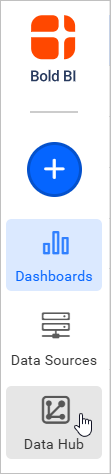
- To start, Click the
Bold Data Hubicon on the Navigation Pane.
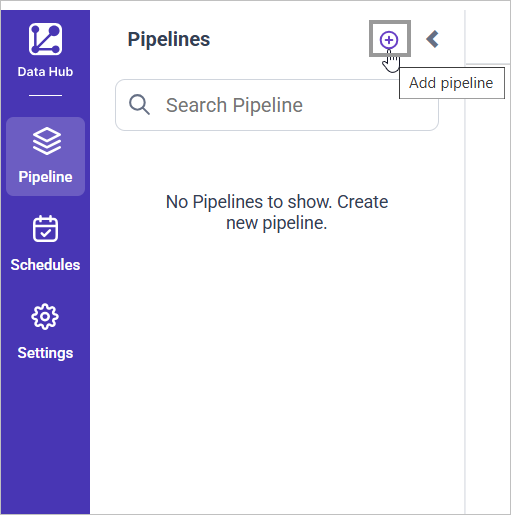
- Click
Add Pipelineand provide the name for the new pipeline.
-
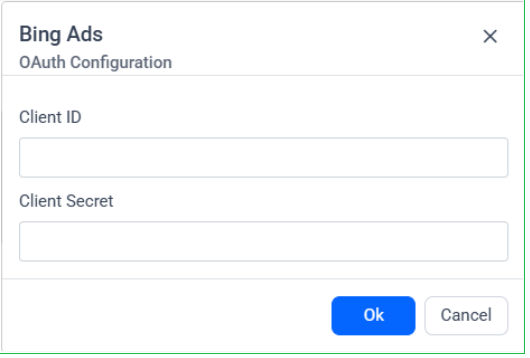
Double Click on the Bing ads connector, which will prompt a Authentication Setup window.
-
Fill the Client ID and Client Secret and click Ok.
-
Click on Allow in the authorization window to accept the scopes requested by Bold DataHub.
-
Update the developer token and IDs in the template. Adjust the columns and date window as needed, then save to the Bold BI Data Store.
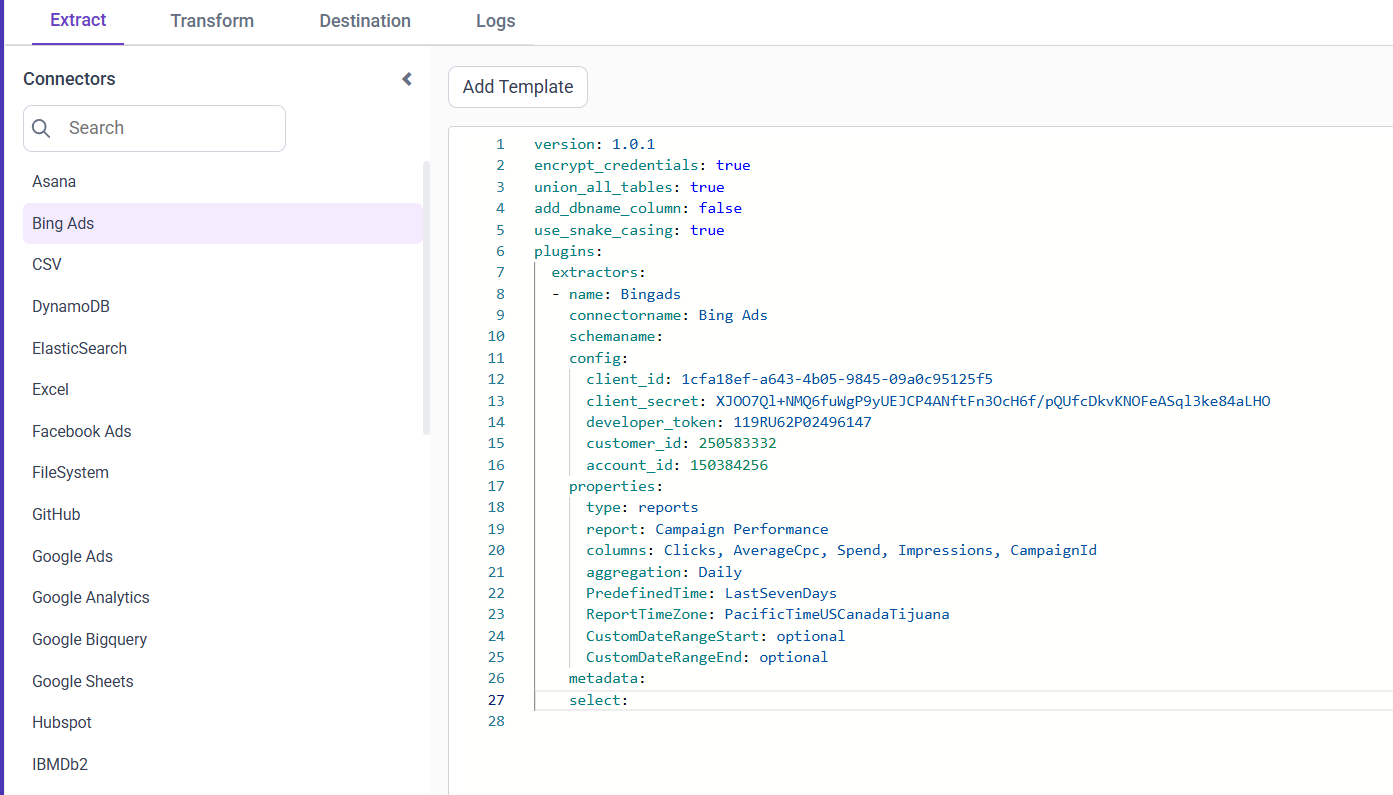
-
Creating a Pipeline in Bold Data Hub automatically creates a Data Source in Bold BI. The Bold BI Data Source is a live data source to the destination database used in Bold Data Hub. For more information on the relationship between Bold Data Hub Pipeline and the associated Data Sources in Bold BI , please refer to Relationship between Bold Data Hub Pipeline and Associated Data Sources in Bold BI.

Available report resource in this template
- Campaign Performance (Daily aggregation)
- You can add other performance reports similarly (e.g., Ad Group Performance, Ad Performance, Keyword Performance) by changing properties.report and selecting valid columns for that report.
Schedule Data Hub Job
- To configure interval-based scheduling, click on the schedules tab and select the created pipeline and click on the schedule icon and configure it.
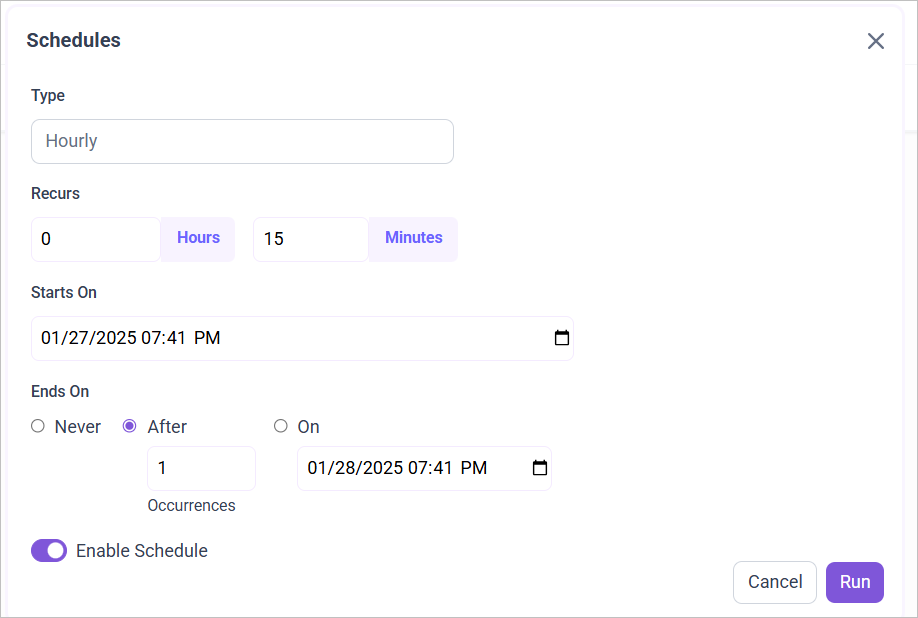
- For on-demand refresh, click
Run Nowbutton.
- The Schedule history can be checked using the history option as well as logs.
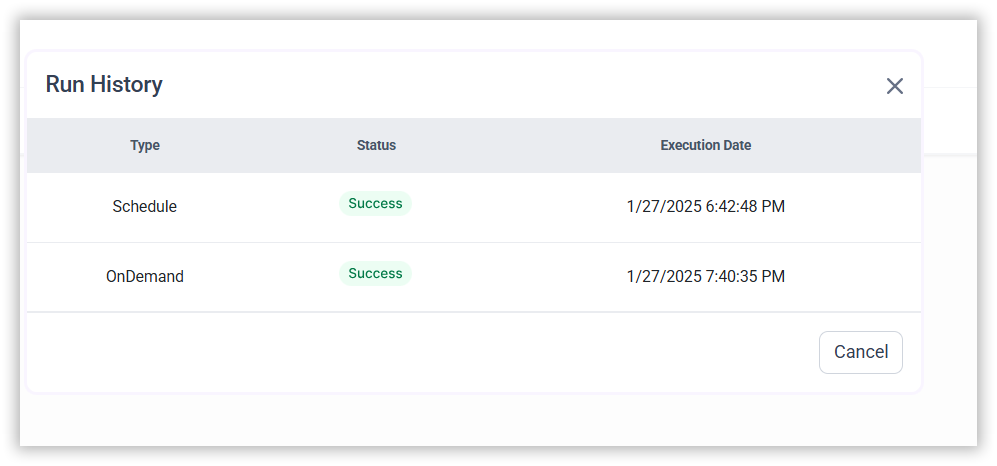
- Click on Logs to see if the run is completed and data source is created in Bold BI.
- Click
Edit DataSourceOption to view the created tables.
Reference
- Microsoft Advertising API – Get started: https://learn.microsoft.com/advertising/guides/get-started
- OAuth with Microsoft identity platform (v2): https://learn.microsoft.com/advertising/guides/authentication-oauth
- Developer Token: https://learn.microsoft.com/advertising/guides/get-started#developer-token
- Reports guide: https://learn.microsoft.com/advertising/guides/reports
- Azure AD app registrations: https://learn.microsoft.com/azure/active-directory/develop/quickstart-register-app