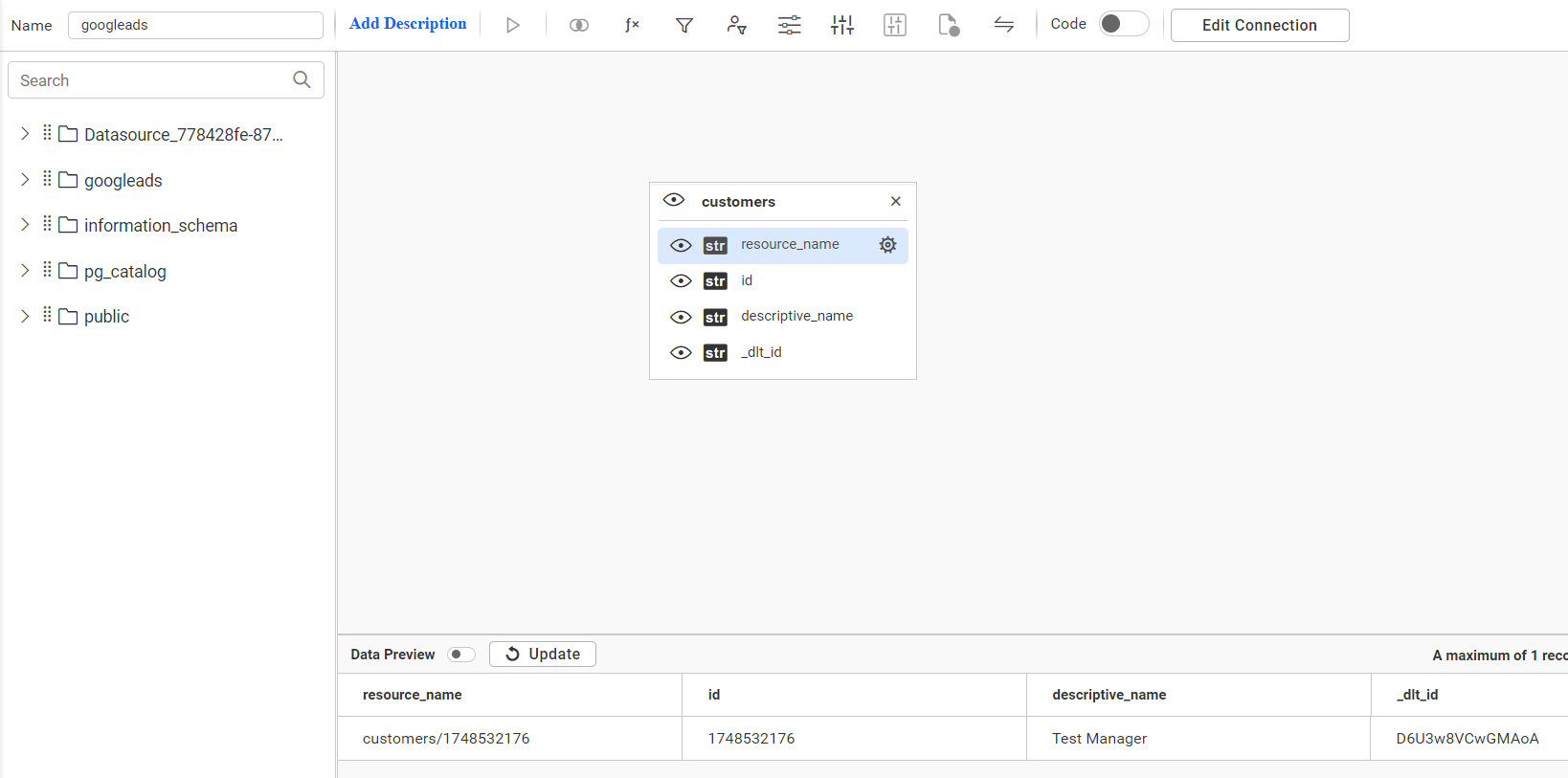
Google Ads
Google Ads is a service for online advertising that enables businesses to track and manage ad campaigns, providing data on ad performance and audience engagement across Google platforms.
Grab Google OAuth 2.0 Credentials
To obtain API credentials using a GCP account, follow these steps:
- Sign in to https://console.cloud.google.com.
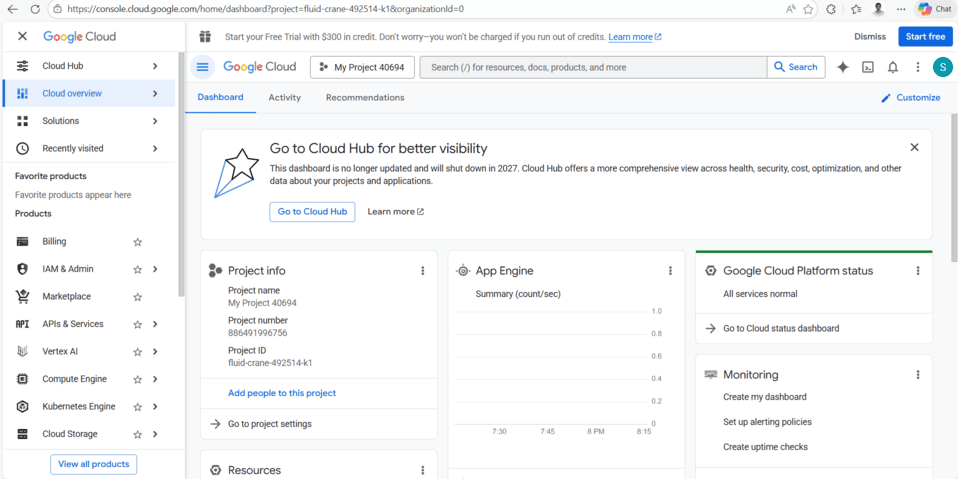
- Ensure you’re logged in with the Google account associated with your project.
- Select the project for which you want to find the OAuth 2.0 credentials.
- In the left-hand navigation menu, go to “APIs & Services” and then select “Credentials.”
- On the “Credentials” page, you’ll see a list of your credentials. Click on the name of the OAuth 2.0 client ID you’re interested in.
- This will open the details page for that client ID, where you can view the “Client ID” and “Client secret.”
Connection Properties
The config section in a YAML file includes the following properties:
Connectorname: Google Ads
project_id: Project ID
client_id: Client id
client_secret: client secret
dev_token: dev token
customer_id: customer id
Configure the Bold Data Hub to connect Google ADS
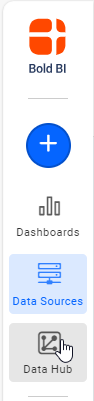
- Click the
Data Hubicon on the Navigation Pane.
- Click Plus icon and provide the new pipeline’s name.
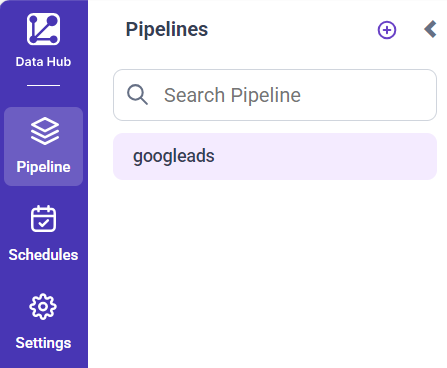
- Select the newly created pipeline
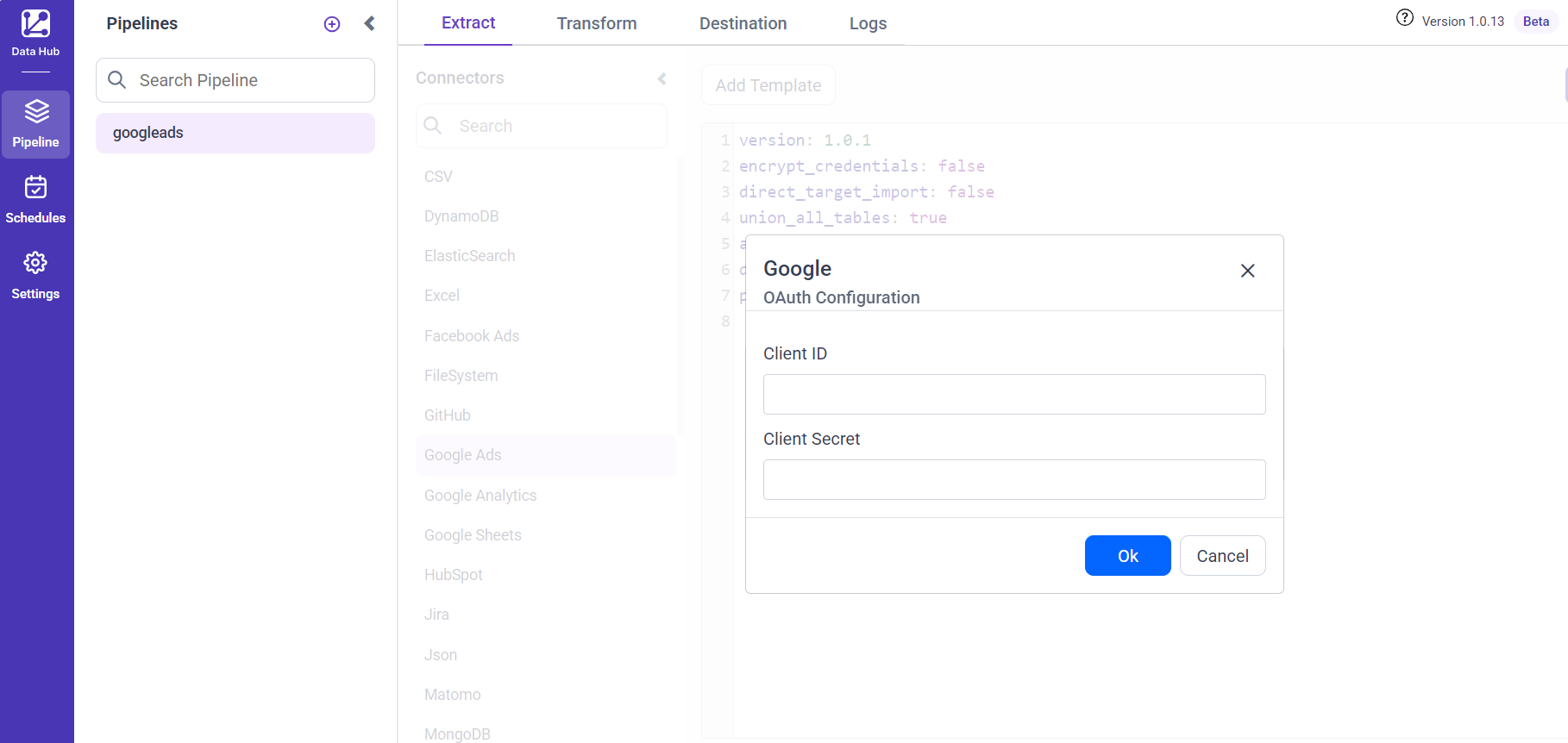
- Enter the
Client IDandClient Secretand click ok. The Template will be added with credentials.
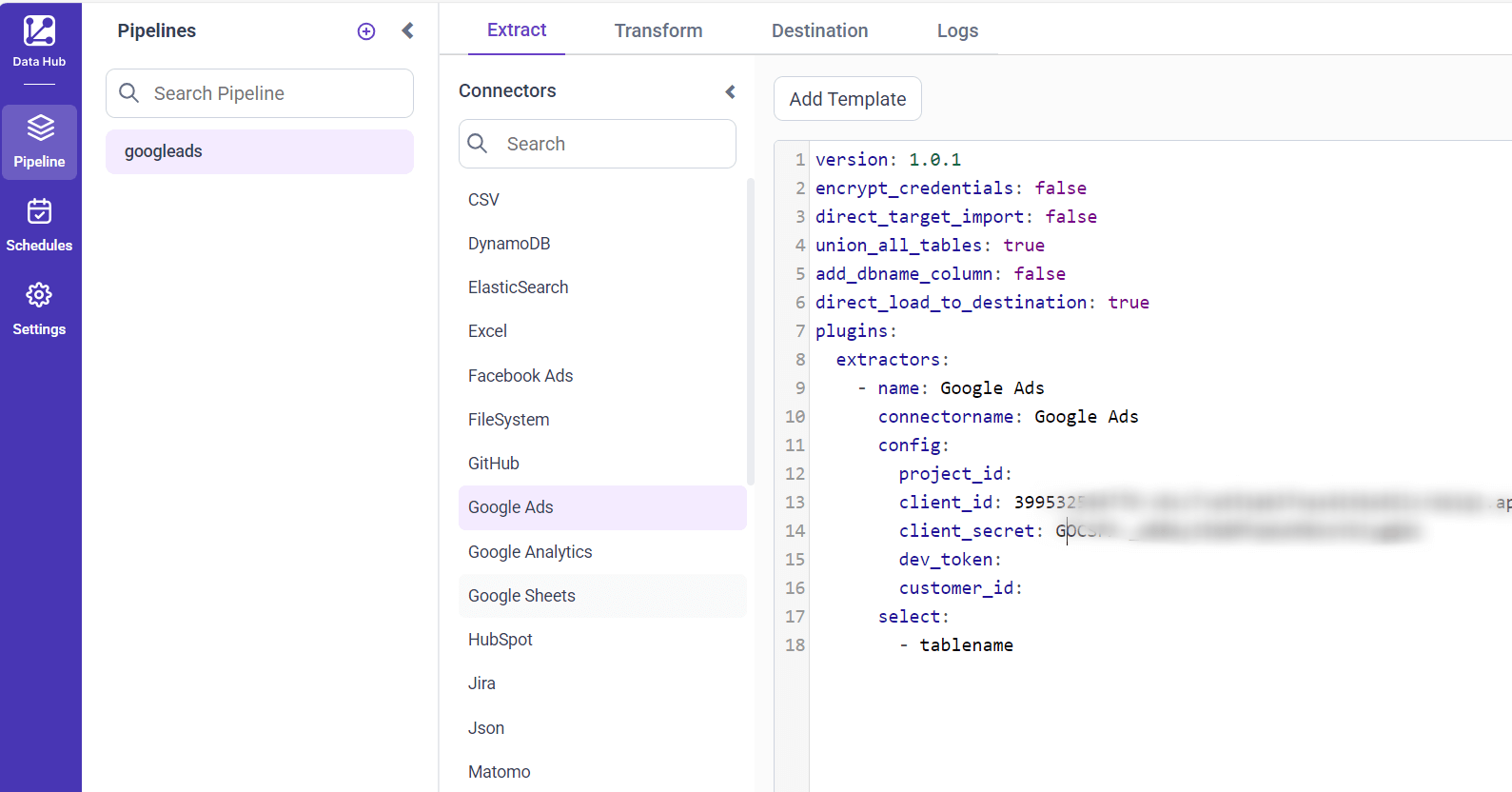
Configuration Parameters
| Parameters | Description |
|---|---|
| Project ID: | Specify the Google Cloud Project ID associated with your Google Ads account. |
| Client ID: | Provide the client ID obtained from your Google Cloud Console for authenticating API access. |
| Client Secret: | Provide the client secret obtained from your Google Cloud Console for authenticating API access. |
| Dev Token: | Specify the developer token assigned to your Google Ads account for accessing the API. |
| Customer ID: | Provide the Google Ads customer ID of the account you want to access data for. |
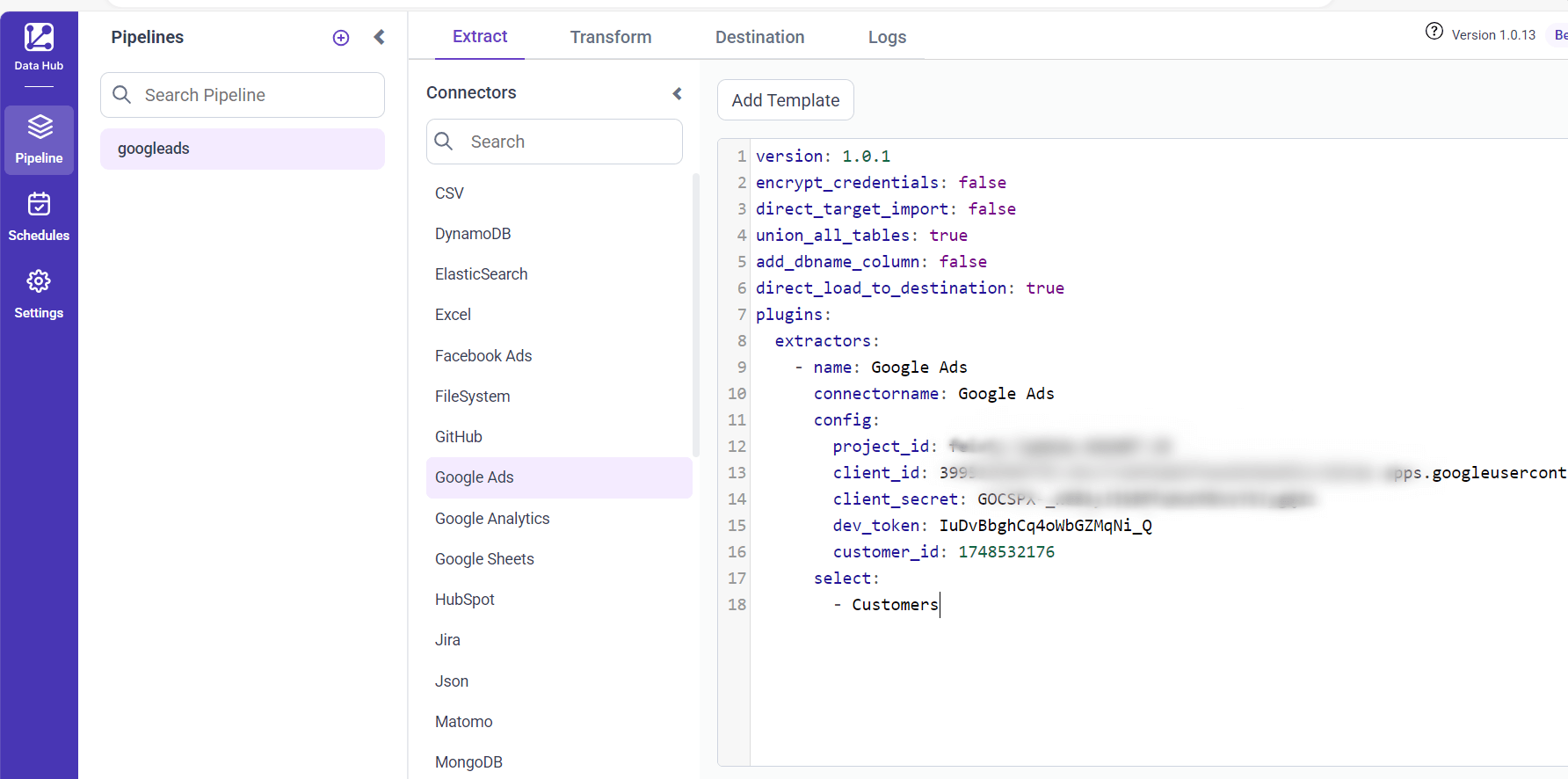
| Select: | Tablename(s): Specify the resources to load data from the Google Ads. |
- Update the details required in the template. and save it to the BoldBI Data Store.
Schedule Bold Data Hub Job
- To configure interval-based scheduling, click on the schedules tab and select the created pipeline and click on the schedule icon and configure it.

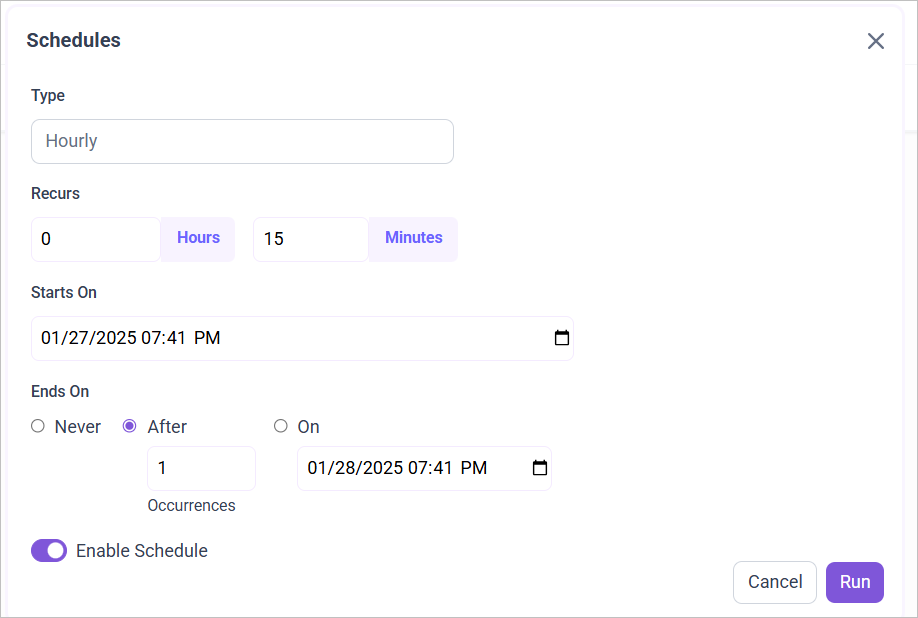
- For on-demand refresh, click
Run Nowbutton.

- The Schedule history can be checked using the history option as well as logs.
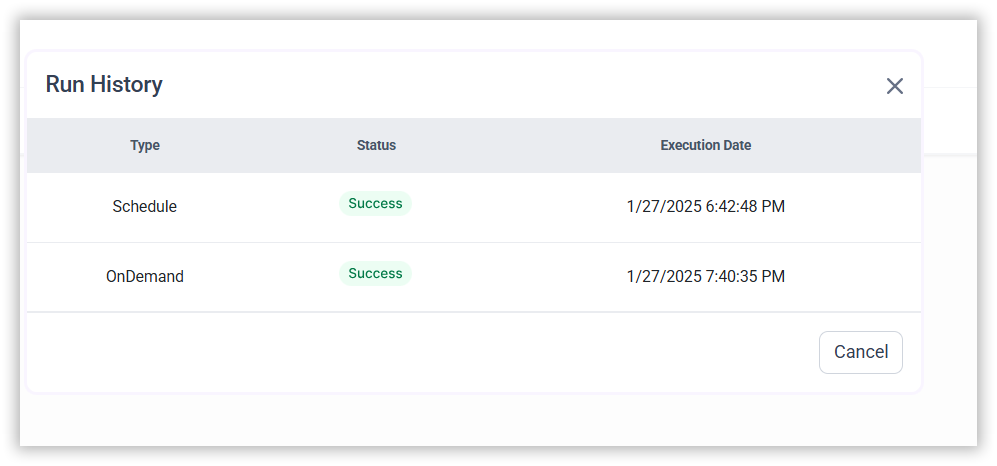
- Click on Logs to see if the run is completed and data source is created in Bold BI.

- Click the
Edit DataSourceOption to view the created table(s), such as the ‘votes’ table.