
Google BigQuery Source
Google BigQuery is a fully managed, serverless data warehouse that enables fast SQL-based querying and analysis of large datasets. It is designed to handle massive volumes of data, making it ideal for advanced analytics and business intelligence use cases.
Service Account Credential
Service account credentials are more suitable for server-to-server interactions.
Grab Google Service Account Credentials
To obtain API credentials using a GCP service account, follow these steps:
- Sign in to https://console.cloud.google.com.
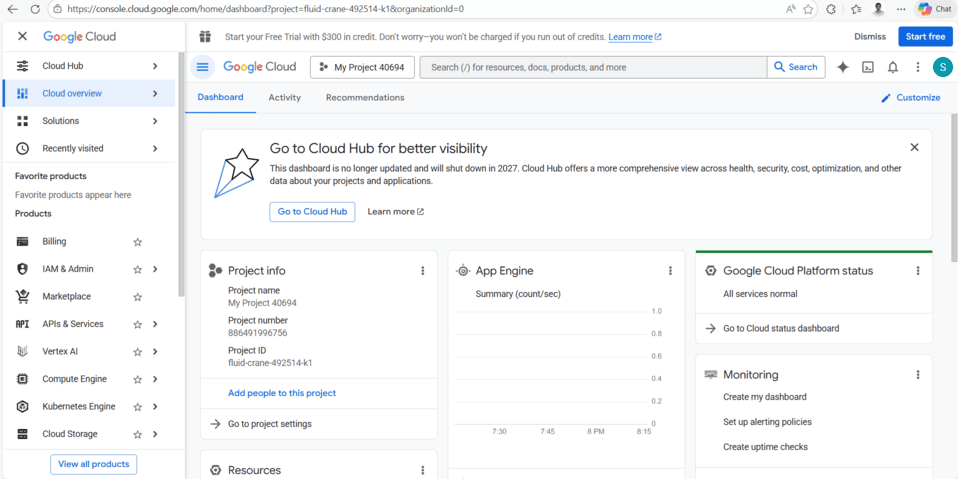
- Create a service account if necessary.
- Enable the BigQuery API (refer to Google documentation for detailed instructions).
- Generate credentials:
- Navigate to IAM & Admin in the console’s left panel, then select Service Accounts.
- Find the service account you want to use and click the three-dot menu under the Actions column.
- Create a new JSON key by selecting Manage Keys > ADD KEY > CREATE.
- Download the
.jsonfile containing the necessary credentials for future use.
Share the Google BigQuery Project with the API
- Log into your Google Cloud Console.
- Navigate to the project that contains your BigQuery datasets.
- In the left-hand menu, go to IAM & Admin > IAM.
- Click on the “+ Grant Access” button at the top.
- In the New principals field, enter the
client_emailfrom the service account. - Assign the required role(s):
- BigQuery Data Viewer – to view datasets and tables
- BigQuery Read Session User – to enable fast and efficient reads via the BigQuery Storage AP
- (Optional) BigQuery Admin – for full read-write access to BigQuery resources
- Click Save to complete the process.
Connection Properties
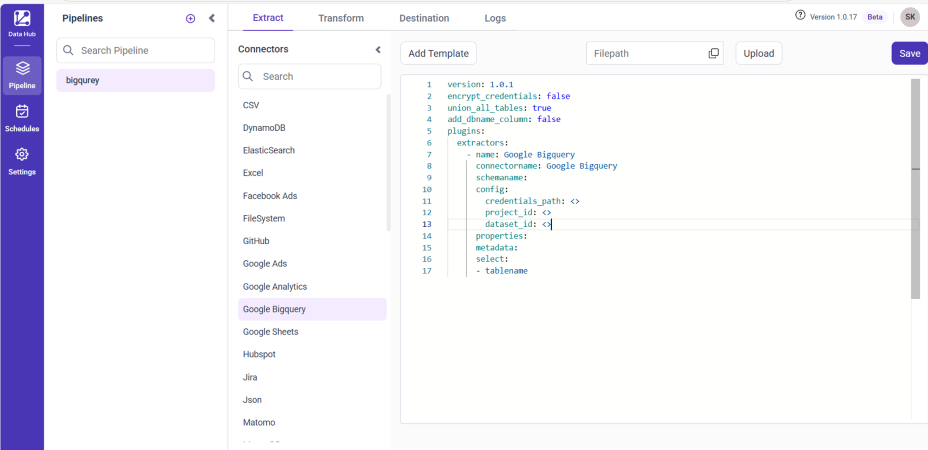
The config section in a YAML file includes the following properties:
credentials_path: Path to your service account JSON file
project_id: ID of your Google Cloud project
dataset_id: ID of the dataset in BigQuery
Example Configuration
version: 1.0.1
encrypt_credentials: false
union_all_tables: true
add_dbname_column: false
plugins:
  extractors:
    - name: Google Bigquery
      connectorname: Google Bigquery
      schemaname:
        config:
          credentials_path: C:\\Path\\To\\ServiceAccount.json
          project_id: your-project-id
          dataset_id: your-dataset-id
        properties:
          metadata:
            select:
              - your_table_name
Configure the Data Hub to connect Google Bigquery
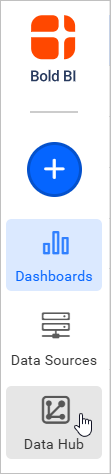
- To start, Click the
Bold Data Hubicon on the Navigation Pane.
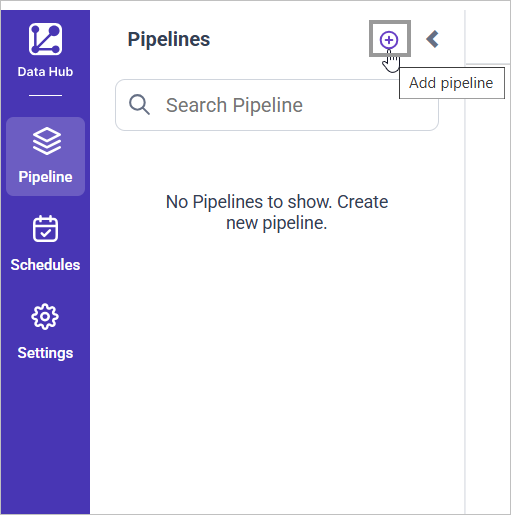
- Click
Add Pipelineand provide the name for the new pipeline.
- Select the newly created pipeline and choose the
Google Bigqueryconnector. Double click or Click on Add Template option to add template.
Configuration Parameters
| Parameters | Description |
|---|---|
| Project ID: | Specify the Google Cloud Project ID associated with your BigQuery account. |
| Credentials Path: | Provide the local path to your Google Cloud service account .json key file. |
| Dataset ID: | Specify the ID of the BigQuery dataset that contains the tables you want to access. |
| Select: | Tablename(s): Provide one or more table names from which to load data in the BigQuery dataset. |
- Click the “Upload File” button to upload your credentials Json file

- Copy the filepath and replace in credentials_path property. If it’s an Json file.
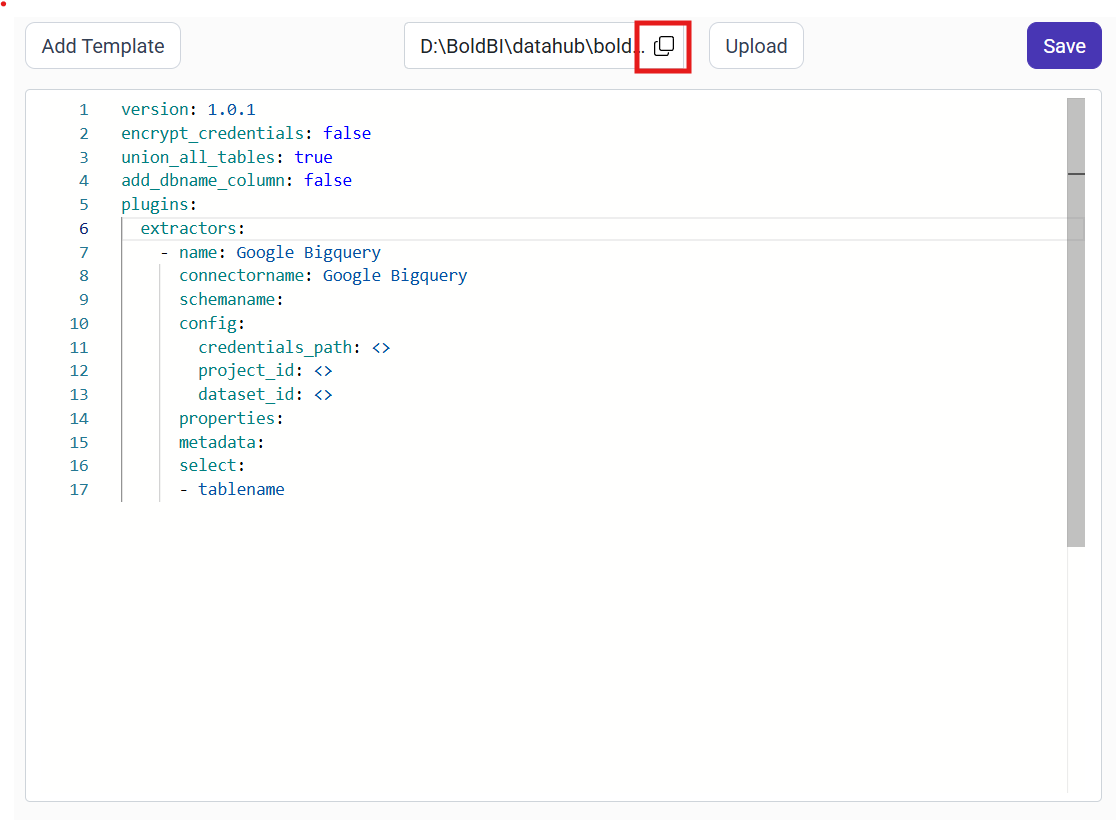
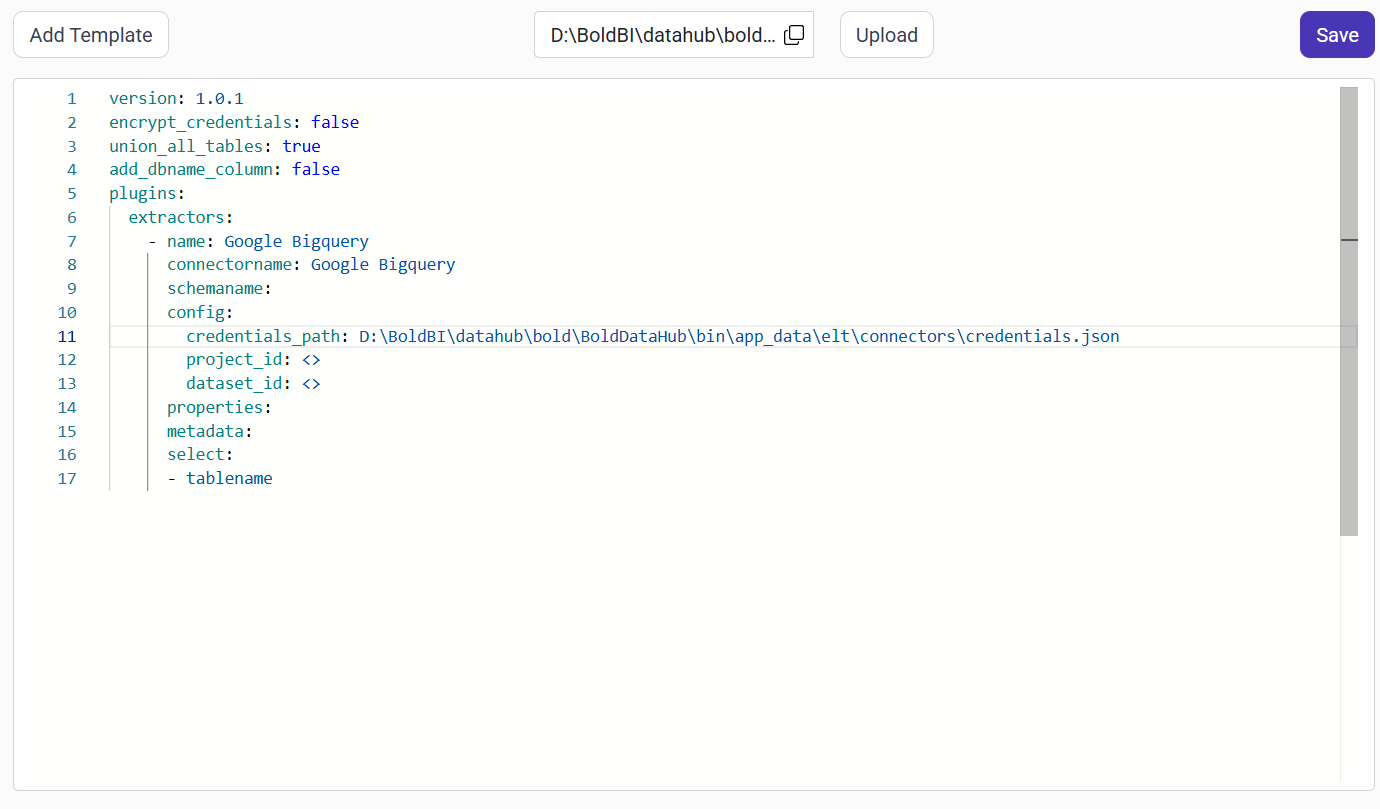
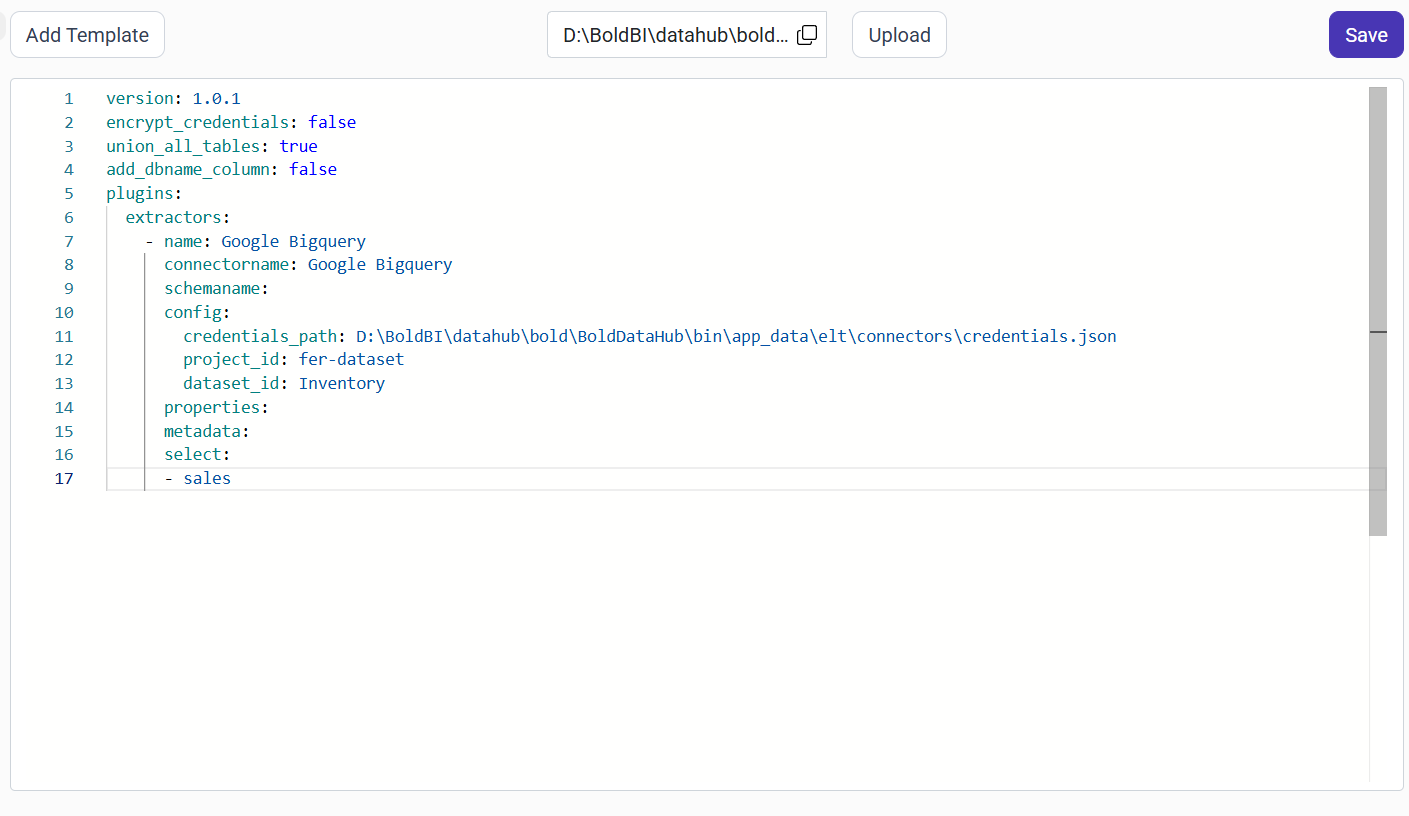
- Click Save and choose the desired destination to save the pipeline.
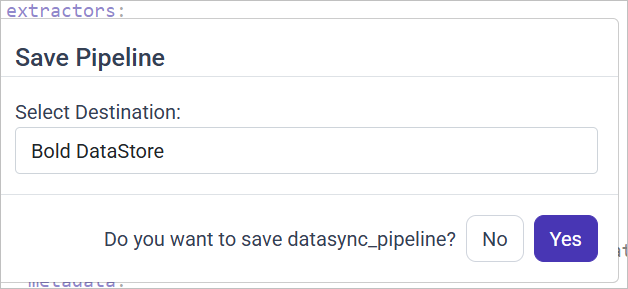
- Now the pipeline will be saved and started automatically. Click on Logs to see if the run is completed and data source is created in Bold BI.
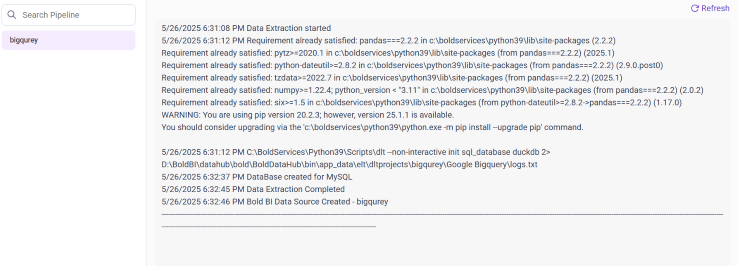
- Creating a Pipeline in Bold Data Hub automatically creates a Data Source in Bold BI. The Bold BI Data Source is a live data source to the destination database used in Bold Data Hub. For more information on the relationship between Bold Data Hub Pipeline and the associated Data Sources in Bold BI , please refer to Relationship between Bold Data Hub Pipeline and Associated Data Sources in Bold BI.

Warning:
1. The `Encrypt_Credentials` property should be set to false when updating the new access token on the template. If you have modified other properties, such as 'select' or 'account id', the `Encrypt_Credentials` property must be set to true.
2. The default lifetime of the access token is 1 hour. Therefore, you need to convert it to a long-lived access token in order to use the same token for 60 days. Existing tables should be maintained even if the token has expired or is being used as an invalid token.
Schedule Data Hub Job
- To configure interval-based scheduling, click on the schedules tab and select the created pipeline and click on the schedule icon and configure it.

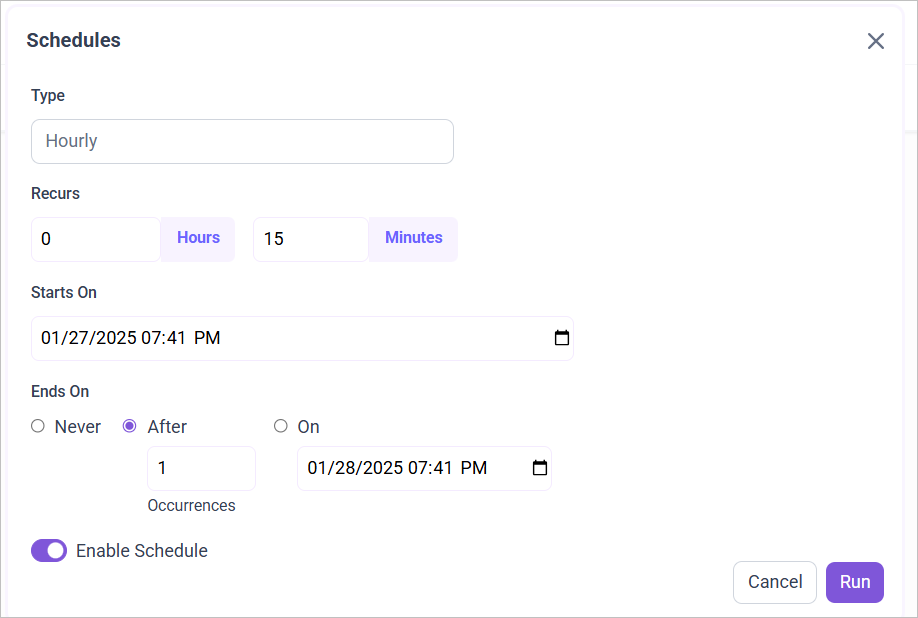
- For on-demand refresh, click
Run Nowbutton.
 .
.
- The Schedule history can be checked using the history option as well as logs.
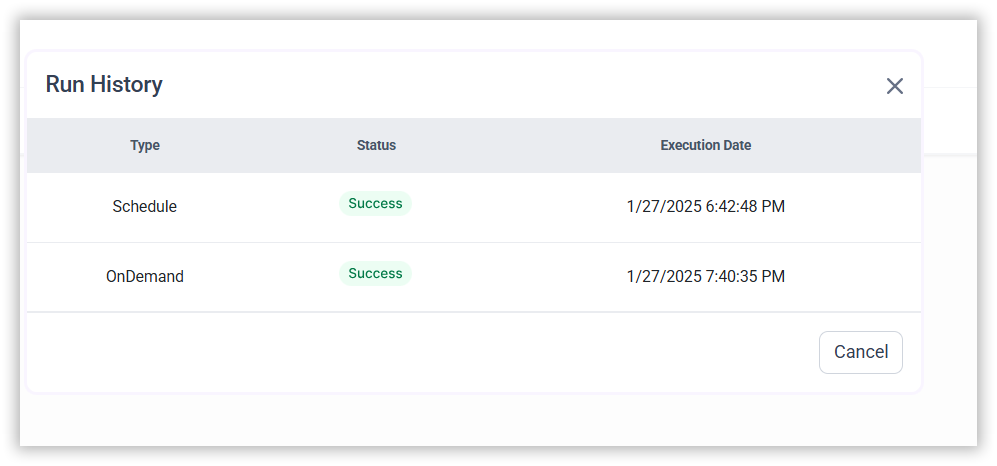
- Click on Logs to see if the run is completed and data source is created in Bold BI.
- Click
Edit DataSourceOption to view the created tables.