
Slack
Slack is a popular messaging and collaboration platform for teams and organizations.
Grab User OAuth Token
To set up the pipeline, you need to create a Slack app in your workspace in order to obtain a user token for accessing the Slack API.
-
Go to your Slack workspace and click on the name at the top-left.
-
Select Tools > Customize Workspace.
-
From the top-left Menu, choose Configure apps.
-
Click on Build (top-right) > Create a New App.
-
Choose “From scratch”, enter the “App Name”, and select your target workspace.
-
Confirm by clicking on Create App.
-
Go to OAuth and Permissions under the Features section.
-
Assign the following scopes:
Name Description adminAdminister a workspace channels:historyView messages and other content in public channels groups:historyView messages and other content in private channels im:historyView messages and other content in direct messages mpim:historyView messages and other content in group direct messages channels:readView basic information about public channels in a workspace groups:readView basic information about private channels im:readView basic information about direct messages mpim:readView basic information about group direct messages users:readView people in a workspace Note: These scopes are adjustable; tailor them to fit your needs.
-
From the “OAuth & Permissions” section on the left, add the scopes and copy the User OAuth Token.
Connection Properties
In the YAML file, the configuration section contains the following properties:
Connectorname: Slack
Access_token: Slack Access token
Example
version: 1.0.1
encrypt_credentials: false
plugins:
  extractors:
    - name: Slackk_data
      connectorname: Slack
      config:
        access_token: <ACCESS TOKEN>
      select:
        - TABLE1
        - TABLE2
      properties:
        page_size: <>
        start_date: <>
        end_date: <>
Configure the Data Hub to connect Slack
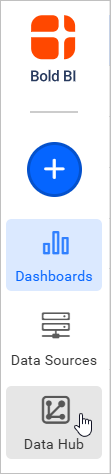
- To start, Click the
Bold Data Hubicon on the Navigation Pane.
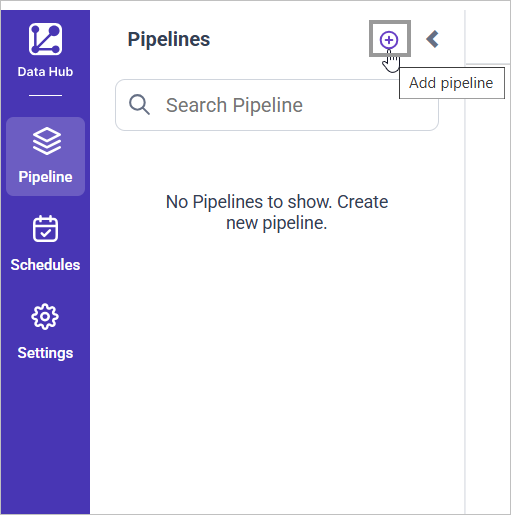
- Click
Add Pipelineand provide the name for the new pipeline.
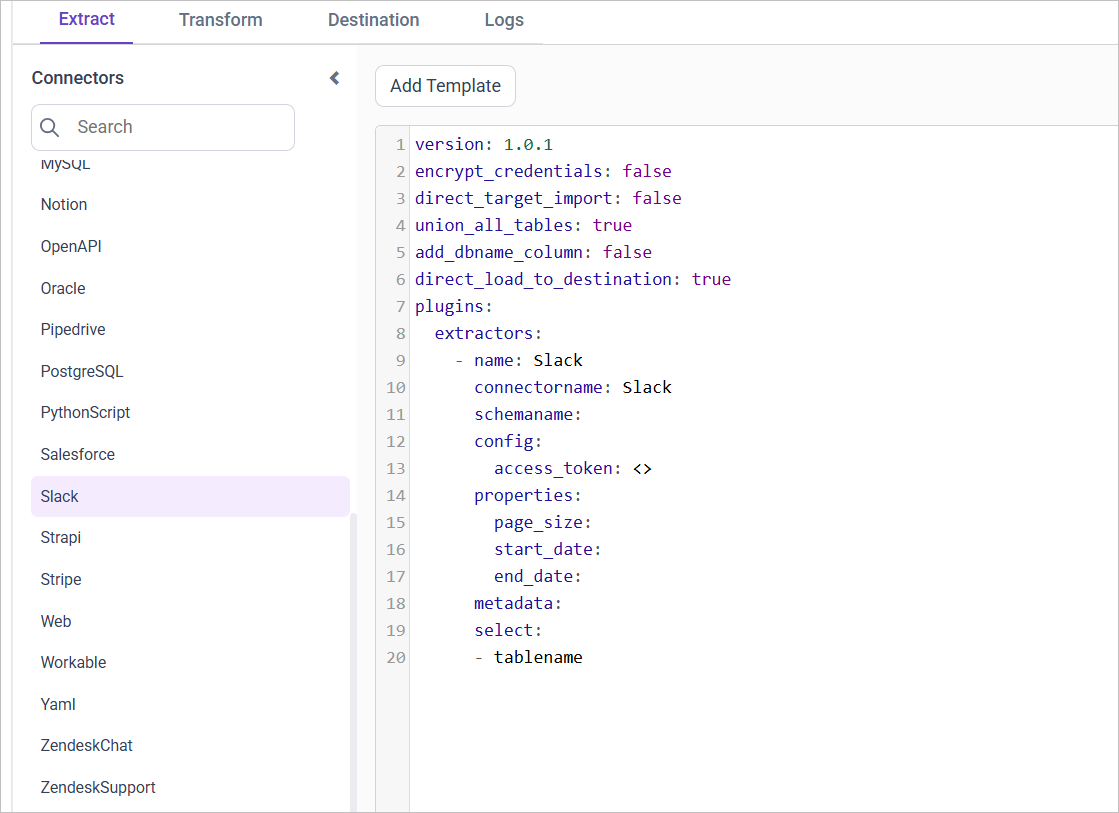
- Select the newly created pipeline and add the
Slacktemplate.
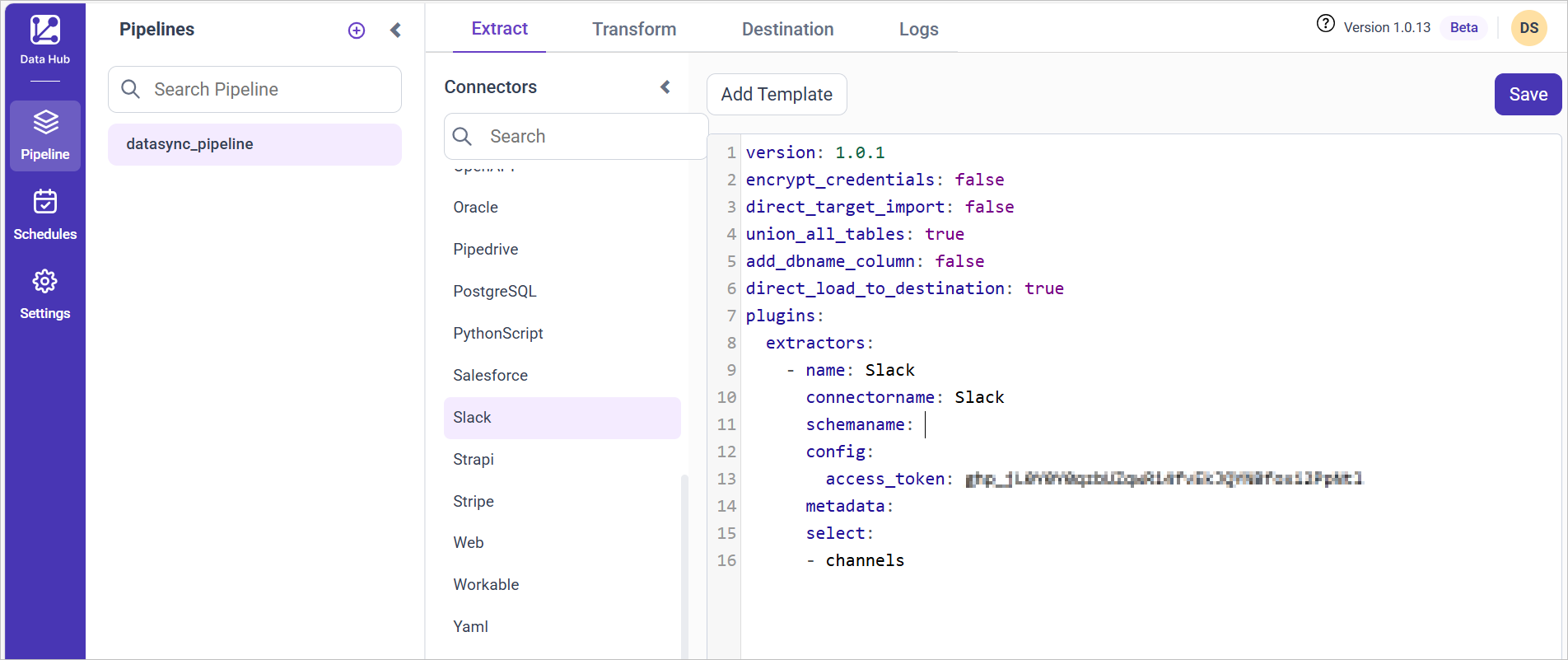
- Update the access token in the template. Also, Update the resources on the
selectproperty and Click Save, choose the desired destination to save the pipeline.
- Creating a Pipeline in Bold Data Hub automatically creates a Data Source in Bold BI. The Bold BI Data Source is a live data source to the destination database used in Bold Data Hub. For more information on the relationship between Bold Data Hub Pipeline and the associated Data Sources in Bold BI , please refer to Relationship between Bold Data Hub Pipeline and Associated Data Sources in Bold BI
The available resources are supported in Slack
- slack
- channels
- users
- get_messages_resource
- access_logs
Warning:
1. The `Encrypt_Credentials` property should be set to false when updating the new access token on the template. If you have modified other properties, such as 'select' or 'account id', the `Encrypt_Credentials` property must be set to true.
2. The default lifetime of the access token is 1 hour. Therefore, you need to convert it to a long-lived access token in order to use the same token for 60 days. Existing tables should be maintained even if the token has expired or is being used as an invalid token.
Schedule Data Hub Job
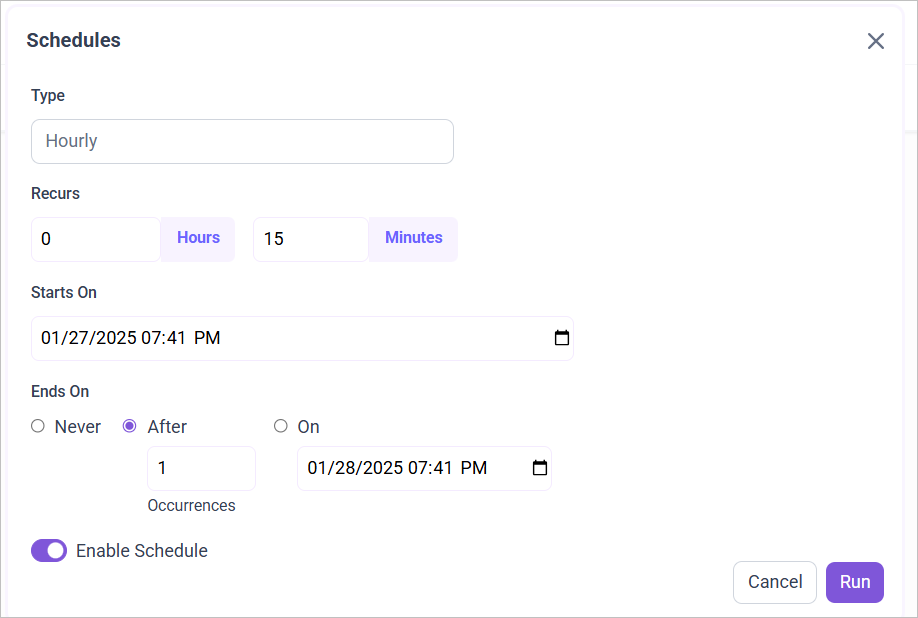
- To configure interval-based scheduling, click on the schedules tab and select the created pipeline and click on the schedule icon and configure it.

- For on-demand refresh, click
Run Nowbutton.
 .
.
- The Schedule history can be checked using the history option as well as logs.
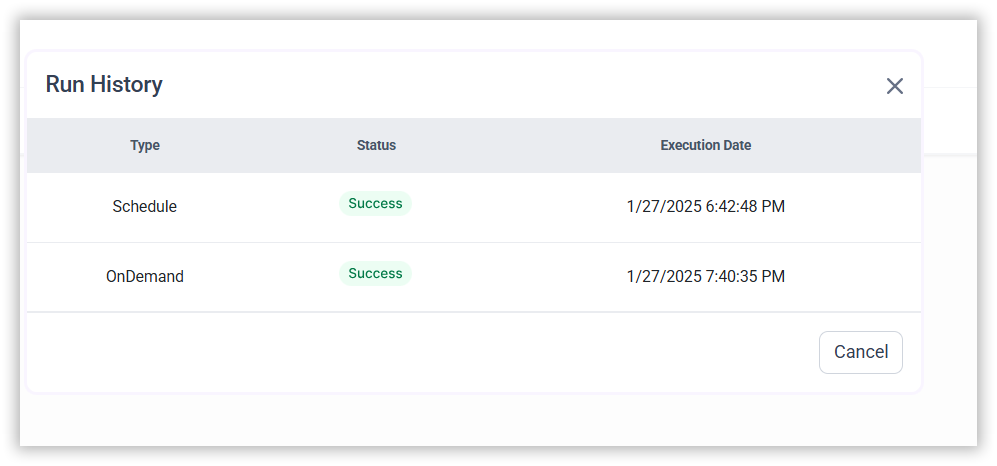
- Click on Logs to see if the run is completed and data source is created in Bold BI.

- Click
Edit DataSourceOption to view the created tables.