
Zendesk Support
Zendesk is a cloud-based customer service and support platform, offering features such as ticket management, self-service options, knowledge base management, live chat, customer analytics, and talks.
Zendesk support can be authenticated using one of the following three methods:
- Method 1 (subdomain + email address + password)
- Method 2 (subdomain + email address + API token)
- Method 3 (subdomain + OAuth token)
Grab Subdomain
Log into Zendesk to find your subdomain in the URL. For example, for www.yourhub.zendesk.com, the subdomain is yourhub.
Grab Zendesk Support API Token
- In Zendesk (top right), select Admin Center.
- Choose “Apps and Integrations.”
- Navigate to APIs and select Zendesk API. Activate “Password access” & “Token access”.
- Click on “Add API token” provide a description, and make sure to write down the API token.
- The token will only be displayed once, so be sure to keep it in a safe place.
Grab Zendesk Support OAuth Token
- Obtain the client ID through the Zendesk API: Send this curl request and make a note of the client ID in the response.
- Alternatively, retrieve the client ID through OAuth using this method.
- To obtain a complete token using the client ID acquired earlier, refer to the instructions provided here.
- Upon receiving the aforementioned request, you will receive a complete token that can be utilized to set up Zendesk support.
Connection Properties
In the yaml file, the config section contains the following properties:
Connector Name: Zendesk
Subdomain: Zendesk sub-domain
Email: Mail id used for login
Password: Password for the account
Token: API Token
OAuth Token: OAuth token
Metadata Properties
In this section, the mode of data refresh is defined. There are two modes: INCREMENTAL and FULL_TABLE. It supports only columns with DateTime datatype.
| INCREMENTAL |
|
This mode will fetch data from the date column mentioned as the replication key, starting from the date specified in the replication_value. Once it is scheduled, the replication_value will be updated automatically from the imported data. |
| FULL_TABLE |
|
TThis mode fetches data from the date column mentioned in the replication key from the start date as mentioned in the replication value. Once it is scheduled, the replication value is updated based on the interval_type and interval_value from the imported data. For ex set interval_type as 'year' and intervalue value as '1'.In first schedule, will fetch the record from Jan 1, 2000 to Dec 31, 2000. In next schedule, will fetch the record from Jan 1, 2001 to Dec 31, 2001 and so on. |
Example
FULL_TABLE
version: 1.0.1
encrypt_credentials: false
plugins:
  extractors:
    - name: zendesk_data
      connectorname: zendesk
      config:
        subdomain: <SUBDOMAIN>
        email: <EMAIL>
        password: <PASSWORD>
        token: <TOKEN>
        Oauth token: <OAUTH TOKEN>
    Select:
      - TABLE1
      - TABLE2
    metadata:
      TABLE1:
        replication_method: FULL_TABLE
        replication_key: last_modified_on
        replication_value: '2023-07-19 00:00:00'
        interval_type: days
        interval_value: 6
      TABLE2:
        replication_method: FULL_TABLE
        replication_key: last_modified_on
        replication_value: '2023-07-19 00:00:00'
        interval_type: days
        interval_value: 6
INCREMENTAL
version: 1.0.1
encrypt_credentials: false
plugins:
  extractors:
    - name: zendesk_data
      connectorname: zendesk
      config:
        subdomain: <SUBDOMAIN>
        email: <EMAIL>
        password: <PASSWORD>
        token: <TOKEN>
        Oauth token: <OAUTH TOKEN>
    Select:
      - TABLE1
      - TABLE2
    metadata:
      TABLE1:
        replication_method: FULL_TABLE
        replication_key: last_modified_on
        replication_value: '2023-07-19 00:00:00'
      TABLE2:
        replication_method: FULL_TABLE
        replication_key: last_modified_on
        replication_value: '2023-07-19 00:00:00'
Configure the Data Hub to connect Zendesk Support
- To start, Click the
Bold Data Hubicon on the Navigation Pane.
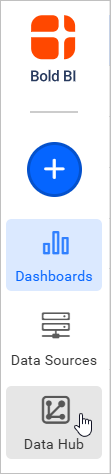
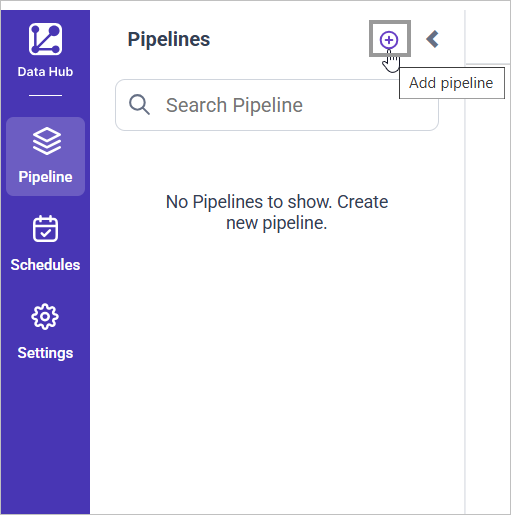
- Click
Add Pipelineand provide the name for the new pipeline.
- Select the newly created pipeline and add the
Zendesk Supporttemplate.
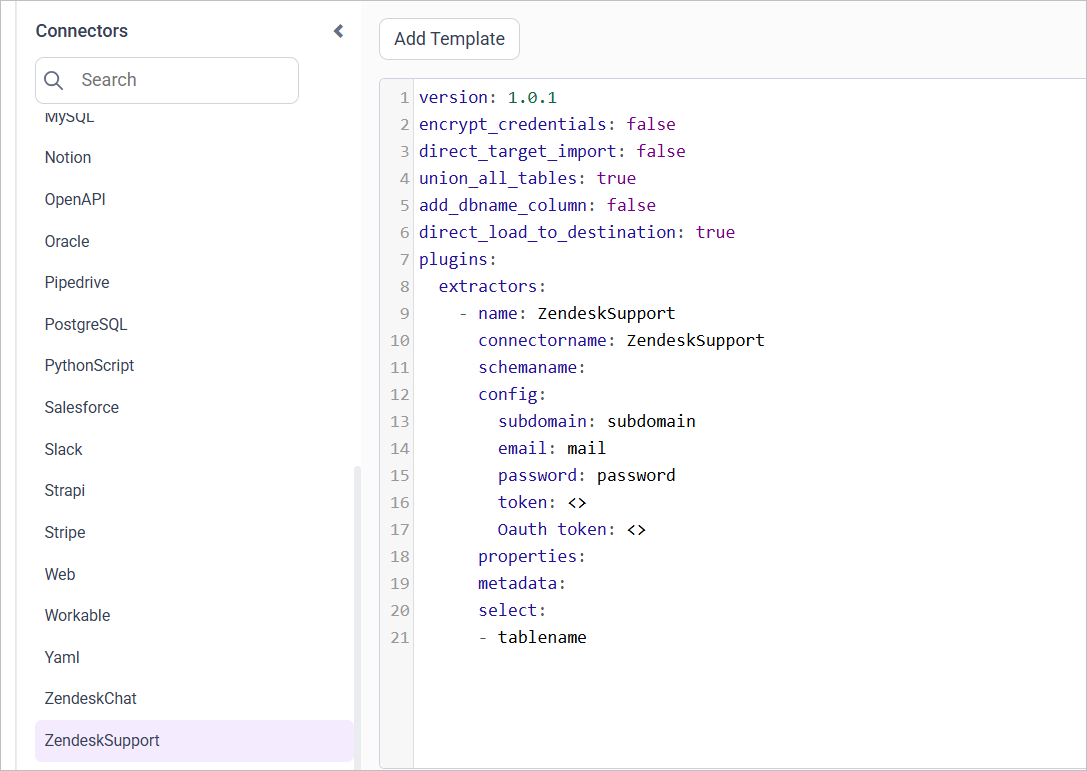
- Update the subdomain, email address, password or token (API or OAuth) in the template. Also, Update the resources on the
selectproperty and save it to the BoldBI Data Store.
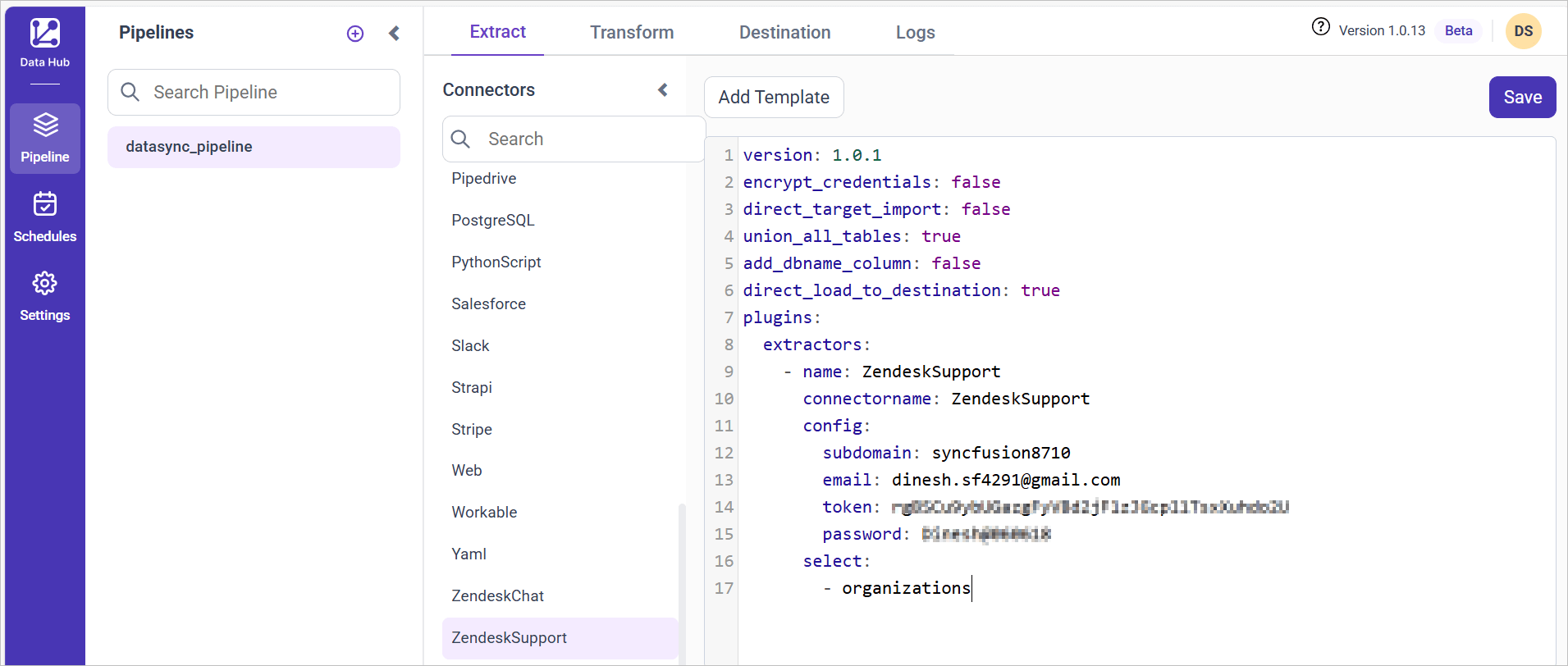
- Creating a Pipeline in Bold Data Hub automatically creates a Data Source in Bold BI. The Bold BI Data Source is a live data source to the destination database used in Bold Data Hub. For more information on the relationship between Bold Data Hub Pipeline and the associated Data Sources in Bold BI , please refer to Relationship between Bold Data Hub Pipeline and Associated Data Sources in Bold BI
The available resources are supported in Zendesk Support
- users
- sla_policies
- groups
- organizations
- brands
Warning:
1. The `Encrypt_Credentials` property should be set to false when updating the new access token on the template. If you have modified other properties, such as 'select' or 'account id', the `Encrypt_Credentials` property must be set to true.
2. The default lifetime of the access token is 1 hour. Therefore, you need to convert it to a long-lived access token in order to use the same token for 60 days. Existing tables should be maintained even if the token has expired or is being used as an invalid token.
Schedule Data Hub Job
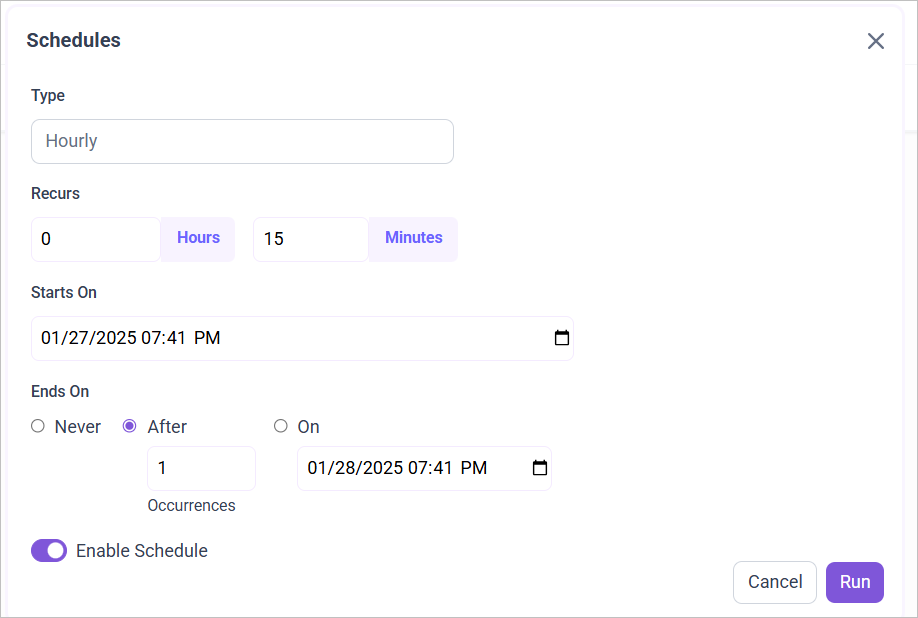
- To configure interval-based scheduling, click on the schedules tab and select the created pipeline and click on the schedule icon and configure it.

- For on-demand refresh, click
Run Nowbutton.
 .
.
- The Schedule history can be checked using the history option as well as logs.
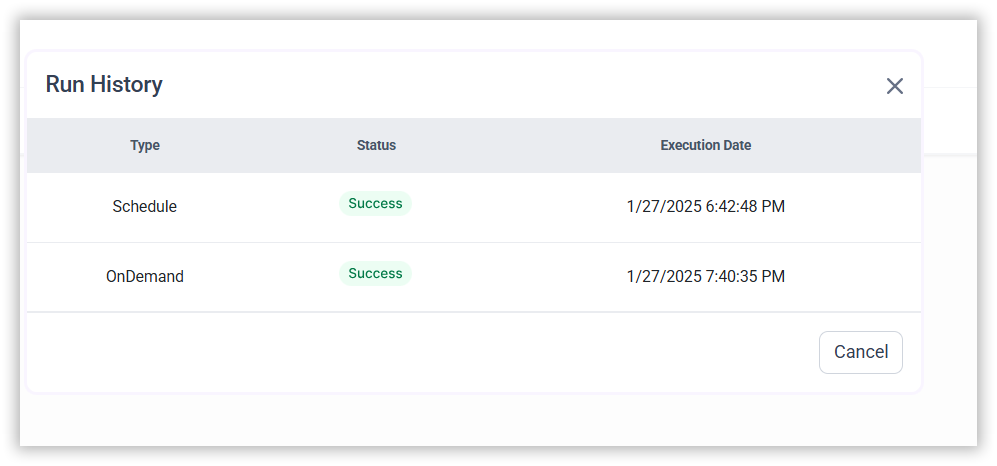
- Click on Logs to see if the run is completed and data source is created in Bold BI.

- Click
Edit DataSourceOption to view the created tables.