
Bold BI Dashboards embedding in Ruby on Rails using Embed SDK
A GitHub link has been provided to get the sample application, which demonstrates the rendering of a dashboard available on your Bold BI server. The link is followed by steps to create a new embedding application in Ruby on Rails on your own.
NOTE: The best way to get started would be to read the Getting Started Started section of the documentation first. The
Getting Startedguide provides you with enough information that you need to know before working on the sample.
Prerequisites
How to run the sample
-
Please get the Ruby on Rails sample.
-
Please ensure that you have enabled embed authentication on the
embed settingssettings page. If it is not currently enabled, please refer to the provided image or detailed instructions to enable it.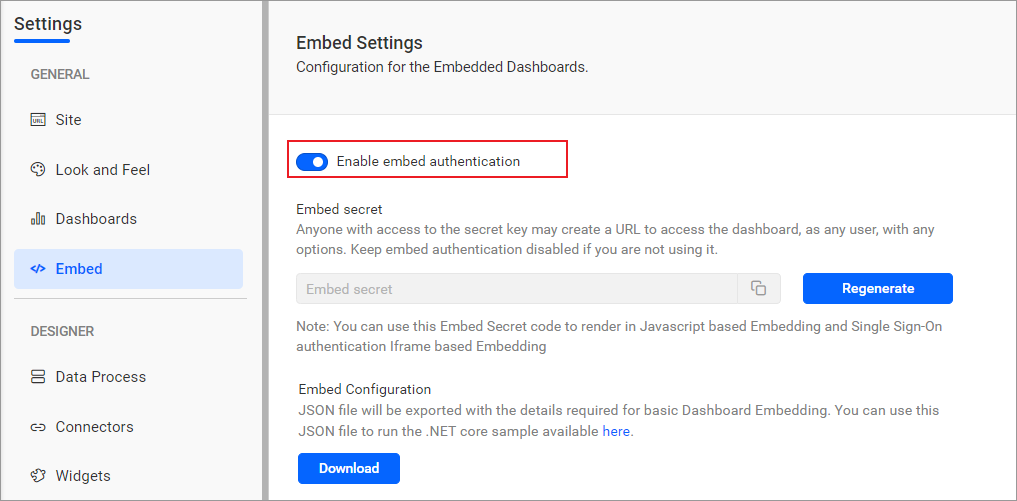
-
To download the
embedConfig.jsonfile, please follow this link for reference. Additionally, you can refer to the image below for visual guidance.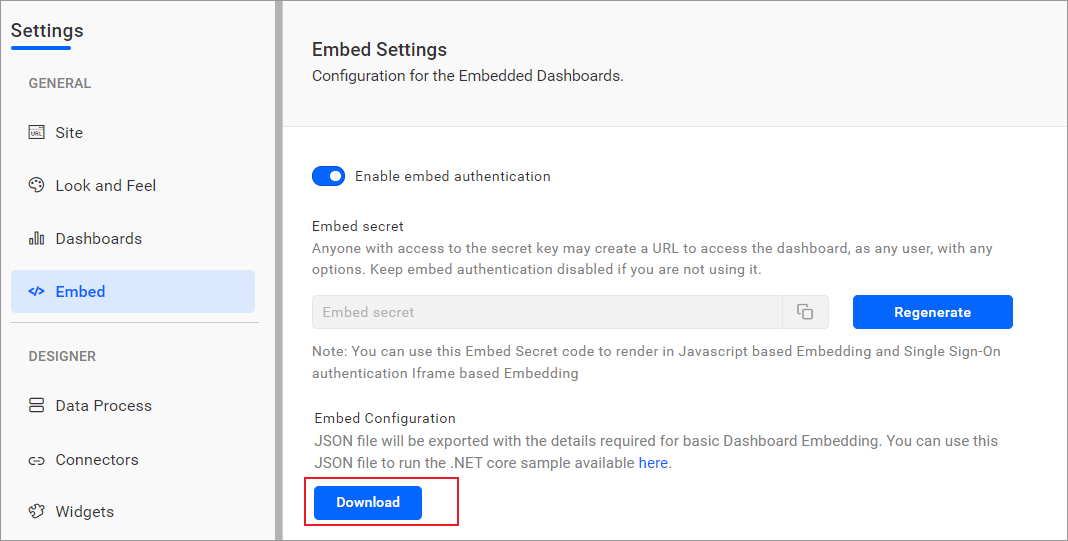
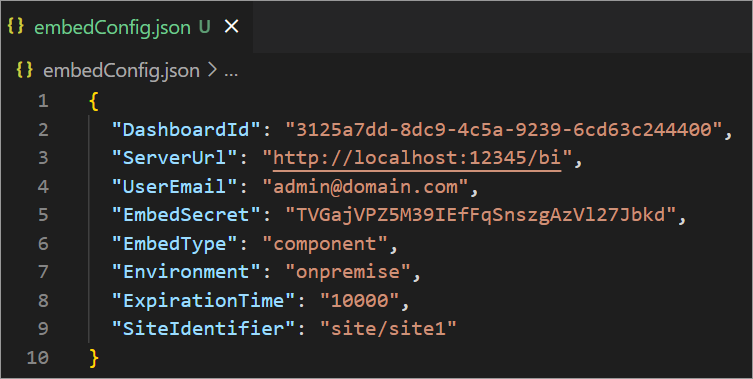
-
Please copy the downloaded
embedConfig.jsonfile and paste it into the designated location within the application. Make sure that you have placed it correctly in the application, as shown in the image.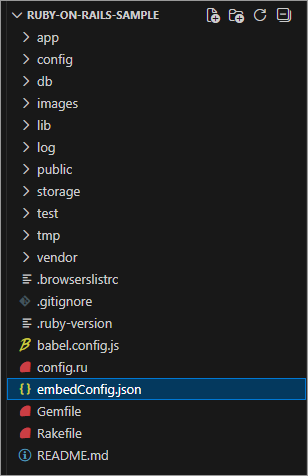
ServerUrl Dashboard Server BI URL (ex: http://localhost:5000/bi, https://demo.boldbi.com/bi) SiteIdentifier For the Bold BI Enterprise edition, it should be like site/site1. For Bold BI Cloud, it should be an empty string. UserEmail UserEmail of the Admin in your Bold BI, which would be used to get the dashboard list. EmbedSecret Get your EmbedSecret key from the Embed tab by enabling the Enable embed authenticationin the Administration pageEnvironment Your Bold BI application environment. (If it is a cloud analytics server, use `BoldBI.Environment.Cloud`; if it is your server, use `BoldBI.Environment.Enterprise`) DashboardId Item ID of the dashboard to be embedded in your application. ExpirationTime Token expiration time. (In the EmbedConfig.json file, the default token expiration time is 10000 seconds) -
To install all dependent packages by using the following command
bundle install. -
Then, run your Ruby on Rails sample using the following command
rails s.
How this sample works
-
The
renderDashboardmethod will be invoked based on the configured embedConfig values in theindex.html.erbfile.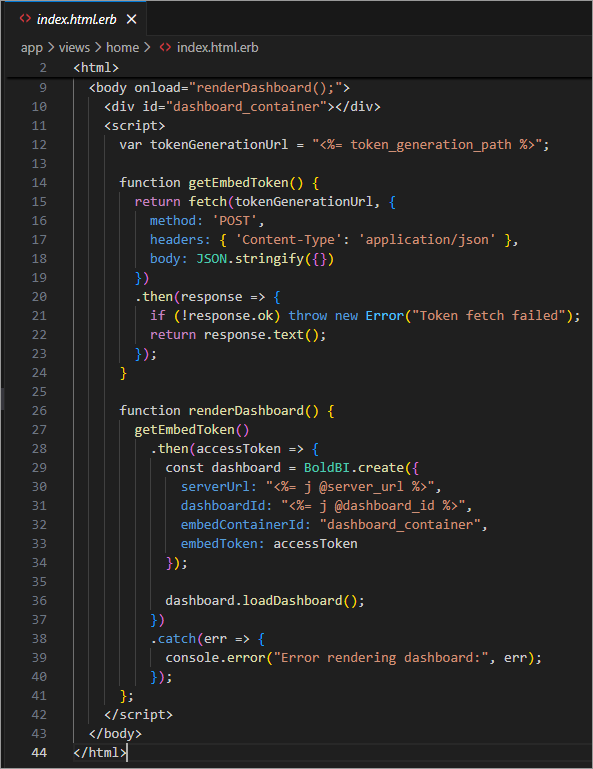
-
Before rendering, call the
tokenGenerationUrl, which redirects to thetoken_generationaction in thehome_controller.rb. This action generates the access token using the providedembedDetails.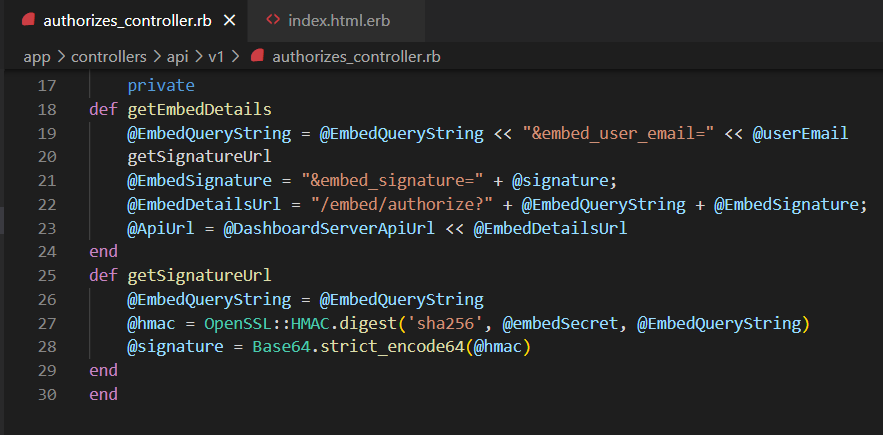
-
Once the token is generated, it will be returned to the
index.html.erbfile and the dashboard will start to render it.
Steps to create new Ruby on Rails application to embed dashboard
-
Install Ruby using the provided installer and accept the license.
-
Once installed, check the version of Ruby by using the command prompt
ruby -v. -
To install
rails, run the commandgem install rails. To check the version of rails, run the commandrails -v. -
To create a new application, run the command
rails new myApp --database=postgresql. Here,myAppis the folder name, andpostgresqlis the database used. Ruby on Rails usesSQLiteas the default database, so any other database needs to be specified in the command. -
Change the file directory using the command
cd myAppand then runrails sto start the application. Open your browser and go tolocalhost://3000to view the Ruby on Rails welcome page. -
In the
index.html.erbfile, include the required file within the<head>tag. Within the<body>tag, call theembedSample()method and create a DOM element with the iddashboardas shown.<head> <title>Demo</title> <%= javascript_include_tag "https://cdn.boldbi.com/embedded-sdk/v16.3.5/boldbi-embed.js", "data-turbolinks-track" => true %> </head> <body onload="embedSample();"> <div id="dashboard"></div> <script> function embedSample() { var boldbiEmbedInstance = BoldBI.create({ //Bold BI server URL (ex: http://localhost:5000/bi/site/site1, http://demo.boldbi.com/bi/site/site1) serverUrl: "http://localhost:64503/bi/site/site1", //Get and set the item id of the dashboard to embed from BI server(https://help.syncfusion.com/bold-bi/enterprise-bi/share-dashboards/get-dashboard-link#get-link). dashboardId: "", embedContainerId: "dashboard", embedType: BoldBI.EmbedType.Component, //Your Bold BI application environment. (If Cloud, you should use `Cloud`, if Enterprise, you should use `Enterprise`) environment: BoldBI.Environment.Enterprise, // If Cloud, you should use BoldBI.Environment.Cloud height: "800px", width: "1200px", authorizationServer: { //URL pointing to AuthorizeServer API file. We are running ruby sample in 3000 port(http://localhost:3000/api/v1/authorizes). Learn more about authorize server(https://help.boldbi.com/security-configuration/authorize-server) url: "http://localhost:3000/api/v1/authorizes" }, expirationTime: "100000",//Set the duration for the token to be alive. }); boldbiEmbedInstance.loadDashboard(); } </script> </body> -
In the
embedSample()method, create an instance to render the dashboard by using theloadDashboard()method. -
In the
authorize_controller.rbfile, define the variablesembedSecretanduserEmailfor authorization purposes. Invoke the methodgetEmbedDetails(), which uses the methodgetSignatureUrl()to generate the algorithm.In the
getEmbedDetails()API, theembedQuerString,userEmail, and the value from theGetSignatureUrl()method are appended as query parameters in the URL to get details of a particular dashboard. Then, run the application.class Api::V1::AuthorizesController < ApplicationController skip_before_action :verify_authenticity_token def create #Get the EmbedSecret key from Bold BI(https://help.syncfusion.com/bold-bi/on-premise/site-settings/embed-settings) @embedSecret = "" #Enter your Bold BI credentials @userEmail = "" @EmbedQueryString = params[:embedQuerString] @DashboardServerApiUrl = params[:dashboardServerApiUrl] getEmbedDetails render :json => Net::HTTP.get(URI.parse(@ApiUrl)) end private def getEmbedDetails @EmbedQueryString = @EmbedQueryString << "&embed_user_email=" << @userEmail getSignatureUrl @EmbedSignature = "&embed_signature=" + @signature; @EmbedDetailsUrl = "/embed/authorize?" + @EmbedQueryString.downcase + @EmbedSignature; @ApiUrl = @DashboardServerApiUrl << @EmbedDetailsUrl end def getSignatureUrl @EmbedQueryString = @EmbedQueryString.downcase @hmac = OpenSSL::HMAC.digest('sha256', @embedSecret, @EmbedQueryString) @signature = Base64.strict_encode64(@hmac) end end