
Moving bulk Dashboards
This section explains how to move multiple dashboards from one category to another. It covers the prerequisites, required permissions, and step-by-step instructions for completing the bulk dashboard move process.
Bulk Move Requirements
To move dashboards between categories, ensure the following requirements are met:
-
The user must have permission to create dashboards and manage categories.
-
At least two categories must be available in the system to perform the bulk move operation and user should have access for those categories.
-
The source category must contain at least one dashboard. If no dashboards are available, the Move Dashboards option will be disabled.
Steps to Move Bulk Dashboards
Follow the steps below to move dashboards in bulk:
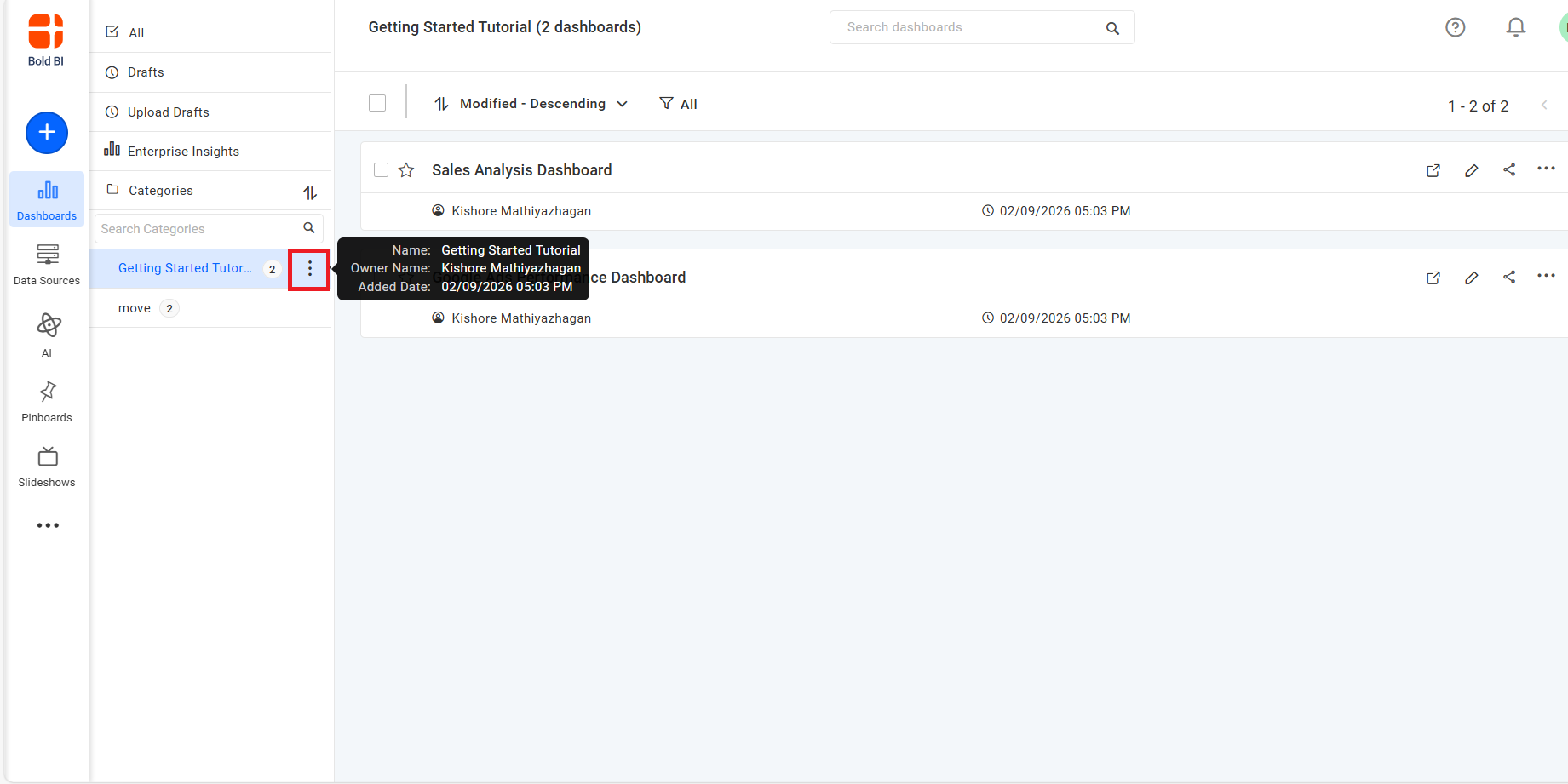
- In the Category List section, click the Action button for the required category. This will display the available actions for that category.
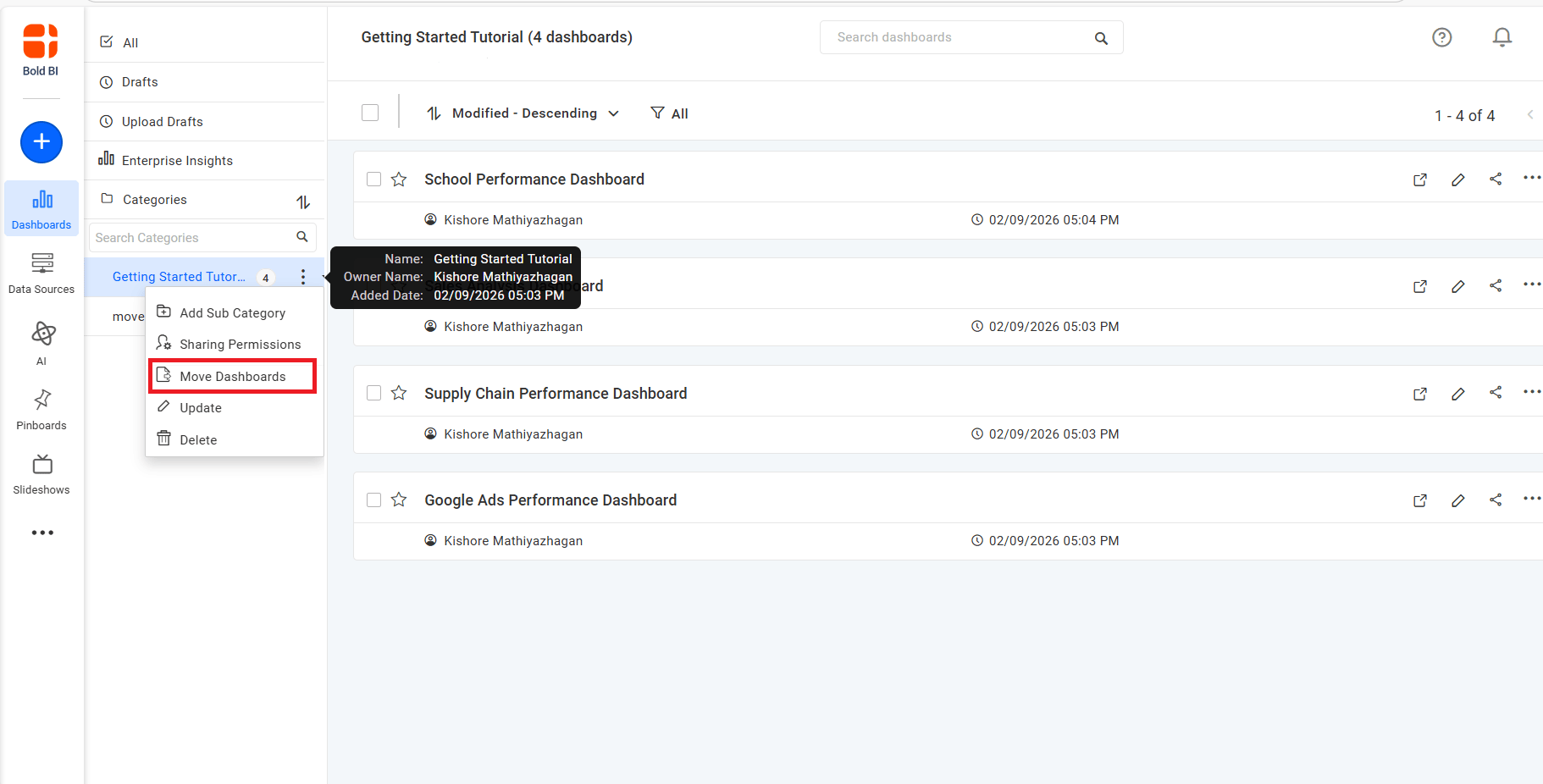
- Select the Move Dashboards option. This will open the dialog box where you can choose the destination category and dashboards to be moved.
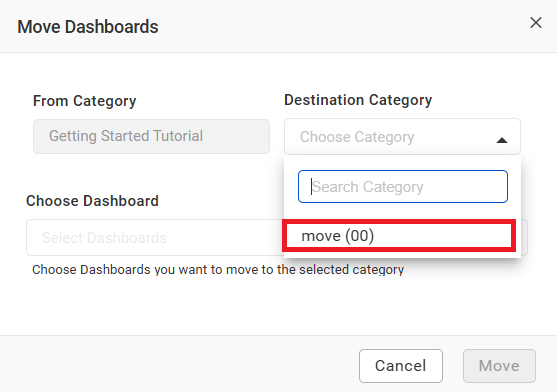
- In the dialog box, select the Destination Category where the dashboards should be moved.
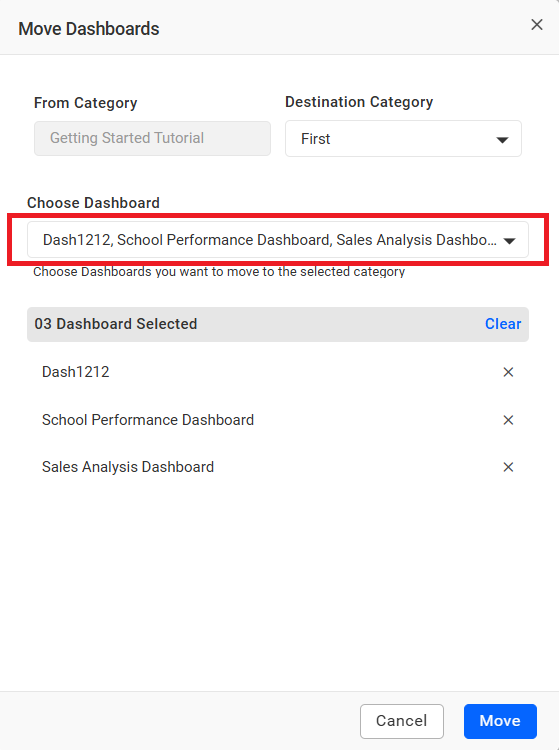
- Select the dashboards you want to move.
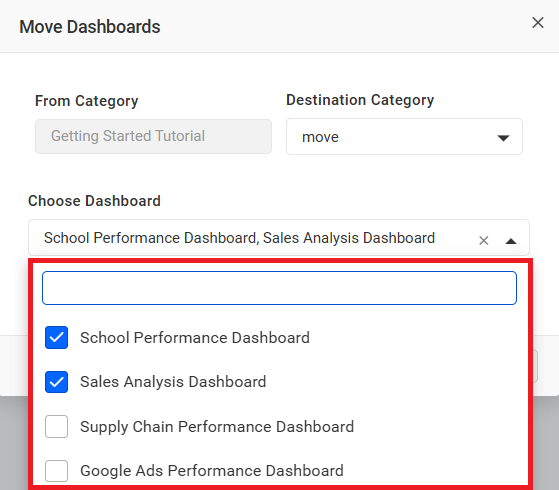
Note : You can select any number of dashboards available in the source category.
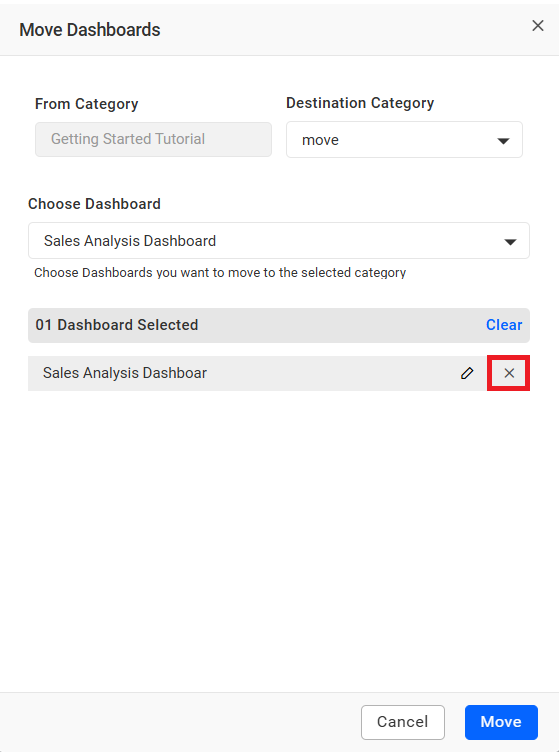
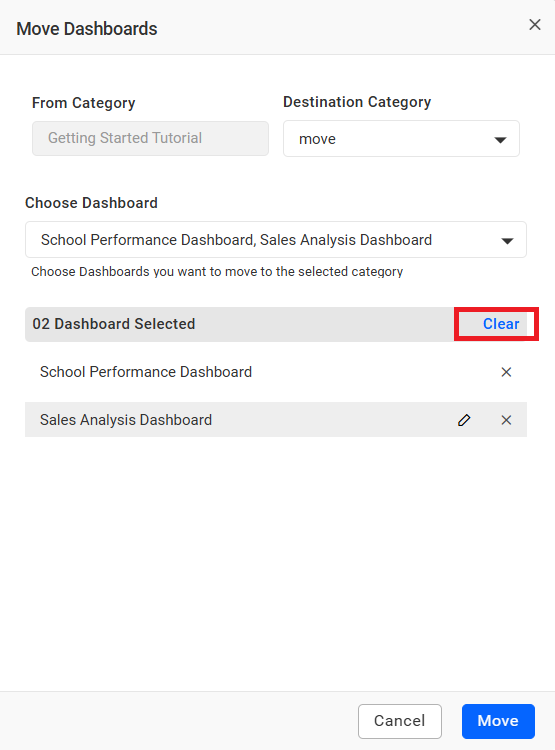
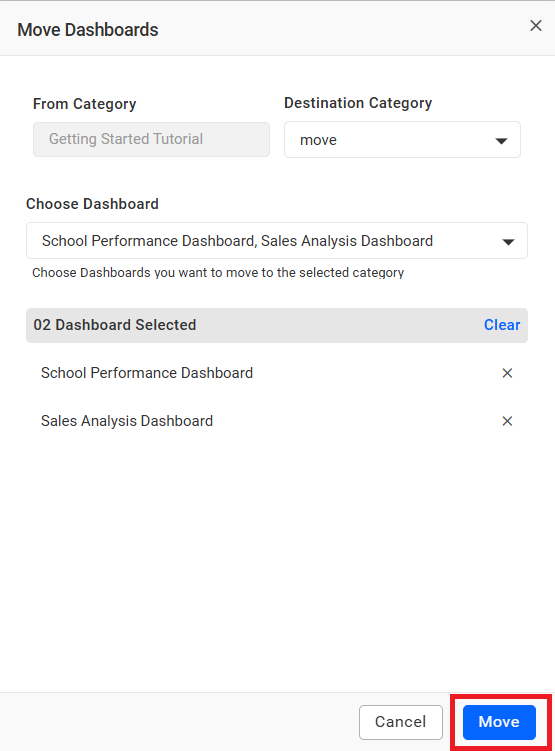
- To manage your selected dashboards, open the Choose Dashboard dropdown and select the dashboards you want to add or deselect the ones you want to remove. You can also click the X icon next to a dashboard name to remove it individually, or use the Clear option to remove all selected dashboards at once.
- To rename a selected dashboard before moving, click Edit. The dashboard name becomes editable. Enter a new name and save the changes.
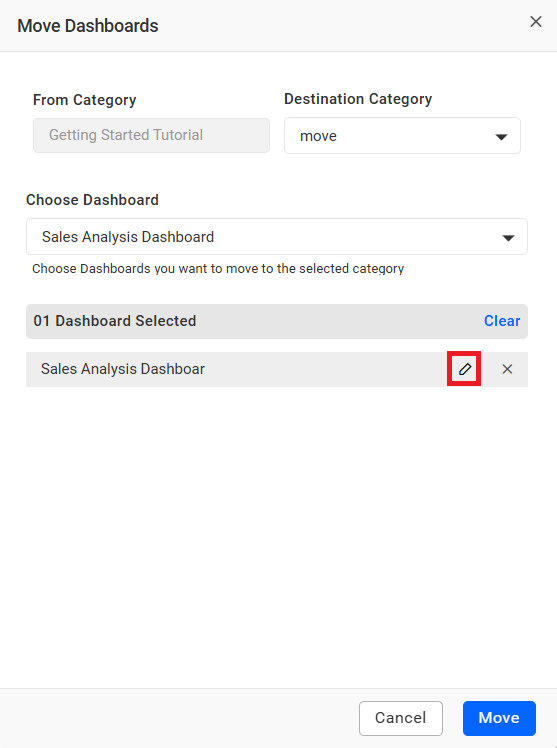
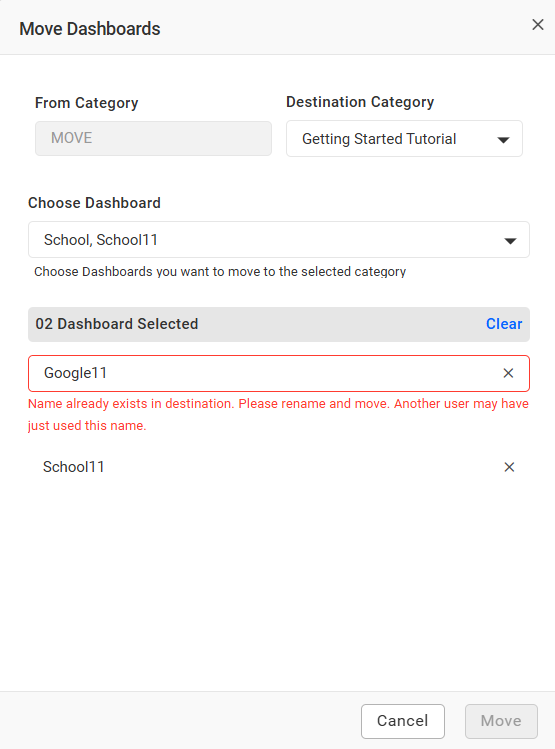
Note : The dashboard name must be unique in the destination category.
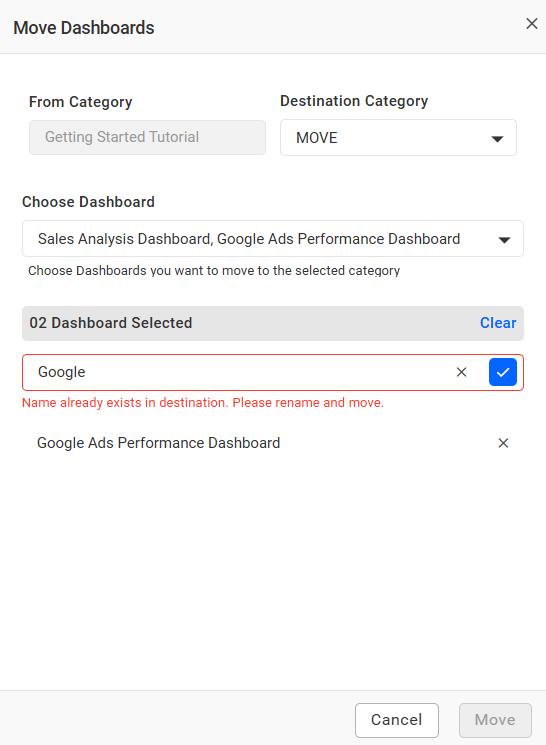
Note : If another user has renamed a dashboard to the same name during your operation, an error message will appear: Name already exists in destination. Please rename and move. Another user may have just used this name.
- Click Move to move the selected dashboards to the destination category.
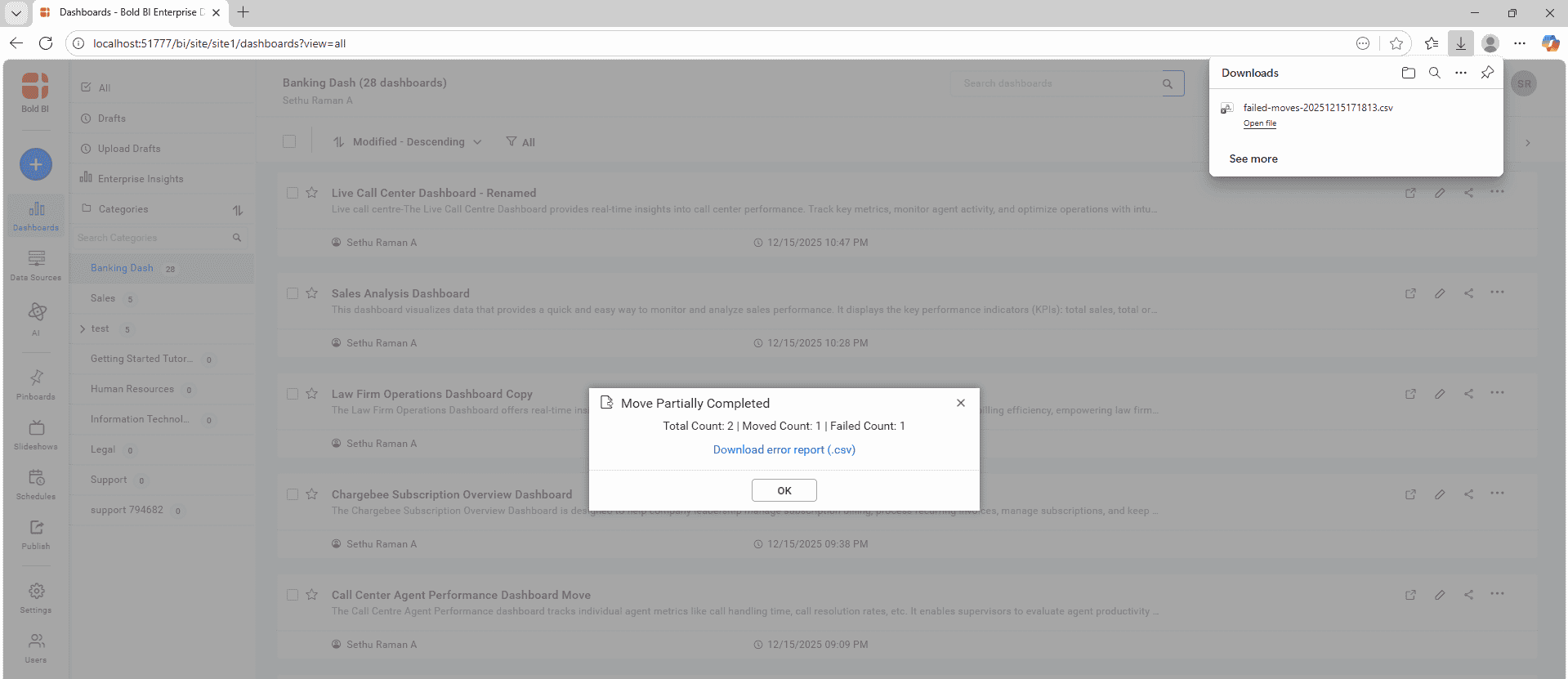
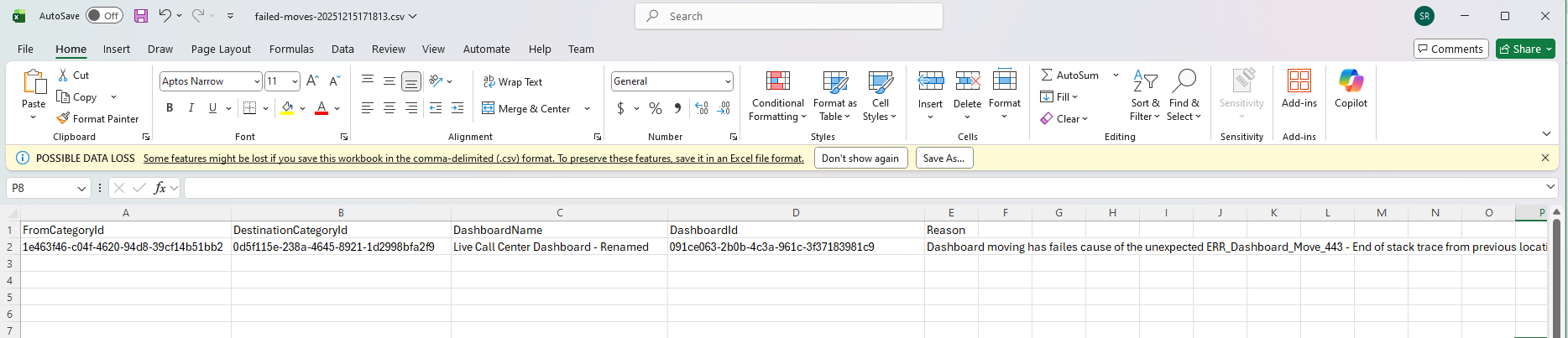
- If the dashboard move process fails or is only partially completed, an error pop-up will appear. It will display the number of dashboards successfully moved and the number of dashboards that failed. A downloadable CSV file will also be provided, containing failed dashboard details and the corresponding failure messages.
Create Dashboard
For more information on how to create dashboards, refer to the Add Dashboards documentation.