Migrate Data Sources Online
Migrating a data source online refers to the process of publishing a data source in the Bold BI application to multiple tenants, either on the same server or on different instances. By doing so, you can easily share data sources across multiple sites.
Note: This feature is available in On-Premises Deployment, but not in Syncfusion Managed Cloud Server.
To migrate a data source online, follow these steps:
-
Click on
Actionsin the data source grid context menu and selectPublishto publish the corresponding data source.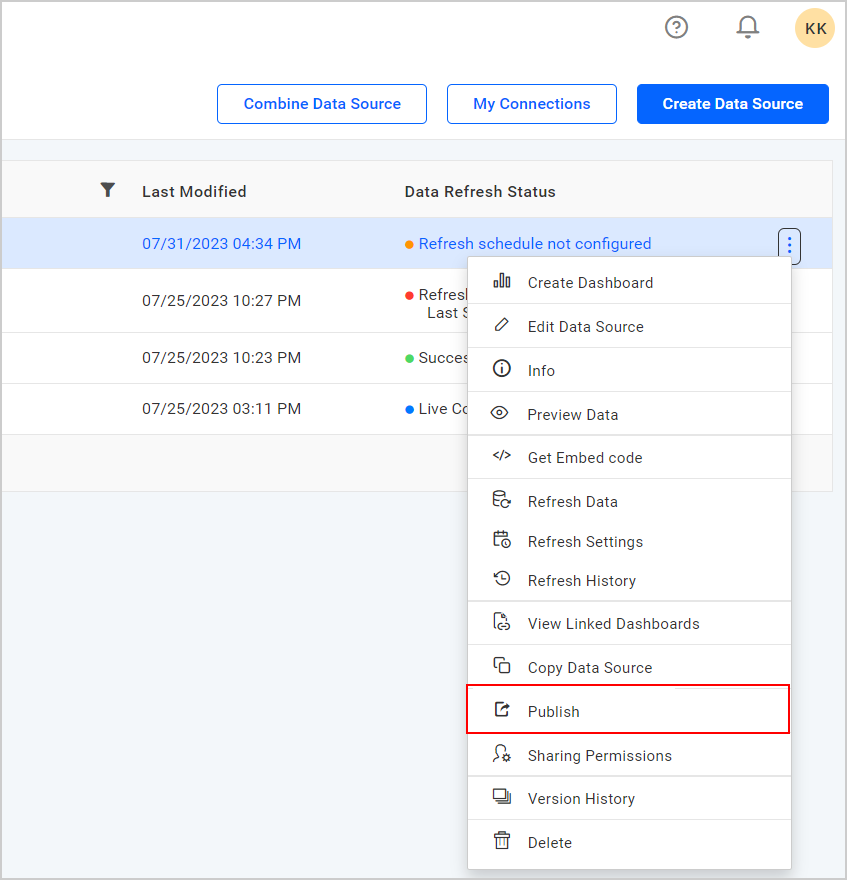
-
Select
Internal SiteorExternal Sitefor publishing the data source in the publish dialog box, and then proceed to the next step.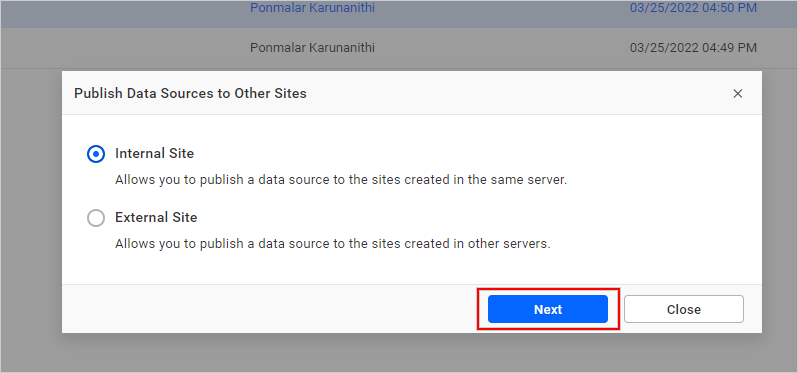
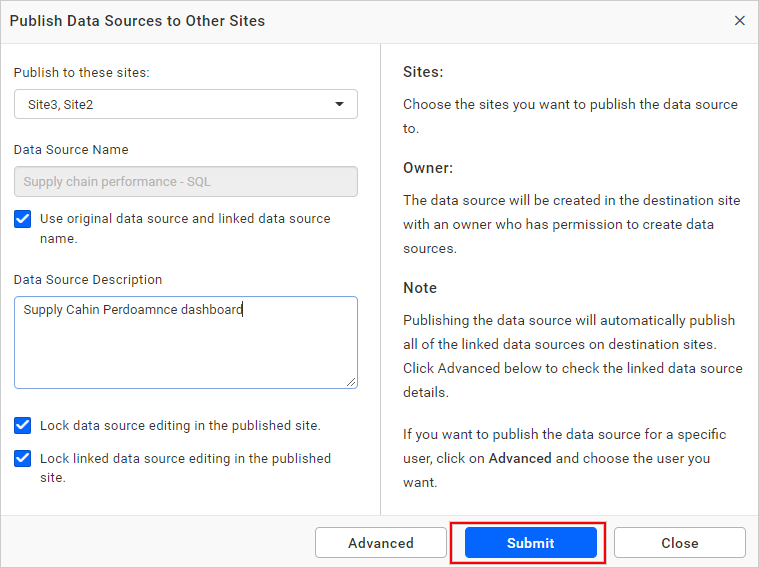
Internal site
You can publish the data source to the sites created in the same Bold BI server.
-
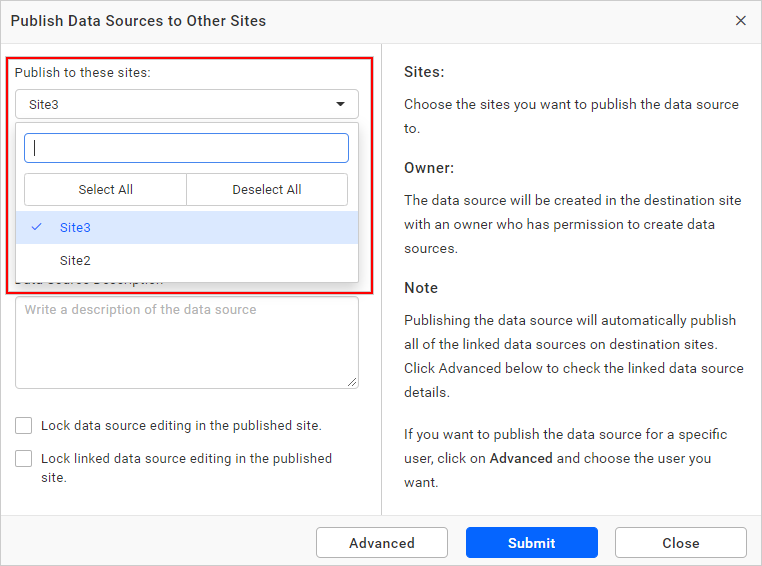
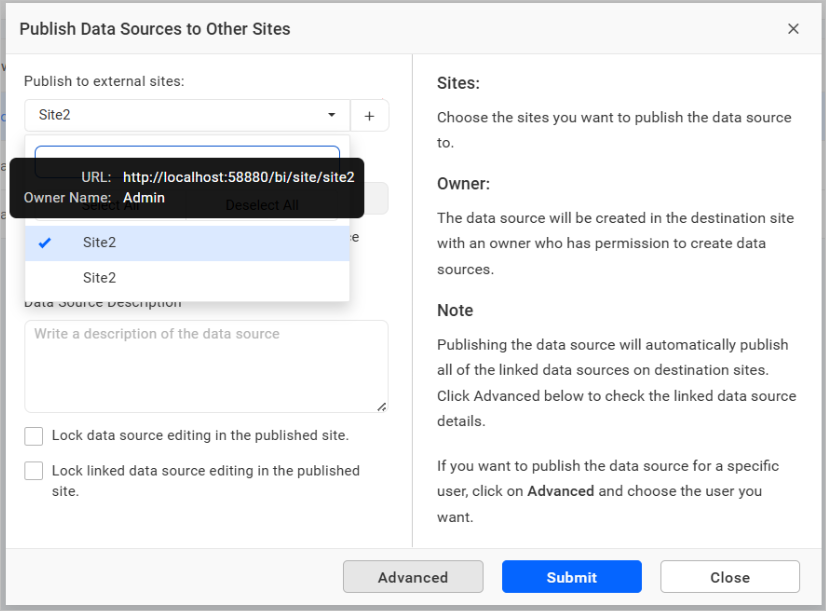
Choose the site from the drop-down menu where you want to publish the data source.
-
Select the check box for
Use original data source and linked data source nameif you want to publish the data source and linked data source with the original name in the destination sites.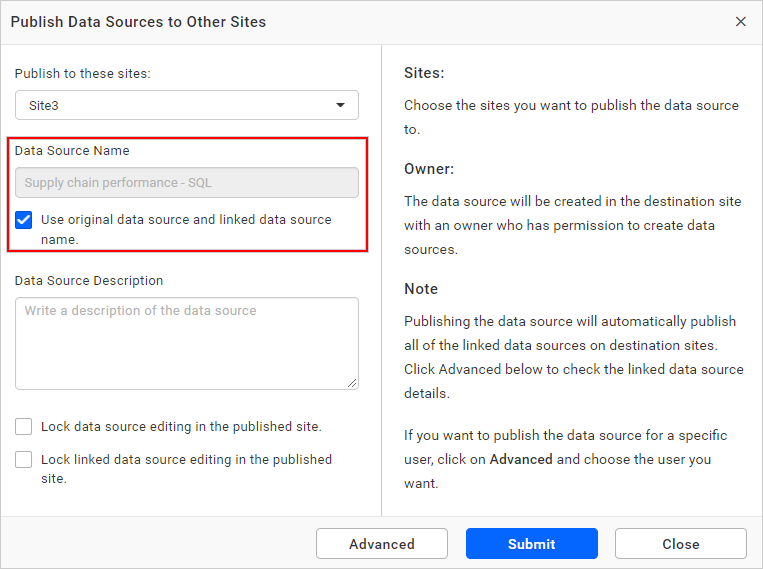
-
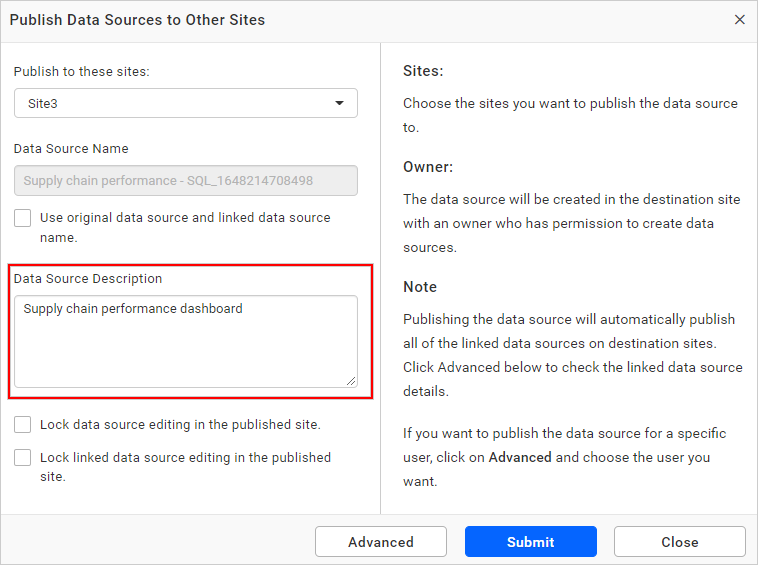
If necessary, provide a description for the data source.
-
Select the check box for
Lock data source editing in the published siteif you do not want the published data source to be edited in the published sites.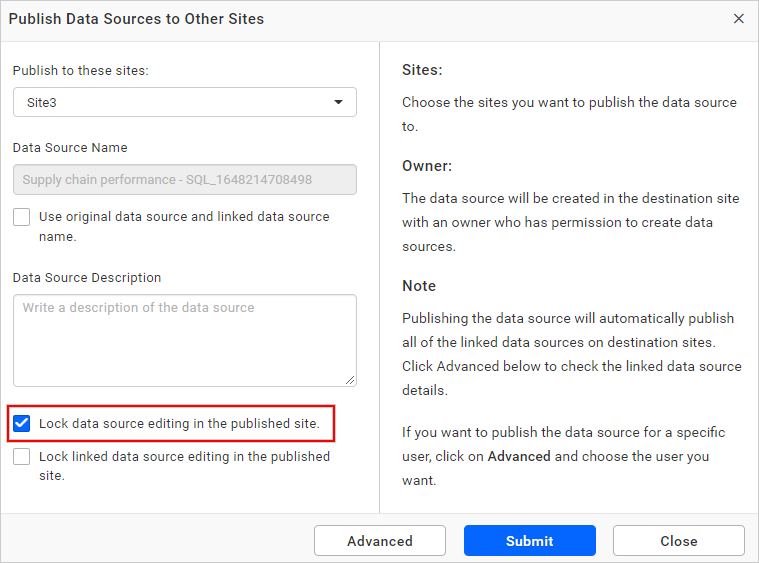
-
Select the check box for
Lock linked data source editing in the published siteif you do not want the published linked data source to be edited in the published sites.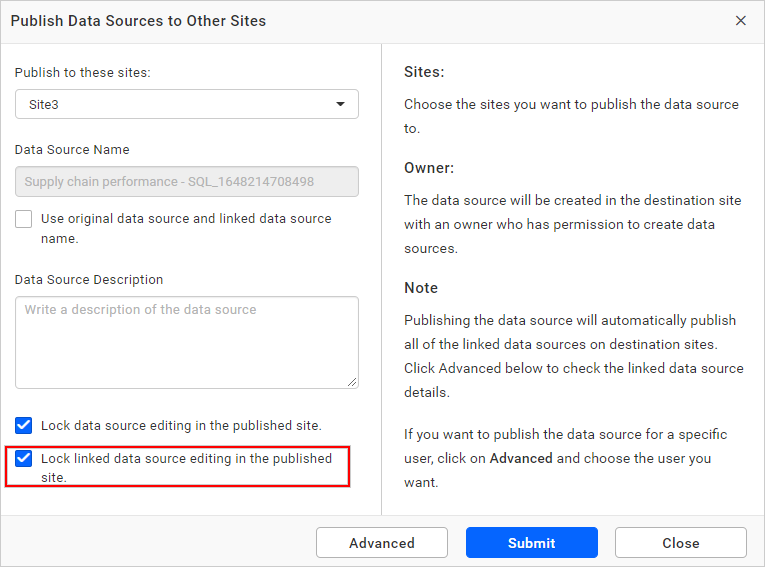
-
You can choose the owner (who has permission to create the data source) of the data source in the published site using the
Advancedoption. If you do not, it will publish the data source with a random user (who has permission to create the data source).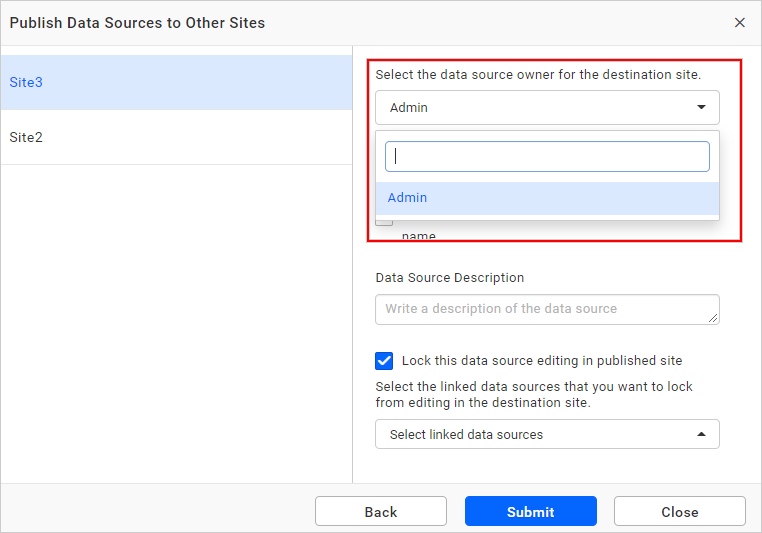
-
You can individually configure the fields for a specific site and a specific owner in the
Advancedwindow.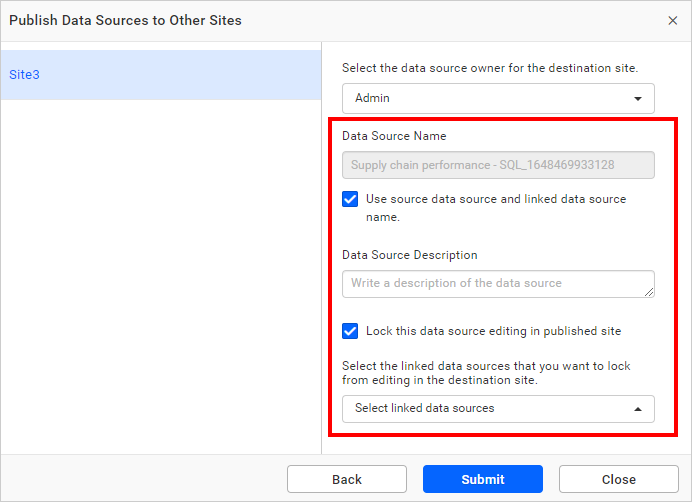
-
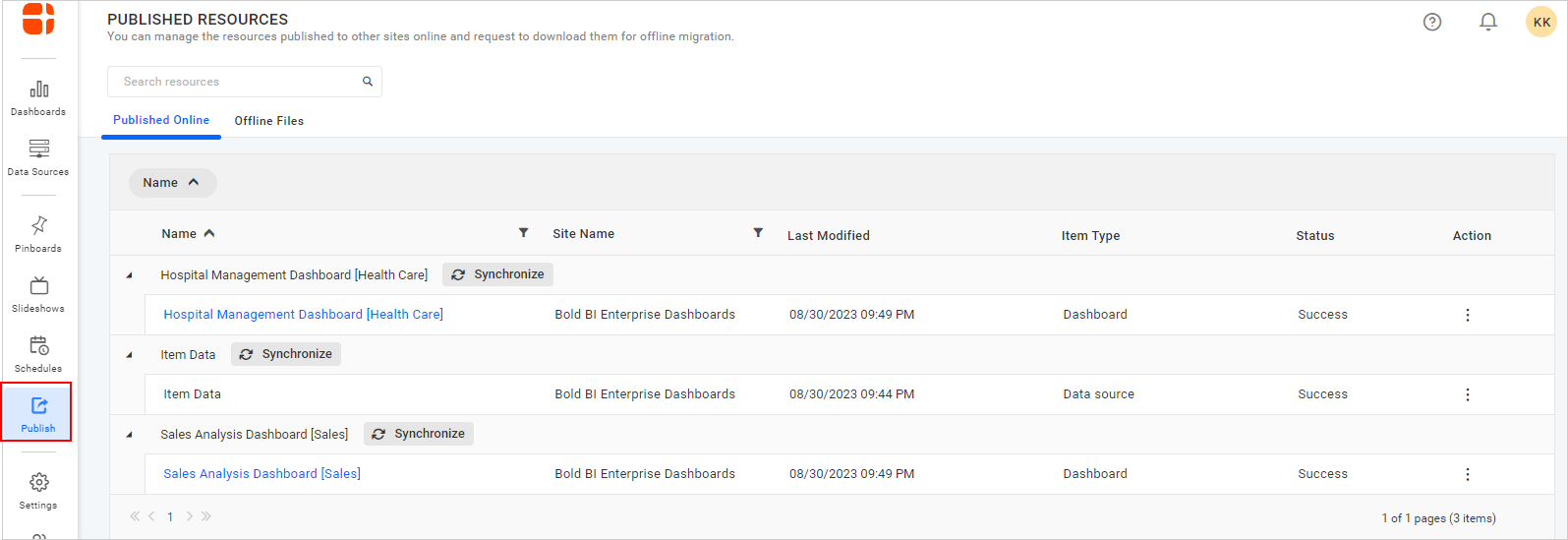
By submitting the form, the publishing process will be started, and you can check the status of the publishing on the Published Resources page.
External site
You can publish the data source to sites created on other Bold BI servers.
-
Click
+button to add external site.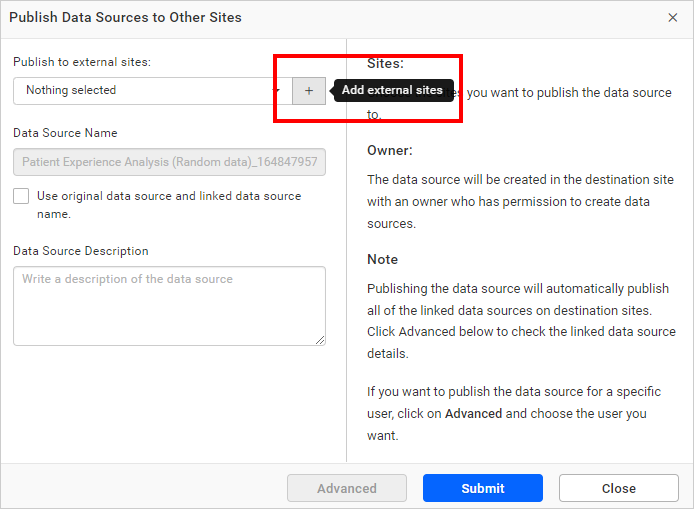
-
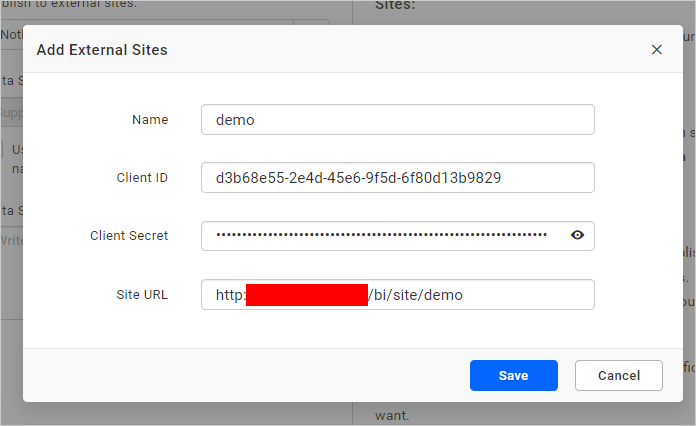
Fill in the following details as shown in the image:
- Name - Enter the name that you want for external site.
- Client ID - Enter the Client Id of the site.
- Client Secret - Enter the Client Secret of the site.
- Site URL - Enter the URL of the site.
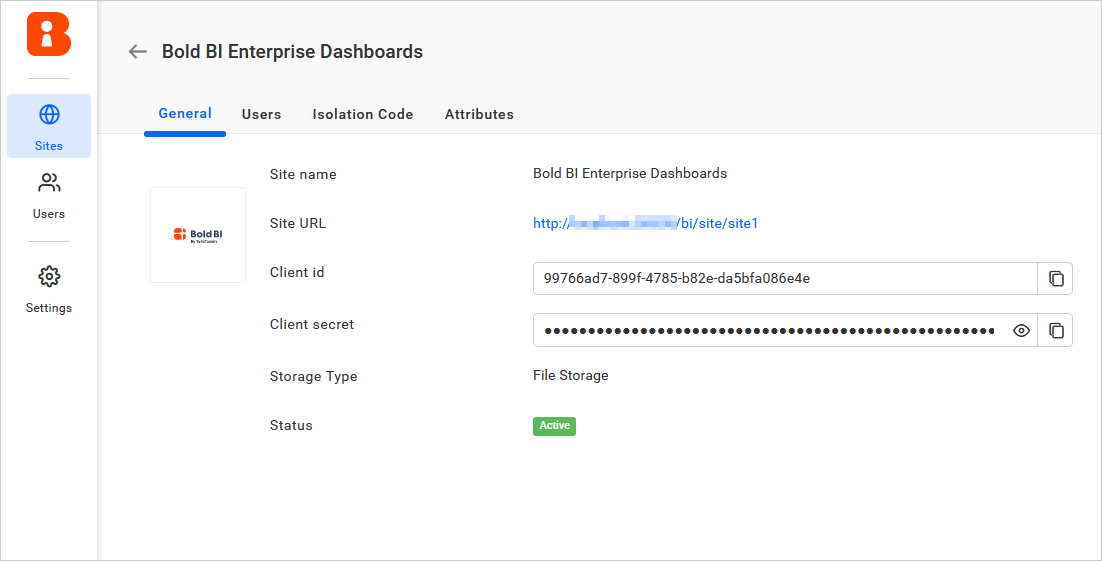
For the Bold BI Server, you can obtain the site’s Client Id and Client Secret values from the site details page.
- After adding the external site, choose it from the drop-down menu, and follow the same steps mentioned for publishing the data source in the internal site.
NOTE:
• Data sources cannot be locked when publishing to external sites, so the options toLock data source editing in the publishedsite andLock linked data source editing in the published sitewill not be available for External Sites.
• Admin users can view all the external sites added by any user, which will be listed in the “Select Site” dropdown, since admins can publish any dashboard and data sources.
Manage published data sources
You can view the status of the published data sources on the Published Resources page. The published resources are listed in the grid and grouped by the data source by default.
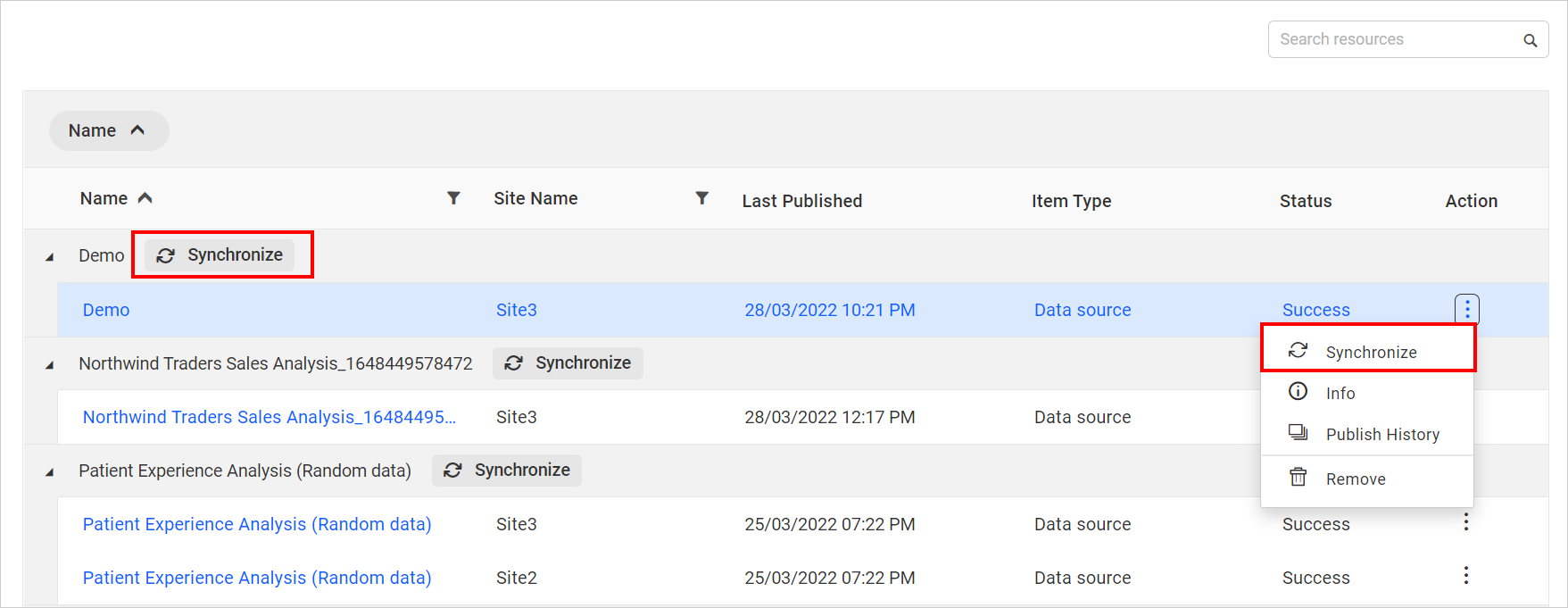
Synchronize data source
When you make changes in an original data source, you can move those changes to the published site using the synchronize published resource option.
Information of published data source
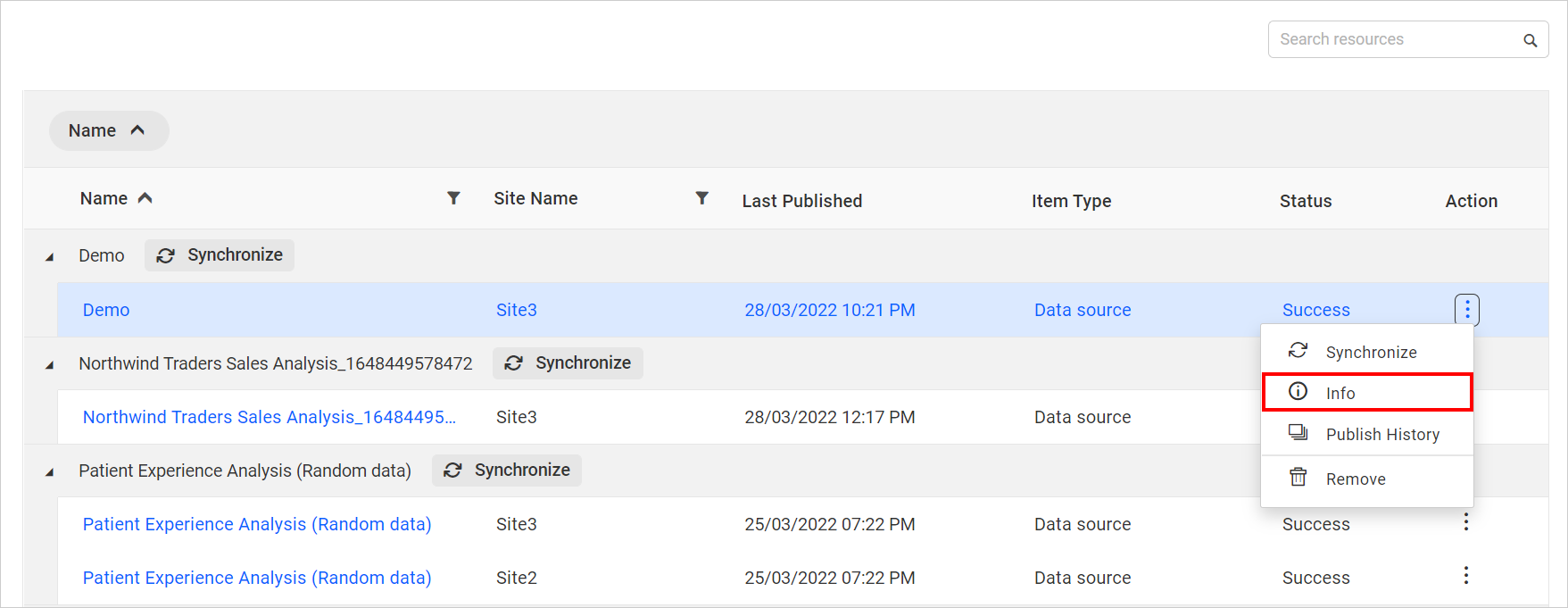
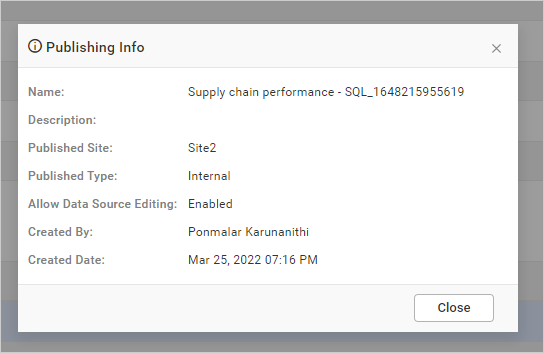
You can see the publishing information of the respective data source in the dialog box. Click Actions in the grid context menu and select Info.
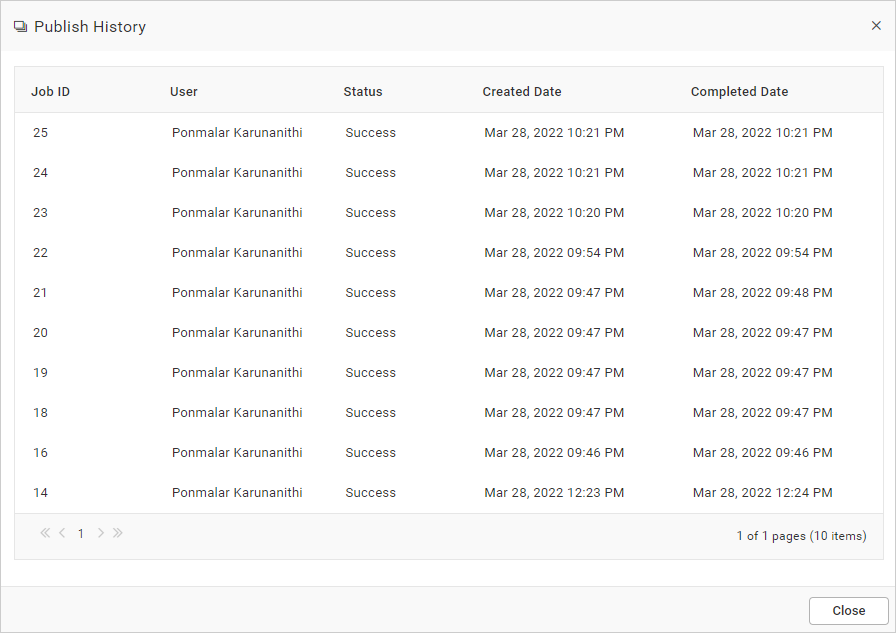
Publish history
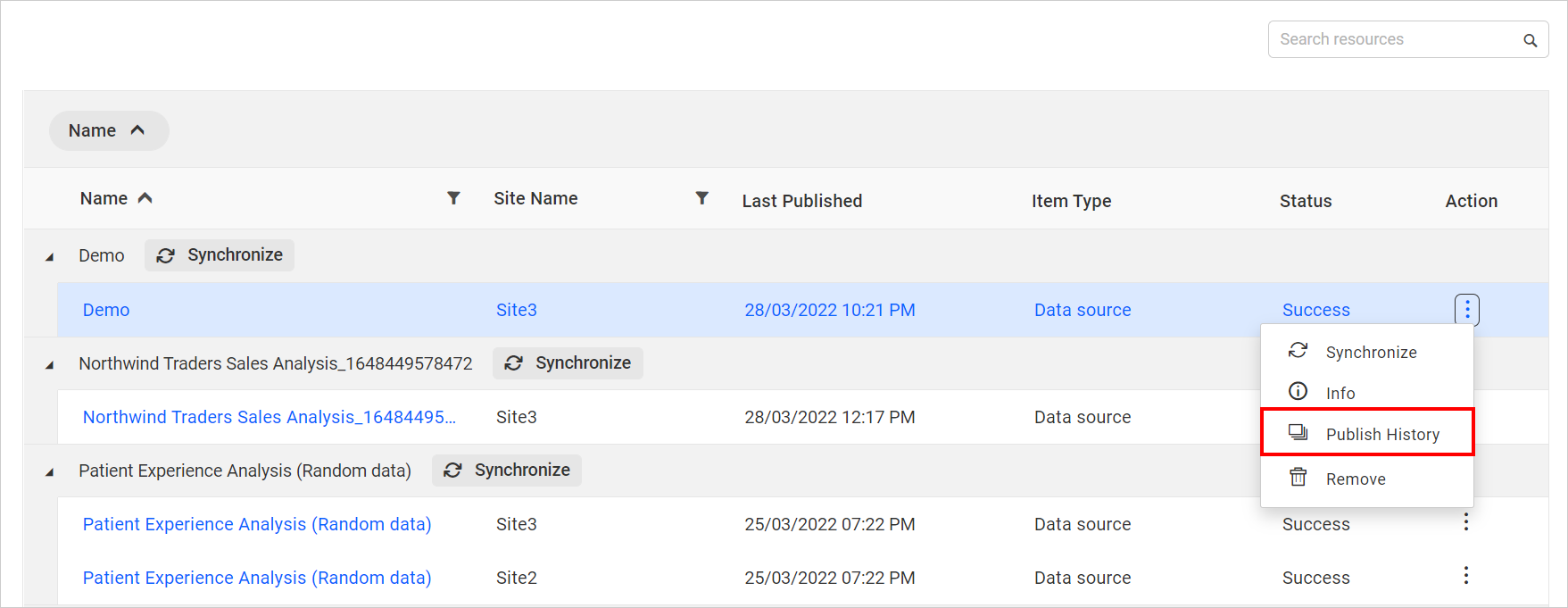
You can see the published history of the corresponding data source. Click Actions in the grid context menu and select Publish History.
Remove publish data source
Published data sources can also be removed from Bold BI when they are no longer required.
Click Actions in the grid context menu and select Remove to remove the published data sources from the list.
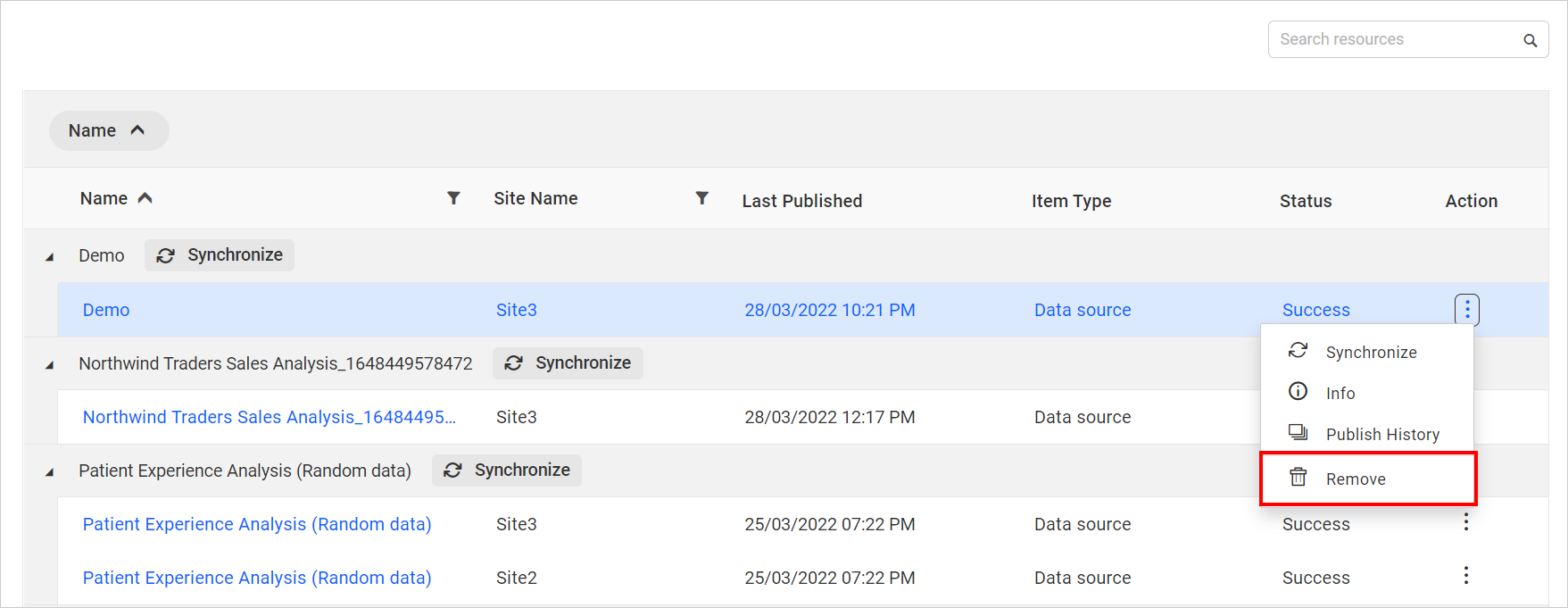
NOTE: Removing the published data source does not remove the data source from the published site.
Lock and unlock data source
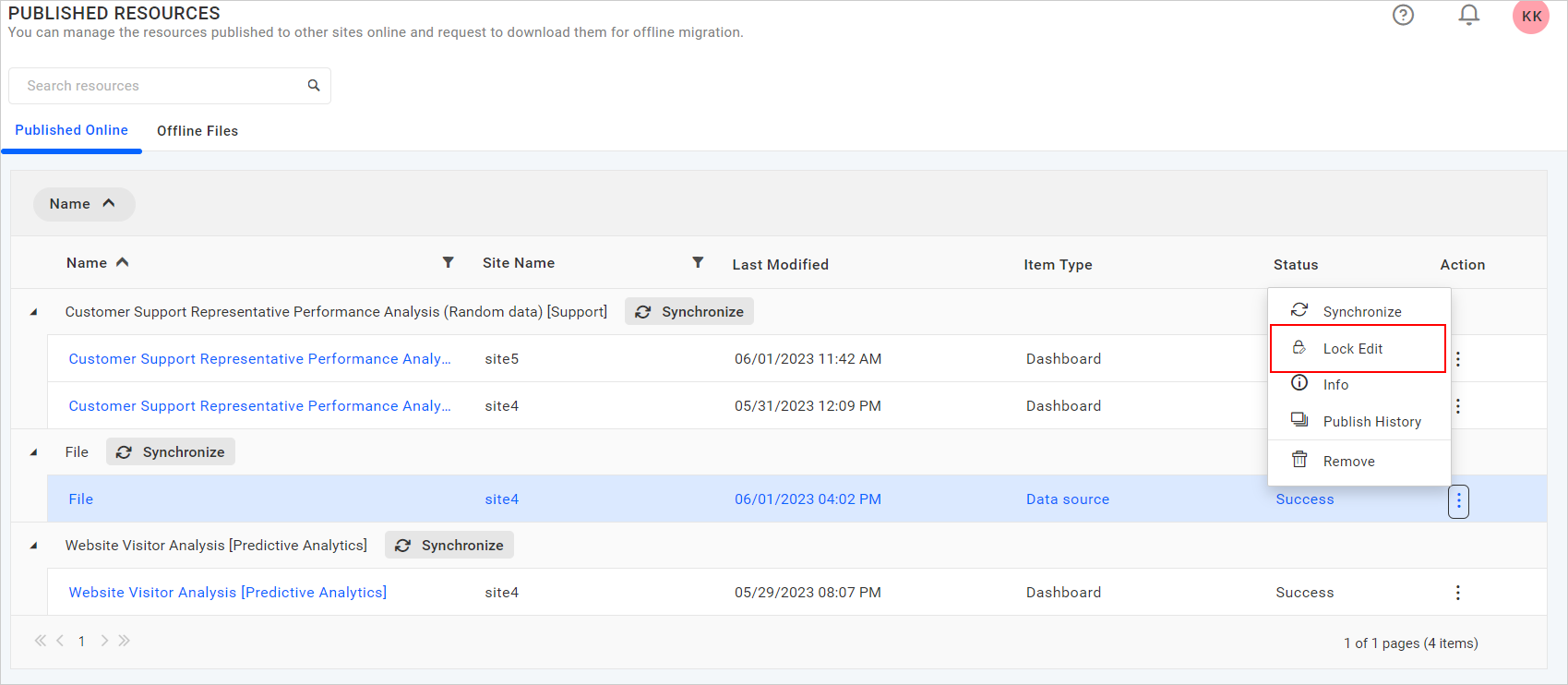
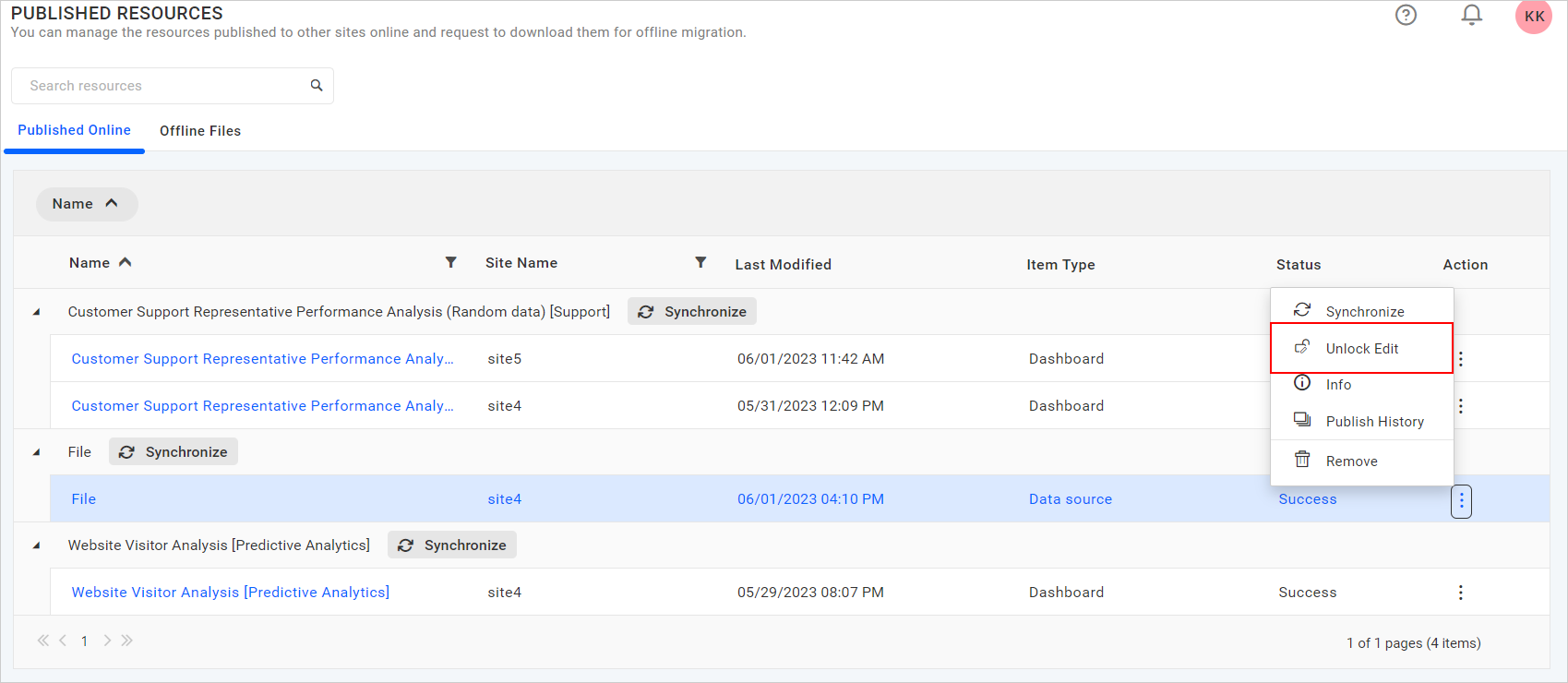
The edit option in the published data sources can be locked or unlocked. Unlock previously locked published data sources and lock them again.
Click Actions in the grid context menu and select Lock Edit to lock the edit support for the published data sources.
Click Actions in the grid context menu and select Unlock Edit to unlock the edit support for the published data sources.
Disable Synchronization of publish data source
The synchronization of published data sources from the source site can be disabled by enabling Lock Resource Synchronization in the dashboard settings in the target site.
Learn how to disable synchronization for the published data sources in Lock Resource Synchronization.
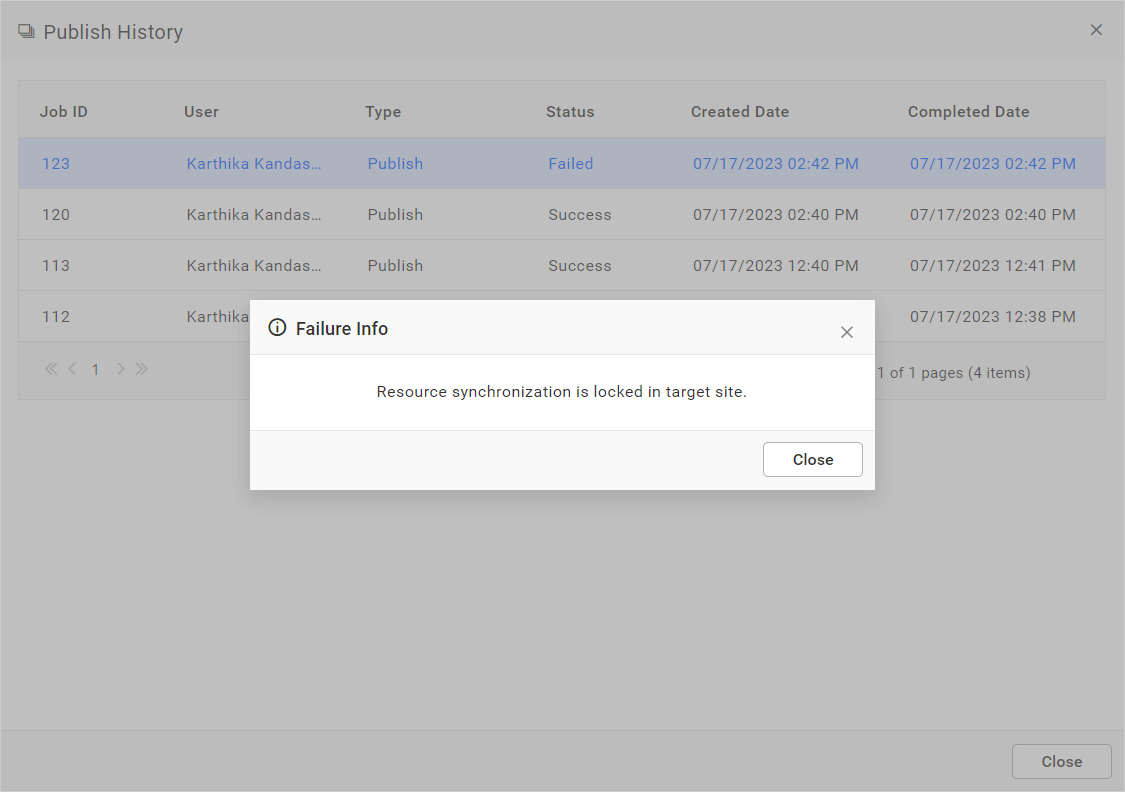
Once these settings are enabled in the target site, synchronization of the published data sources from the source site will fail. Show the failed status in the grid.
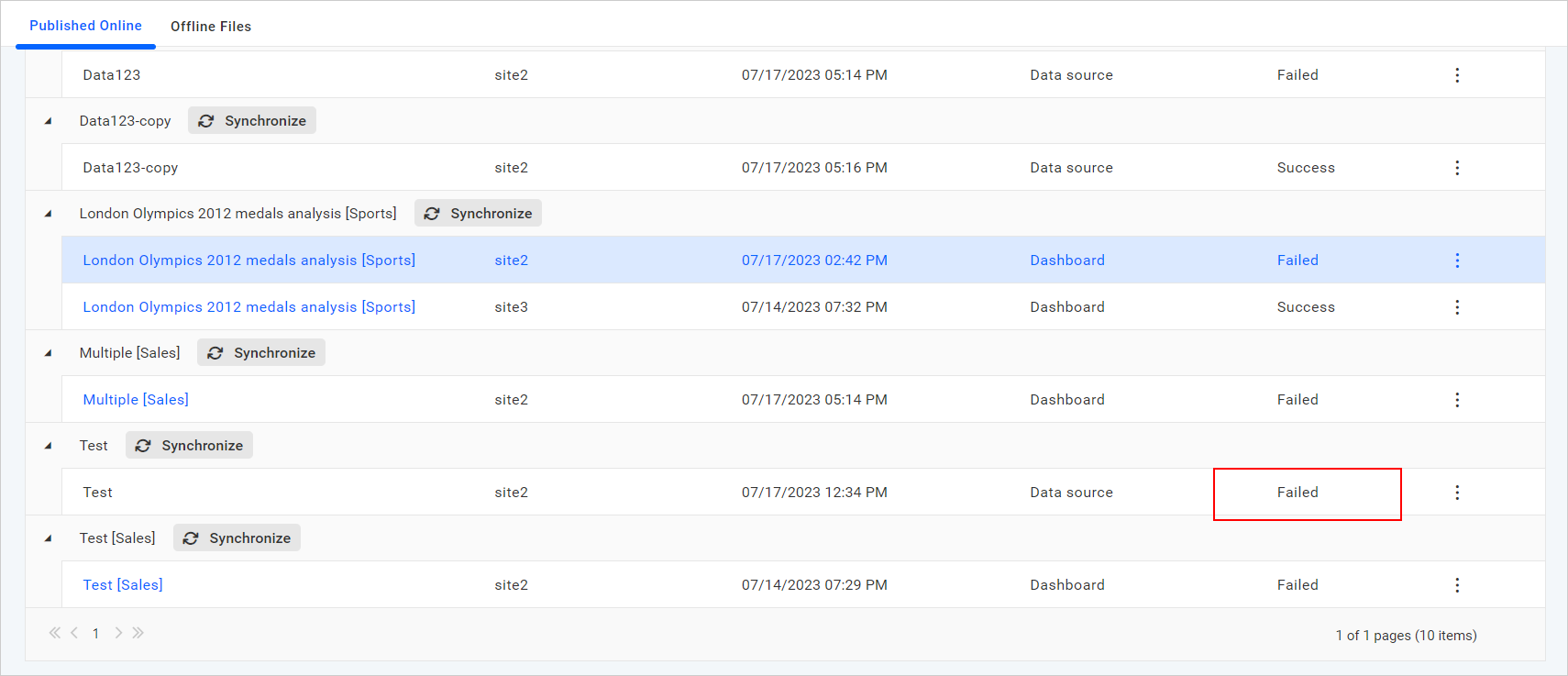
The failure reason will be displayed as Resource synchronization is locked in the target site when clicking on the Failed status from the publish history dialog.