
Tree Map
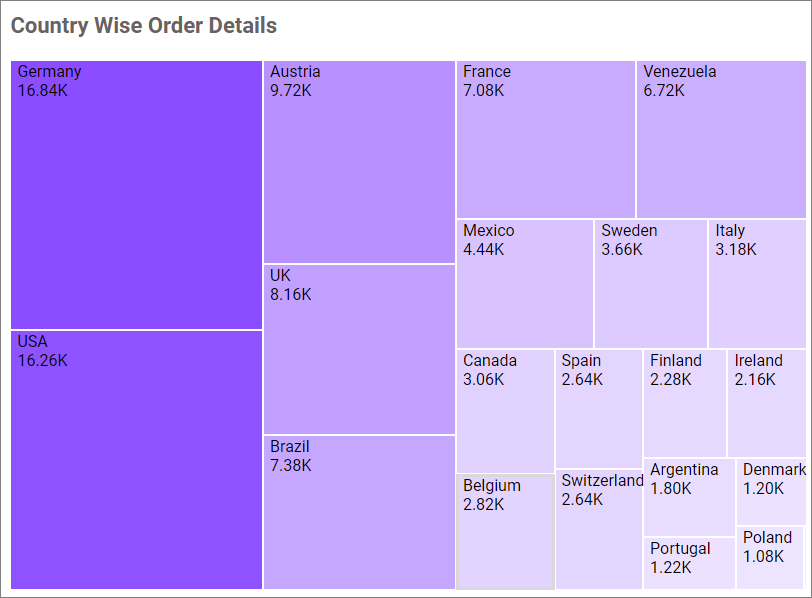
A Tree Map displays hierarchical categories as nested rectangles whose sizes represent measure values. Use it to compare proportions while preserving category structure.
Configuring Data
| Data section | Requirement | Description |
|---|---|---|
| Value | Required | Measure that controls rectangle size. |
| Column | Required | Dimension that defines groups. Multiple fields create a hierarchy. |
| Hidden Column | Optional | Field used without displaying it. |
| Filters | Optional | Fields used to restrict Tree Map data. |
| Tooltip | Optional | Additional fields displayed in the tooltip. |
Assigning Data
- Add the Tree Map to the canvas and open ASSIGN DATA.
- Add a measure to Value and a dimension to Column.
- Optionally add fields to Hidden Column, Filters, and Tooltip.
Field Settings
Use a field’s settings menu to configure supported rename, aggregation, sorting, filtering, relative-date, and formatting options. See Configuring Data.
Drill Down
Widgets that support hierarchies enable drill-down when multiple dimension fields are assigned to the hierarchy data section. Select a data point to move to the next level, and use the widget breadcrumb to return to a previous level.
Formatting the Tree Map
General Settings
Refer to General Settings for information about configuring the widget type, unique name, title, subtitle, and description shown for the widget.
Basic Settings
Show Legend
Displays the Tree Map legend.
Label Color
Sets the text color of group and value labels.
Show Value Label
Displays the assigned measure value inside each rectangle.
Enable Text Wrap
Wraps labels that exceed the available rectangle width.
Enable Drill Down
Lets viewers navigate between hierarchy levels. It is available when a value and more than one column field are assigned.
Tooltip Settings
Show Tooltip
Displays information when a viewer points to a Tree Map rectangle.
Customize Tooltip
Opens the tooltip editor for arranging and formatting tooltip content.
Enable RTL
Displays tooltip content from right to left.
Formatting
Formatting
Selects Monochromatic or Advanced color formatting. Monochromatic formatting uses shades of one color; Advanced formatting applies value-based colors and rules through Customize. Refer to Conditional Formatting for the available advanced formatting modes.
Font Settings
Refer to Font Settings for Tree Map fonts.
Filter
Refer to Filter Settings for filter behavior.
Link
Refer to Linking for item navigation.
Container Appearance
Refer to Container Appearance for widget-container styling.
Container Actions
Refer to Container Actions for viewer actions.
No Data Appearance
Refer to No Data Appearance for empty-state settings.
Export Settings
Refer to Export Options for export settings.
View Underlying Data
Refer to View Underlying Data for access to Tree Map records.