
Amazon Redshift
Amazon Redshift is a cloud-based data warehouse from AWS that uses SQL to analyze large datasets. It’s known for fast query performance, easy scalability, and deep integration with other AWS services. Redshift is widely used for business intelligence, analytics, and big data processing.
Connection Properties
In a YAML file, the config section contains the following properties:
connectorname: RedShift
schemaname: <>
host: <>
port: <>
username: <>
database: <>
password: <>
Example Configuration
version: 1.0.1
destination:
plugins:
  extractors:
    - name: RedShift
      connectorname: RedShift
      schemaname: public
      config:
        host: hostname
        port: 5439
        username: user
        database: database
        password: password
      select:
        - tablename
Configure the Bold Data Hub to connect Amazon Redshift
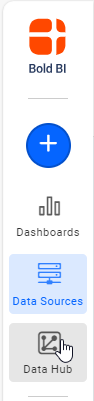
- Click the
Data Hubicon on the Navigation Pane.
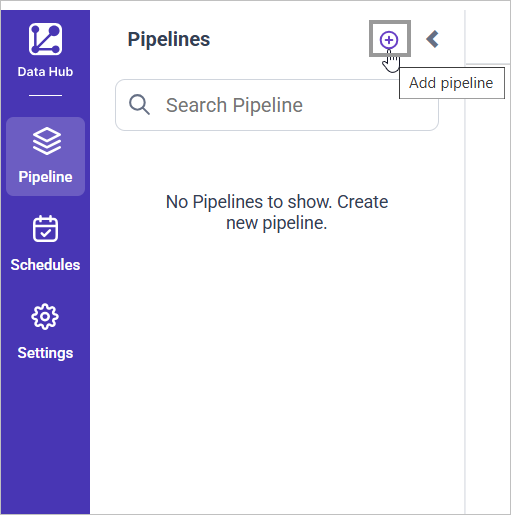
- Click
Add Pipelineand provide the new pipeline’s name.
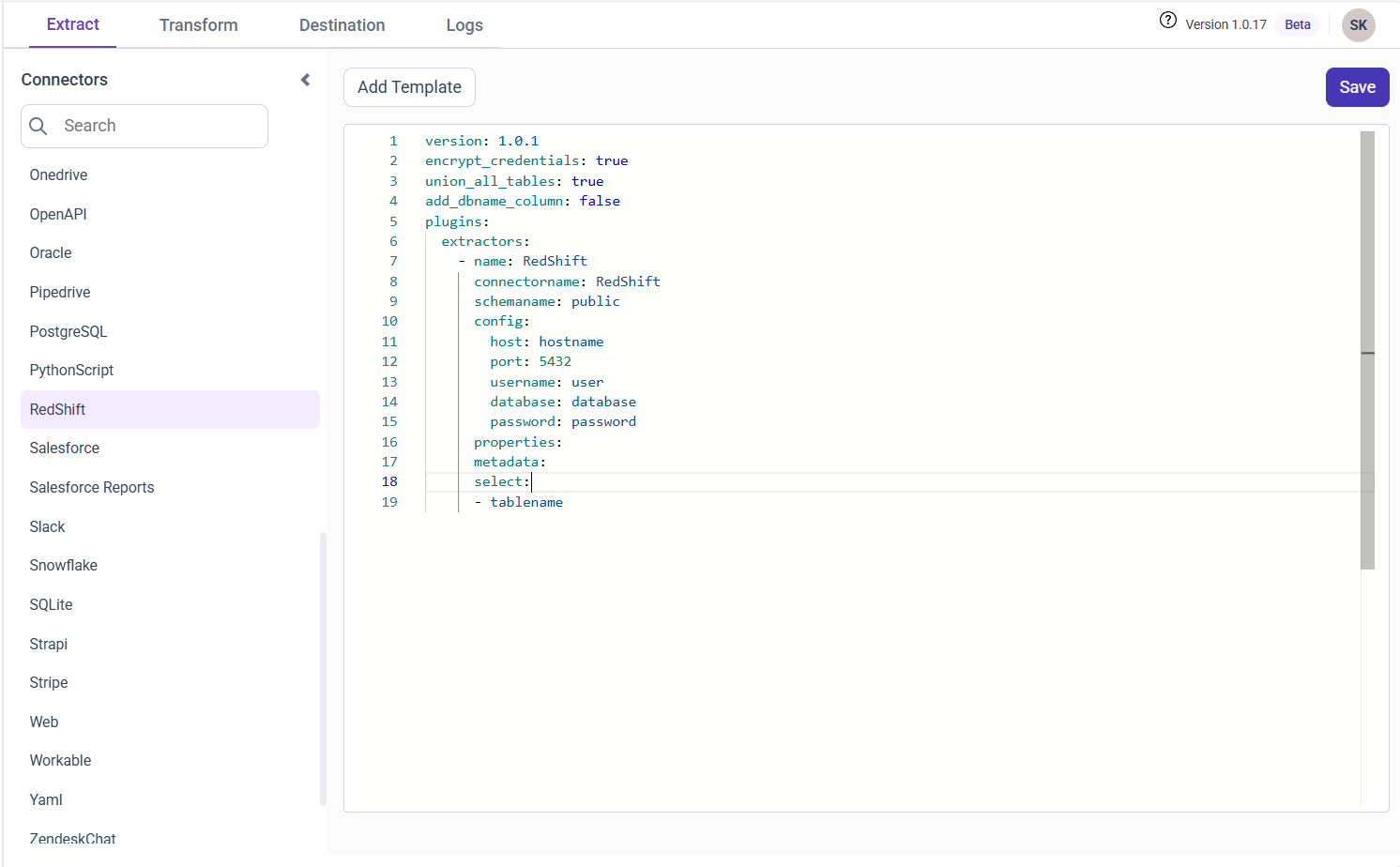
- Select the newly created pipeline and add the
Amazon Redshifttemplate.
Configuration Parameters
| Parameters | Description |
|---|---|
| Host: | Specify the hostname of the Amazon Redshift server. |
| Port: | Specify the port number of the Amazon Redshift server (default is 5439). |
| Username: | Provide the username to authenticate with the Amazon Redshift server. |
| Password: | Provide the password to authenticate with the Amazon Redshift server. |
| Database: | Specify the name of the Amazon Redshift database from which data will be extracted. |
| Schema Name: | Specify the Schema name for connecting to Amazon Redshift. |
| Select: | Tablename(s): Specify the table name list to load tables from the Amazon Redshift server. |
- Update the details required in the template and Click Save, choose the desired destination to save the pipeline.
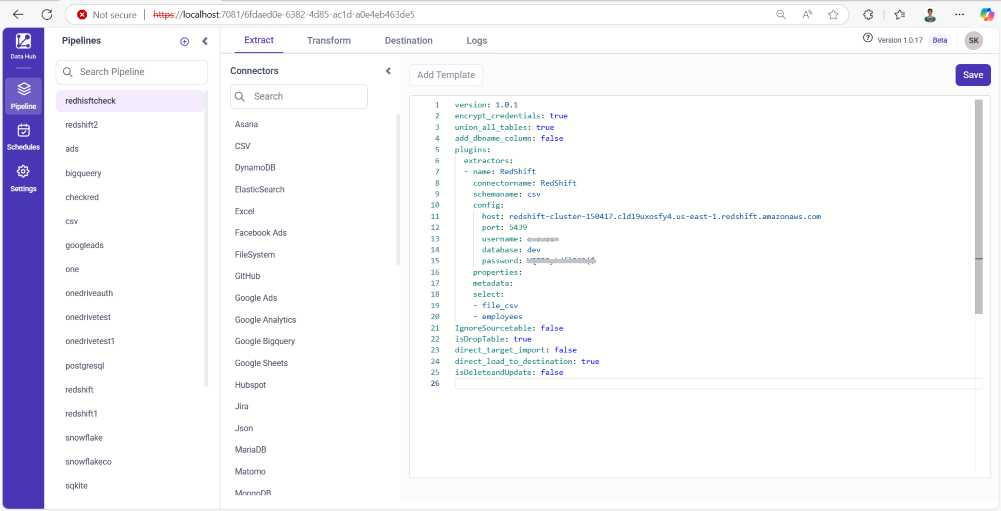
- Creating a Pipeline in Bold Data Hub automatically creates a Data Source in Bold BI. The Bold BI Data Source is a live data source to the destination database used in Bold Data Hub. For more information on the relationship between Bold Data Hub Pipeline and the associated Data Sources in Bold BI , please refer to Relationship between Bold Data Hub Pipeline and Associated Data Sources in Bold BI
Schedule Bold Data Hub Job
- To configure interval-based scheduling, click on the schedules tab and select the created pipeline and click on the schedule icon and configure it.

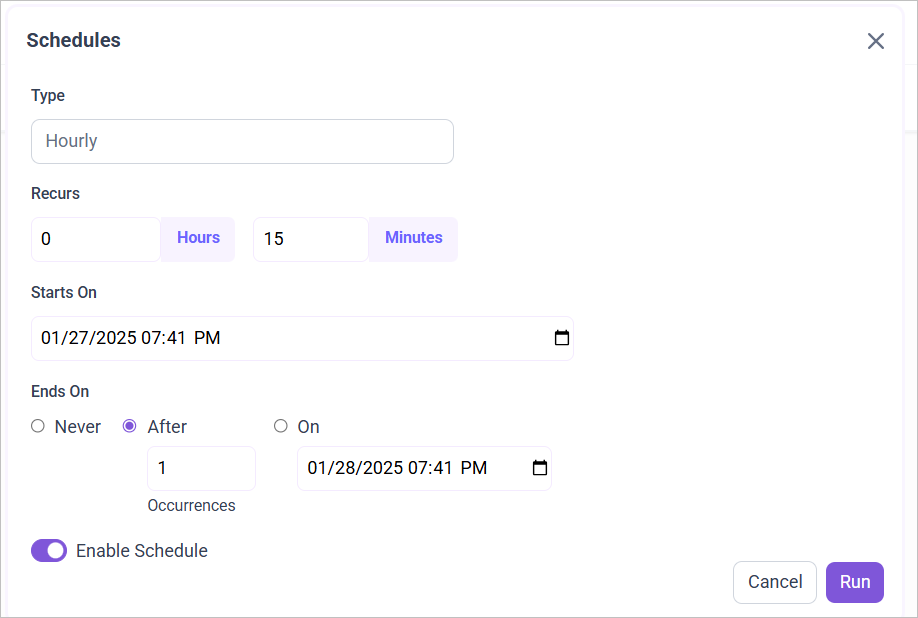 2. For on-demand refresh, click
 Run Now button.
 .
3. The Schedule history can be checked using the history option as well as logs.
.
3. The Schedule history can be checked using the history option as well as logs.
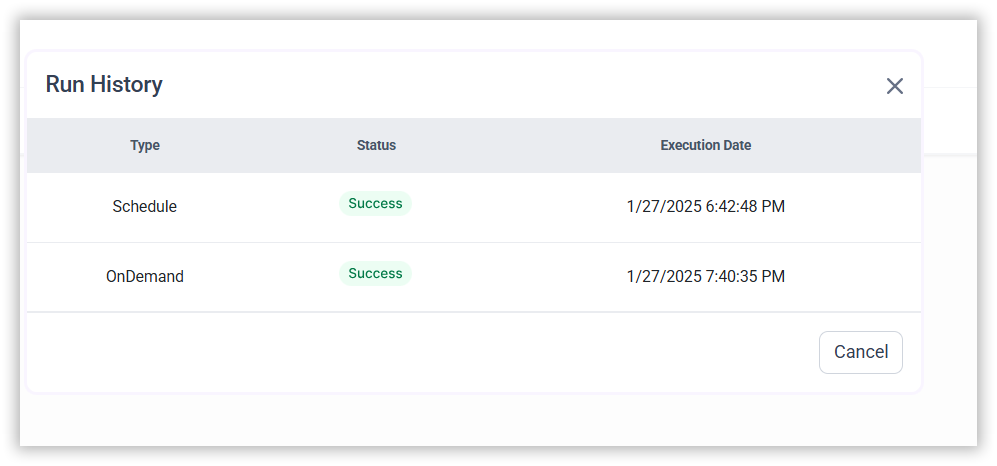 4. Click on Logs to see if the run is completed and data source is created in Bold BI.
 5. Click
 Edit DataSource Option to view the created tables.