
OpenAPI
OpenAPI fetch data from OpenAPI 3.x documents.
OpenAPI features supported
- All HTTP methods are supported.
- JSON and form bodies, path and query parameters are accepted.
- File uploads can be done with
multipart/form-databodies. - Supported data types include float, string, int, date, datetime,
string enums, and custom schemas or lists containing any of those. - Responses can be in html/text or application/json format containing any of the mentioned types.
- Basic or Bearer Authentication is not supported.
Connection Properties
The config section in a YAML file includes the following properties:
        ymlURL:
        ymlPath:
Example Configuration
version: 1.0.1
encrypt_credentials: false
plugins:
  extractors:
    - name: OpenAPI
      connectorname: OpenAPI
      config:
        ymlURL:
        ymlPath:
      select:
        - tablename
Configure the Bold Data Hub to connect OpenAPI
- Click the
Data Hubicon on the Navigation Pane.

- Click
Add Pipelineand provide the new pipeline’s name.
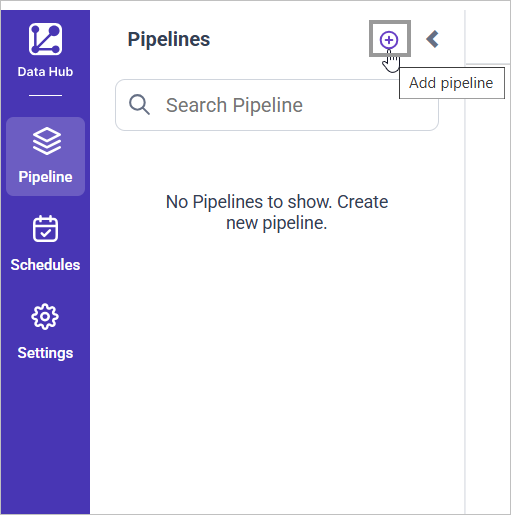
- Select the newly created pipeline and add the
OpenAPItemplate.
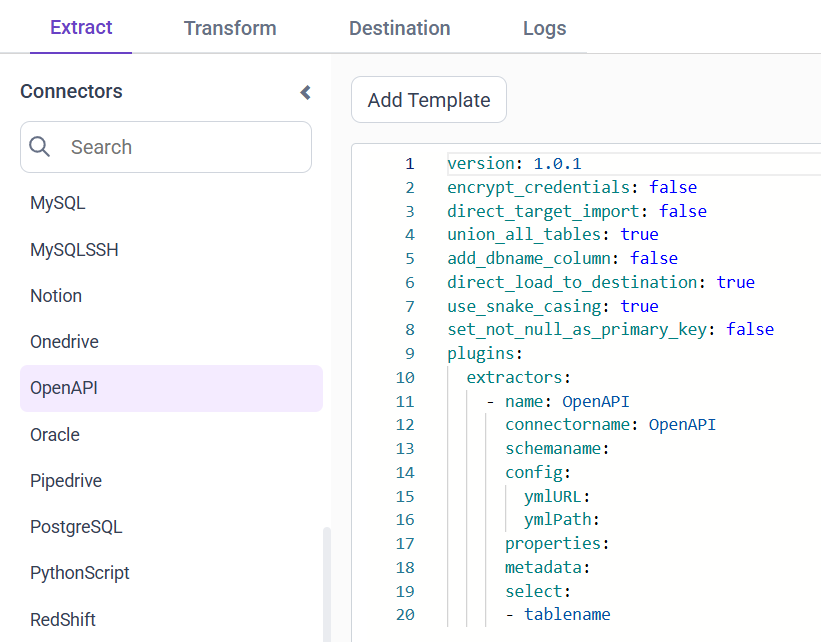
-
Update the Url and Path in the template
-
Click Save and choose the desired destination to save the pipeline.
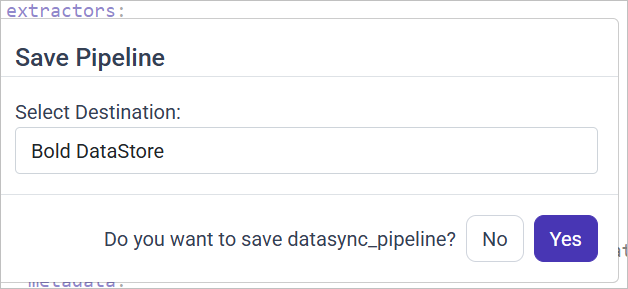
- Creating a Pipeline in Bold Data Hub automatically creates a Data Source in Bold BI. The Bold BI Data Source is a live data source to the destination database used in Bold Data Hub. For more information on the relationship between Bold Data Hub Pipeline and the associated Data Sources in Bold BI , please refer to Relationship between Bold Data Hub Pipeline and Associated Data Sources in Bold BI.

Schedule Data Hub Job
- To configure interval-based scheduling, click on the schedules tab and select the created pipeline and click on the schedule icon and configure it.

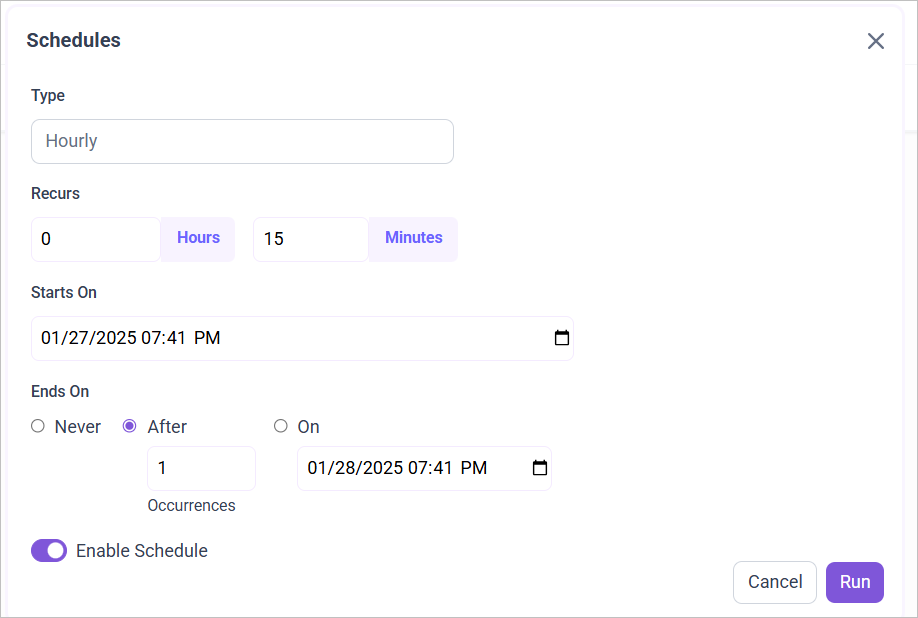
- For on-demand refresh, click
Run Nowbutton.

- The Schedule history can be checked using the history option as well as logs.
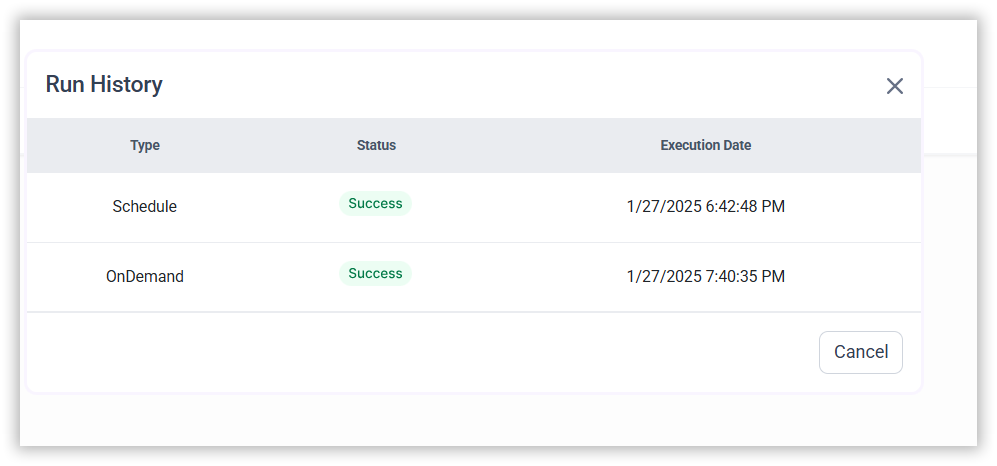
- Click on Logs to see if the run is completed and data source is created in Bold BI.
- Click
Edit DataSourceOption to view the created tables.