
Unified AI Agent
Getting Started with Unified AI Agent
Unified AI Agent in Bold BI, powered by Large Language Models (LLMs), improves analytical workflows by enabling users to perform text-based queries on integrated data sources, automatically generate visual widgets from input, and create concise dashboard summaries that clearly highlight important insights.
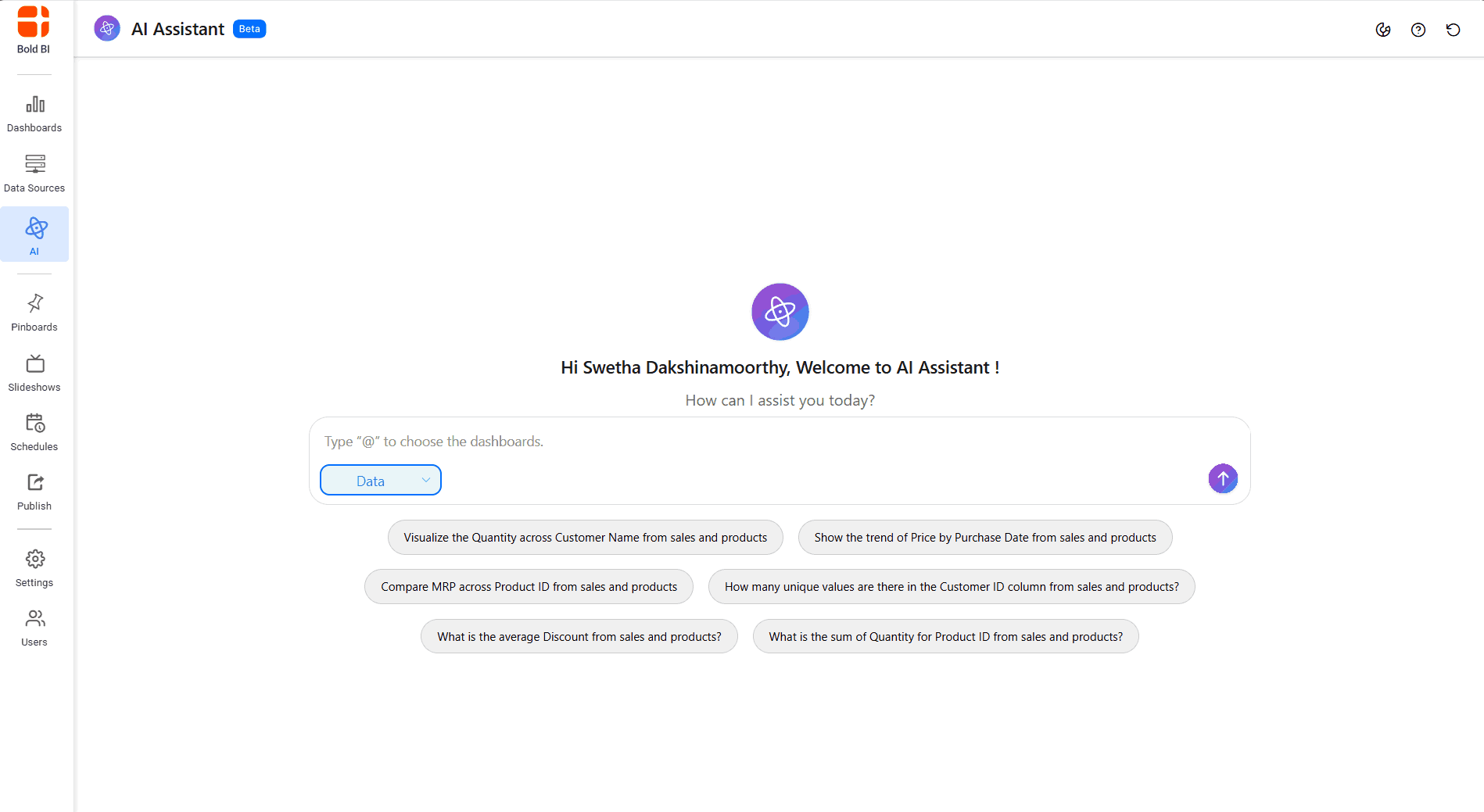
Configuring Unified AI Agent
During the installation of Bold BI, a license key update screen will be displayed. Entering a valid license key at this stage will automatically activate the AI service. If this step is missed, the AI service can still be activated later by accessing the “Manage License” section on the UMS page.
Adding a Data Source
To ask questions or create visualizations with unified AI Agent, you need to connect a data source:
- Navigate to the Data Source in Bold BI.
- Click Create Data Source to add and connect your data.
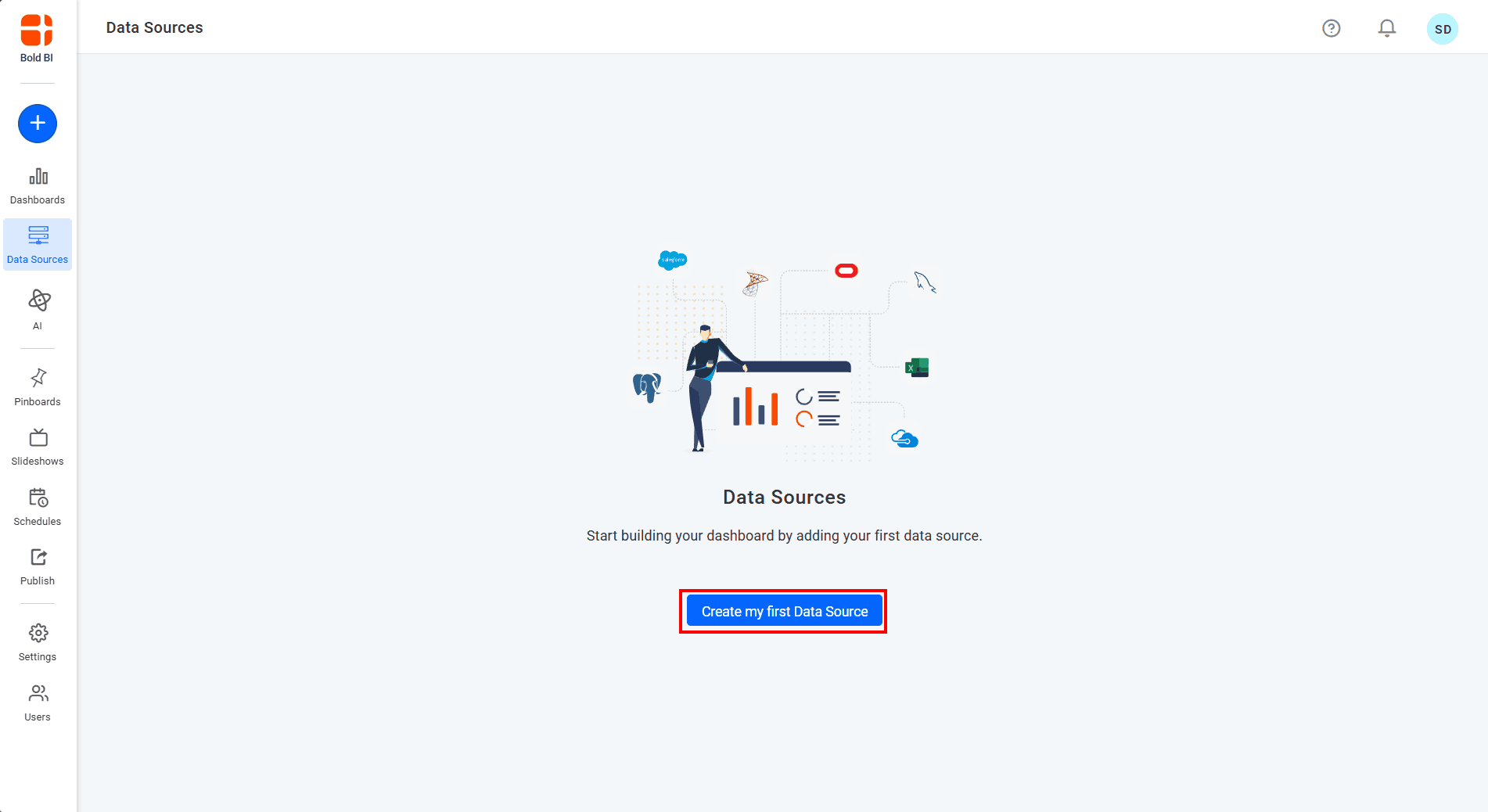 3. Once added, you can explore the data source with suggested questions and add it to your query in Unified AI Agent by typing @ followed by the data source name.
Accessing Unified AI Agent
Follow these steps to start using Unified AI Agent:
- Click the AI option in the left-side panel of Bold BI.
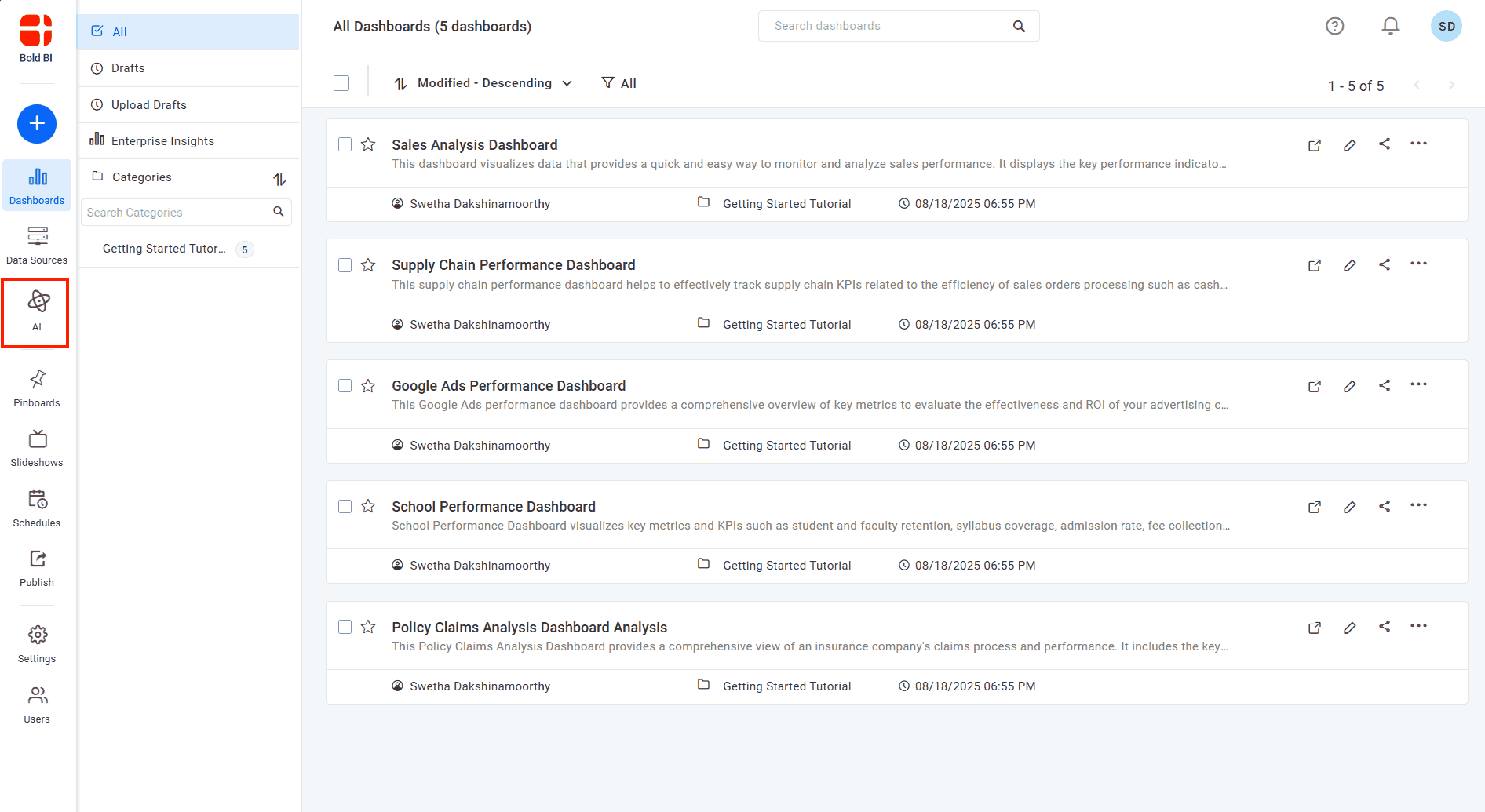 2. Unified AI Agent will be opened with a new session.
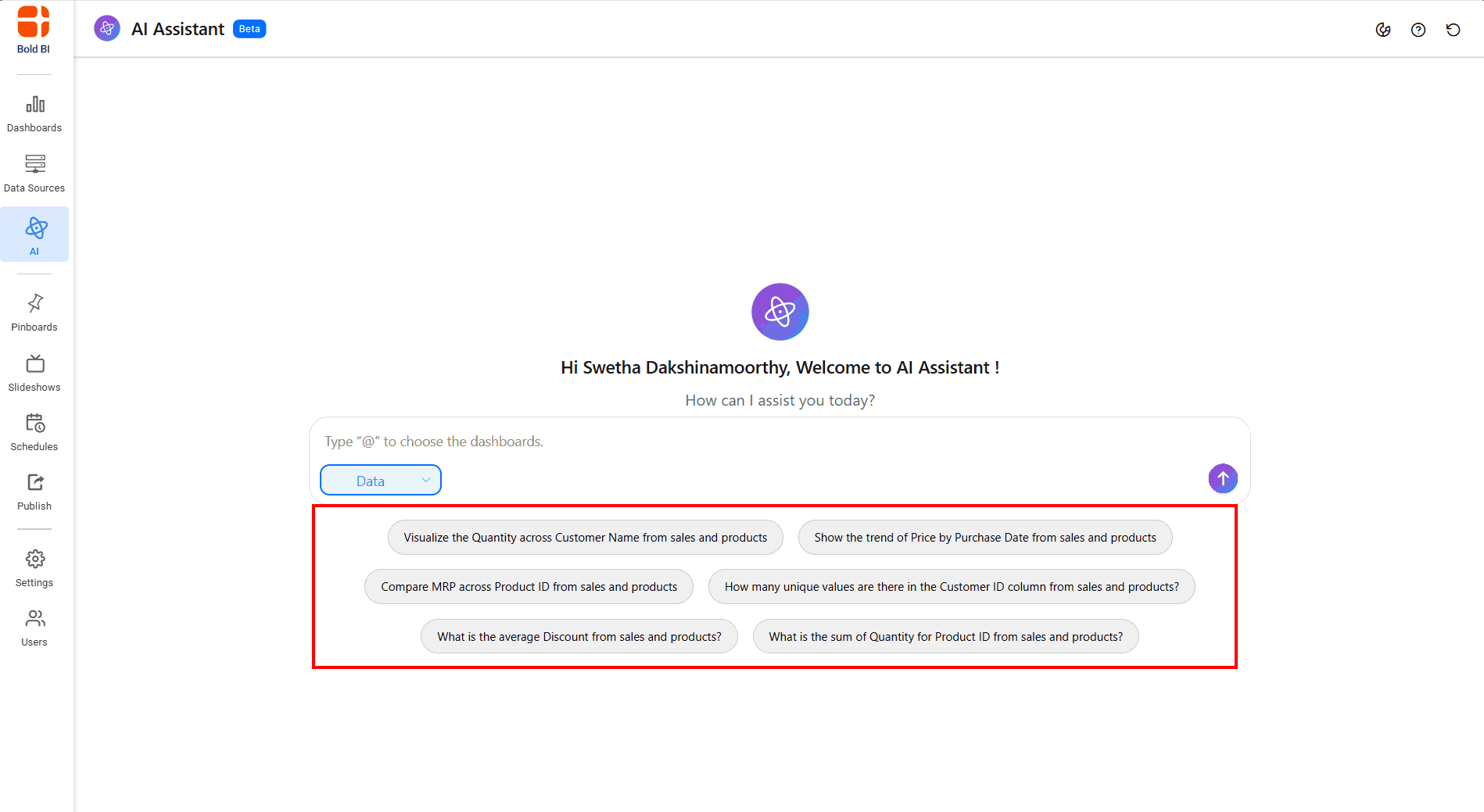
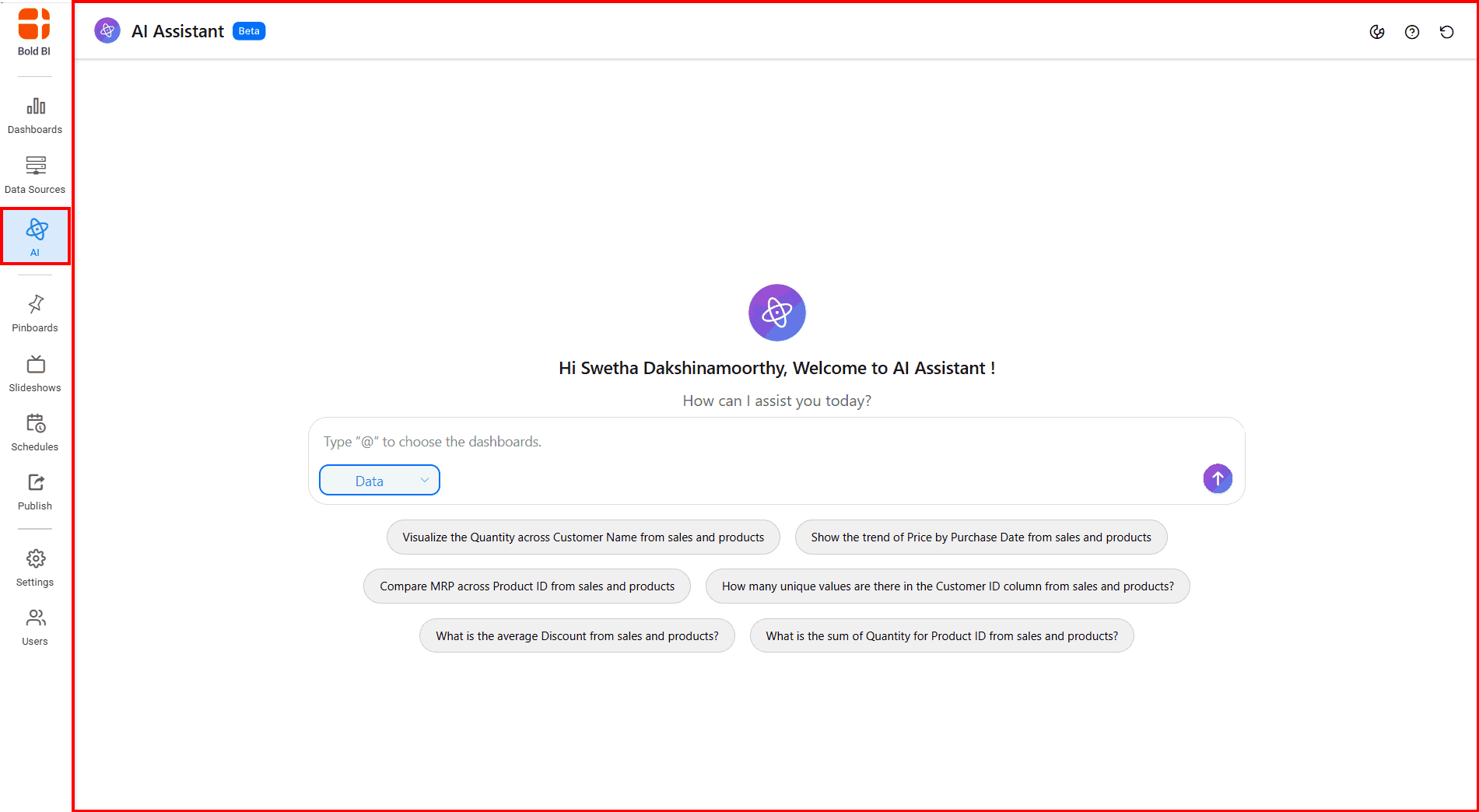 3. Use the sample suggestion list provided below to design a visual representation
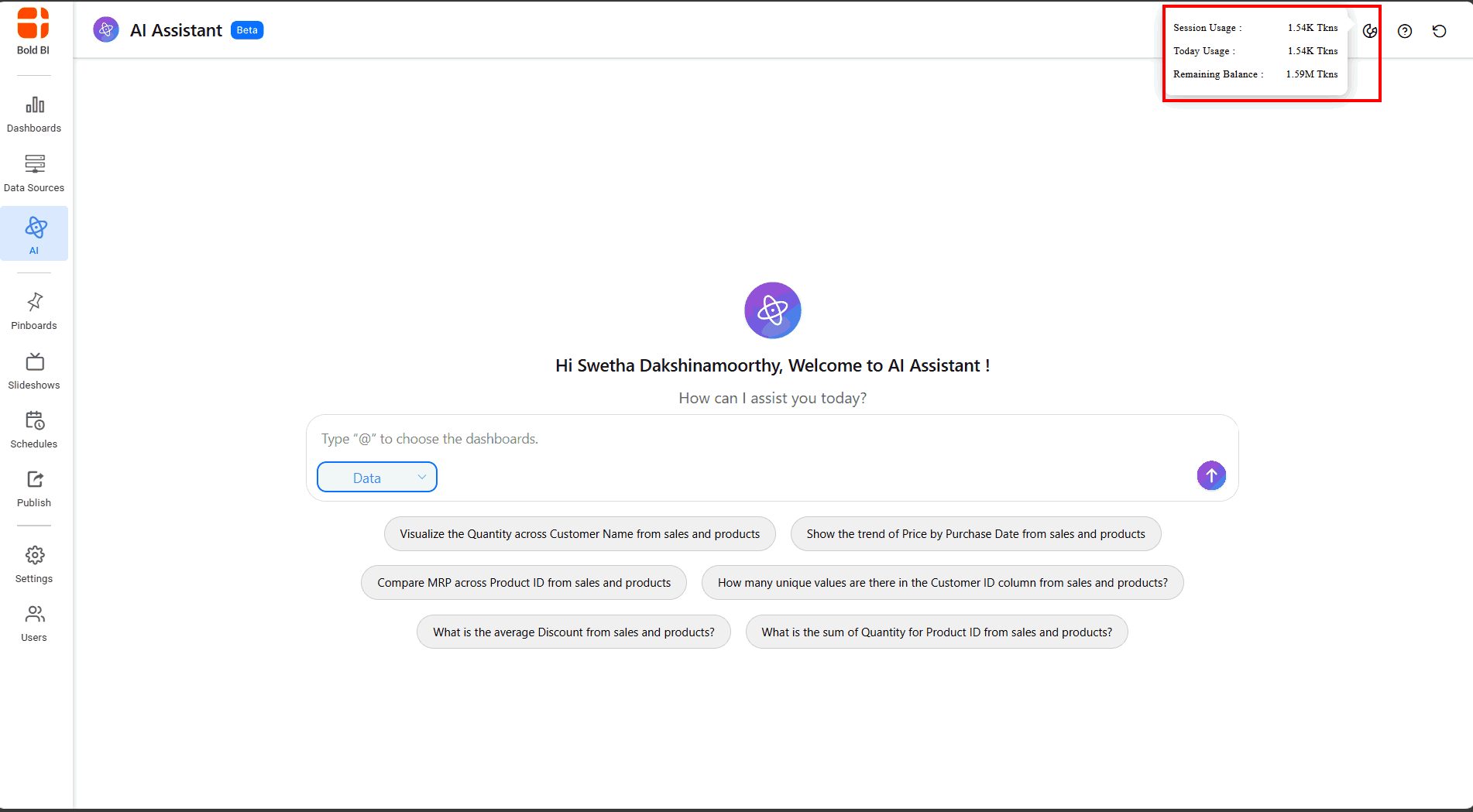
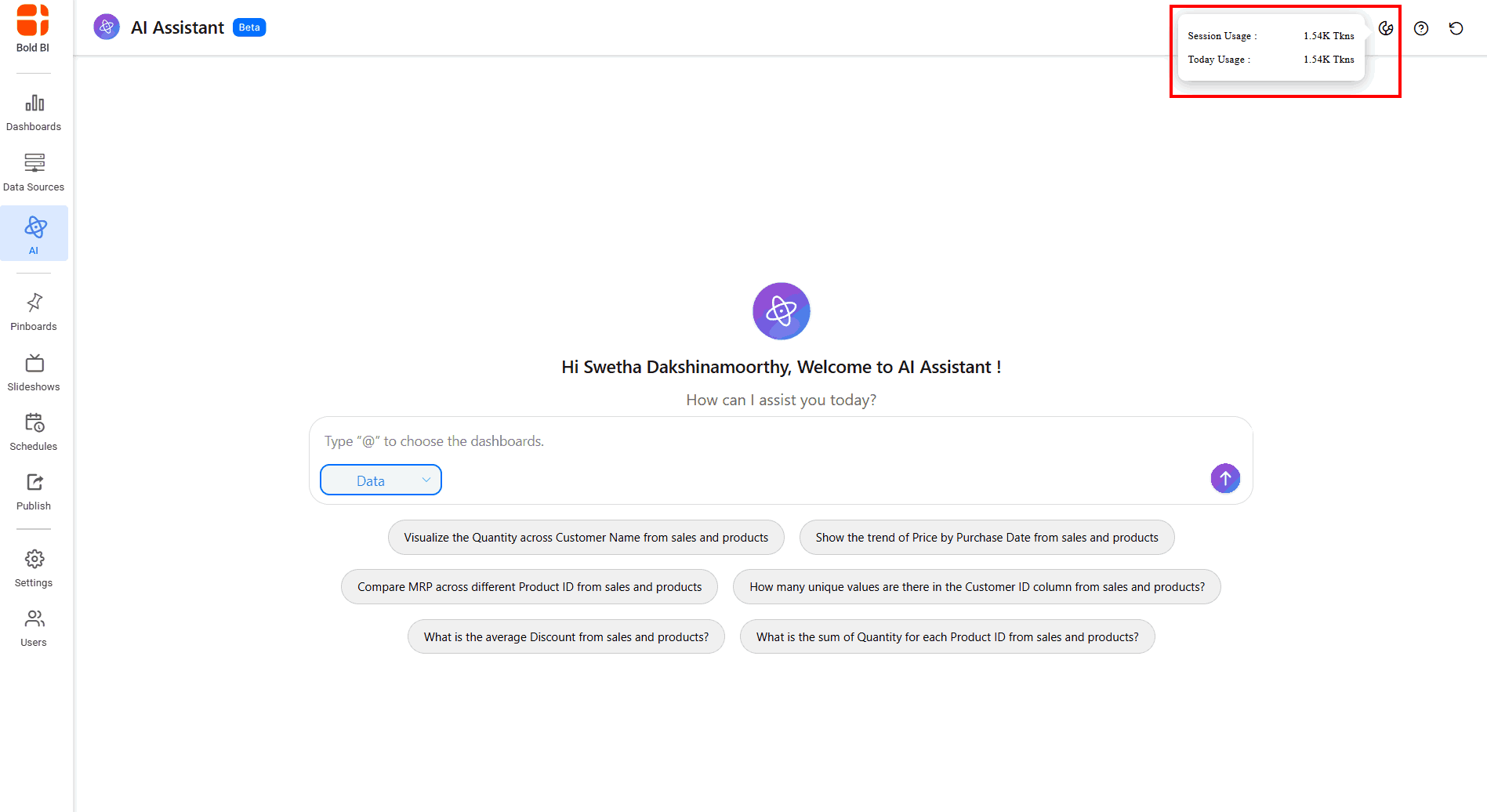
 4. Click the usage icon to view detailed usage information.
BoldBI AI
OpenAI or Azure AI
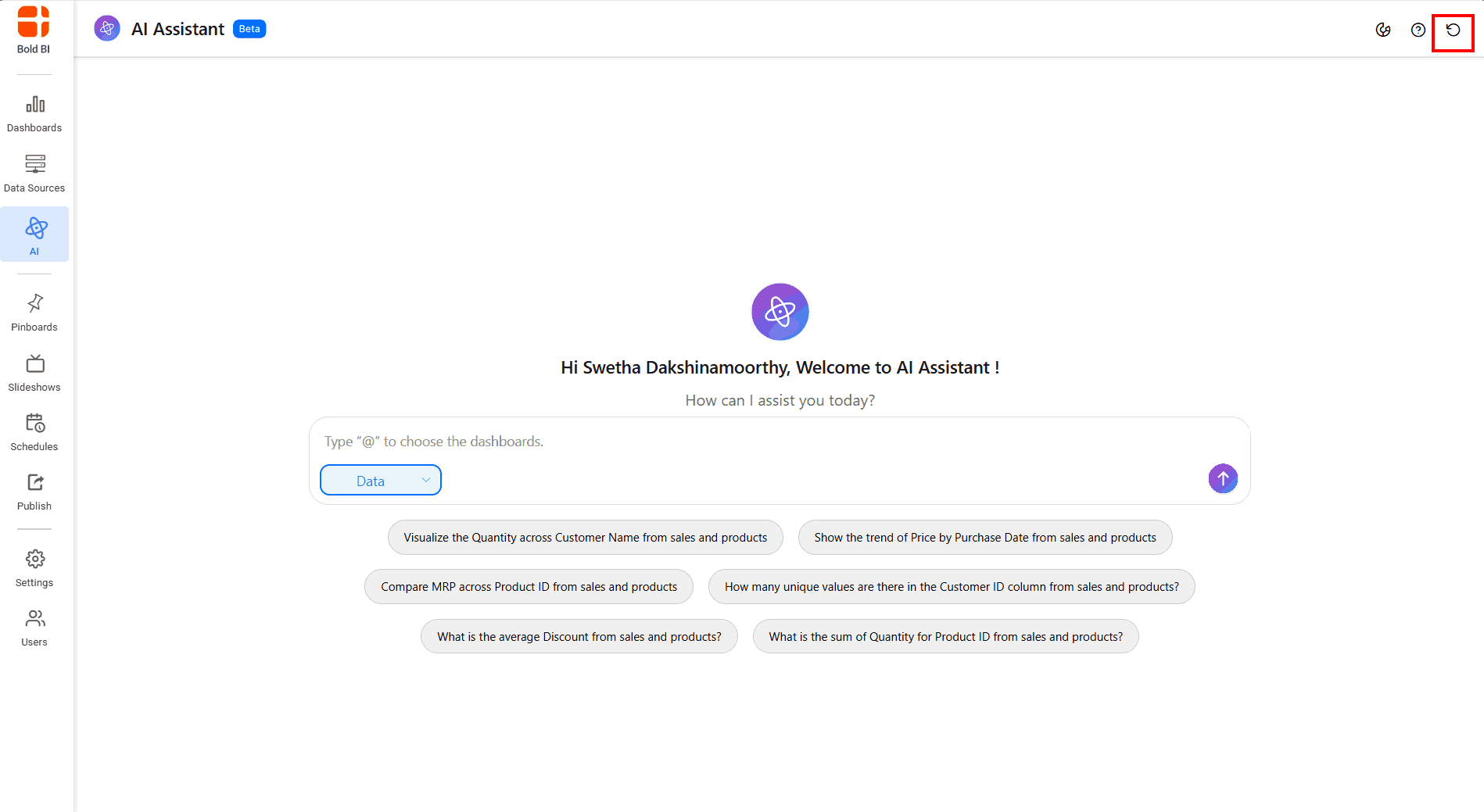
 5. Click the restart icon to begin a new session.
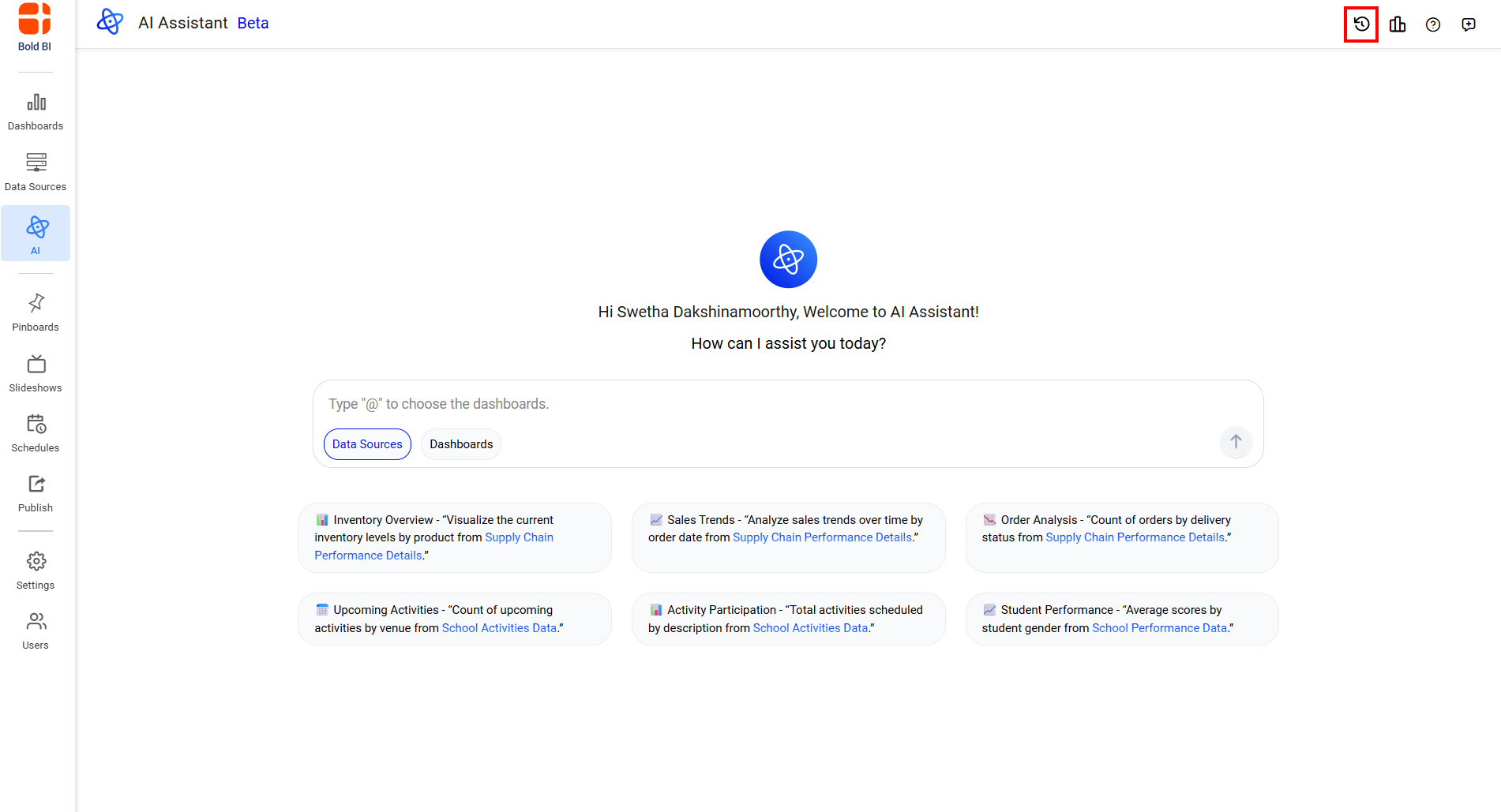
- Click History icon to view and resume any saved session. For additional information, please refer to the guide Chat History
Data and Dashboard Features
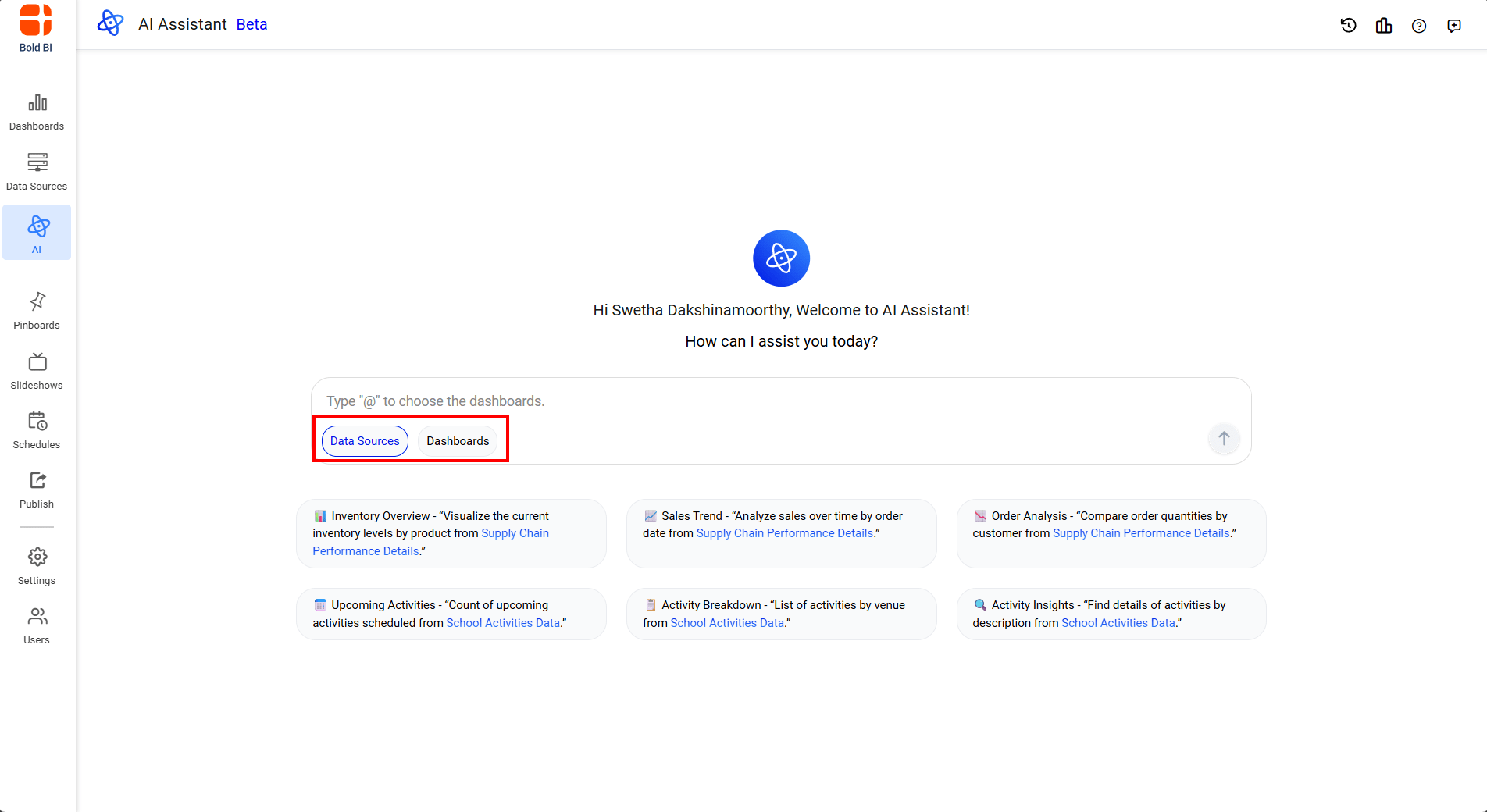
Unified AI Agent in Bold BI empowers users to interact with data and dashboards through a conversational interface. It supports two primary modes: Data and Dashboard. In Data mode, users can generate widgets or receive text-based responses by querying connected data sources. In Dashboard mode, users can generate summaries of dashboards to uncover key insights.
Additionally, the Unified AI Agent integrates Chat History, enabling you to review past interactions, switch sessions, and resume analysis seamlessly—ensuring continuity across workflows and dashboards.
The following sections explain how to use each feature: