Manage Resources Feature Permission
This section explains the feature-level permissions available for dashboards, including their purpose, supported actions, and how to assign them to user-level and group-level granular permission.
Resource Feature Permission allows administrators to control specific dashboard-level actions such as exporting dashboards, viewing underlying data, and accessing dashboard parameters. These permissions can be applied at different levels, including all dashboards, dashboards within a specific category, or individual dashboards. This helps ensure that users and groups have access only to the required dashboard features based on business and security requirements.
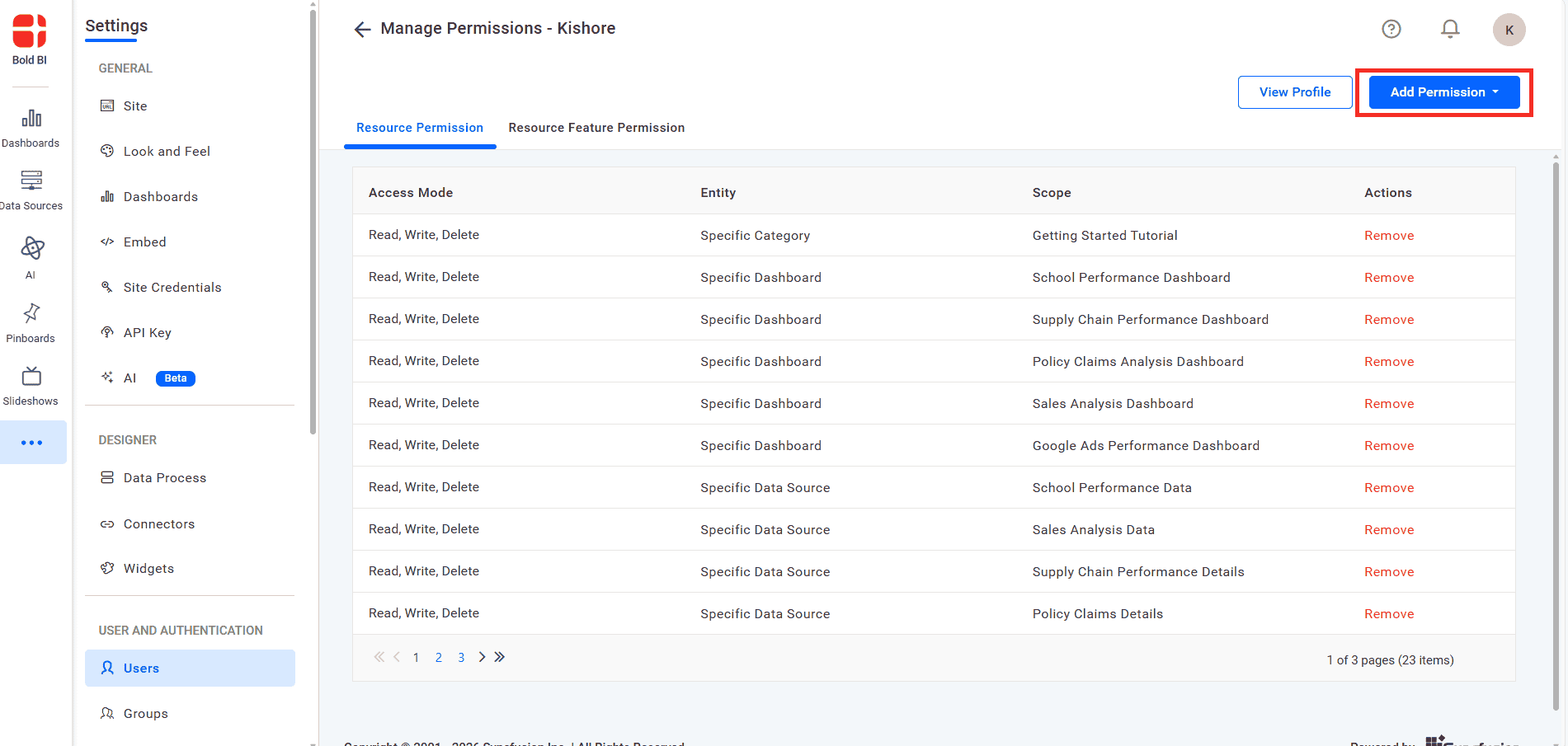
Click the Add Permission and choose Resource Feature Permission from the dropdown. Then configure the entity, scope, and access mode in the dialog and click Add to assign the feature permissions.
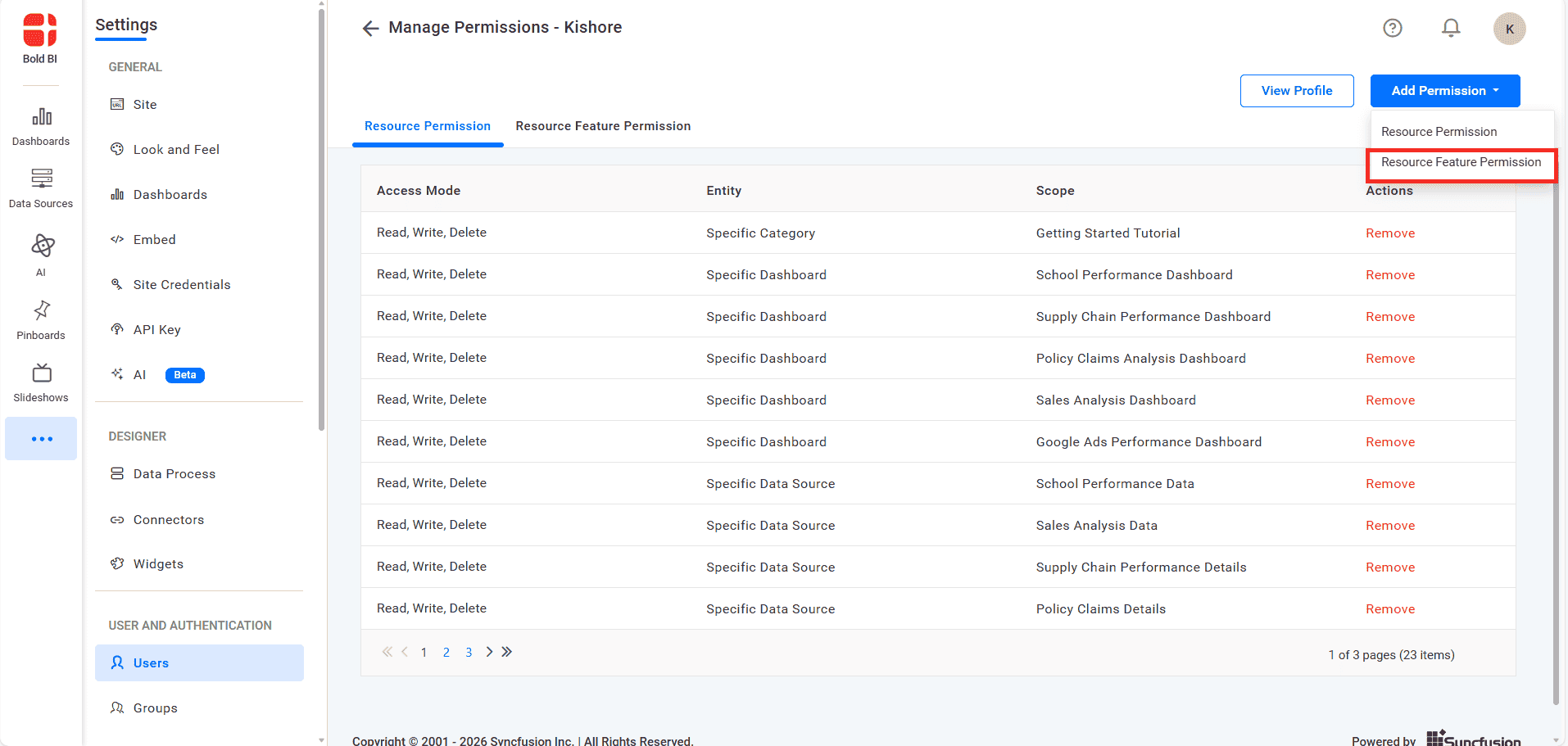
Permissions are organized using the following structure:
- Entity – Scope – Access Mode
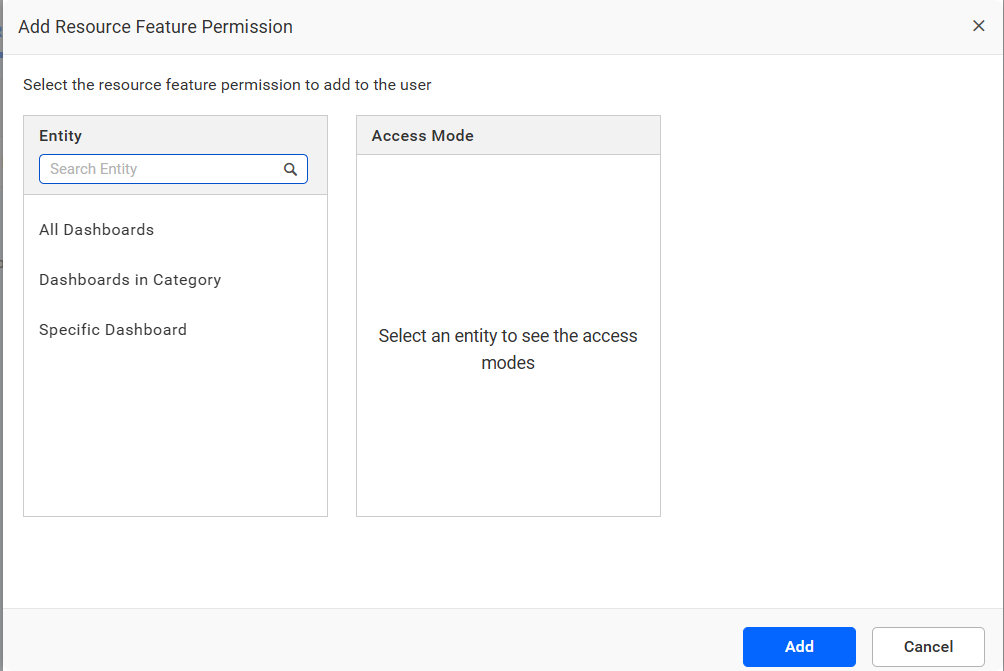
Entity
| Entity | Description |
| All Dashboards | Applies the selected feature permissions to all dashboards available in the site. |
| Dashboards in Category | Applies the selected feature permissions to all dashboards within the specific category. |
| Specific Dashboard | Applies the selected feature permissions to one or more specific dashboards. |
Scope
Scope selection is only available for Dashboards in Category and Specific Dashboard types.
-
Dashboards in Category – displays the list of available categories.
-
Specific Dashboard – displays the list of dashboards.
Access Modes
The following feature actions can be configured under Resource Feature Permission:
| Access Mode | Description |
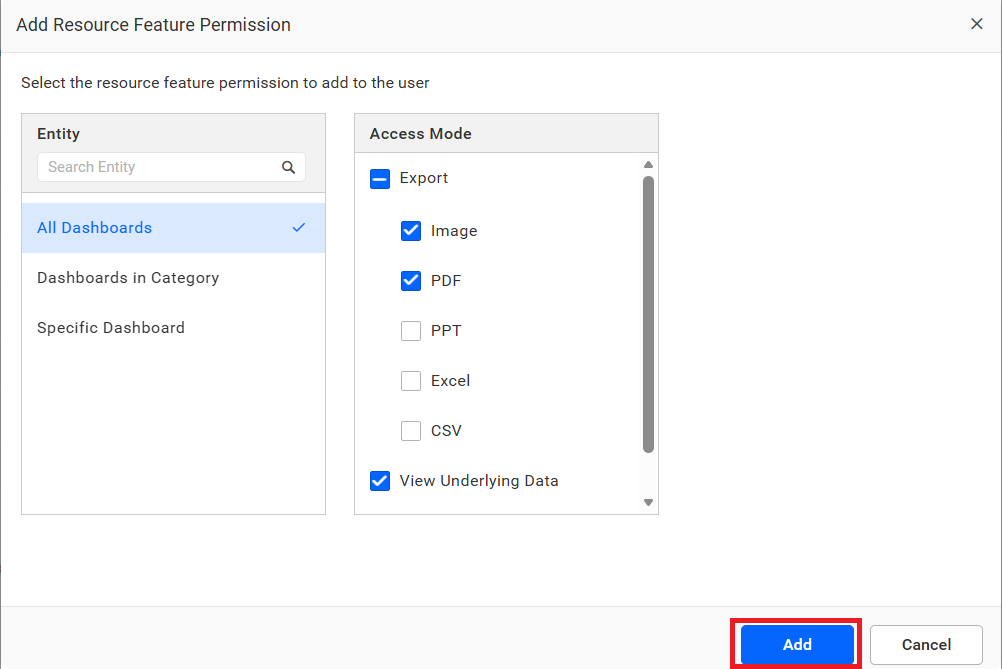
| Export | Allows users to export dashboard as Image, PDF, PPT, Excel, and CSV. |
| View Underlying Data | Allows users to view the underlying data of dashboard widgets. |
| Dashboard Parameters | Allows users to access and modify dashboard parameters |
Adding a Resource Feature Permission
To assign feature permissions, select the required Entity, configure the Scope (if applicable), and enable the feature actions under Access Mode.
All Dashboards
When All Dashboards is selected, the configured feature actions will be applied to every dashboard in the site. Scope selection is not required. Users will be able to perform only the enabled feature actions across all dashboards.
Dashboards in Category
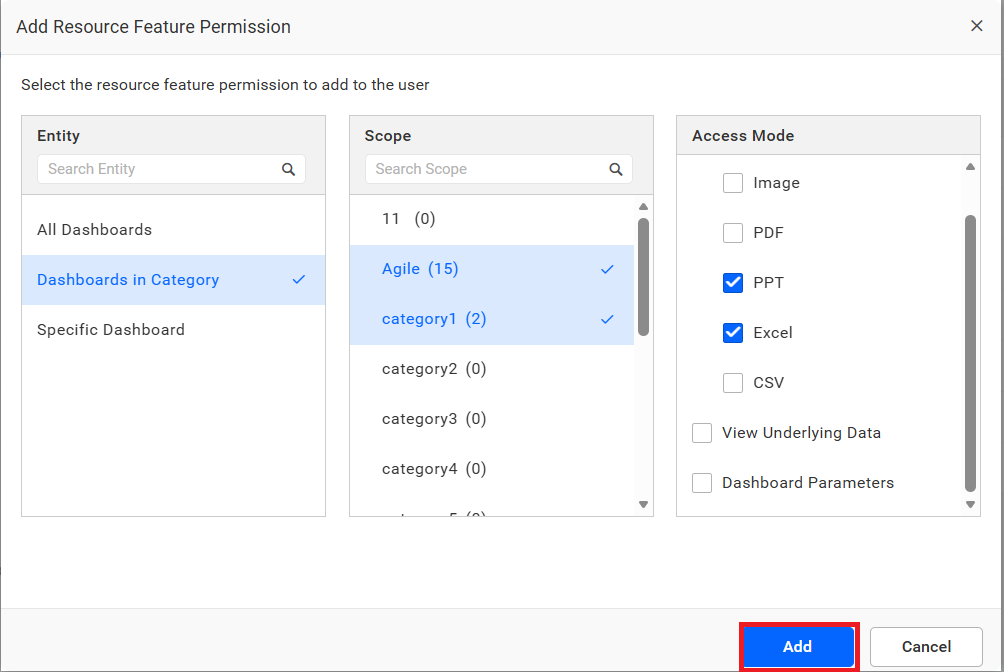
When Dashboards in Category is selected, feature permissions will be applied to all dashboards under the chosen category. The Scope panel displays the list of available categories. Select one or more categories, and the enabled feature actions will apply to all dashboards within those categories.
Specific Dashboard
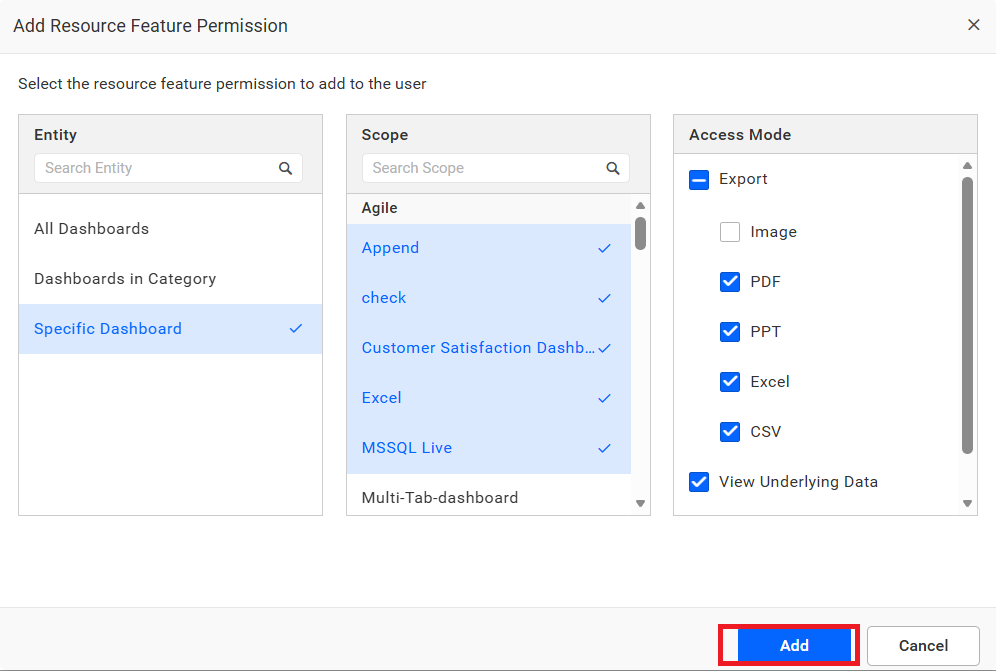
When Specific Dashboard is selected, feature permissions can be assigned at the individual dashboard level. The Scope panel displays the dashboards grouped by category. Select one or more dashboards, and the enabled feature actions will apply only to the selected dashboards.
Result of Applied Feature Permissions
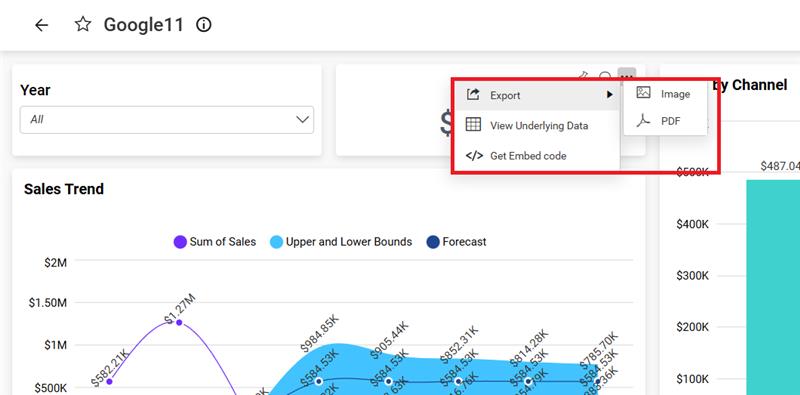
After applying feature permissions, only the allowed actions will be displayed in the dashboard options menu. For example, if actions such as Export, View Underlying Data, and Get Embed Code are enabled, only these options will be visible when accessing the dashboard. The image below shows the result of applying feature permissions under the All Dashboards entity.
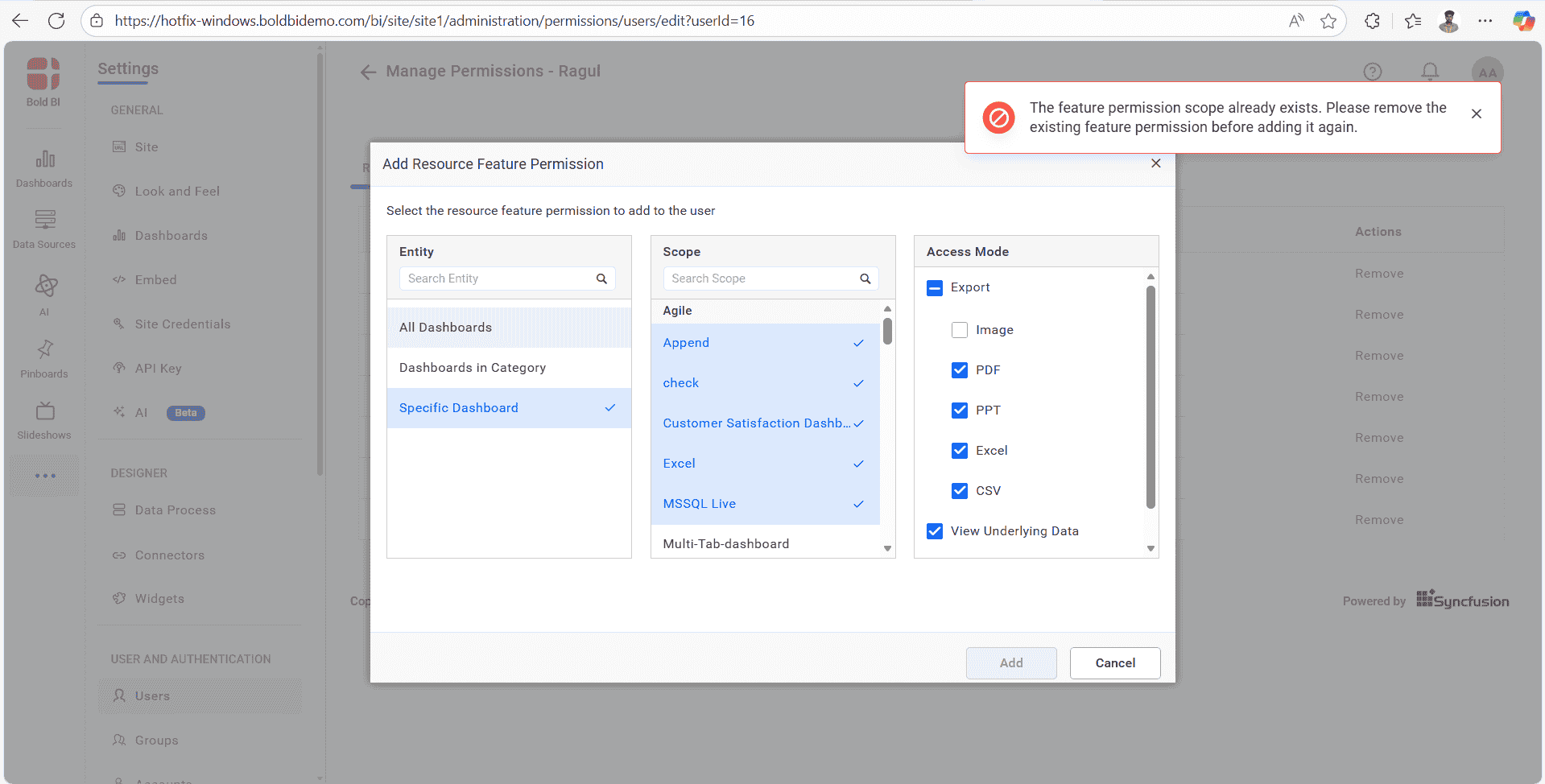
NOTE: If a feature permission is already assigned, attempting to add the same permission again will display an error message, as shown below.
Permission Precedence
The permission evaluation follows a defined order. This ensures that the final access result for each action or export format is predictable and consistent.
Scope Precedence
Permissions are evaluated in the following order of priority:
- Specific Dashboard
- Dashboards in Category
- All Dashboards
The system stops at the first scope where a matching permission is found. Lower scopes are not considered once a rule exists at a higher scope.
Principal Priority within the Same Scope
When multiple principals have permissions in the same scope, the following priority is applied:
- User
- Group
User‑level permissions always take precedence over Group‑level permissions within the same scope.
Conflict Resolution
If a single principal (User or Group) has more than one permission value for the same action, and the values are different:
- A deny value overrides an allow value.
- Allow is applied only when all values are allow.
This ensures that deny always acts as a protective rule.
Evaluation Logic
For each action and export format:
- The system checks permissions in the defined scope order.
- If both User and Group permissions exist in the same scope, the User rule is preferred.
- If a principal has conflicting values, deny is chosen over allow.
Additional Precedence Rules
These rules clarify how permissions are evaluated when multiple principals define access at the Specific Dashboard level, which is the highest‑priority scope.
Specific Dashboard: User and Group
When both User and Group permissions are set at the Specific Dashboard level:
- The User permission is always used.
- The Group permission is ignored at this level.
- This applies to every action and every export format on that dashboard.
This ensures that a direct User assignment has full control over access.
Specific Dashboard: Multiple Groups
When the user belongs to more than one Group and those Groups all define permissions for the same Specific Dashboard, the system evaluates each action separately:
- If any Group assigns a deny, the final permission is deny.
- If all Groups assign allow, the final permission is allow.
This rule prevents access from being unintentionally granted if even one Group intends to block an action.
Manage permissions - Users
Please visit Manage user permissions for more information on how to add and manage permissions for a user.
Manage permissions - Groups
Please visit Manage group permissions for more information on how to add and manage permissions for a group.
- Entity
- Scope
- Access Modes
- Adding a Resource Feature Permission
- Permission Precedence
- Additional Precedence Rules
- Manage permissions - Users
- Manage permissions - Groups
Having trouble getting help?
Contact Support- Entity
- Scope
- Access Modes
- Adding a Resource Feature Permission
- Permission Precedence
- Additional Precedence Rules
- Manage permissions - Users
- Manage permissions - Groups
Having trouble getting help?
Contact Support