
Connecting Bold BI to Optimizely data source
The Bold BI dashboard designer supports connecting to Optimizely web services through the REST API.
Choose Optimizely data source
To configure the Optimizely data source, follow the below steps:
-
Click on the Data Sources button in the configuration panel to add a new data connection.
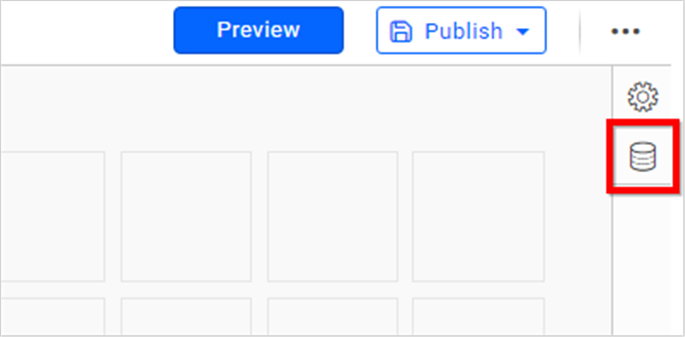
-
Click CREATE NEW to launch a new connection from the connection panel.
-
Select the Optimizely connection in the connection panel.
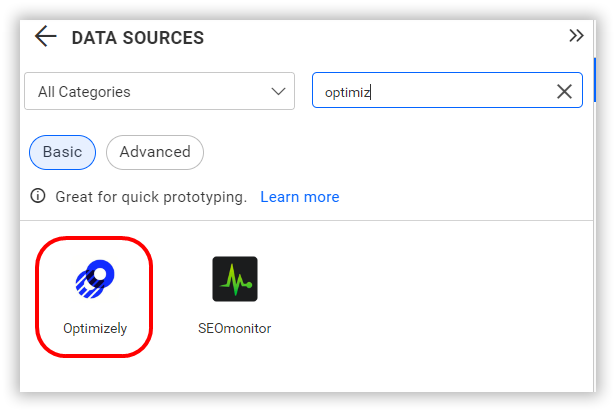
NOTE: You can also create a data source from the home page by clicking on the Data Sources menu on the left menu panel and selecting Create Data Source from the data sources page.
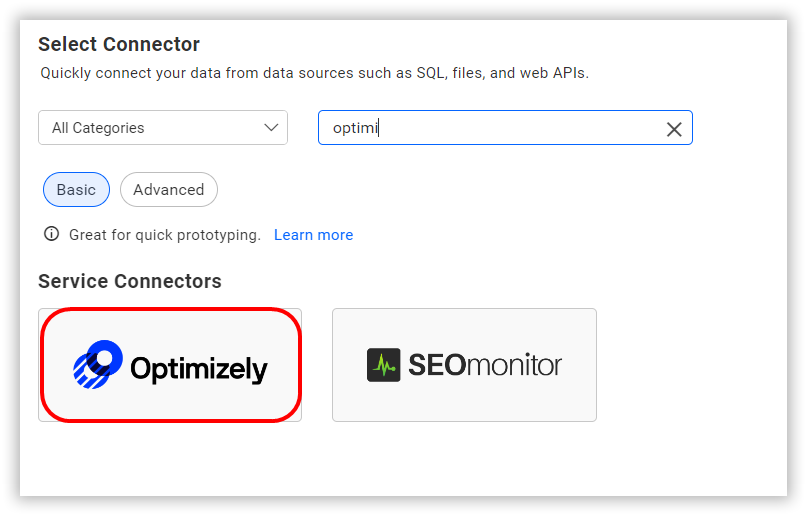
Create Optimizely data source
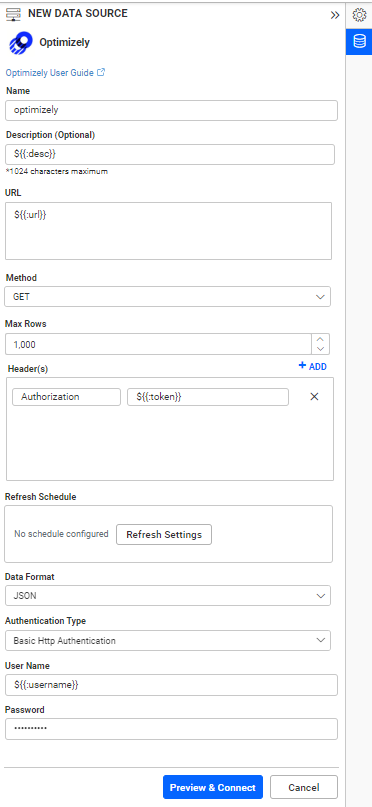
Once you click the Optimizely data source, the NEW DATA SOURCE configuration panel will open. Follow the below steps to create Optimizely data source.
-
Enter a name and description (optional) for the data source.
-
Enter a valid Optimizely REST API endpoint in the URL textbox. Refer to the Optimizely API documentation for more details.
Example:
https://%3cyour-account%3e.api-us1.com/api/3/connections -
Select the GET method for the REST API in the Method combo box.
-
In Max Rows, enter the maximum number of rows to be fetched from the Optimizely data source. This value is used to fetch the data from Optimizely data source via pagination.
-
Choose a time interval for the Refresh Settings using the combo box, to periodically trigger the REST API request and keep the data in sync with our dashboard.
-
Select JSON data type in Data Format combo box.
-
Replace
<:your_app_token>under Headers with a valid bearer token. -
Choose None under Authentication Type as authentication is done through header.
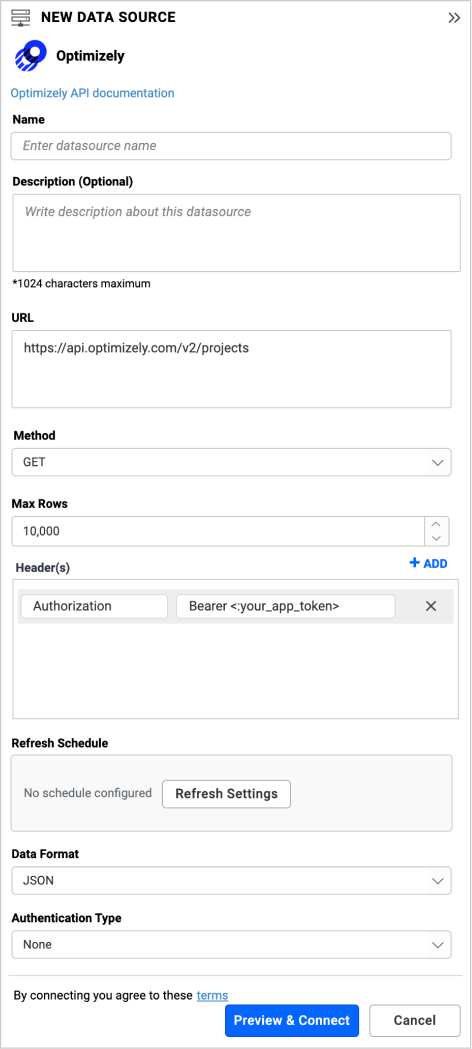
You can also edit the connection information set here using the Edit Connection option.
How do I get App Token for connecting Optimizely data source?
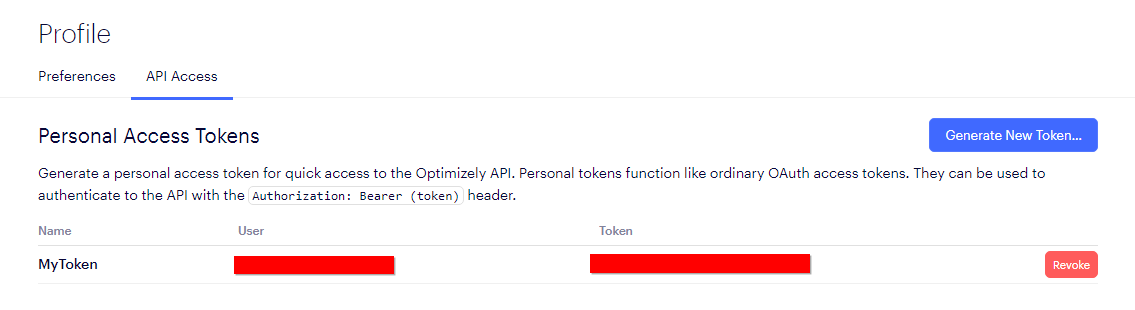
- Login to Optimizely with the valid credentials and go to Profile -> API Access.
- Find your API token here. Click Generate new token with an appropriate name, if you don’t have an API token yet.
- Replace
<:your_app_token>with this Personal access token for Optimizely data source in Bold BI Dashboard.
Additional information
| Max Rows | Most REST APIs return only a limited amount of data on a single API request. To retrieve the necessary amount of data, you can set a value in this field. Pagination is handled internally and will fetch the required data. |
| Refresh Settings | The period of time before the next refresh call is triggered. This will automatically trigger a call for the API configured in the data source to keep the data up to date. If you do not want to sync your new data, choose 'Never'. |
Setting up the URL
- Query the /Projects endpoint.
- From the listed information get the id of the specific Project.
Replace it in the URL to query a particular experiments:
https://api.optimizely.com/v2/projects/15269830028/experiments/
For more information on the API endpoints available for this data source, refer to their official API Documentation
Sample queries
Projects
https://api.optimizely.com/v2/projects
Plans
https://api.optimizely.com/v2/plan
Experiments
`https://api.optimizely.com/v2/projects/15269830028/experiments/’
Preview and data import
-
Click Preview & Connect to connect with the configurations that have been set.
-
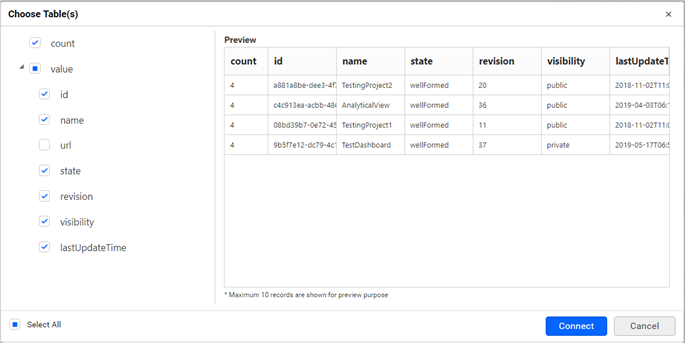
The Choose Schema(s) dialog opens. The schema represents the key fields of JSON data retrieved from Optimizely Rest API request. This dialog displays a list of schemas in a treeview and its corresponding values in grid for preview. Select required schema(s) from treeview to use in designer and click Connect.
-
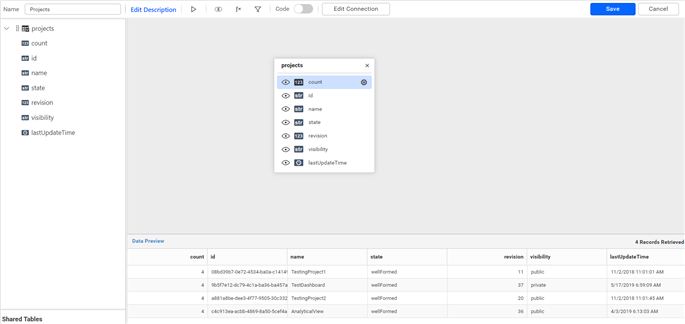
Now, the data design view page with the selected table schema opens. Drag and drop the table.
-
Click Save to save the data source with a relevant name.
Connect using custom attribute and dashboard parameter
We have added support for custom attributes and dashboard parameters in the data source connection. You can now connect to the data source using custom attributes or dashboard parameters.
Custom Attribute
Dashboard Parameter
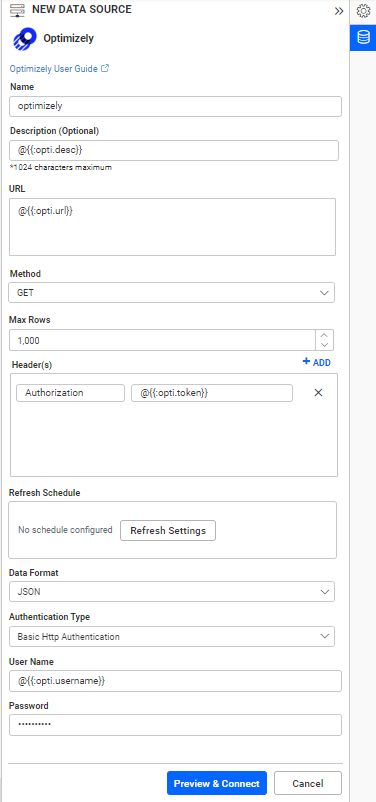
Note: Refer to the Dashboard Parameter Documentation and Custom Attributes Documentation for more details.